1. Introduction
The ARTPIXEL Novastar Taurus TB60 is an advanced LED display controller and multimedia player designed for high-performance visual applications. It features a powerful quad-core ARM A55 processor, supports H.264/H.265 4K@60Hz video decoding, and offers versatile control options for managing LED screens. This manual provides essential information for setting up, operating, and maintaining your TB60 device.
2. Product Overview
2.1 Package Contents
Upon unpacking, ensure all items are present:
- Novastar Taurus TB60 LED Display Controller Unit
- Wi-Fi Antenna
- Power Cable
- Documentation (Quick Start Guide/Manual)

The Novastar TB60 LED Display Controller is shown within its protective packaging. The device is nestled in custom foam inserts, ensuring secure transport, with a quick start guide or manual visible on top.
2.2 Device Layout
Familiarize yourself with the ports and indicators on the TB60 unit.
Front/Top Panel

This image displays the front panel of the Novastar TB60, highlighting the power indicator, cloud status light, LED output indicators, a USB port, and four Ethernet output ports (labeled 1-4). Also visible are the physical switch, SIM card slot, reset button, and system run indicator.
- SWITCH: Power button.
- SIM CARD: Slot for a 4G module SIM card (module sold separately).
- RESET: System reset button.
- SYS RUN: System running indicator.
- PWR CLOUD: Power and cloud connection status indicators.
- USB: USB port for configuration or media.
- LED OUT 1-4: Ethernet output ports for connecting to LED display modules.
Rear Panel
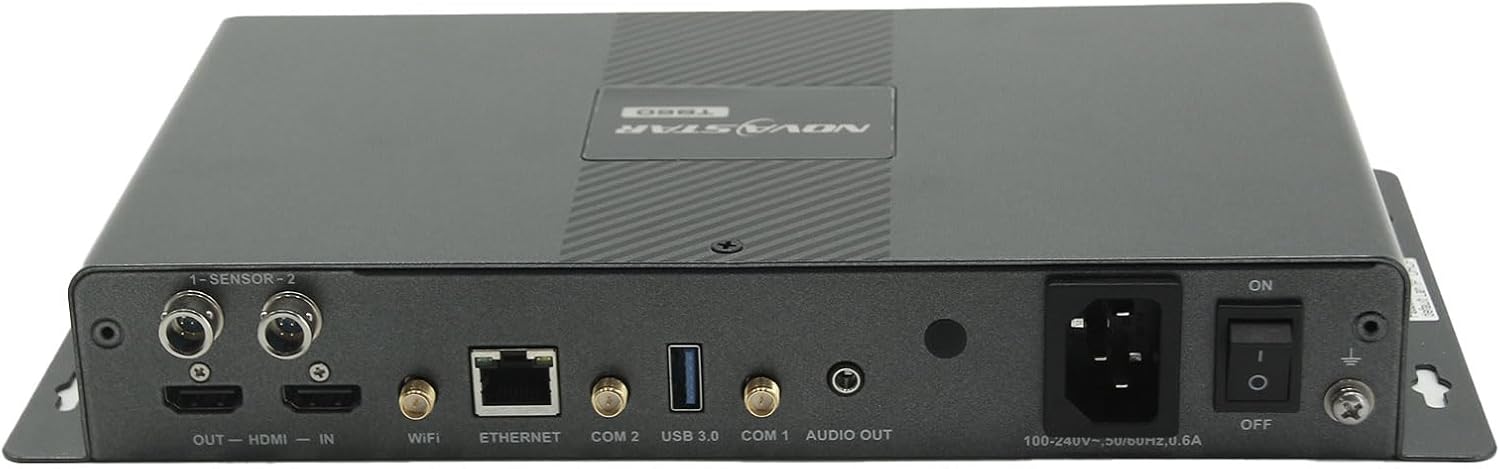
The rear panel of the Novastar TB60 is shown, featuring sensor input ports (1-SENSOR-2), HDMI input and output ports, Wi-Fi antenna connectors, an Ethernet port, two COM ports (COM1, COM2), a USB 3.0 port, an audio output jack, the main power input, and an ON/OFF power switch.
- 1-SENSOR-2: Sensor input ports.
- HDMI OUT: HDMI output for video.
- HDMI IN: HDMI input for external video sources.
- WIFI: Connectors for Wi-Fi antennas.
- ETHERNET: Network port for LAN connection.
- COM1, COM2: Serial communication ports.
- USB 3.0: High-speed USB port.
- AUDIO OUT: 3.5mm audio output jack.
- Power Input: AC power connector (100-240V~, 50/60Hz, 0.6A).
- ON/OFF: Main power switch.
2.3 Included Accessories

This image presents the Novastar TB60 unit alongside its essential accessories: a Wi-Fi antenna for wireless connectivity and a power cable for electrical supply.
3. Setup Instructions
3.1 Power Connection
- Connect the provided power cable to the power input port on the rear panel of the TB60.
- Plug the other end of the power cable into a suitable AC power outlet (100-240V~, 50/60Hz).
3.2 Network Connection
The TB60 supports multiple network connectivity options:
- Ethernet: Connect an Ethernet cable from your network router/switch to the ETHERNET port on the rear panel.
- Wi-Fi: Screw the provided Wi-Fi antenna(s) onto the WIFI connectors on the rear panel. Configure Wi-Fi settings via the control software.
- 4G (Optional): If using a 4G module (purchased separately), insert the SIM card into the SIM CARD slot on the front panel.
3.3 LED Display Connection
- Connect Ethernet cables from the LED OUT ports (1-4) on the front panel to your LED display modules.
- Ensure the cabling sequence matches the configuration of your LED display.
3.4 Video Input (Optional)
If using an external video source, connect an HDMI cable from your source device to the HDMI IN port on the rear panel.
3.5 Initial Power On
- After all connections are made, flip the ON/OFF switch on the rear panel to the 'ON' position.
- Press the 'SWITCH' button on the front panel to power on the device.
- Observe the PWR and SYS RUN indicators for proper startup.
4. Operating Instructions
The Novastar TB60 offers flexible operation modes and content management.
4.1 Operating Modes
- Asynchronous Mode: The TB60 uses its internal video source for playback, storing content on its 16GB internal storage.
- Synchronous Mode: The TB60 displays video content from an external source connected via the HDMI IN port.
4.2 Content Publishing and Control
Content can be published and screens controlled using various methods:
- Local Control: Use a computer, mobile phone, or tablet connected to the same local network.
- Remote Control: Publish content and control screens from anywhere, anytime, via cloud services (requires internet connectivity).
- Monitoring: Monitor screen status and performance remotely.
Refer to the specific configuration software documentation for detailed instructions on content creation, scheduling, and publishing.
4.3 Synchronous Playback Across Multiple Screens
For synchronized playback across multiple TB60 units or displays, the device supports:
- NTP Time Synchronization: Network Time Protocol for precise time alignment.
- GPS Time Synchronization: Requires a specified 4G module to be installed for GPS signal reception.
5. Connectivity
The TB60 offers comprehensive connectivity options:
- Video Input/Output: HDMI In, HDMI Out.
- Data Ports: USB (front), USB 3.0 (rear), Ethernet (LAN), LED OUT (4 ports).
- Wireless: Wi-Fi, 4G (with optional module).
- Audio: 3.5mm Audio Out.
- Control/Sensor: COM1, COM2, 1-SENSOR-2 ports.
6. Specifications
| Feature | Detail |
|---|---|
| Processor | Quad-core ARM A55 @1.8 GHz |
| Video Decoding | H.264/H.265 4K@60Hz |
| RAM | 1 GB onboard |
| Internal Storage | 16 GB |
| Max Resolution | 2,300,000 pixels (max width 4096, max height 4096) |
| Video Playback | 1x 4K or 2x 1080p |
| Connectivity | HDMI, USB, Cellular (4G optional), Ethernet, Wi-Fi |
| Connector Type | Micro USB, USB 3.0, HDMI, Ethernet, 3.5mm Audio |
| Color | Black |
| Item Weight | 3.25 pounds (approx. 1.47 kg) |
| Package Dimensions | 15 x 11 x 3 inches (approx. 38 x 28 x 7.6 cm) |
| Model Number | N-TB60 |
7. Maintenance
To ensure optimal performance and longevity of your Novastar TB60:
- Cleaning: Use a soft, dry cloth to clean the exterior of the device. Avoid liquid cleaners or abrasive materials.
- Ventilation: Ensure the device is placed in a well-ventilated area to prevent overheating. Do not block ventilation openings.
- Environment: Operate the device within recommended temperature and humidity ranges. Avoid extreme conditions.
- Firmware Updates: Periodically check for and install official firmware updates to enhance performance and security. Refer to the manufacturer's website or software for update procedures.
8. Troubleshooting
If you encounter issues with your TB60, try the following basic troubleshooting steps:
- No Power:
- Check if the power cable is securely connected to both the device and the power outlet.
- Ensure the ON/OFF switch on the rear panel is in the 'ON' position and the front 'SWITCH' button is pressed.
- Verify the power outlet is functional.
- No Display Output:
- Confirm that Ethernet cables from LED OUT ports are correctly connected to the LED display.
- Check the LED display's power and input settings.
- Ensure the correct operating mode (synchronous/asynchronous) is selected and configured.
- Network Connection Issues:
- For Ethernet, check cable connections and router status.
- For Wi-Fi, ensure antennas are attached and Wi-Fi settings are correctly configured in the software.
- For 4G, verify SIM card insertion and module functionality.
- Content Playback Problems:
- Ensure media files are in supported formats and resolutions.
- Verify content has been successfully published to the device.
- Check internal storage capacity if using asynchronous mode.
If problems persist, consult the detailed software documentation or contact customer support.
9. Warranty and Support
For warranty information, please refer to your purchase documentation or contact your reseller. For technical support, inquiries, or assistance with configuration software, please contact Shenzhen Artpixel Technology Co., Limited, the manufacturer.
Contact Information: Please refer to the contact details provided with your product or on the official ARTPIXEL website.


