
Genuine Original HMAA4GR7AJR4N-XN
Genuine Original HMAA4GR7AJR4N-XN 32GB PC4-3200AA Server Memory Module User Manual
Introduction
This manual provides essential instructions for the installation, operation, and maintenance of your Genuine Original HMAA4GR7AJR4N-XN 32GB 1RX4 PC4-3200AA Server Memory Module. Please read this guide carefully before installation to ensure proper functionality and longevity of the product.
Product Overview
The Genuine Original HMAA4GR7AJR4N-XN is a high-performance server memory module designed for reliable operation in demanding server environments. It provides 32GB of DDR4 RAM with a speed of PC4-3200AA.
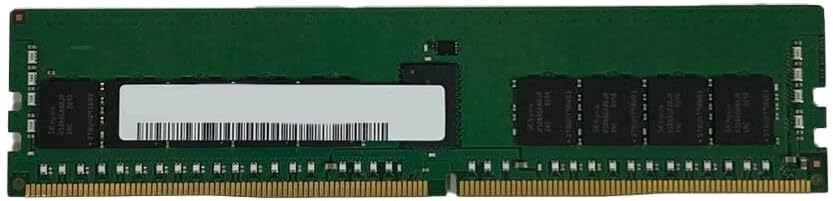
Image 1: Genuine Original HMAA4GR7AJR4N-XN 32GB 1RX4 PC4-3200AA Server Memory Module. This image displays the green PCB (Printed Circuit Board) of the memory module with black memory chips visible on one side and a white label with a barcode on the other. The gold-plated contacts at the bottom are clearly visible.
Specifications
| Feature | Detail |
|---|---|
| Model Number | HMAA4GR7AJR4N-XN |
| Capacity | 32GB |
| Rank | 1RX4 |
| Type | PC4-3200AA (DDR4) |
| Form Factor | DIMM (Server Memory) |
| Feature | Dust Resistant |
Setup and Installation
- Preparation: Ensure your server is powered off and unplugged from the power source. Open the server chassis according to the manufacturer's instructions.
- Static Discharge: Before handling the memory module, discharge any static electricity by touching a grounded metal object (e.g., the server chassis). Consider wearing an anti-static wrist strap.
- Locate DIMM Slots: Identify the available DIMM (Dual In-line Memory Module) slots on your server's motherboard. Consult your server's manual for specific slot configurations and population rules.
- Insert Module: Gently align the memory module with the DIMM slot, ensuring the notch on the module matches the key in the slot. Apply even pressure to both ends of the module until the retaining clips on the sides snap into place, securing the module.
- Verify Installation: Double-check that the module is fully seated and the clips are locked.
- Close Chassis: Close the server chassis and reconnect the power.
- Power On: Power on the server. The system should automatically detect the new memory. Verify the memory capacity in the BIOS/UEFI settings or operating system.
Important: Always refer to your server's specific documentation for detailed memory installation procedures and compatibility guidelines.
Operating Principles
This memory module operates as Random Access Memory (RAM) within your server system. It provides temporary storage for data and program instructions that the CPU actively uses, enabling faster access compared to slower storage devices like hard drives or SSDs. The PC4-3200AA designation indicates it is DDR4 memory operating at a data rate of 3200 MT/s (MegaTransfers per second), with 'AA' typically referring to specific timing parameters.
The 1RX4 rank configuration means it is a single-rank module with x4 data width chips, which can influence memory interleaving and overall system performance depending on the server's memory controller capabilities.
Maintenance
- Dust Resistance: This module features a dust-resistant design, contributing to its reliability in server environments.
- Cleaning: For general maintenance, ensure the server environment is kept clean and free of excessive dust. If cleaning is necessary, gently use compressed air to remove dust from the memory modules and surrounding components. Avoid touching the gold contacts or memory chips directly.
- Environmental Conditions: Operate the server within recommended temperature and humidity ranges to prevent component degradation.
Troubleshooting
- System Not Booting / No Display:
- Ensure the memory module is correctly seated in its slot. Re-seat the module firmly.
- Verify compatibility with your server's motherboard and CPU.
- Test the module in a different, known-good DIMM slot or with another compatible memory module if available.
- Incorrect Memory Capacity Detected:
- Check server BIOS/UEFI settings to ensure memory is recognized correctly.
- Confirm that all modules are fully seated.
- Refer to your server's manual for proper memory population rules (e.g., specific slots for single/dual CPU configurations).
- System Instability / Crashes:
- Run memory diagnostic tools (e.g., MemTest86) to check for errors.
- Ensure the server's firmware (BIOS/UEFI) is up to date.
- Check for overheating issues within the server chassis.
- Error Codes / Beep Codes: Consult your server's manual for the meaning of specific error codes or beep patterns, which often indicate memory-related issues.
Warranty and Support
For information regarding warranty coverage and technical support for your Genuine Original memory module, please refer to the documentation provided with your purchase or visit the official Genuine Original website. Keep your proof of purchase for warranty claims.
Ask a question about this manual
Ask about setup, troubleshooting, compatibility, parts, safety, or missing instructions. Manuals+ will review the question and use this page’s manual context to help answer it.