
Introduction
This manual provides comprehensive instructions for the setup, operation, maintenance, and troubleshooting of your RK ROYAL KLUDGE M70 Wireless Mechanical Keyboard. The M70 features a compact 75% layout, macro keys, multi-mode connectivity, a digital display, and hot-swappable switches, designed for versatile use across gaming, office, and personal computing.
What's in the Box
- RK M70 Mechanical Keyboard (1x)
- Keycap and Switch Puller (1x)
- USB Type-C Wired Cable (1x)
- Replace Switches (4x)
- User Manual (this document)
Setup
The RK ROYAL KLUDGE M70 keyboard supports three connection modes: 2.4GHz Wireless, Bluetooth, and Wired (USB Type-C). Follow the instructions below to set up your preferred connection.
Connection Modes
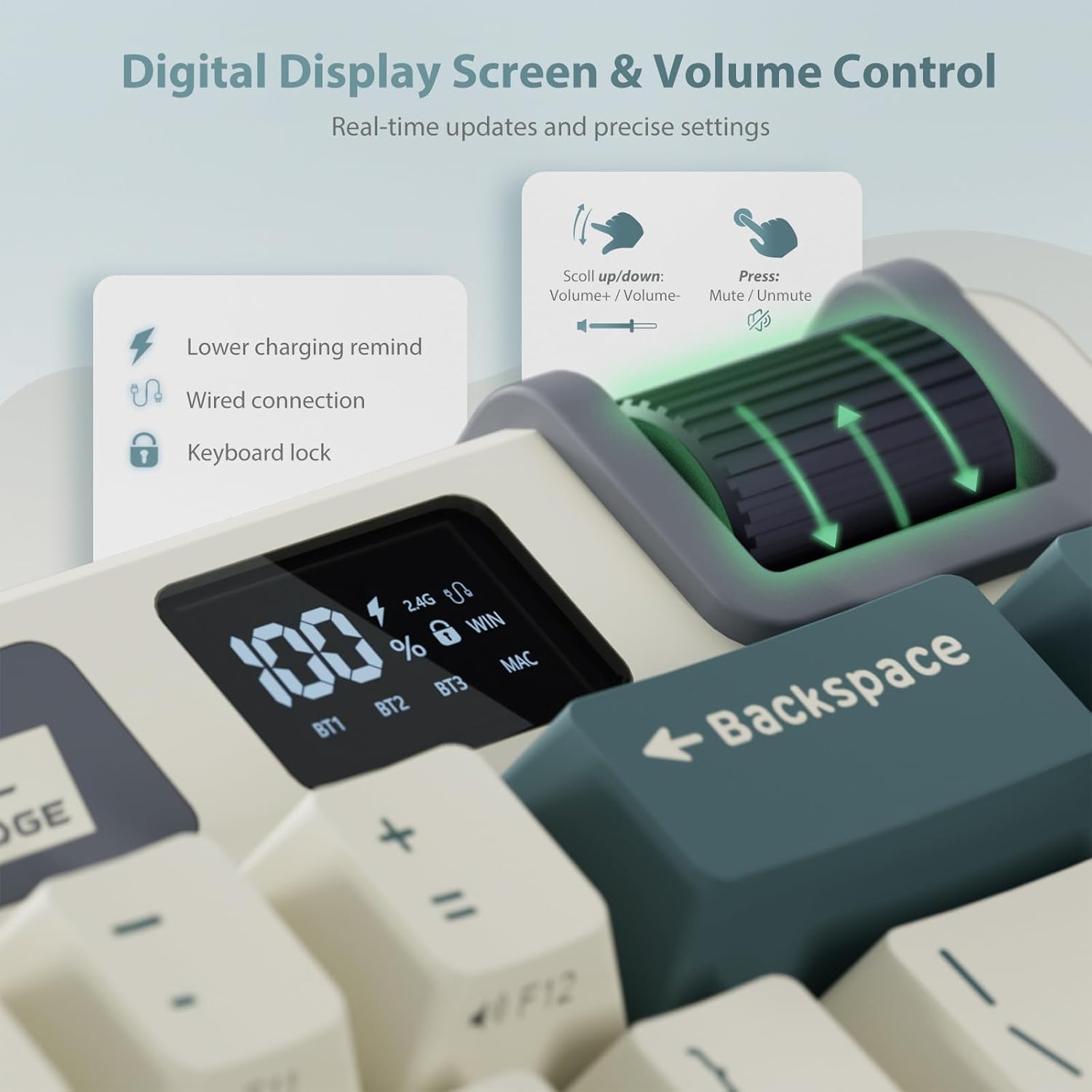
Figure 1: Triple Mode Connection Overview
The keyboard offers versatile connectivity options. You can switch between 2.4GHz wireless, Bluetooth, and wired modes using the dedicated shortcuts. This allows for seamless control across multiple devices.

Figure 2: Hub Design with USB-A and Type-C Ports
The keyboard features a convenient hub design with both USB-A and Type-C ports. The Type-C port is used for wired connection and charging, while the USB-A port can connect external devices.
2.4GHz Wireless Mode
- Locate the 2.4GHz USB dongle (often stored in a compartment on the keyboard).
- Plug the dongle into an available USB port on your computer.
- On the keyboard, switch to 2.4GHz mode using the designated switch or key combination (refer to the keyboard's top panel for indicators).
- The keyboard should automatically connect.
Bluetooth Mode
- On the keyboard, switch to Bluetooth mode (BT1, BT2, or BT3) using the designated switch or key combination.
- The keyboard's display will show the active Bluetooth channel.
- On your device (computer, tablet, phone), enable Bluetooth and search for new devices.
- Select "RKM70" from the list of available devices to pair.
- The keyboard can control up to 3 devices via Bluetooth.
Wired Mode
- Connect the provided USB Type-C cable to the keyboard's Type-C port.
- Connect the other end of the cable to a USB port on your computer.
- The keyboard will automatically switch to wired mode and begin charging.
Operating Instructions
The RK ROYAL KLUDGE M70 keyboard is equipped with several features to enhance your user experience. This section details how to use these functions.
Digital Display Screen & Volume Control Knob

Figure 3: Digital Display and Volume Knob
The integrated digital screen provides real-time updates on battery level, connection status (2.4G, BT1/2/3, Wired), and system mode (Win/Mac). The multi-function knob allows for easy volume control:
- Scroll up: Increase volume
- Scroll down: Decrease volume
- Press: Mute/Unmute audio
Video 1: RK M70 Mechanical Keyboard Features Overview
This video demonstrates various features of the RK M70 keyboard, including its triple-mode connection, knob function for volume control, media keys, system conversion (Win/Mac), hot-swappable PCB, and RGB backlight modes. It provides a visual guide to the keyboard's capabilities.
Programmable Macro Keys (M1-M5)

Figure 4: Programmable Macro Keys
The M1-M5 keys on the left side of the keyboard are dedicated macro keys. These can be customized to trigger complex processes, frequently used functions, or specific shortcuts. Programming is done via the online web software, which allows for real-time updates and configuration without requiring a download.
- Set shortcuts: Assign common key combinations.
- Assign macros: Record and assign sequences of actions.
- Switch layer: Change keyboard layers for different functions.
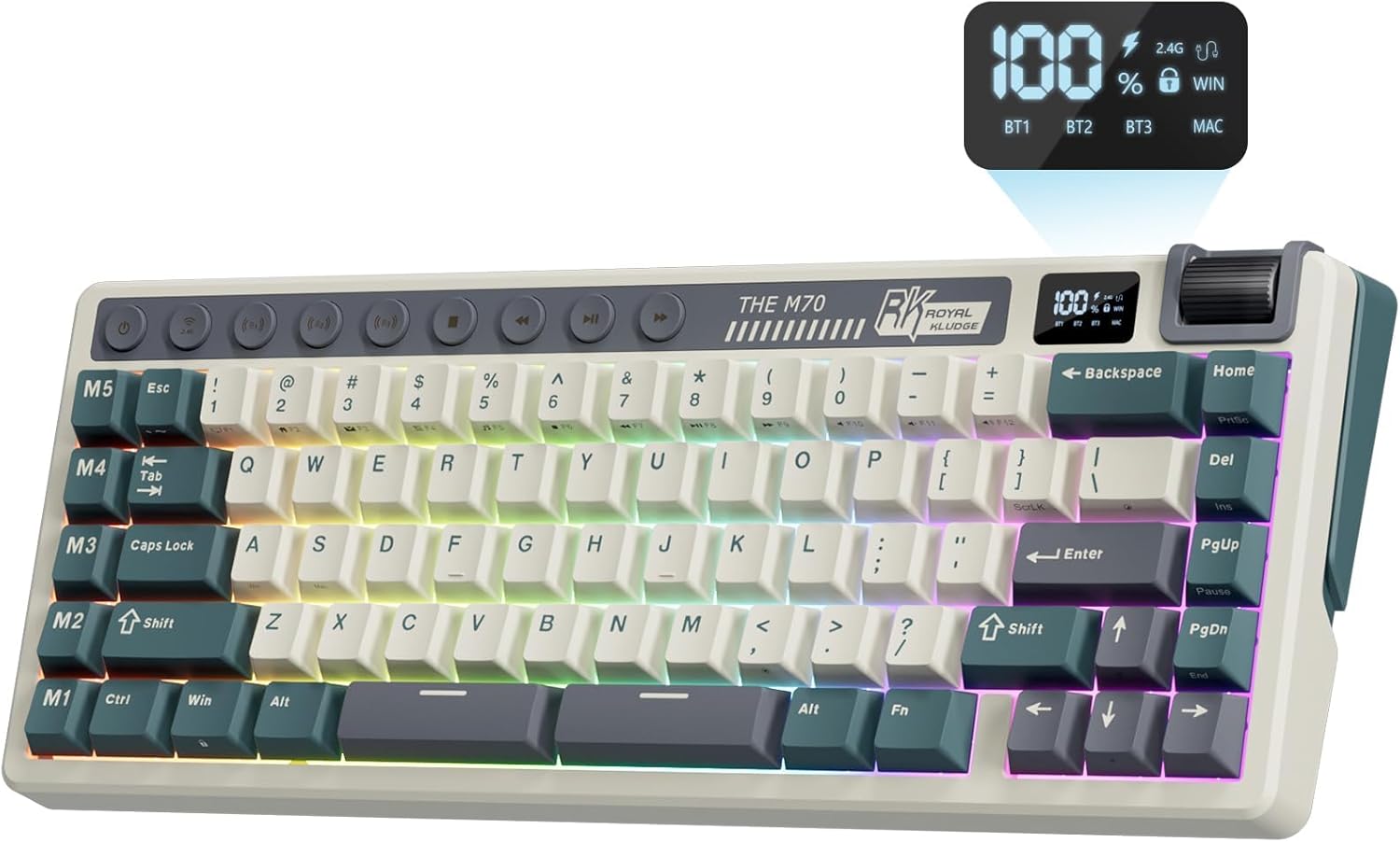
Figure 5: Full Keyboard Layout
This image provides a complete view of the keyboard layout, highlighting the placement of the macro keys (M1-M5), media control buttons, digital display, and volume knob, all designed for efficient input and control.
Hot-Swappable Switches & Gasket Structure

Figure 6: Hot-Swappable Switches
The keyboard features a hot-swappable PCB, supporting both 3-pin and 5-pin mechanical switches. This allows users to easily change switches without soldering, enabling customization of typing feel and sound. The keyboard comes with Tactile Beige switches, offering distinct keystrokes and a tactile experience.

Figure 7: Gasket Structure Components
The M70 is built with a 5-layer sound-absorbing gasket-mounted structure. This design reduces noise and enhances durability, providing a softer and more comfortable typing experience. Key components include doubleshot keycaps, a durable body case, custom switches, IXPE switch pad, latex middle plate cotton, single key slotted PC plate, sound-absorbing cotton, and a PC base gasket.
Battery and Charging

Figure 8: 6000mAh Large Battery
The keyboard is equipped with a 6000mAh battery, providing extended usage times. The digital display shows the current battery percentage. To charge the keyboard, connect it via the USB Type-C cable to a power source or computer.
- Up to 240+ hours with backlight at darkest setting.
- Up to 25+ hours with backlight at brightest setting.
Maintenance
Proper maintenance ensures the longevity and optimal performance of your keyboard.
- Cleaning: Use a soft, dry cloth to wipe down the keyboard surface. For deeper cleaning, use the provided keycap puller to remove keycaps and clean dust and debris with compressed air or a small brush.
- Storage: Store the keyboard in a cool, dry place away from direct sunlight and extreme temperatures.
- Battery Care: For optimal battery life, avoid fully discharging the battery frequently. Charge the keyboard regularly, especially if it will be stored for an extended period.
Troubleshooting
If you encounter issues with your RK ROYAL KLUDGE M70 keyboard, refer to the following common troubleshooting steps:
- Keyboard not responding:
- Ensure the keyboard is charged.
- Check the connection mode (2.4GHz, Bluetooth, Wired) and ensure it matches your device's connection.
- For 2.4GHz, ensure the dongle is securely plugged in.
- For Bluetooth, ensure Bluetooth is enabled on your device and the keyboard is paired. Try re-pairing if necessary.
- For wired mode, ensure the USB-C cable is properly connected to both the keyboard and the computer.
- Keys not registering or double-typing:
- Clean under the keycaps to remove any debris that might be obstructing the switch.
- If a specific switch is faulty, utilize the hot-swappable feature to replace it with one of the spare switches provided.
- RGB backlight issues:
- Ensure the keyboard is not in a low-power state.
- Adjust brightness and mode settings using the keyboard's controls or the online software.
- Macro keys not working:
- Ensure the macro keys are properly programmed using the online web software.
- Verify that the correct keyboard layer is active if you are using layered profiles.
Specifications
| Feature | Detail |
|---|---|
| Product Dimensions | 12.7 x 5.17 x 1.71 inches |
| Item Weight | 2.05 pounds |
| Manufacturer | RK ROYAL KLUDGE |
| Item model number | M70 |
| Batteries | 1 A batteries required (included) |
| Connectivity Technology | 2.4G Wireless, Bluetooth, Wired |
| Keyboard Description | Mechanical |
| Number of Keys | 73 |
| Keyboard backlighting | RGB |
| Special Features | Backlit, Hot-Swappable, Hotkeys and Media Keys, Rechargeable, Volume Roller |
Warranty and Support
For warranty information or technical support, please contact the seller directly through the platform where you purchased the product. The seller for this product is Nine Technology.
You can typically find their contact information by navigating to your order history and selecting the option to "Ask a question" or "Contact Seller."


