1. Introduction
This manual provides comprehensive instructions for the setup, operation, maintenance, and troubleshooting of your KATOVJJTS All-in-One Conference Room PTZ Camera 4K UHD System. This system integrates a high-definition PTZ camera with a 10X optical zoom and a Bluetooth speakerphone, designed to enhance your video conferencing and live streaming experiences. Please read this manual thoroughly before using the product to ensure proper functionality and to prevent damage.
2. Safety Information
Observe the following safety precautions to ensure safe operation and to prolong the life of your device:
- Do not expose the device to moisture, rain, or extreme temperatures.
- Use only the provided power adapter.
- Avoid disassembling or modifying the device. Refer all servicing to qualified personnel.
- Keep the device away from strong electromagnetic fields.
- Ensure proper ventilation around the device to prevent overheating.
3. Package Contents
Carefully unpack the box and verify that all items listed below are present and in good condition:
- Camera Body
- Conference Speakerphone & Microphones
- Power Adapter
- IR Remote Control
- HDMI Cable
- USB 3.0 Cable
- RS232 Cable
- USB Cable (for speakerphone)
- USB-A to C Adapter
- Wireless Dongle (for speakerphone)
- Wall Mount Bracket
- User Manual (this document)

Image: All components included in the product package.
4. Product Overview
The KATOVJJTS All-in-One Conference Room PTZ Camera system is designed for professional video and audio conferencing. It combines a 4K UHD PTZ camera with a 10X optical zoom lens and a Bluetooth speakerphone featuring a 4-MEMS microphone array.

Image: The KATOVJJTS PTZ camera, speakerphone, and remote control.
4.1 Camera Features
- 4K UHD Video: Supports 4K 30fps video quality with an 8.29-megapixel sensor.
- 10X Optical Zoom: Provides clear, detailed images even when zoomed in, maintaining high resolution and color accuracy.
- PTZ Functionality: Offers 350° horizontal rotation and 120° vertical rotation for comprehensive room coverage.
- AI Framing: Automatically adjusts the camera view to keep participants in focus.
- Multiple Outputs: HDMI, USB 3.0, LAN/IP streaming (PoE, RTSP, RTMP).
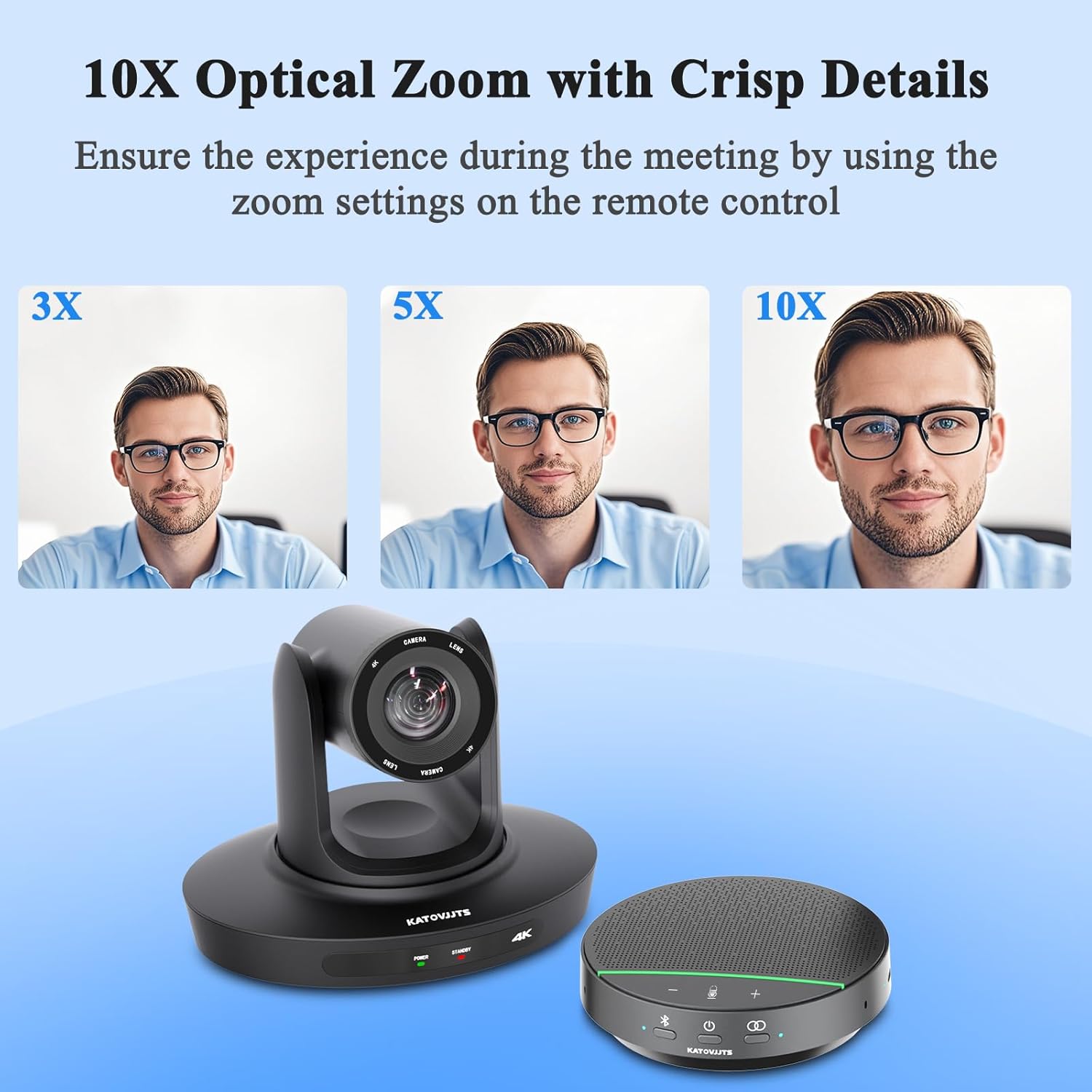
Image: Visual representation of the 10X optical zoom maintaining crisp details.
4.2 Speakerphone Features
- 4-MEMS Microphone Array: Provides 360° voice pickup for clear audio from all directions.
- AI Noise Reduction: Eliminates background noise for enhanced voice clarity.
- Automatic Voice Enhancement: Optimizes speaker's voice for improved audibility.
- Bluetooth Connectivity: Wireless connection to devices.
- Integrated Speaker: Premium Hi-Fi speaker for clear audio output.
- Long Battery Life: 3000 mAh battery offering 7-9 hours of play time.

Image: Internal components and audio features of the speakerphone.
5. Setup Guide
5.1 Physical Connections
Before connecting, ensure all devices are powered off.

Image: Rear panel connections of the PTZ camera.
- Power Connection: Connect the provided power adapter to the DC-12V port on the camera and plug it into a power outlet.
- Video Output:
- HDMI: Connect the HDMI cable from the camera's HDMI port to an HDMI input on your display or capture device.
- USB 3.0: Connect the USB 3.0 cable from the camera's USB 3.0 port to a USB 3.0 port on your computer.
- LAN/IP Streaming (PoE): For network connectivity and Power over Ethernet (PoE), connect an Ethernet cable from the camera's LAN port to a PoE-enabled switch or injector. This allows both power and data transmission over a single cable.
- Audio Input (Line In): If using an external audio source, connect it to the Line In port.
- Control Ports (RS232/RS485): For advanced control using a serial joystick or control system, connect the RS232 or RS485 cable to the respective ports.

Image: Explanation of Power over Ethernet (PoE) functionality.
5.2 Speakerphone Connection
- USB Connection: Connect the speakerphone to your computer using the provided USB cable. It is plug-and-play and requires no additional drivers.
- Bluetooth Connection:
- Power on the speakerphone.
- Press and hold the Bluetooth button until the indicator light flashes, indicating pairing mode.
- On your device (computer, smartphone), search for Bluetooth devices and select the KATOVJJTS speakerphone.
- Once connected, the indicator light will turn solid.
6. Operating Instructions
6.1 Camera Control
The camera can be controlled using the included IR remote control or via network protocols (RS232/RS485, IP control).

Image: The PTZ camera remote control and its functions.
- Pan/Tilt: Use the directional arrows on the remote to move the camera horizontally (pan) and vertically (tilt).
- Zoom: Use the 'TELE' button to zoom in and the 'WIDE' button to zoom out. The 10X optical zoom maintains image clarity.
- Presets: The remote allows you to save and recall specific camera positions. Refer to the remote control section for detailed instructions on setting and recalling presets.
- AI Framing: Activate AI Framing to automatically adjust the camera's pan, tilt, and zoom to keep all detected participants within the frame.

Image: AI Framing feature keeping subjects in focus.
6.2 Speakerphone Operation
- Power On/Off: Press the power button to turn the speakerphone on or off.
- Volume Control: Use the '+' and '-' buttons to adjust the speaker volume.
- Mute: Press the microphone icon button to mute or unmute the microphones.
- Voice Enhancement: The speakerphone automatically applies AI noise reduction and voice enhancement algorithms to optimize audio quality.

Image: 360-degree voice pickup capability of the speakerphone's 4 AI microphones.

Image: Speakerphone battery life and connectivity options.
6.3 Live Streaming and Compatibility
The KATOVJJTS system supports various live streaming protocols and is compatible with popular conferencing and streaming platforms.
- Streaming Protocols: Supports PoE, RTSP, and RTMP for high-quality video transmission and remote live broadcasting.
- Compatible Platforms: Integrates effortlessly with Zoom, Skype, WebEx, Microsoft Teams, Facebook Messenger, GoToMeeting, BlueJeans, Twitch, YouTube Live, Facebook Live, Vmix, and OBS Studio.
- Operating System Compatibility: Fully compatible with Windows, Mac OS, and Chrome OS.
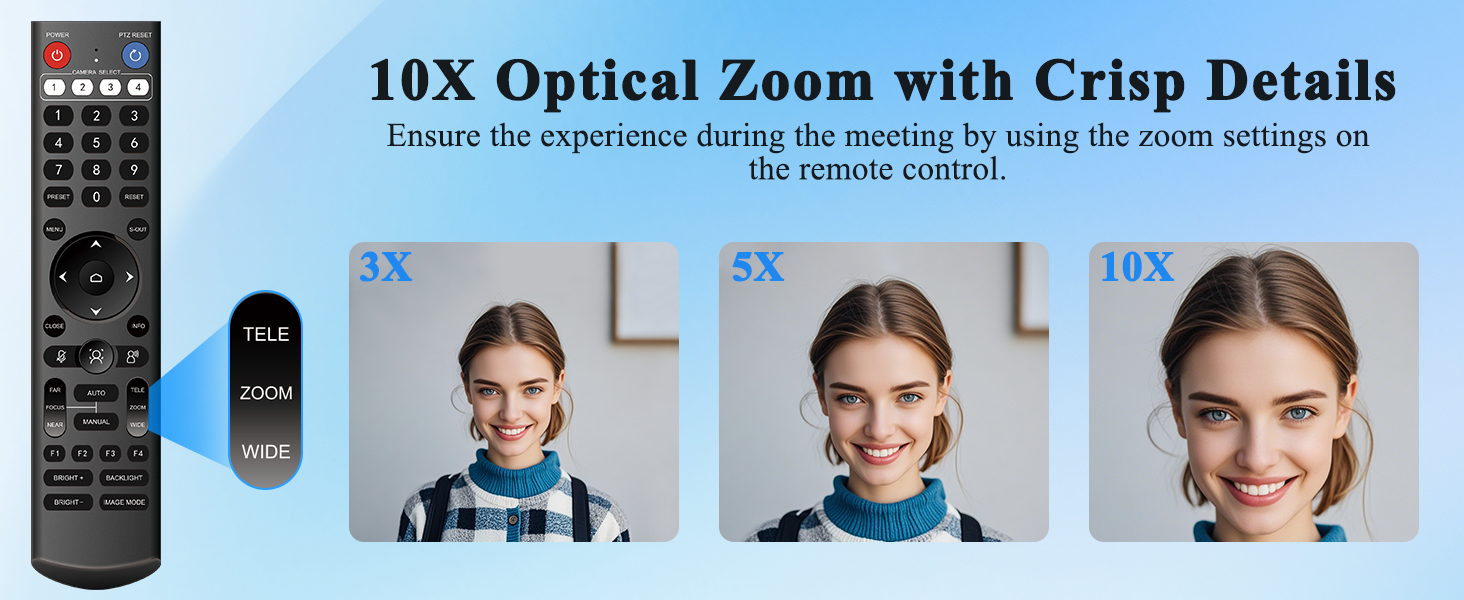
Image: The camera's compatibility with various live streaming and conferencing software.
7. Maintenance
Regular maintenance helps ensure optimal performance and longevity of your KATOVJJTS system.
- Cleaning: Use a soft, dry cloth to clean the camera lens and body. For stubborn smudges, a slightly damp cloth with mild cleaning solution can be used, followed by a dry cloth. Do not use abrasive cleaners or solvents.
- Storage: When not in use for extended periods, store the device in a cool, dry place, away from direct sunlight and dust.
- Firmware Updates: Check the manufacturer's website periodically for any available firmware updates to ensure your device has the latest features and performance improvements.
8. Troubleshooting
If you encounter issues with your KATOVJJTS system, refer to the following common problems and solutions:
| Problem | Possible Cause | Solution |
|---|---|---|
| No video output from camera | Loose cable connection, incorrect input selected on display, camera not powered on, driver issue (USB). | Check all cable connections (HDMI, USB, LAN). Ensure the camera is powered on. Select the correct input source on your display. For USB, verify the camera is recognized by your computer's operating system. |
| Remote control not responding | Dead batteries, obstruction, remote not paired (if applicable). | Replace batteries in the remote control. Ensure there are no obstructions between the remote and the camera's IR receiver. |
| No audio from speakerphone | Speakerphone muted, low volume, incorrect audio output selected on device, Bluetooth not connected. | Check if the speakerphone is muted and adjust volume. Ensure the speakerphone is selected as the audio output device on your computer/smartphone. Re-establish Bluetooth connection if necessary. |
| Microphones not picking up sound | Microphone muted, incorrect audio input selected on device. | Ensure the speakerphone microphones are not muted. Select the speakerphone as the audio input device in your conferencing software or operating system settings. |
| Network/IP streaming issues | Incorrect IP settings, network configuration, firewall blocking. | Verify network cable connection. Check the camera's IP address settings (default may be static; consult advanced setup guides if needed). Ensure your network allows the necessary protocols (RTSP/RTMP) and ports. |
9. Technical Specifications
Detailed specifications for the KATOVJJTS All-in-One Conference Room PTZ Camera system:
| Feature | Specification |
|---|---|
| Brand | KATOVJJTS |
| Model Number | KATOVJJTS01 |
| Item Weight | 8.6 pounds |
| Product Dimensions | 8.5 x 6.5 x 6.3 inches |
| Color | Black |
| Photo Sensor Technology | CMOS (1/2.8" SONY CMOS) |
| Video Capture Resolution | 4K (UHD 30fps) |
| Optical Zoom | 10X |
| Maximum Focal Length | 42 Millimeters |
| Maximum Aperture | 3 f |
| Pan/Tilt Range | Pan: 350°, Tilt: 120° |
| Connectivity Technology | HDMI, USB 3.0, LAN (PoE), RS232, RS485, Bluetooth |
| Video Capture Format | H.264 |
| Supported Audio Format | AAC, PCM |
| Speakerphone Battery | 3000 mAh (7-9 hours play time) |
| Special Features | 2-Way Audio, PTZ-System, AI Framing, Noise Reduction |
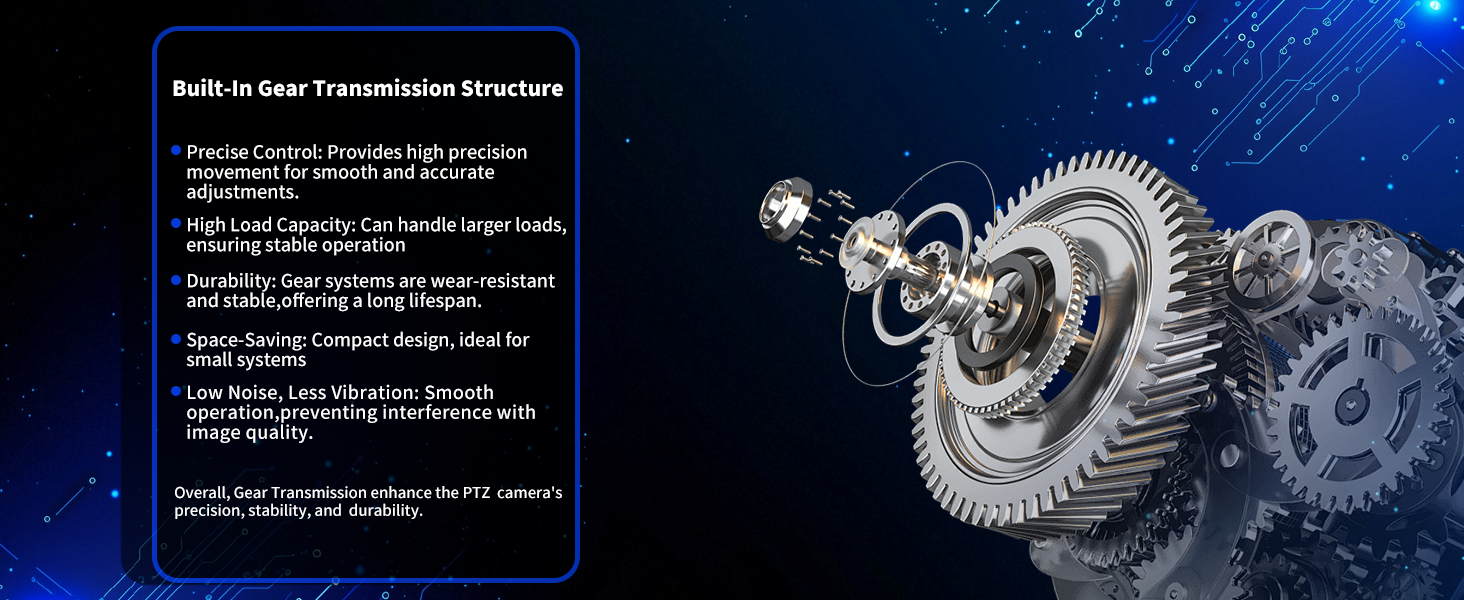
Image: Camera sensor technology details.

Image: Internal gear transmission structure for PTZ movement.
10. Warranty and Support
Specific warranty details for the KATOVJJTS All-in-One Conference Room PTZ Camera 4K UHD System are not provided within this manual. For warranty information, technical support, or service inquiries, please refer to the contact information provided with your purchase documentation or visit the official KATOVJJTS support channels.