
1. Product Overview
The XPPen Magic Drawing Pad X3 Pro is a standalone digital drawing tablet designed for artists and creative professionals. It operates on Android 14, eliminating the need for a separate computer, and features a 12.2-inch paper-like screen with 16384 pressure levels for precise input.
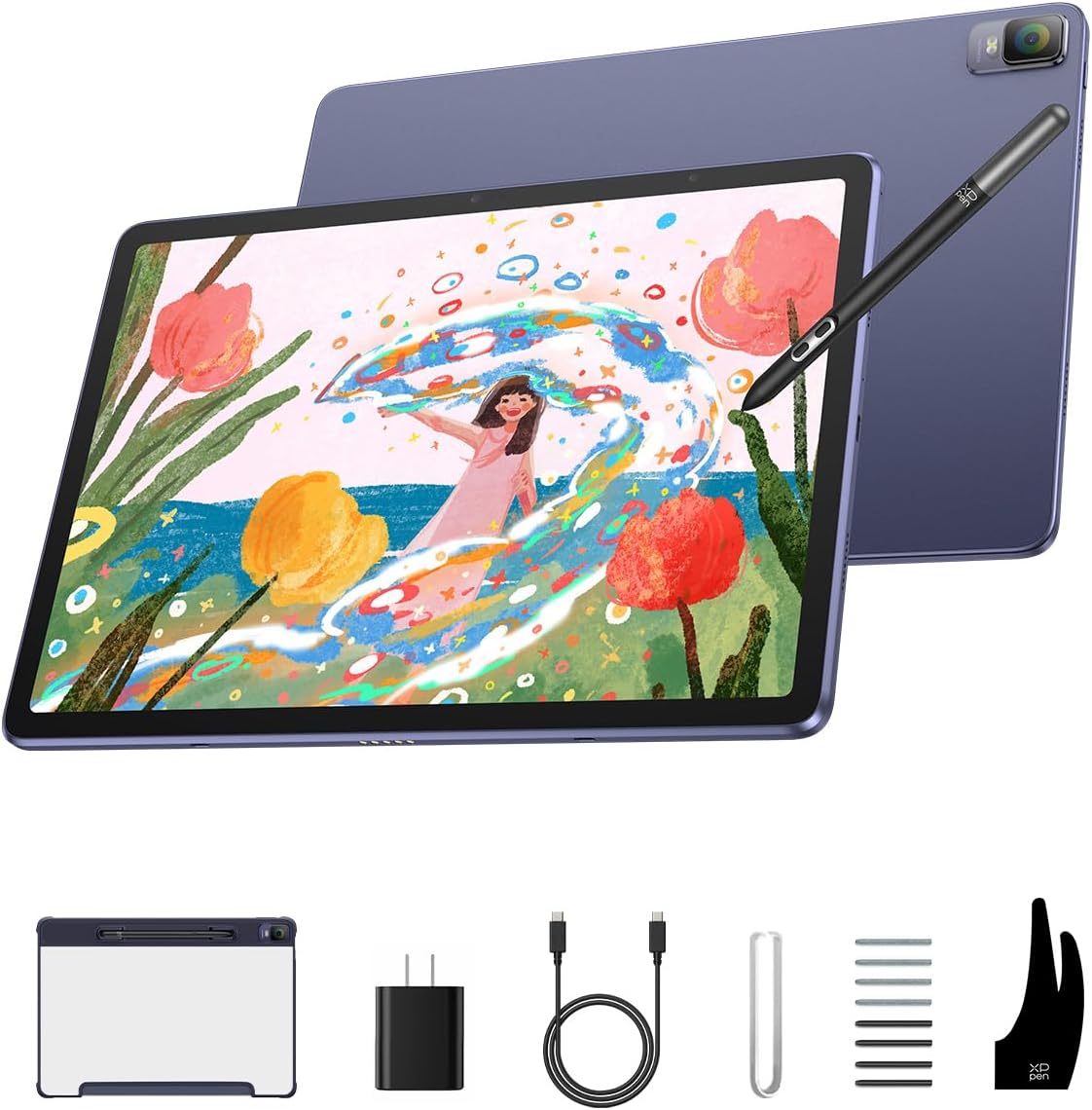
Image 1: XPPen Magic Drawing Pad X3 Pro, X3 Pro Slim Stylus, and included accessories (glove, replacement nibs, AC adapter, quick start guide).
2. Package Contents
Verify that all items are present in the package:
- XPPen Magic Drawing Pad X3 Pro (12.2-inch)
- X3 Pro Slim Stylus
- Replacement Nibs
- Glove
- AC Adapter
- Quick Start Guide
3. Setup Guide
3.1 Initial Charging
Before first use, fully charge the Magic Drawing Pad using the provided AC adapter. The device features an 8000mAh battery, offering up to 13 hours of continuous use on a full charge.
3.2 Powering On/Off
- To power on: Press and hold the power button located on the side of the tablet until the XPPen logo appears.
- To power off: Press and hold the power button, then select 'Power off' from the on-screen options.
3.3 Stylus Usage
The X3 Pro Slim Stylus is battery-free and does not require charging or pairing. Simply use it directly on the tablet screen. It supports 16384 pressure levels and tilt function for varied line thickness and shading.

Image 2: The X3 Pro Slim Stylus, highlighting its battery-free design and 16384 pressure levels.
3.4 Network Connection
Connect the tablet to a Wi-Fi network via the settings menu to access online features, download applications, and update the system.
4. Operating Instructions
4.1 Navigating the Android 14 Interface
The Magic Drawing Pad runs on Android 14. Navigate the interface using touch gestures or the X3 Pro Slim Stylus. Familiarize yourself with the home screen, app drawer, and notification panel.

Image 3: A user actively drawing on the XPPen Magic Drawing Pad, demonstrating its standalone functionality.
4.2 Drawing Experience
The 12.2-inch display features AG etched screen technology, providing a paper-like texture that enhances the drawing experience by adding natural resistance to the stylus. This technology also helps reduce glare and fingerprints.

Image 4: Visual representation of the AG Etched Screen Technology, illustrating its paper-like feel and anti-glare properties compared to a standard screen.
4.3 Pre-installed and Downloadable Applications
The tablet comes with pre-installed drawing applications such as Clip Studio Paint, ibis Paint X, and Medibang, often with free membership benefits upon activation. Additional creative and productivity applications can be downloaded from the Google Play Store.

Image 5: Display of various drawing applications like Clip Studio Paint, ibis Paint X, and Medibang, indicating their availability on the tablet.
4.4 Multitasking and Entertainment
Utilize the dual-window support for efficient multitasking. The tablet is also suitable for various entertainment activities including reading e-books, watching videos, playing games, and listening to music.

Image 6: Collage showing different ways to use the Magic Drawing Pad, such as reading e-books, watching videos, playing games, taking notes, taking photos, and creating outdoors.
4.5 Eye Comfort Features
The screen is TÜV Rheinland-certified and incorporates ten levels of soft light treatment to minimize eye strain during extended use.
5. Maintenance
5.1 Screen Cleaning
Gently wipe the screen with a soft, lint-free cloth. For stubborn smudges, slightly dampen the cloth with water or a screen-safe cleaning solution. Avoid harsh chemicals or abrasive materials.
5.2 Stylus Nib Replacement
Over time, the stylus nib may wear down. Use the provided nib remover tool to carefully pull out the old nib and insert a new one. Ensure the new nib is fully seated.
5.3 General Care
Store the tablet in a protective case when not in use. Avoid exposing the device to extreme temperatures, direct sunlight, or moisture. Do not attempt to disassemble the tablet or stylus.
6. Troubleshooting
If you encounter issues with your XPPen Magic Drawing Pad, consider the following:
- Device Not Powering On: Ensure the tablet is fully charged. Connect it to the AC adapter and wait a few minutes before attempting to power it on again.
- Stylus Not Responding: Verify that the stylus nib is properly installed. If the nib is worn, replace it with a new one. Restart the tablet.
- Screen Display Issues: If the screen exhibits unusual lines or artifacts, try restarting the device. If the problem persists, contact customer support.
- Application Malfunctions: Close and reopen the application. If the issue continues, clear the app's cache or reinstall it. Ensure your Android system is up to date.
- Slow Performance: Close unnecessary background applications. Free up storage space by deleting unused files or apps.
For persistent problems, refer to the official XPPen support resources or contact their customer service.
7. Specifications
| Feature | Specification |
|---|---|
| Model Name | X3 Pro |
| Screen Size | 12.2 Inches |
| Screen Resolution | 2160 x 1440 pixels |
| Aspect Ratio | 3:2 |
| Color Gamut | 109% sRGB |
| Operating System | Android 14 |
| Processor | ARM |
| RAM | 8GB |
| Storage Capacity | 256GB (expandable up to 512GB via Micro SD) |
| Stylus Pressure Levels | 16384 |
| Rear Camera | 13MP |
| Front Camera | 8MP |
| Battery Capacity | 8000mAh |
| Average Battery Life | Up to 13 Hours |
| Wireless Connectivity | 802.11ac |
| Dimensions (Thickness) | 6.9mm |
| Weight | 599g (approx. 1.32 lbs) |
8. Warranty and Support
8.1 Warranty Information
For detailed warranty terms and conditions, please refer to the warranty card included with your product or visit the official XPPen website. Warranty coverage typically includes manufacturing defects for a specified period from the date of purchase.
8.2 Customer Support
If you require technical assistance, have questions about your product, or need to report an issue, please contact XPPen customer support through their official website. You can usually find contact information, FAQs, and driver downloads on their support page.


