
1. Introduction
This manual provides detailed instructions for the operation and maintenance of your Cairhornce Waterproof Action Camera Model 1277. Please read this manual thoroughly before using the camera to ensure proper functionality and to maximize your experience. This camera is designed for capturing high-quality video and photos in various environments, including underwater and during sports activities.

Image: The Cairhornce Action Camera is capable of recording dynamic sports activities like skiing in 1080P/30FPS.
2. Package Contents
Verify that all items listed below are included in your package. If any items are missing or damaged, please contact customer support.
- Cairhornce Action Camera (Model 1277)
- Waterproof Case
- Rechargeable 900mAh Battery
- USB Charging Cable
- Helmet Mount
- Bicycle Mount
- Various Mounting Accessories and Adapters
- User Manual
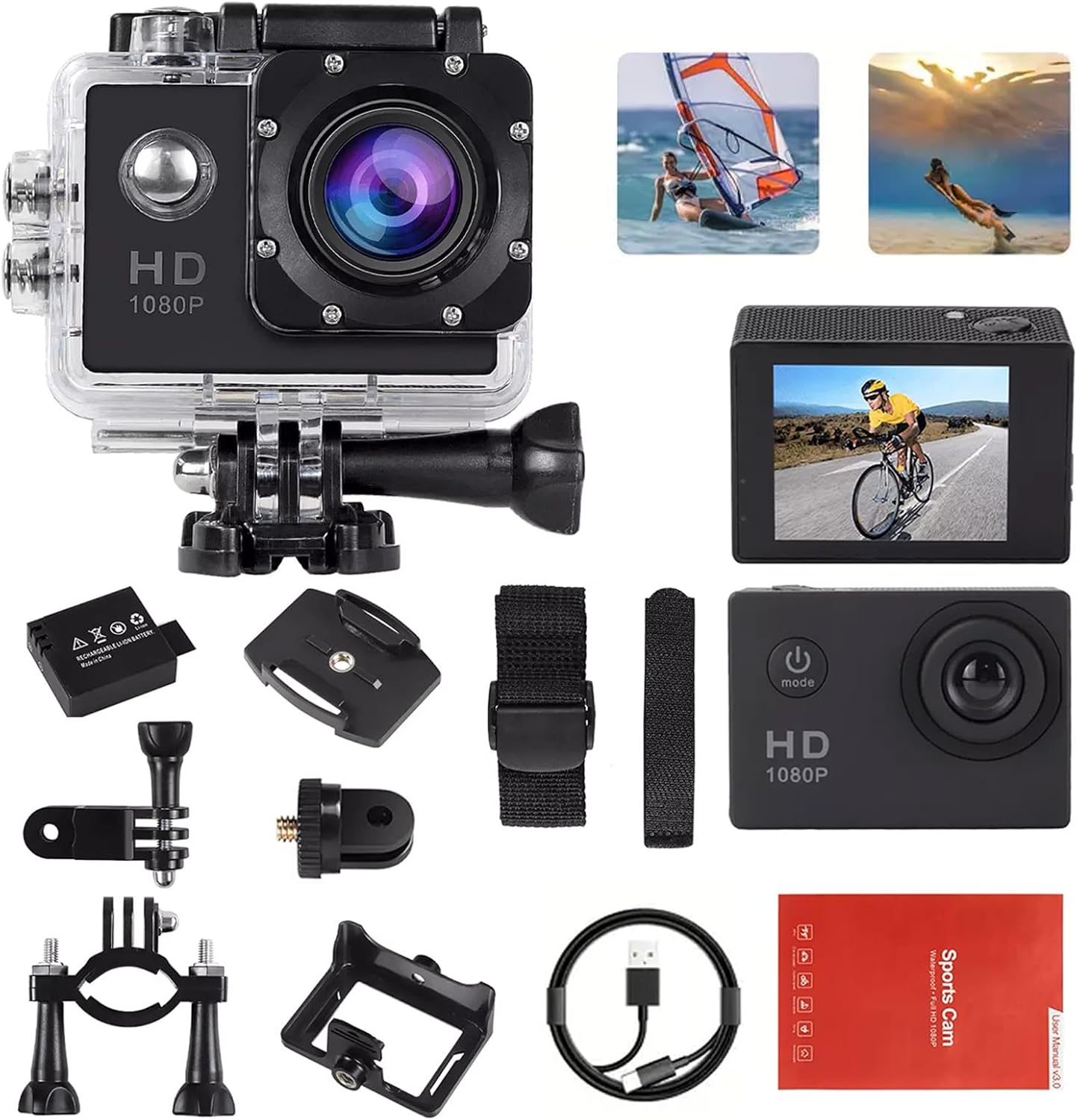
Image: A complete view of the Cairhornce Action Camera and its included accessories.
3. Product Overview
Familiarize yourself with the camera's components and controls.
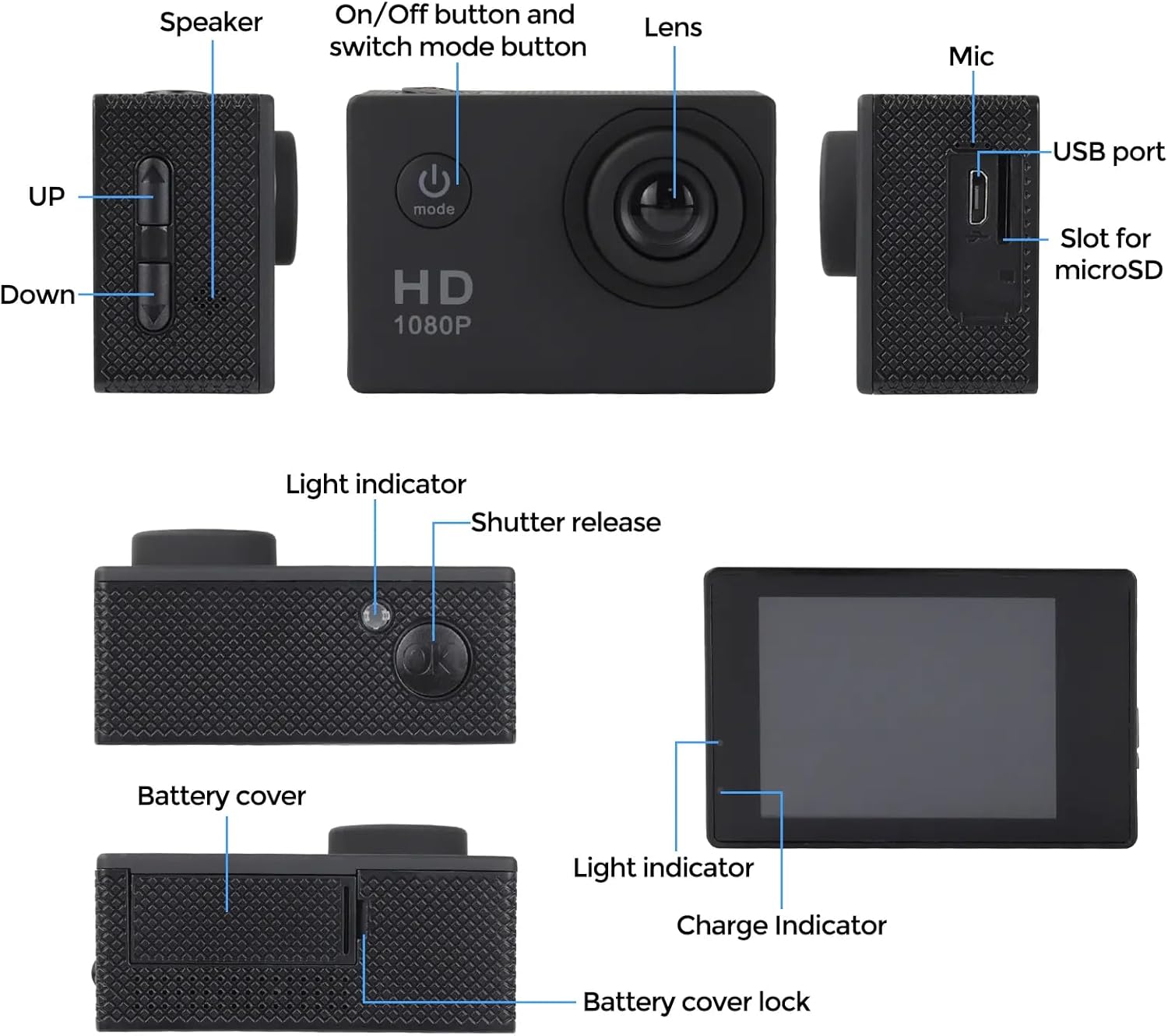
Image: Labeled diagram of the camera's external features, including the lens, speaker, USB port, microSD slot, power/mode button, up/down buttons, shutter release, light indicators, and battery cover.
- Lens: Captures images and video.
- On/Off Button and Mode Button: Press and hold to power on/off. Press briefly to switch between video, photo, and playback modes.
- Shutter Release Button: Press to start/stop recording video or take a photo.
- Up/Down Buttons: Navigate menus and adjust settings.
- USB Port: For charging and data transfer.
- MicroSD Slot: Insert your memory card here.
- Speaker/Mic: Audio input/output.
- Light Indicators: Show power status, charging status, and recording status.
- Battery Cover: Access for battery installation.
4. Setup
4.1 Battery Installation and Charging
- Open the battery cover on the bottom of the camera.
- Insert the 900mAh battery, ensuring the correct orientation.
- Close the battery cover securely.
- Connect the camera to a USB power source using the provided USB cable to charge. The charge indicator light will illuminate during charging and turn off when fully charged.
4.2 MicroSD Card Installation
A MicroSD card (not included) is required to store recordings. Use a Class 10 or higher MicroSD card, up to 32GB.
- Locate the MicroSD card slot on the side of the camera.
- Insert the MicroSD card with the contacts facing the camera's front until it clicks into place.
- To remove, gently push the card until it springs out.
4.3 Waterproof Case Usage
The waterproof case allows the camera to be submerged up to 30 meters (98 feet).
- Ensure the camera is dry before placing it inside the waterproof case.
- Close the case firmly, ensuring the seal is clean and free of debris.
- Always test the waterproof case without the camera inside before first use, by submerging it in water for a few minutes to check for leaks.

Image: The camera in its waterproof housing, demonstrating its capability for underwater use up to 30 meters.
4.4 Mounting Accessories
The camera comes with various mounts for different activities.
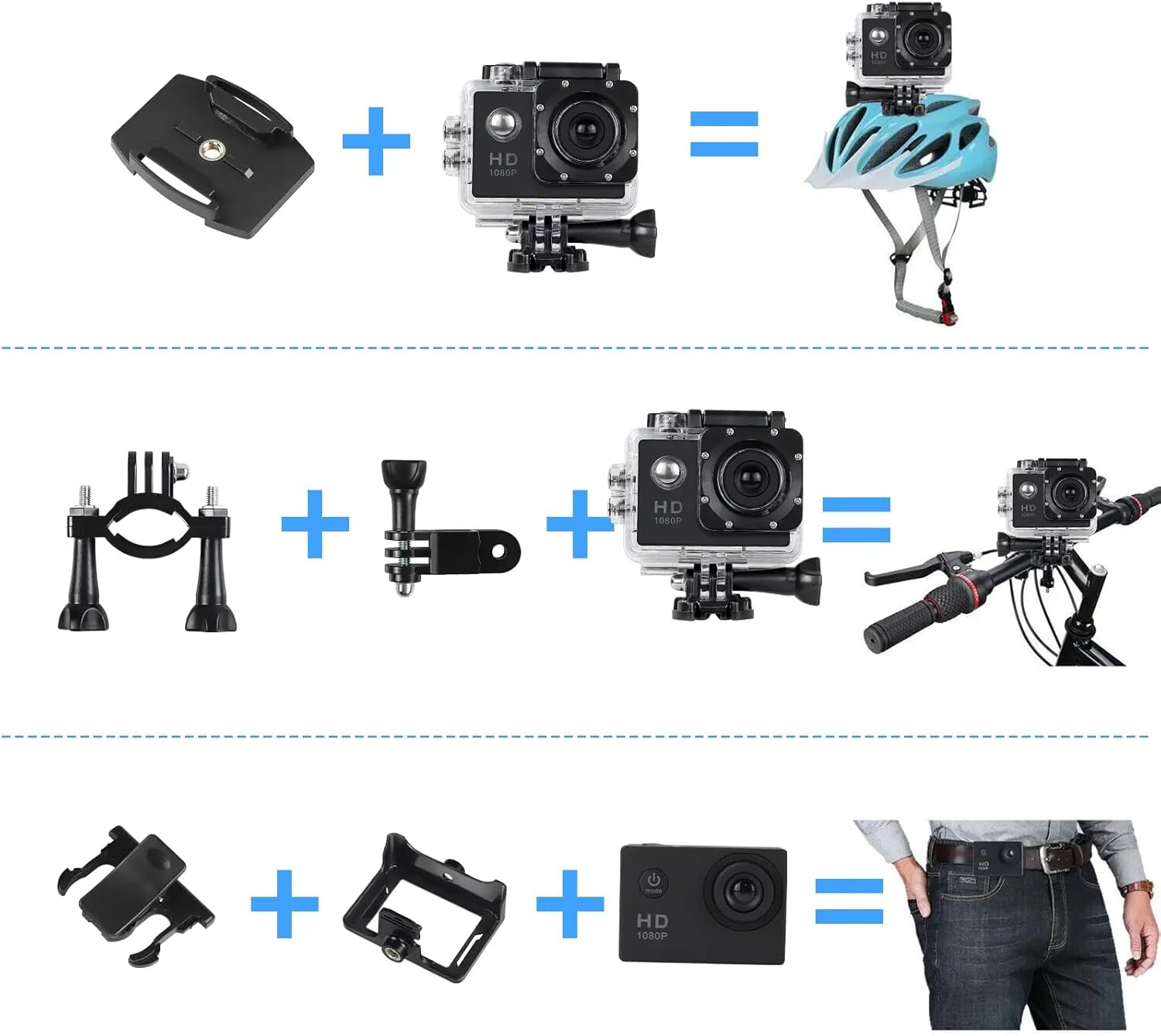
Image: Visual guide for attaching the camera to a helmet, bicycle, and belt using the provided mounting accessories.
- Helmet Mount: Use the adhesive base and adapter to secure the camera to a helmet.
- Bicycle Mount: Attach the clamp to bicycle handlebars and secure the camera using the adapter.
- Belt Clip: Use the frame mount and clip to attach the camera to a belt or strap.
5. Operating Instructions
5.1 Power On/Off
- To power on, press and hold the On/Off button (Mode button) for 3 seconds.
- To power off, press and hold the On/Off button (Mode button) for 3 seconds.
5.2 Mode Switching
Briefly press the On/Off button (Mode button) to cycle through the following modes:
- Video Recording Mode
- Photo Mode
- Playback Mode
- Settings Menu
5.3 Video Recording
- Switch to Video Recording Mode.
- Press the Shutter Release button to start recording. The recording indicator light will flash.
- Press the Shutter Release button again to stop recording. The indicator light will stop flashing.
5.4 Taking Photos
- Switch to Photo Mode.
- Frame your shot.
- Press the Shutter Release button to take a photo.
5.5 Wi-Fi Connectivity (GOtrack App)
The camera features built-in Wi-Fi for remote control and file transfer via the GOtrack app.
- Download the "GOtrack" app from your smartphone's app store.
- On the camera, enter the Settings Menu and enable Wi-Fi. The camera's Wi-Fi name and password will be displayed.
- On your smartphone, go to Wi-Fi settings and connect to the camera's Wi-Fi network using the provided password.
- Open the GOtrack app to control the camera, preview footage, and transfer files.
5.6 Special Recording Modes

Image: Examples of various recording modes including Time Lapse, Dramashot for burst photos, Image Rotation, Loop Recording, and Driving Mode for dashcam functionality.
- Time Lapse: Captures photos at set intervals (0.5/1/2/5/10/30/60 seconds) to create a time-lapse video.
- Dramashot (Burst Photo): Takes multiple photos (3/5/10) in quick succession with one press of the shutter button.
- Loop Recording: Records video in segments (2/3/5 minutes). When the memory card is full, it overwrites the oldest segment.
- Driving Mode: Functions as a dashcam, automatically starting recording when power is detected and saving footage in loops.
- Image Rotation: Allows for 180-degree image rotation, useful when mounting the camera upside down.
6. Maintenance
- Cleaning: Use a soft, lint-free cloth to clean the camera lens and screen. For the waterproof case, rinse with fresh water after saltwater use and allow to air dry.
- Storage: Store the camera in a cool, dry place away from direct sunlight and extreme temperatures. Remove the battery if storing for extended periods.
- Battery Care: Avoid fully discharging the battery frequently. Charge the battery regularly, even if not in use, to maintain its lifespan.
- Firmware Updates: Check the manufacturer's website periodically for any available firmware updates to improve camera performance.
7. Troubleshooting
- Camera not turning on: Ensure the battery is charged and correctly inserted.
- Cannot record: Check if a MicroSD card is inserted and if it has sufficient free space. Format the card if necessary (this will erase all data).
- Poor video/photo quality: Ensure the lens is clean. Check settings for resolution and exposure.
- Wi-Fi connection issues: Ensure Wi-Fi is enabled on the camera and your smartphone. Try restarting both devices.
- Water leakage in waterproof case: Immediately remove the camera. Check the rubber seal for dirt, hair, or damage. Ensure the case is properly closed.
8. Specifications

Image: Product dimensions of the camera, approximately 26.5cm (10.43in) wide, 12cm (4.72in) high, and 6cm (2.36in) deep.
| Feature | Specification |
|---|---|
| Model Number | 1277 |
| Video Resolution | 1080P/30FPS |
| Photo Resolution | 20 MP (interpolated), 5 Million Pixels (native) |
| Water Resistance | 30M / 98FT (with waterproof case) |
| Battery Capacity | 900mAh |
| Lens Angle | 140° - 170° Wide Angle |
| Screen Size | 2 Inches |
| Storage | MicroSDHC (up to 32GB, Class 10 recommended) |
| Connectivity | USB, Wi-Fi |
| Photo Sensor Technology | CMOS |
| Video Capture Format | MP4 |
| Supported Audio Format | AAC, MP3 |
9. Warranty and Support
Your Cairhornce Action Camera Model 1277 comes with a standard manufacturer's warranty. Please refer to the warranty card included in your package for specific terms and conditions. For technical support, troubleshooting assistance, or warranty claims, please contact Cairhornce customer service through the retailer where the product was purchased or visit the official Cairhornce support website.