
SuntekCam WiFi940
SuntekCam WiFi Trail Camera User Manual
Model: WiFi940
Introduction
Thank you for choosing the SuntekCam WiFi Trail Camera. This manual provides detailed instructions for setting up, operating, and maintaining your camera. Designed for wildlife observation, scouting, and security, this camera features 4K video, 36MP images, no-glow night vision, and convenient WiFi/Bluetooth connectivity. Please read this manual thoroughly before use to ensure optimal performance and longevity of your device.
Product Overview
Package Contents
- SuntekCam WiFi Trail Camera (Model: WiFi940)
- Mounting Strap
- User Manual (this document)
Key Features
- High Resolution Imaging: Captures Ultra HD 4K/30fps video and 36-megapixel still images.
- Advanced Video Encoding: Utilizes H.264 technology for efficient video streaming and storage.
- Integrated Rechargeable Battery: Features a built-in 10000mAh lithium battery, eliminating the need for disposable AA batteries.
- Durable & Waterproof Design: Tightly sealed body with silicone ensures excellent waterproof performance for outdoor use.
- No-Glow Night Vision: Equipped with 56 built-in 940nm lightless infrared LEDs and adaptive lighting for clear night captures without disturbing wildlife. Provides up to 100 feet (30 meters) of night vision range.
- Fast Trigger Speed: Achieves a 0.2-second trigger speed to capture fast-moving subjects.
- Wireless Connectivity: Built-in Bluetooth and WiFi modules allow remote connection to a free mobile application (effective range 0-15 meters) for photo/video viewing and settings adjustment.
- Versatile Shooting Modes: Supports timed shots, interval shots, and real-time online viewing.
- Data Security & Information Display: Features password protection and displays date, time, and temperature on captures.
- External Power Support: Compatible with 12V/1.5A external power sources, including solar panels.
Camera Components

Figure 1: Front view of the SuntekCam WiFi Trail Camera, highlighting its 4K Ultra HD capability, 36MP resolution, waterproof design, and integrated 10000mAh rechargeable battery. A deer image on a smartphone screen illustrates remote viewing.
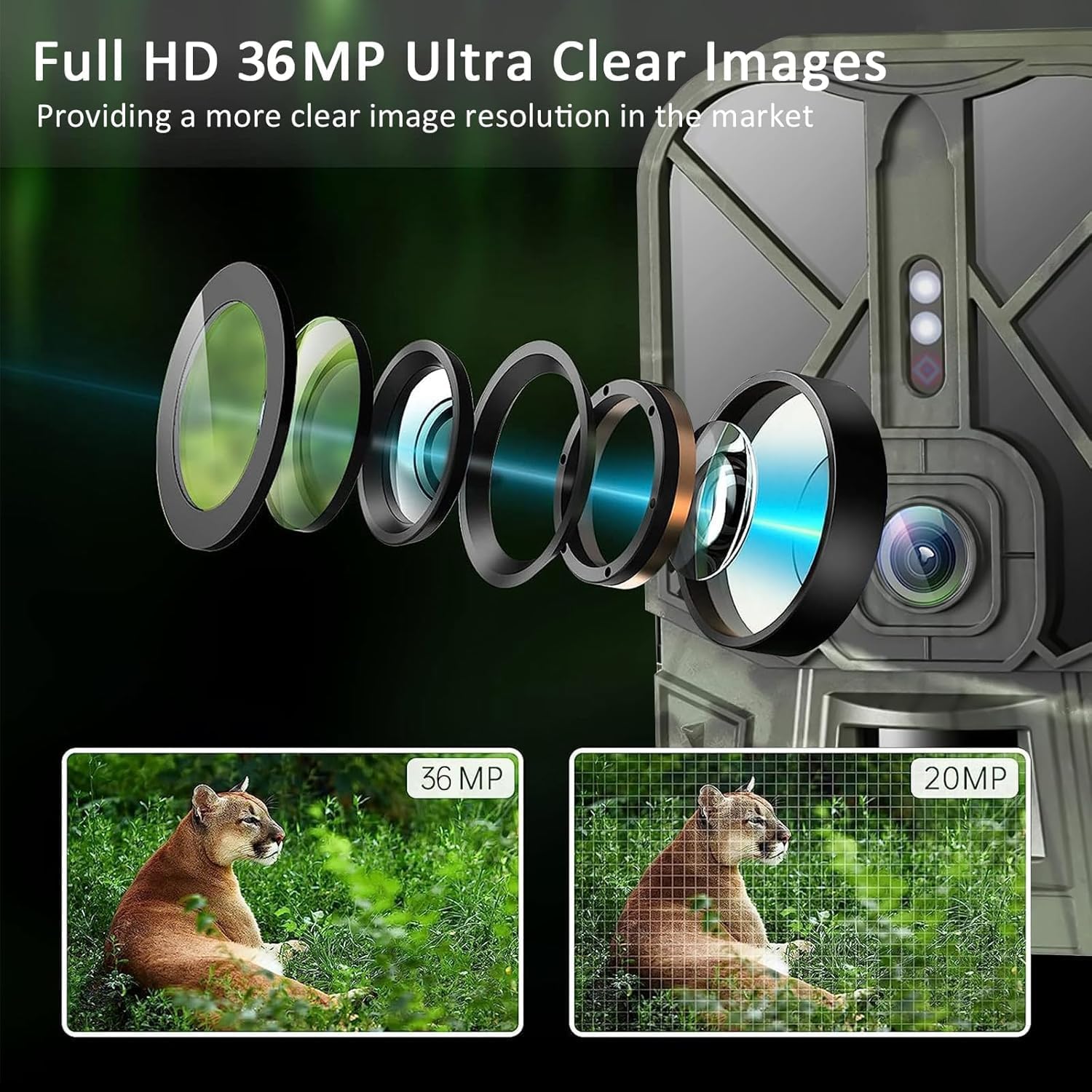
Figure 2: Illustration of the camera's optical lens system and a visual comparison demonstrating the superior clarity of 36MP images compared to 20MP images.
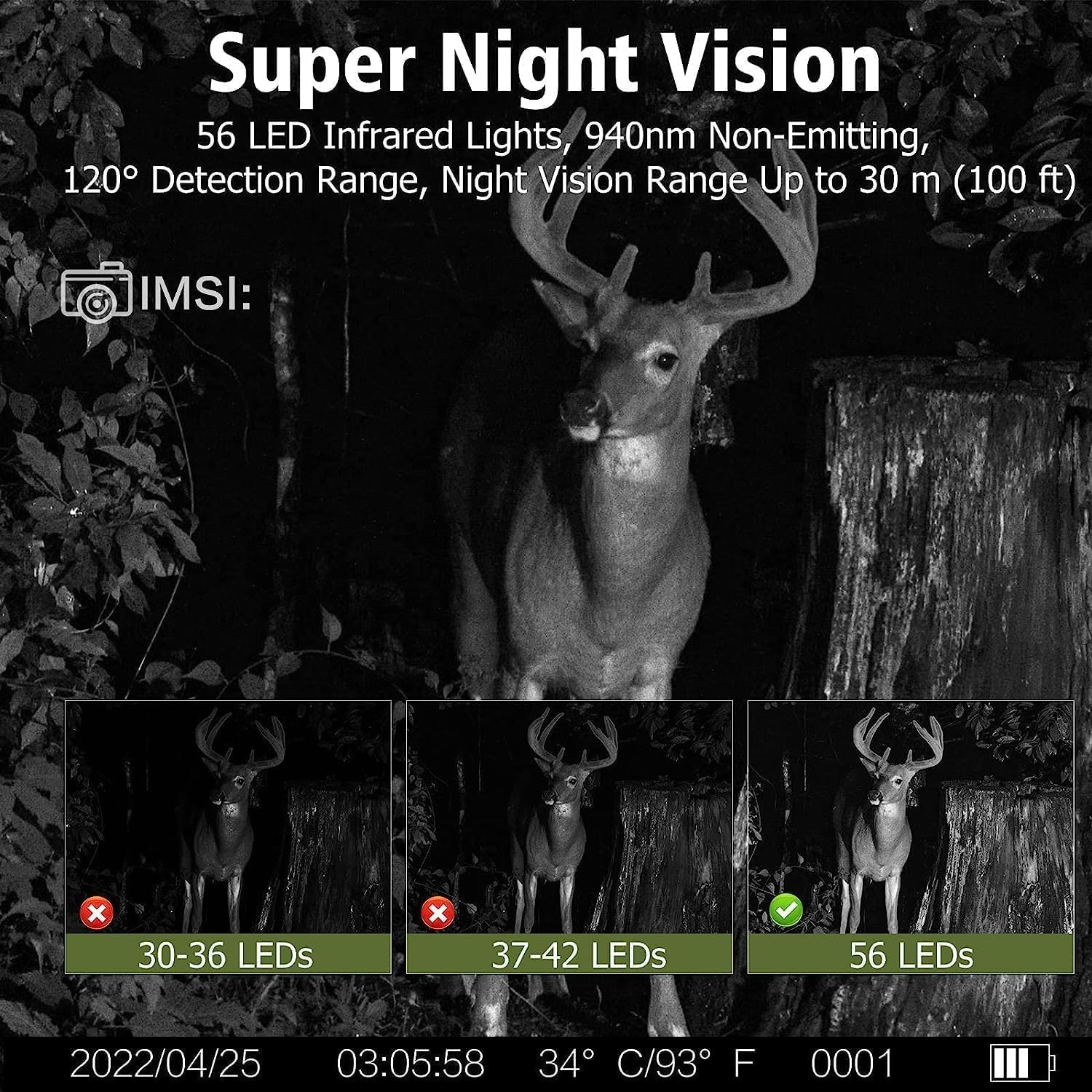
Figure 3: Depiction of the camera's Super Night Vision, featuring 56 non-emitting 940nm infrared LEDs, a 120° detection range, and an effective night vision range of up to 100 feet (30 meters).
Setup
1. Charging the Built-in Battery
The camera comes with a built-in 10000mAh rechargeable lithium battery. Before first use, ensure the battery is fully charged. Connect the camera to a standard USB power adapter (not included) using a compatible USB cable. The charging indicator will show the charging status. A full charge provides extended operational time.

Figure 4: Visual comparison highlighting the benefits of the camera's built-in 10000mAh rechargeable lithium battery over traditional AA battery setups, emphasizing longer battery life and environmental benefits.
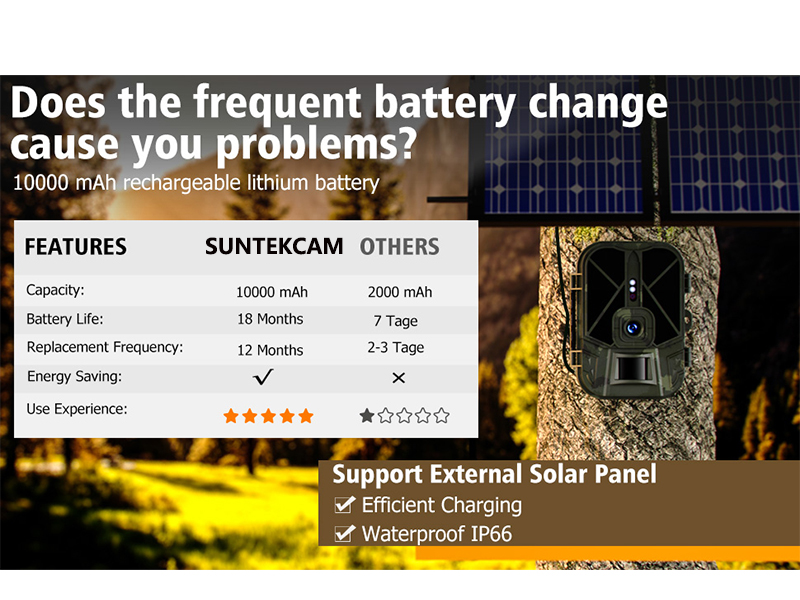
Figure 5: A table comparing the features of the SuntekCam's 10000mAh battery (18 months battery life, 12 months replacement frequency) against typical alternatives (2000mAh, 7 days battery life, 2-3 days replacement frequency). Also indicates support for external solar panels for efficient charging and IP66 waterproof rating.
2. Inserting a Micro SD Card
A Micro SD card (not included) is required to store photos and videos. The camera supports cards up to a certain capacity (check product specifications for maximum supported size, typically 32GB or 64GB). Insert the Micro SD card into the designated slot with the gold contacts facing the correct direction until it clicks into place. Ensure the camera is powered off before inserting or removing the card.
3. Mounting the Camera
Use the provided mounting strap to secure the camera to a tree or pole. Ensure the camera is positioned at an appropriate height and angle to capture the desired area. For optimal motion detection, avoid placing the camera directly facing the sun or in areas with excessive moving foliage.
4. App Installation and Wireless Connection
The camera can be controlled and accessed wirelessly via a dedicated mobile application. Follow these steps to connect your smartphone:
- Download the App: Scan the QR codes below or search for "WiFiCameraSum" (for iOS) or "WifiCamera" (for Android) in your app store.

Figure 6: Image showing the camera connected to a smartphone via WiFi, with QR codes for downloading the "WiFiCameraSum" app for iOS (App Store Link) and "WifiCamera" app for Android (Google Play Link).
- Enable Location, Bluetooth, and WiFi: On your phone, ensure location services, Bluetooth, and WiFi are enabled.
- Connect via Bluetooth: Open the app. Click the Bluetooth icon and select "GCBT40" to establish a Bluetooth connection.
- Connect via WiFi: Once connected via Bluetooth, click the WiFi icon in the app and select "CAM-XXX" (where XXX is your camera's unique identifier).
- Enter Password: Enter the default password "12345678" to connect successfully.
Important Note: The effective range for WiFi connection is approximately 0-15 meters. In 'ON' mode, the camera's WiFi will automatically disconnect to conserve power and prevent detection.
Operating Instructions
1. Powering On/Off and Mode Selection
Locate the power switch on the camera. Switch it to the 'ON' position to power on the camera. The camera will enter monitoring mode. To power off, switch it to the 'OFF' position.
2. Capturing Images and Videos
In monitoring mode, the camera will automatically capture images or videos when motion is detected within its sensor range. The 0.2-second fast trigger speed ensures quick capture of subjects.

Figure 7: Illustration of the camera's 0.2-second fast trigger speed, demonstrating its ability to capture clear images of rapidly moving subjects.
You can adjust settings such as photo resolution (36MP), video resolution (4K), and capture mode (photo, video, photo+video) via the mobile application.
3. Night Vision Operation
The camera automatically switches to night vision mode in low-light conditions. The 56 built-in 940nm infrared LEDs provide illumination without a visible glow, making the camera stealthy. Adaptive lighting technology prevents overexposure or underexposure, ensuring clear night captures up to 100 feet.
4. Advanced Settings via App
Through the mobile application, you can configure various advanced settings:
- Timed Shots: Set specific time periods for the camera to be active.
- Interval Shots: Define the time interval between consecutive captures.
- Sensitivity: Adjust the motion sensor sensitivity (e.g., to 'High' if the camera is not taking pictures).
- Password Protection: Set a password to protect your camera's settings and data.
- Date/Time/Temperature Stamp: Enable or disable the display of this information on captured media.
- Online Viewing & Playback: View captured photos and videos directly on your phone via the app without downloading.
Maintenance
Cleaning
To ensure clear images and proper operation, regularly clean the camera lens and PIR sensor window. Use a soft, lint-free cloth. For stubborn dirt, slightly dampen the cloth with water. Do not use harsh chemicals or abrasive materials.
Storage
When not in use for extended periods, store the camera in a cool, dry place away from direct sunlight and extreme temperatures. Ensure the battery is partially charged (around 50%) before storage to prolong its lifespan.
Troubleshooting
- Camera not taking pictures:
Check if the camera is in 'ON' mode. Ensure the Micro SD card is properly inserted and has sufficient free space. Adjust the motion sensor sensitivity to 'High' via the mobile application.
- Poor image/video quality:
Clean the camera lens. Ensure there are no obstructions in front of the lens or PIR sensor. Check lighting conditions; for night captures, ensure subjects are within the 100ft night vision range.
- WiFi/Bluetooth connection issues:
Ensure your phone's location services, Bluetooth, and WiFi are enabled. Make sure you are within the effective range (0-15 meters) of the camera. Restart both the camera and your phone. Verify the correct app is installed and the password "12345678" is entered correctly.
- Battery not holding charge:
Ensure the charging cable and adapter are functioning correctly. If the issue persists, contact customer support.
Specifications
| Feature | Detail |
|---|---|
| Model Name | WiFi940 |
| Video Capture Resolution | 4K (Ultra HD) |
| Image Resolution | 36 Megapixels |
| Trigger Speed | 0.2 seconds |
| Night Vision Range | Up to 100 feet (30 meters) |
| Infrared LEDs | 56 pcs 940nm (No-Glow) |
| Battery Type | Built-in 10000mAh Rechargeable Lithium Battery |
| Connectivity | Wi-Fi, Bluetooth (Wireless) |
| App Compatibility | Smartphone (iOS/Android) |
| Waterproof Rating | Excellent (designed for outdoor wind and rain) |
| External Power Support | 12V/1.5A |
| Dimensions (L x W x H) | 10 x 2 x 2.7 inches |
| Item Weight | 2.09 pounds |
| Mounting Type | Pole Mount |
| Included Components | Strap |
Warranty and Support
For warranty information and technical support, please refer to the product packaging or contact SuntekCam customer service directly. Keep your purchase receipt as proof of purchase for any warranty claims.
Related Documents - WiFi940
 |
User Manual for suntekcam MiNi700 Trail Camera Comprehensive user manual for the suntekcam MiNi700 trail camera, detailing setup, specifications, features like 20MP resolution, 1080P video, and night vision for wildlife monitoring and security. |
 |
4G Live View Pro Trail Camera User Manual - ANA-HC-950PRO User manual for the 4G Live View Pro Trail Camera (Model ANA-HC-950PRO) by SuntekCam. Learn about installation, setup, app binding, specifications, and troubleshooting for this 4K 120MP wildlife camera. |
 |
SuntekCam App Quick Start Guide A quick start guide for the SuntekCam App, detailing how to download, install, and add your camera to the app, as well as how to capture and download pictures and videos. |
 |
SuntekCam App Quick Start Guide: Connect and Manage Your Trail Camera A concise guide to downloading, installing, and using the SuntekCam app to connect, manage, and retrieve photos and videos from your trail camera. Learn how to add devices, troubleshoot issues, and access your media. |