
1. Introduction
This manual provides detailed instructions for the setup, operation, and maintenance of your 9H Wireless Bluetooth Keyboard BKB-030. This full-size keyboard features a numeric keypad, rechargeable battery, and is designed for compatibility with Apple Mac OS and Windows OS devices.

Image 1.1: The 9H Wireless Bluetooth Keyboard BKB-030, showcasing its sleek design and full layout.

Image 1.2: The keyboard positioned next to a MacBook, highlighting its wireless connectivity for Mac OS devices.
2. What's in the Box
Please verify that all items are present in the package:
- 1 x 9H Wireless Bluetooth Keyboard BKB-030
- 1 x USB-C Charging Cable
3. Setup
3.1 Charging the Keyboard
The keyboard is equipped with a built-in 450mAh rechargeable Lithium-ion battery. Before initial use, or when the battery is low, charge the keyboard using the provided USB-C cable.
- Locate the USB-C charging port on the keyboard.
- Connect one end of the USB-C cable to the keyboard and the other end to a USB power source (e.g., computer USB port, USB wall adapter).
- The charging indicator light will illuminate. Once fully charged, the indicator light will change or turn off. A full charge provides up to two months of usage or one year of standby time.

Image 3.1: The keyboard connected to a power source via its USB-C charging port.

Image 3.2: Visual representation of the keyboard's 450mAh battery and Type-C charging cable, indicating working and charging times.
3.2 Bluetooth Pairing
Follow these steps to connect your keyboard to your device via Bluetooth:
- Ensure the keyboard is charged and powered on.
- On the keyboard, press and hold the Fn key and the B key simultaneously. The Bluetooth indicator light on the keyboard will begin to flash, indicating it is in pairing mode.
- On your device (Mac, iPad, etc.), navigate to the Bluetooth settings.
- Search for available devices. You should see "keyboard" or "KB-420" appear in the list.
- Select the keyboard from the list to complete the pairing process. The indicator light on the keyboard will stop flashing once successfully paired.

Image 3.3: Illustration showing the "Fn" + "B" key combination for initiating Bluetooth pairing.

Image 3.4: A visual guide to the stable Bluetooth connection pairing process, emphasizing the Fn+B key combination.
4. Operating the Keyboard
4.1 Keyboard Layout and Features
This keyboard features a full-size layout with 110 keys, including a dedicated numeric keypad for enhanced productivity. It is designed with a standard US Qwerty layout.
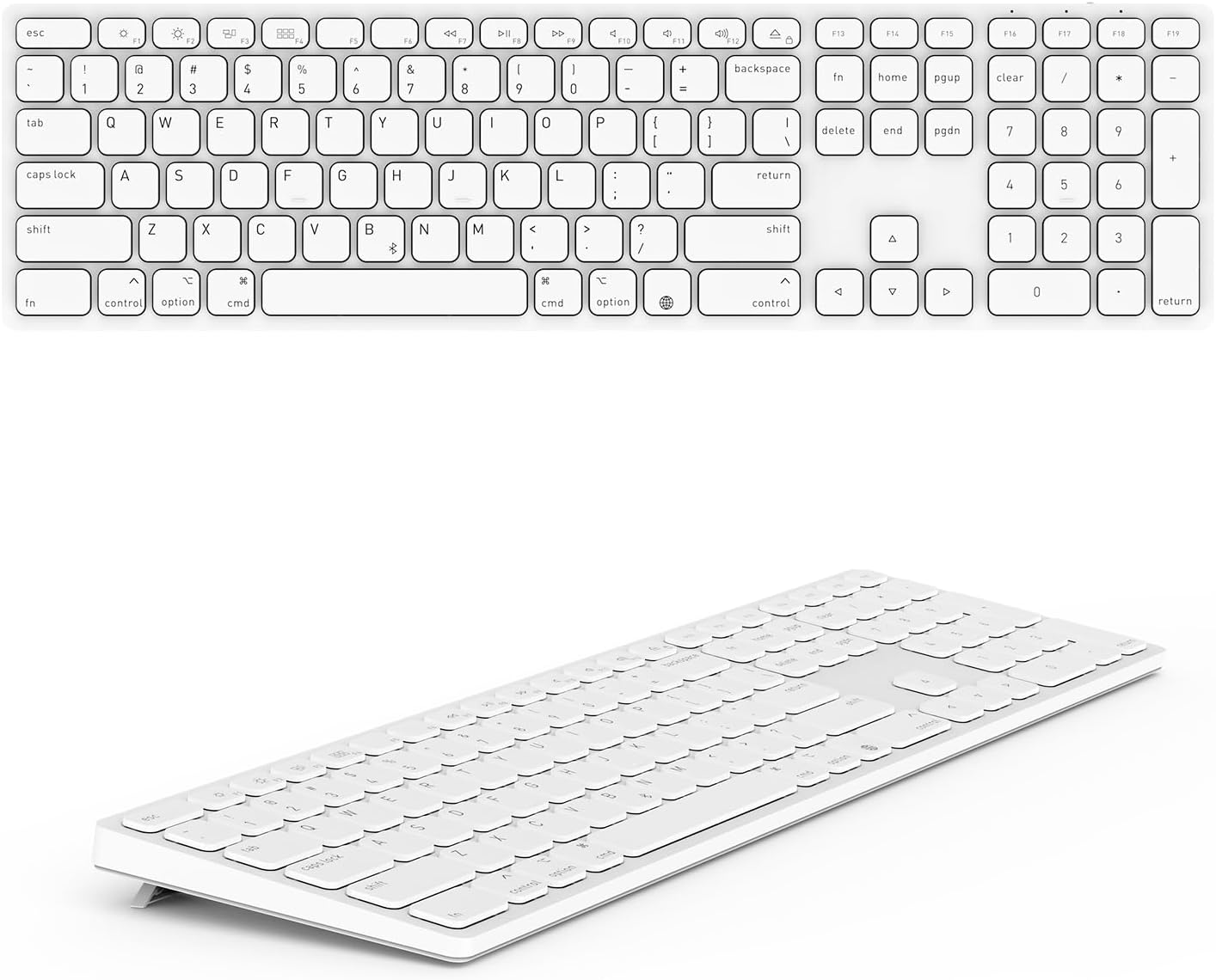
Image 4.1: A clear top-down view of the keyboard, showing the full 110-key layout including the numeric keypad.

Image 4.2: A user actively typing on the keyboard, demonstrating its ergonomic design during use.
4.2 Shortcut Keys (Mac OS)
The keyboard includes dedicated function keys that provide quick access to various Mac OS features. These shortcuts are typically activated by pressing the function key (F1-F12) directly or in combination with the Fn key, depending on your system settings.
- F1: Brightness Decrease
- F2: Brightness Increase
- F3: Display Windows (Mission Control)
- F4: Mute
- F5: Computer Programs (Launchpad)
- F6: Volume Down
- F7: Previous Track
- F8: Play/Pause
- F9: Next Track
- F10: Volume Up
- F11: Lock Screen
- F12: (Functionality may vary based on OS settings)

Image 4.3: A diagram illustrating the specific functions of the shortcut keys for Mac OS.
4.3 Adjustable Kickstand
The keyboard features a built-in kickstand, allowing you to choose between a flat or a raised typing angle for improved comfort and ergonomics.
- To raise the keyboard, gently pull out the kickstand tabs located on the underside of the keyboard.
- To return to a flat position, fold the kickstand tabs back into their recessed slots.

Image 4.4: The keyboard shown with its kickstand extended, providing an elevated typing angle.

Image 4.5: A detailed view of the foldable kickstand mechanism, illustrating how to adjust the keyboard's angle.
5. Maintenance
Proper care will extend the life of your keyboard.
- Cleaning: Use a soft, dry, lint-free cloth to clean the keyboard surface. For stubborn dirt, slightly dampen the cloth with water or a mild electronics cleaner. Avoid excessive moisture.
- Storage: When not in use for extended periods, store the keyboard in a cool, dry place away from direct sunlight and extreme temperatures.
- Battery Care: To maintain battery health, avoid fully discharging the battery frequently. Charge the keyboard regularly, even if not in constant use.
- Avoid Liquids: Keep the keyboard away from liquids to prevent damage to internal components.
6. Troubleshooting
If you encounter issues with your keyboard, please refer to the following common solutions:
| Problem | Possible Solution |
|---|---|
| Keyboard does not connect via Bluetooth. |
|
| Keys are not responding. |
|
| Keyboard frequently disconnects. |
|
7. Specifications
- Model: BKB-030
- Connectivity: Bluetooth
- Keyboard Layout: Full-size, 110 keys, Numeric Keypad, US Qwerty
- Battery: Built-in 450mAh Lithium-ion rechargeable battery
- Charging Port: USB-C
- Battery Life: Up to 2 months (usage), up to 1 year (standby)
- Dimensions: 16.62 x 4.5 x 0.4 inches (42.2 x 11.4 x 1.0 cm)
- Weight: 1.7 pounds (0.77 kg)
- Material: Plastic
- Color: White
- Compatible OS: Apple Mac OS 10.13 or later (Sonoma, Ventura, Monterey, Big Sur, Catalina, Mojave, High Sierra), Windows OS

Image 7.1: A display showing the compatible Mac OS versions (10.13 or later) for the keyboard.

Image 7.2: Visual confirmation of system requirements, specifically Bluetooth-enabled devices running Mac OS 10.13 or later.
8. Warranty and Support
For warranty information or technical support, please refer to the contact details provided with your purchase or visit the official 9H website. Keep your purchase receipt as proof of purchase for warranty claims.