
1. Introduction
The Yatao YT01 Kids Digital Camera is designed to provide children with an engaging and easy-to-use device for capturing photos and videos. This manual provides detailed instructions for setup, operation, and maintenance to ensure optimal performance and longevity of the camera.
2. Package Contents
Please check the box for the following items:
- Yatao YT01 Kids Digital Camera
- Silicone Protective Case
- Lanyard
- USB Data Cable
- 32GB Micro SD Card
- Instruction Manual

Image: The Yatao YT01 Kids Camera with its included accessories: a lanyard, USB data cable, and a 32GB Micro SD card, alongside the instruction manual.
3. Product Overview
The Yatao YT01 camera features a compact design with user-friendly controls, making it suitable for children. It includes a front and rear lens for versatile photography, a 2-inch IPS HD screen, and a durable silicone case for protection.
Camera Components
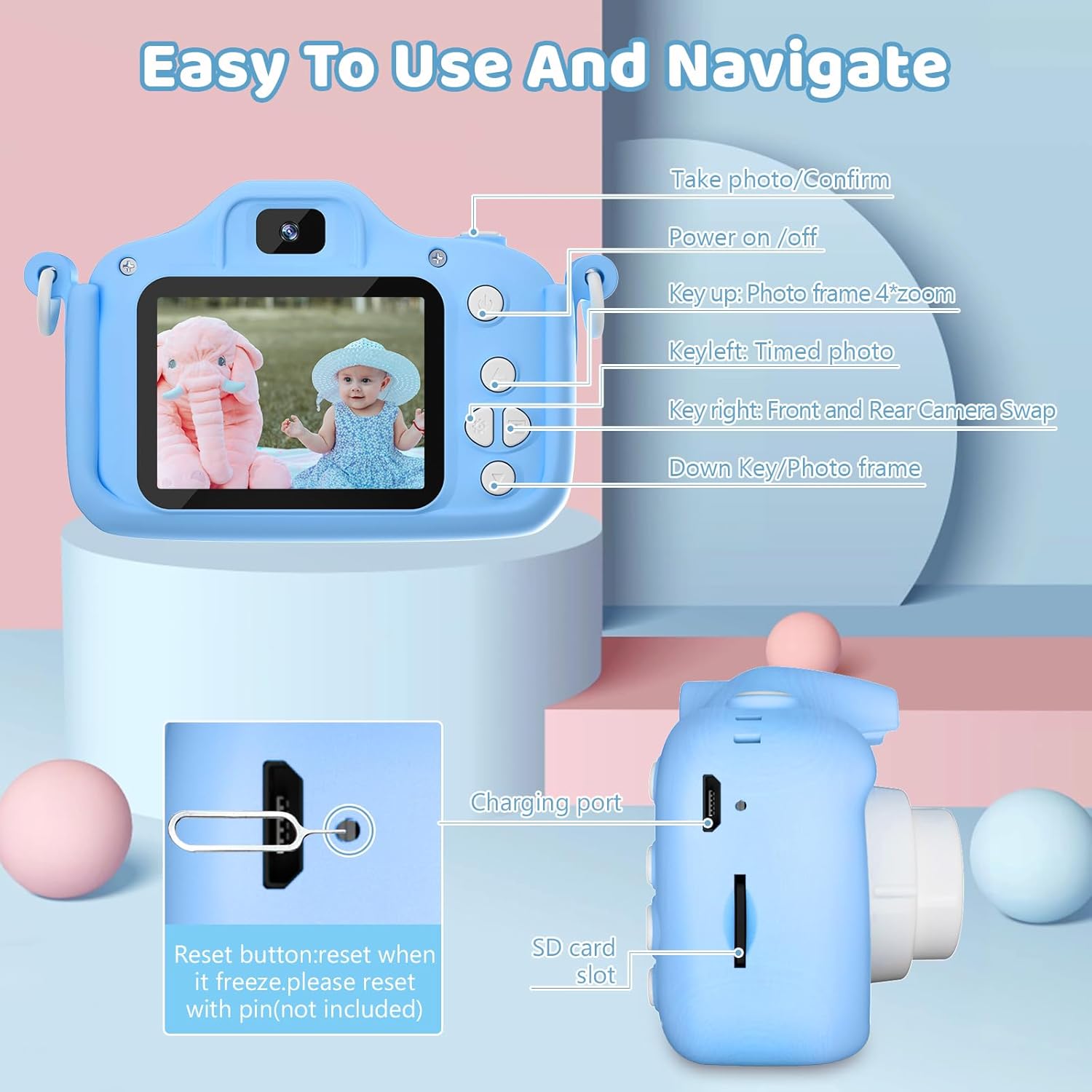
Image: A detailed diagram illustrating the Yatao YT01 Kids Camera's buttons and ports, including the power button, photo/confirm button, navigation keys, reset button, charging port, and SD card slot.
- Power On/Off Button: Long press to power on/off. Short press to return to the main menu.
- Photo Button/Confirm Button: Press to take a photo or confirm a selection.
- Up/Down Buttons: Navigate through menus or adjust settings.
- Left/Right Buttons: Navigate through menus, select timed photo (left), or swap front/rear camera (right).
- Reset Button: Use a pin (not included) to reset the camera if it freezes.
- Micro USB Port: For charging and data transfer.
- SD Card Slot: Insert Micro SD card for storage.
- HD Lens: Main camera lens.
- Front Camera: For selfies.
4. Setup
4.1 Charging the Camera
Before first use, fully charge the camera. Connect the provided USB data cable to the camera's Micro USB port and the other end to a USB power adapter (not included) or a computer's USB port. The charging indicator light will illuminate during charging and turn off when fully charged.
4.2 Inserting the Micro SD Card
The camera requires a Micro SD card for storing photos and videos. Insert the 32GB Micro SD card into the SD card slot on the side of the camera until it clicks into place. Ensure the camera is powered off before inserting or removing the card.
4.3 Attaching the Protective Case and Lanyard
Place the camera into the silicone protective case to guard against drops. Attach the lanyard to the designated loops on the case for easy carrying and to prevent accidental drops.

Image: Comparison showing the Yatao YT01 Kids Camera without a protective case and then securely fitted inside its silicone protective case, highlighting its drop protection feature.
5. Operating Instructions
5.1 Powering On/Off
Long press the Power On/Off button to turn the camera on or off.
5.2 Taking Photos
From the main menu, select the camera icon. Frame your shot using the screen, then press the Photo/Confirm button to capture the image. The camera supports 40MP resolution.

Image: The Yatao YT01 Kids Camera in action, demonstrating its ability to record 1080P video, store content on a 32GB card, and perform time-lapse photography.
5.3 Recording Videos
From the main menu, select the video camera icon. Press the Photo/Confirm button to start recording. Press it again to stop recording. The camera records in 1080P HD.
5.4 Using the Front/Rear Lens
The camera features both a front and rear lens. To switch between them, press the Right navigation button.
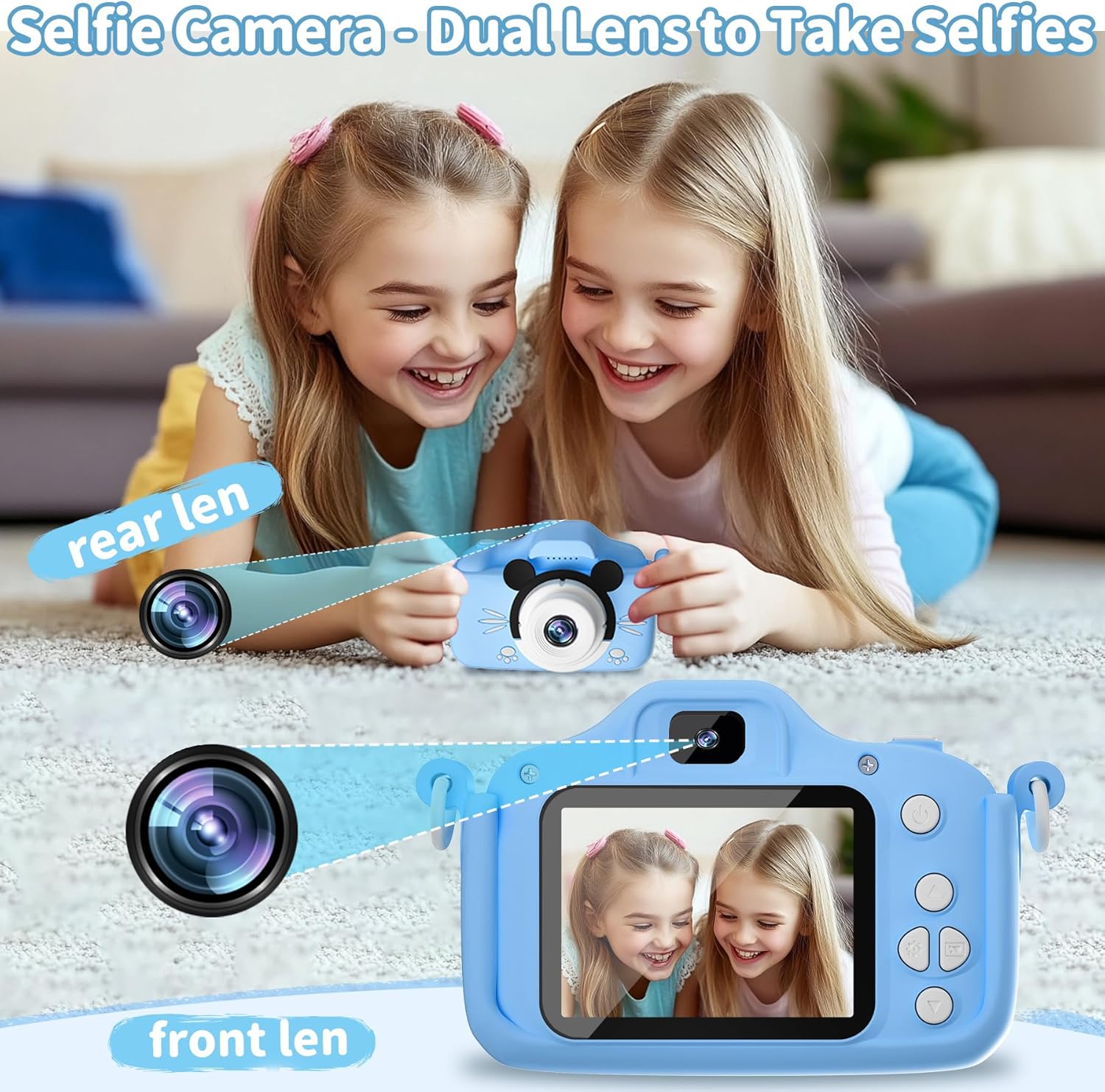
Image: The Yatao YT01 Kids Camera highlighting its dual lens capability, allowing users to easily switch between the front and rear lenses for taking selfies or regular photos.
5.5 Digital Zoom
To use the digital zoom, long press the Up or Down buttons while in photo or video mode. The camera supports up to 8x digital zoom.

Image: An illustration demonstrating the 8X digital zoom feature of the Yatao YT01 Kids Camera, showing progressive magnification from 1X to 8X.
5.6 Photo Frames and Filters
The camera includes built-in cartoon photo frames and filters to add creativity to pictures. Navigate to the photo mode and use the navigation buttons to select desired frames or filters before taking a picture.

Image: The Yatao YT01 Kids Camera showcasing its built-in collection of 28 cartoon photo frames and 6 artistic filters, which can be applied to photos.
5.7 Games and Music
The camera features built-in puzzle games and supports music playback. From the main menu, select the game controller icon for games or the music note icon for music. Use the navigation buttons to select and play.

Image: The Yatao YT01 Kids Camera displaying its interface for built-in puzzle games and illustrating its built-in speaker for music playback.
6. Settings
Access the camera settings from the main menu by selecting the gear icon. Here you can adjust various parameters:
- Size: Photo resolution (e.g., 2M, 40MP).
- Resolution: Video resolution (e.g., 1080P).
- Light: Adjust brightness.
- Time Stamp: Turn on/off date and time display on photos.
- Volume: Adjust sound volume.
- Auto Off: Set auto-shutdown time (e.g., 3 minutes).
- Language: Select interface language (English is default).
- Delay Capture: Set self-timer for photos.
- LCD Off: Set screen auto-off time.
- Format: Format the Micro SD card (this will erase all data).
- Reset System: Restore factory settings.
- Version: View firmware version.
7. Viewing and Transferring Files
There are several ways to view and transfer your captured photos and videos:

Image: A visual guide detailing four methods to view photos and videos from the Yatao YT01 Kids Camera: directly on the camera, via computer using a USB cable, via computer with an SD card reader, and uploading to a phone.
- On the Camera: From the main menu, select the playback icon to browse your photos and videos directly on the camera's screen.
- On a Computer (USB Mode): Connect the camera to your computer using the USB data cable. The camera should appear as a removable disk. Select 'USB Mode' on the camera if prompted, then open the folder to view and transfer files.
- On a Computer (SD Card Reader): Remove the Micro SD card from the camera and insert it into a card reader (not included). Connect the card reader to your computer to access the files.
- On a Phone: Transfer files to a computer first, then use a cable to upload them to your phone. Alternatively, use a compatible SD card adapter for direct transfer to some phones.
8. Maintenance
- Keep the camera clean by wiping it with a soft, dry cloth.
- Avoid exposing the camera to extreme temperatures, moisture, or direct sunlight for extended periods.
- Do not attempt to disassemble or repair the camera yourself. Contact customer support if issues arise.
- Ensure the Micro SD card is properly inserted and removed to prevent damage.
9. Troubleshooting
- Camera will not turn on:
- Ensure the battery is charged. Connect the camera to a charger and try again.
- Camera freezes:
- Use a thin pin to press the reset button located near the Micro USB port.
- Cannot save photos/videos:
- Check if the Micro SD card is inserted correctly and has sufficient free space. Format the card if necessary (this will erase all data).
- Poor image quality:
- Ensure the lens is clean and free from smudges. Check lighting conditions. Adjust resolution settings if needed.
- Computer does not recognize camera:
- Try a different USB port or cable. Ensure the camera is powered on and in USB mode if prompted. Try using an SD card reader instead.
10. Specifications
| Feature | Detail |
|---|---|
| Model Name | YT01 |
| Photo Sensor Resolution | 40 MP |
| Video Resolution | 1080p |
| Screen Size | 2 Inches (LCD) |
| Image Stabilization | Digital |
| Supported File Format | JPEG, MP4 |
| Memory Storage Capacity | 32 GB (External-Memory Size) |
| Zoom | Digital Zoom |
| Battery Type | Lithium Ion |
| Special Features | High Megapixel Count, HD Video Recording, Built-in Games, Music Playback |
11. Warranty and Support
Yatao products are manufactured to high-quality standards. For warranty information or technical support, please refer to the contact details provided with your purchase or visit the official Yatao website. Keep your purchase receipt as proof of purchase for any warranty claims.