
1. Introduction
Thank you for choosing the Vormooi Digital Voice Recorder. This device is designed for high-quality audio recording, offering features such as ultra-long continuous recording, voice activation, and versatile input options. With its substantial 96GB memory capacity and advanced noise reduction technology, it is an ideal tool for lectures, interviews, meetings, and personal notes. This manual provides detailed instructions to help you set up, operate, and maintain your device for optimal performance.
2. Package Contents
Please check the box for the following items:
- 1 x Vormooi Digital Voice Recorder (32GB built-in memory)
- 1 x 64GB TF Card (pre-installed or separate)
- 1 x 3.5mm External Microphone
- 1 x 3.5mm Line-in Cable
- 1 x USB C Cable
- 1 x User Manual
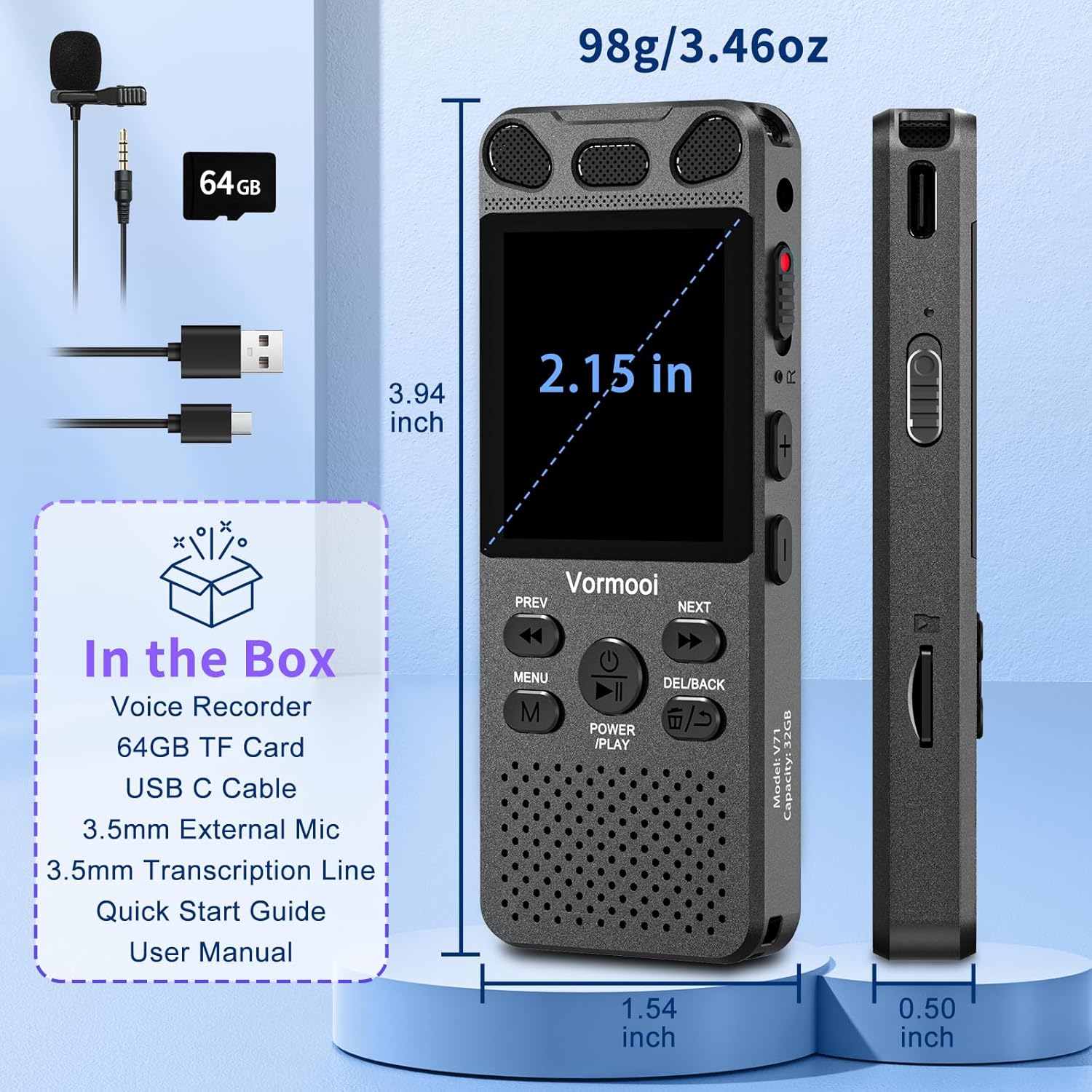
Image: The Vormooi Digital Voice Recorder and its included accessories, such as the external microphone, USB-C cable, and 64GB TF card.
3. Product Overview
Familiarize yourself with the various parts and controls of your Vormooi Digital Voice Recorder.

Image: Labeled diagram of the Vormooi Digital Voice Recorder highlighting its USB C Port, Lock/Unlock switch, Previous Song/Fast Rewind button, TF-Card Slot, Menu button, Power/Play/Pause/OK button, 3.5mm Jack, Record/Save (REC) switch, Reset button, Volume +/- buttons, Next Song/Fast Forward button, and Back/Delete Files button.
Key Components:
- Display Screen: 2.15-inch color screen for navigation and information display.
- Built-in Microphones: For omni-directional recording.
- Speaker: For playback of recordings.
- REC Switch: Slide up to start recording, slide down to save.
- LOCK Button: Locks all buttons to prevent accidental operation during recording.
- USB-C Port: For charging and connecting to a computer.
- 3.5mm Jack: For connecting external microphone or headphones.
- TF-Card Slot: For inserting the 64GB TF card to expand memory.
4. Setup
4.1 Charging the Device
Before first use, fully charge the voice recorder.
- Connect the provided USB-C cable to the recorder's USB-C port.
- Connect the other end of the USB-C cable to a USB power adapter (not included) or a computer's USB port.
- The battery icon on the screen will indicate charging status. A full charge takes approximately 2 hours.
Note: A fully charged battery provides up to 110 hours of continuous recording.
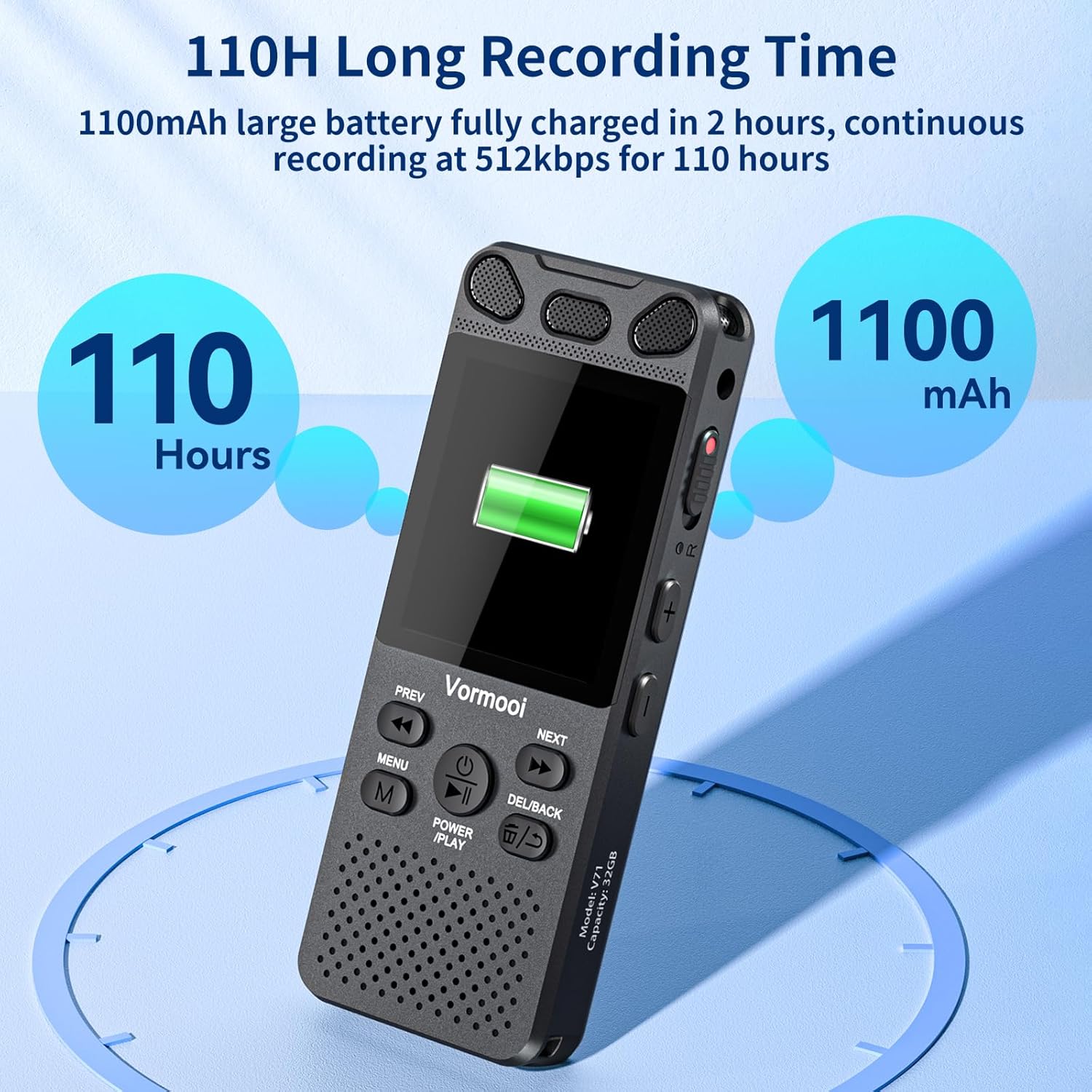
Image: The recorder's screen displaying battery status and highlighting its 110-hour long recording capability and 1100mAh battery.
4.2 Inserting the TF Card
The device comes with 32GB built-in memory and an additional 64GB TF card for expanded storage.
- Locate the TF-Card Slot on the side of the recorder.
- Gently insert the 64GB TF card into the slot until it clicks into place. Ensure the card is oriented correctly.
- To remove, push the card gently inward until it springs out.

Image: Visual representation of the recorder's 96GB storage, composed of 32GB internal memory and an expandable 64GB TF card, capable of storing over 7000 hours of 32kbps recordings.
4.3 Powering On/Off
- Power On: Press and hold the POWER/PLAY/PAUSE/OK button for a few seconds until the screen lights up.
- Power Off: Press and hold the POWER/PLAY/PAUSE/OK button until the screen turns off.
5. Operating Instructions
5.1 Basic Recording
The Vormooi recorder features a convenient one-touch recording function.
- To start recording, slide the REC switch upwards. The recording indicator will light up, and the screen will show recording in progress.
- To save the recording, slide the REC switch downwards. The recording will be saved automatically.

Image: The recorder's one-touch record/save switch, demonstrating its ease of use, alongside icons representing 1536K clear sound quality and an intelligent noise cancellation chip.
5.2 Playback
- From the main menu, navigate to "Recordings Library" or "Folders".
- Use the PREV and NEXT buttons to select the desired recording.
- Press the POWER/PLAY/PAUSE/OK button to start playback.
- During playback, press POWER/PLAY/PAUSE/OK to pause/resume.
- Use the PREV and NEXT buttons for fast rewind/fast forward.
- Adjust volume using the Volume +/- buttons.
5.3 Voice Activated Recording (VAR)
The VAR function allows the recorder to start recording automatically when sound is detected and pause when silence occurs, saving memory space.
- Go to the "Settings" menu.
- Select "VAR Mode" or "Voice Activated".
- Choose your desired sensitivity level (e.g., Level 1-7, where 7 is most sensitive).
- Exit the menu. The recorder will now record only when sound is present.

Image: A composite image illustrating key functionalities: Voice Activated Recording, 110-hour battery life, password protection, A-B repeat for specific section playback, and variable speed playback.
5.4 External Microphone Recording
For more precise audio capture, especially in interviews, use the included external microphone.
- Plug the 3.5mm jack of the external microphone into the recorder's 3.5mm jack.
- Ensure the microphone is positioned correctly for optimal sound pickup.
- Proceed with recording as usual using the REC switch. The device will automatically switch to external microphone input.

Image: The Vormooi recorder connected to its external 3.5mm microphone, showing the setup for enhanced audio recording.
5.5 Line-in Recording (Transcription)
The line-in function allows you to record audio directly from other devices like cell phones, MP3 players, or computers.
- Connect one end of the 3.5mm Line-in Cable to the audio output of your external device (e.g., headphone jack of a phone).
- Connect the other end of the 3.5mm Line-in Cable to the recorder's 3.5mm jack.
- Start playback on your external device and then slide the REC switch upwards on the recorder to begin recording.

Image: Setup for line-in recording, showing the recorder connected to a smartphone via a 3.5mm cable, enabling direct audio capture from other devices.
5.6 Noise Reduction
The Vormooi recorder is equipped with an advanced noise reduction chip and adjustable noise reduction levels (7 levels).
- Access the "Settings" menu.
- Find the "Noise Reduction" or "DSP" option.
- Adjust the level to minimize environmental noise during recording. Higher levels provide more aggressive noise reduction.

Image: An internal view highlighting the 2159 Intelligent Noise Reduction Chip (DSP) responsible for minimizing environmental noise and enhancing audio clarity.
5.7 Lock Button
To prevent accidental interruption or loss of recording due to unintentional button presses, use the LOCK button.
- Slide the LOCK button (usually on the side) to the "locked" position. All buttons will become unresponsive.
- Slide it back to the "unlocked" position to regain control of the buttons.

Image: The lock switch on the side of the recorder, showing its "UP: Locked" and "DOWN: Unlock" positions, designed to prevent accidental button presses during recording.
5.8 Connecting to Computer
You can transfer recordings to your Windows or macOS computer.
- Connect the recorder to your computer using the provided USB-C cable.
- The recorder will appear as a removable disk drive on your computer.
- You can then drag and drop audio files to and from the device.
6. Maintenance
- Cleaning: Use a soft, dry cloth to clean the device. Do not use liquid cleaners or solvents.
- Storage: Store the device in a cool, dry place away from direct sunlight and extreme temperatures.
- Battery Care: To prolong battery life, avoid fully discharging the battery frequently. Charge it regularly, even if not in use for extended periods.
- Data Backup: Regularly back up important recordings to your computer to prevent data loss.
7. Troubleshooting
| Problem | Possible Solution |
|---|---|
| Device does not power on. |
|
| Cannot record. |
|
| Poor recording quality. |
|
| Device not recognized by computer. |
|
8. Specifications
| Feature | Detail |
|---|---|
| Model Number | O1 |
| Memory Capacity | 96 GB (32GB Built-in + 64GB TF Card) |
| Recording Quality | Up to 1536Kbps HD |
| Battery Life | Up to 110 hours continuous recording |
| Screen Size | 2.15 Inches |
| Product Dimensions | 1.54"D x 3.94"W x 4.96"H |
| Item Weight | 5.3 ounces |
| Headphones Jack | 3.5 millimeters |
| Supported Formats | MP3 Audio, WAV (also FLAC, OGG, APE, WMA for playback, as per A+ content image) |
| Hardware Interface | USB Type C |
| Compatible Devices | Windows/macOS Computer |
9. Customer Support
For any questions, issues, or assistance with your Vormooi Digital Voice Recorder, please contact our support team.
- Support Response: Vormooi support team will promptly respond and solve the problem within 24 hours on weekdays.
- Please refer to the contact information provided on the product packaging or the official Vormooi website for the most up-to-date support channels.