
Introduction
This manual provides detailed instructions for the operation, maintenance, and troubleshooting of your KUIIYER Mini Bluetooth Barcode Scanner, Model U2-B. Please read this manual thoroughly before use to ensure proper functionality and extend the product's lifespan.
Product Overview
The KUIIYER Mini Bluetooth Barcode Scanner is a compact, portable device designed for efficient 1D and 2D barcode scanning. It features an OLED digital display, AI voice prompts, and multiple connection options for versatile use across various platforms.
Key Components
- CMOS Scanning Window (800 x 600 Pixel, Built-in Auxiliary Light)
- Scan Button
- OLED Highlight Display
- USB Charging Port
- AI Voice Speaker
- 1100 mAh Battery

Image: Detailed view of the scanner highlighting its components such as the CMOS scanning window, scan button, OLED display, USB charging port, AI voice speaker, and 1100 mAh battery. Dimensions are shown as 2.8cm/1.1 inch height, 4cm/1.6 inch width, and 12.5cm/4.9 inch length.
Setup
Charging the Scanner
Before first use, fully charge the scanner using the provided USB cable. Connect the USB-C end to the scanner's charging port and the USB-A end to a power adapter or computer USB port. The OLED display will indicate charging status.
Connection Modes
The scanner supports three primary connection modes:
- 2.4Ghz Wireless Mode: For connecting to PCs/POS systems via the included USB dongle. Transmission distance up to 262 ft (80M). Insert the USB dongle into your computer's USB port. The scanner will automatically connect.
- Bluetooth Mode: For connecting to mobile devices like iPads, iPhones, Android phones, and tablets. Transmission distance up to 98 ft (30M). Turn on Bluetooth on your device and pair with the scanner (usually named "Barcode Scanner" or similar).
- USB Wired Mode: For direct connection to PCs/POS systems via the USB cable. Cable length 1.64 ft (0.5 M). Connect the scanner to your computer using the USB cable. No additional drivers are required.
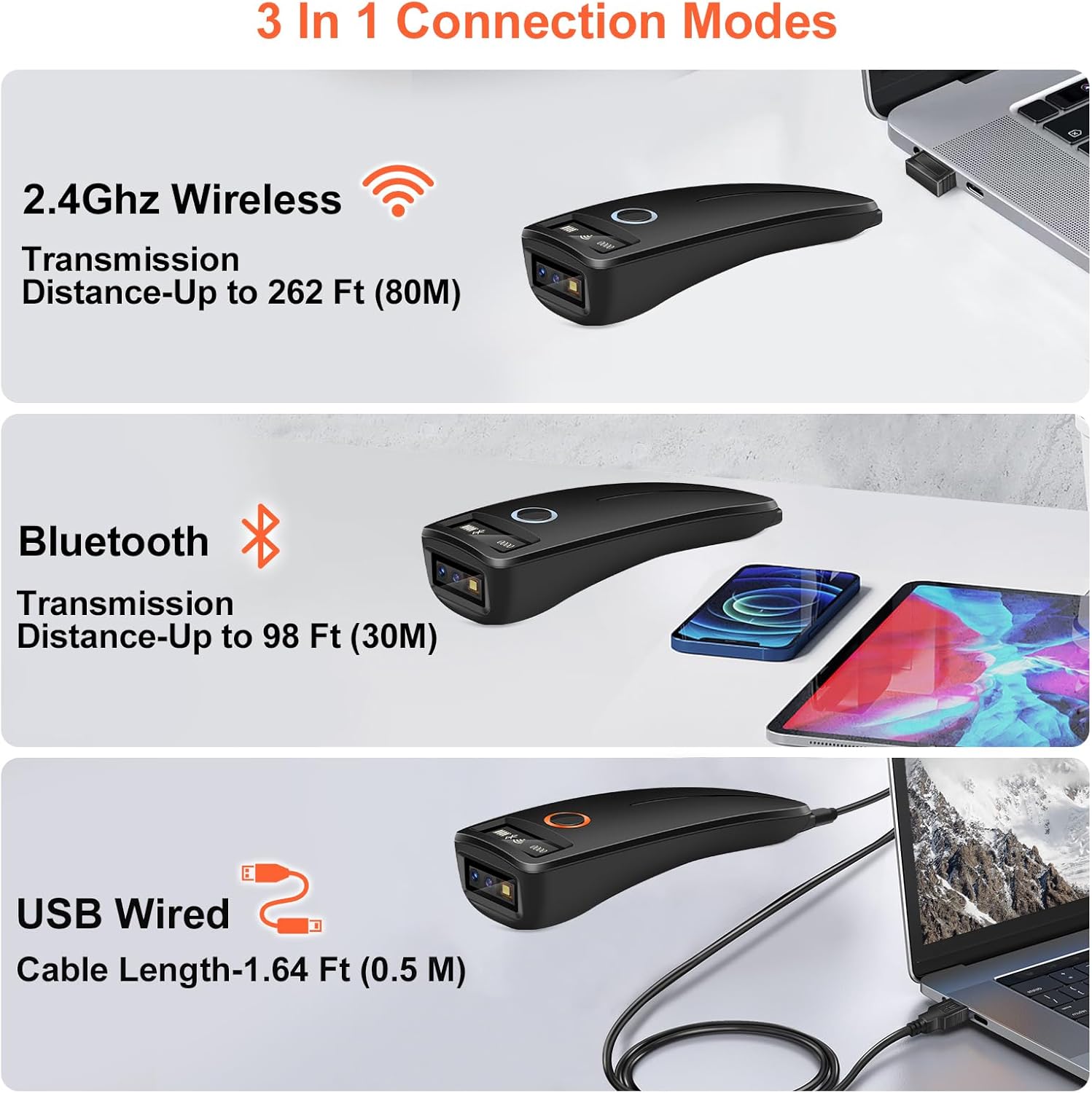
Image: Visual representation of the three connection methods: 2.4Ghz wireless with a USB dongle connected to a laptop, Bluetooth connection to a tablet, and USB wired connection to a laptop.
Operating Instructions
Supported Barcode Types
The KUIIYER scanner utilizes an 800 x 600 pixel CMOS image sensor, capable of reading a wide range of 1D and 2D barcodes, including those that are fuzzy, damaged, curved, or displayed on screens.
- 1D Codes: EAN-13, EAN-8, UPC-A, UPC-E, Code 128, Code 39, Code93, Interleaved 2 of 5, Industrial 2 of 5, Matrix 2 of 5, Code 11, CodaBar, MSI-Plessey, GS1 Databar(RSS), etc.
- 2D Codes: QR Code, Data Matrix, PDF417, Micro QR, Aztec, etc.
Note: Not compatible with Square POS system.

Image: A grid displaying various barcode types that the scanner can read, including UPC/EAN, Code-128, QR, Data Matrix, fuzzy, damaged, curved, screen codes, and colorful codes.
Scanning Modes
The scanner offers three operational scanning modes, configurable via specific QR codes in the user manual (physical or digital):
- Manual Trigger Mode: Press the scan button to initiate each scan. Scan QR Code for Manual Trigger Mode ($Set#Code^30)
- Auto-sensing Scan Mode: The scanner automatically detects and scans barcodes when presented within its field of view. Scan QR Code for Auto-sensing Scan Mode ($Set#Code^31)
- Continuous Scan Mode: The scanner continuously scans, ideal for high-volume scanning environments. Scan QR Code for Continuous Scan Mode ($Set#Code^32)

Image: Three scenarios demonstrating the scanning modes: a hand holding the scanner to manually scan a phone screen, a worker scanning boxes in auto-sensing mode, and the scanner continuously scanning items on a conveyor belt.
Data Uploading Modes
The scanner supports two methods for uploading scanned data:
- Instant Upload Mode: Barcodes are immediately transmitted to the connected device upon scanning. This is the default mode.
- Storage Mode: Scanned barcodes are stored in the scanner's internal memory (supports over 50,000 barcodes) and can be uploaded later. To activate storage mode, scan the appropriate QR code. To upload stored data, scan the "Data Uploads" QR code. Scan QR Code for Storage Mode Activation (%%ALLMEM-SET) Scan QR Code for Data Uploads (%%ALLMEM-SC)
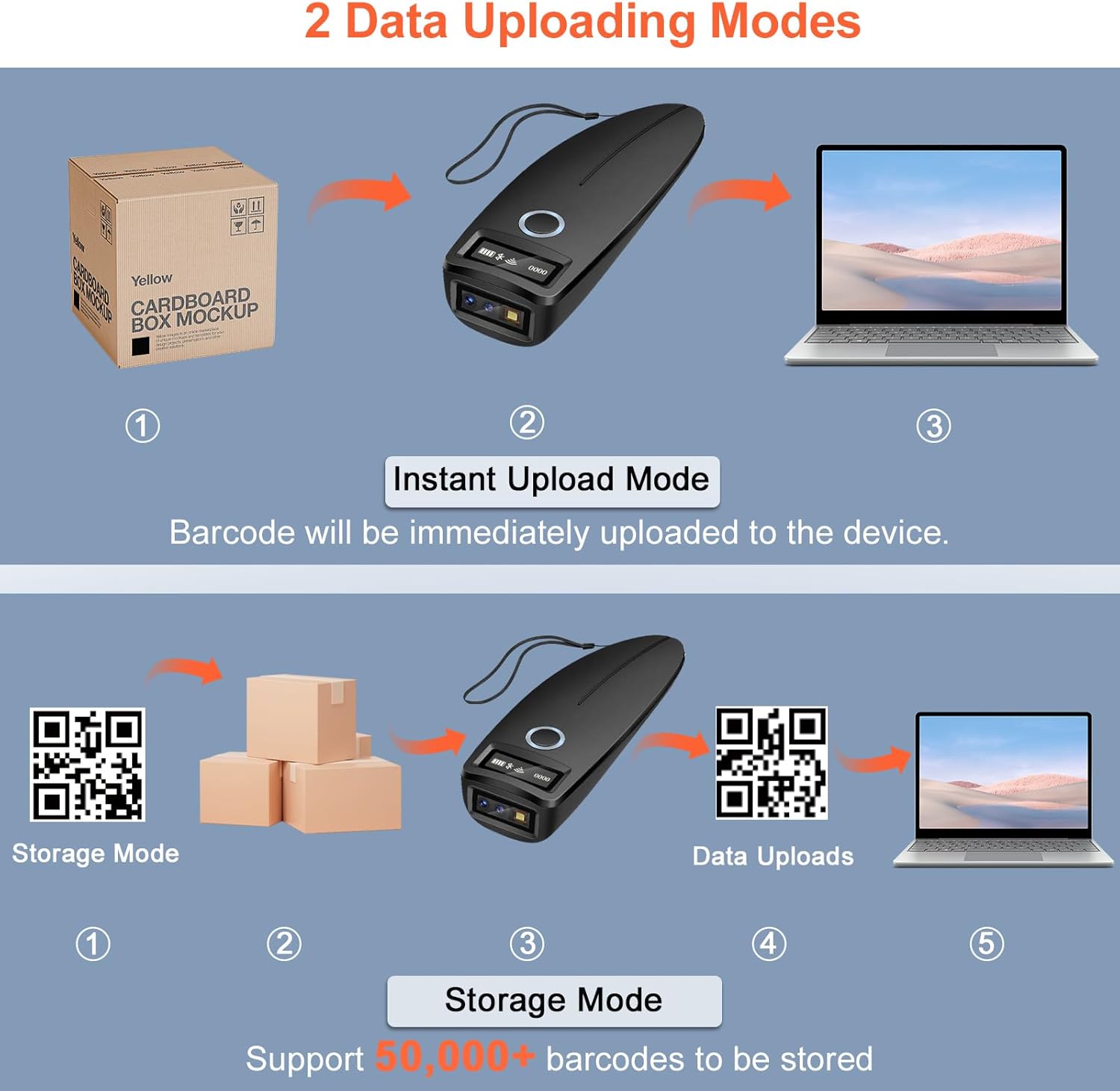
Image: A visual comparison of Instant Upload Mode, where a scanned barcode is immediately sent to a laptop, and Storage Mode, where barcodes are stored internally before being uploaded to a laptop.
Maintenance
Cleaning
To clean the scanner, use a soft, dry cloth. For stubborn dirt, slightly dampen the cloth with water or a mild, non-abrasive cleaner. Do not use harsh chemicals or abrasive materials, as they may damage the device.
Storage
Store the scanner in a cool, dry place away from direct sunlight and extreme temperatures. When not in use for extended periods, ensure the battery is partially charged (around 50%) to preserve its lifespan.
Durability
The scanner features an IP54 dust and waterproof rating and a high-strength ABS+PC material shell, allowing it to withstand drops from up to 1.5m/5ft. While durable, avoid intentional drops or impacts.
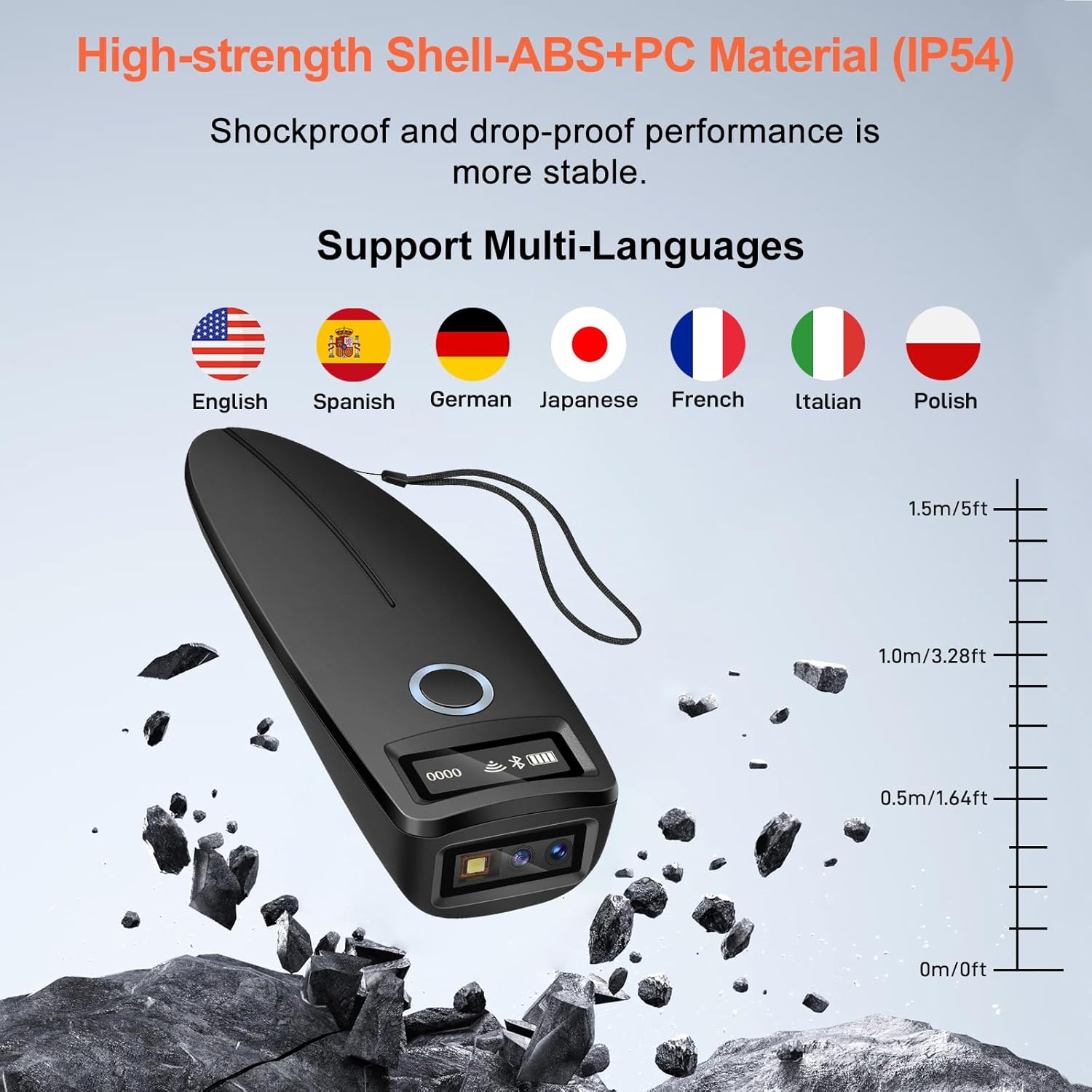
Image: The scanner shown on a rocky surface with a height scale, indicating its 1.5m/5ft drop resistance. Flags of various languages (English, Spanish, German, Japanese, French, Italian, Polish) are displayed, signifying multi-language support.
Troubleshooting
Common Issues and Solutions
| Problem | Possible Cause | Solution |
|---|---|---|
| Scanner not connecting via Bluetooth. | Bluetooth not enabled on host device; scanner not in pairing mode; interference. | Ensure Bluetooth is on. Put scanner in pairing mode (refer to specific QR code in manual). Move closer to host device. |
| Scanner not reading barcodes. | Barcode damaged/unreadable; incorrect scanning mode; low battery. | Ensure barcode is clear. Check scanning mode settings. Charge scanner. |
| Scanned data not appearing on computer. | Incorrect data upload mode (e.g., in storage mode); connection issue. | Switch to Instant Upload Mode or upload stored data. Verify connection (2.4Ghz dongle, Bluetooth, or USB cable). |
| AI Voice not working or unclear. | Volume too low; voice feature disabled. | Adjust volume settings (if available via QR code). Ensure AI voice is enabled. |
| OLED display is blank. | Scanner is off; battery is depleted. | Press the power button to turn on. Charge the scanner. |
Specifications
| Feature | Detail |
|---|---|
| Model Number | U2-B |
| Scanning Technology | CMOS 800 x 600 Pixel |
| Supported Barcodes | 1D (EAN-13, UPC-A, Code 128, etc.), 2D (QR, Data Matrix, PDF417, etc.) |
| Connectivity | Bluetooth, 2.4G Wireless, USB Cable |
| Battery Capacity | 1100 mAh Lithium Ion |
| Display | OLED Digital Display |
| Special Features | AI Voice, Built-in Auxiliary Light, Multi-language Support |
| Durability Rating | IP54 Dust and Waterproof, 1.5m/5ft Drop Resistance |
| Product Dimensions | 1.1 x 1.6 x 4.9 inches |
| Item Weight | 5 ounces |
Warranty and Support
KUIIYER offers a 90-day unconditional return policy and a 24-month warranty for any quality-related issues.
For technical support, troubleshooting assistance, or warranty claims, please contact the KUIIYER professional customer service team. They are available to assist you within 12 hours.
Contact Information: Please refer to the product packaging or the official KUIIYER website for the most up-to-date contact details.
Wide Range of Applications
The KUIIYER Mini Bluetooth Barcode Scanner is suitable for various environments, enhancing efficiency in:
- Supermarkets and Retail Stores
- Libraries
- Pharmacies
- Restaurants and Hospitality
- Hotels
- Warehouses and Logistics

Image: A collage of six images demonstrating the scanner's versatility in different professional settings: a supermarket checkout, a library, a pharmacy, a restaurant, a hotel reception, and a warehouse.


