
1. Introduction
The EnhanBili MX20 is an all-in-one LED display controller, part of the COEX series control system. This device integrates video processing and video control functionalities into a single unit. It features multiple input and output connectors to facilitate comprehensive LED display management.
The MX20 is designed to work seamlessly with the Vision Management Platform (VMP) software, providing an enhanced operational and control experience for users managing LED displays.
2. Key Features
- Integrated Design: Combines video processing and video control in one compact device.
- Input Connectivity: Equipped with 2x HDMI 1.3 and 1x 3G-SDI input connectors.
- Output Connectivity: Features 6x Ethernet output ports and 2x 10G optical ports for versatile display configurations.
- Software Compatibility: Compatible with the Vision Management Platform (VMP) software for advanced control.
- Robust Construction: Designed for reliable performance in various environments.
- Certifications: CE, FCC, RoHS compliant.
3. Package Contents
The specific list of package contents is not provided. Typically, the package includes the MX20 unit, a power cable, and a user manual. Please verify the contents upon unboxing.
4. Setup Instructions
Follow these steps to set up your EnhanBili MX20 LED Screen Controller:
- Unpack the Device: Carefully remove the MX20 unit from its packaging.
- Power Connection: Connect the provided power cable to the AC power input on the rear panel of the MX20 and then to a suitable power outlet. Ensure the power switch is in the OFF position before connecting.
- Input Source Connection:
- Connect your video sources (e.g., laptop, media player) to the HDMI 1.3 or 3G-SDI input ports on the rear panel.
- Refer to the rear panel diagram for port identification.
- LED Display Connection:
- Connect the MX20's Ethernet output ports (1-6) to your LED display modules using standard Ethernet cables.
- For long-distance or high-bandwidth connections, utilize the 10G optical ports with appropriate fiber optic transceivers and cables.
- Control PC Connection: Connect a control PC to the MX20 via the Ethernet control port for configuration and management using the VMP software.
- Power On: Once all connections are secure, switch the power button on the rear panel to the ON position. The front panel display should illuminate.

Figure 4.1: Front view of the MX20 controller, showing the display screen and control knob.

Figure 4.2: Detailed rear view of the MX20, highlighting input (HDMI, SDI) and output (Ethernet, Optical) ports, along with the power input and control ports.
5. Operating Instructions
The EnhanBili MX20 is primarily controlled via the Vision Management Platform (VMP) software installed on a connected PC. Basic operations can also be performed using the front panel controls.
- Power On/Off: Use the power switch on the rear panel to turn the device on or off.
- Front Panel Control:
- The front panel features a display screen and a control knob. Use the knob to navigate menus and select options shown on the display.
- The "BACK" button allows you to return to the previous menu.
- Software Control (VMP):
- Install the VMP software on your control PC.
- Launch VMP and establish a connection with the MX20 via the Ethernet control port.
- Use VMP to configure input sources, manage display layouts, adjust parameters, and monitor the status of your LED display system. Refer to the VMP software manual for detailed instructions.
- Input Source Selection: Select the desired video input (HDMI 1, HDMI 2, or 3G-SDI) either through the front panel menu or the VMP software.
- Output Configuration: Configure the LED display output parameters, including resolution, refresh rate, and mapping, using the VMP software.
6. Maintenance
Proper maintenance ensures the longevity and optimal performance of your MX20 controller.
- Cleaning:
- Ensure the device is powered off and disconnected from the power source before cleaning.
- Use a soft, dry cloth to wipe the exterior of the unit. Do not use liquid cleaners or abrasive materials.
- Keep ventilation openings clear of dust and debris to prevent overheating.
- Environmental Conditions:
- Operate the MX20 within the specified temperature range of -20℃ to 70℃.
- Avoid exposing the device to excessive humidity, direct sunlight, or extreme temperature fluctuations.
- Firmware Updates: Periodically check the EnhanBili official website or contact support for available firmware updates. Follow the provided instructions carefully when performing updates.
7. Troubleshooting
If you encounter issues with your MX20 controller, refer to the following basic troubleshooting steps:
- No Power:
- Check if the power cable is securely connected to both the MX20 and the power outlet.
- Ensure the power switch on the rear panel is in the ON position.
- Verify that the power outlet is functional.
- No Video Output:
- Confirm that the video input source is properly connected and active.
- Check the input source selection on the MX20 (front panel or VMP software).
- Verify that the Ethernet or optical cables connecting to the LED display are secure and undamaged.
- Ensure the LED display modules are powered on and configured correctly.
- VMP Software Connection Issues:
- Ensure the Ethernet cable between the control PC and MX20 is connected.
- Check network settings on the PC and MX20 to ensure they are compatible.
- Temporarily disable any firewalls on the control PC that might block communication.
- Unresponsive Controls: If the front panel controls or VMP software become unresponsive, try restarting the MX20 unit.
If the problem persists after attempting these steps, please contact EnhanBili customer support for further assistance.
8. Specifications
| Attribute | Detail |
|---|---|
| Brand | EnhanBili |
| Model Number | MX20 |
| Compatible Devices | Laptop (for control), LED Displays |
| Input Connectors | 2x HDMI 1.3, 1x 3G-SDI |
| Output Ports | 6x Ethernet, 2x 10G Optical |
| Output Wattage | 50W |
| Item Dimensions (L x W x H) | 19.09 x 1.97 x 15.16 inches (48.5 x 5.0 x 38.5 cm) |
| Net Weight | 4.5 Kilograms (9.92 lbs) |
| Gross Weight | 8.1 Kilograms (17.86 lbs) |
| Operating Temperature | -20℃ to 70℃ (-4℉ to 158℉) |
| Overall Consumption | 50W |
| Certifications | CE, FCC, RoHS |
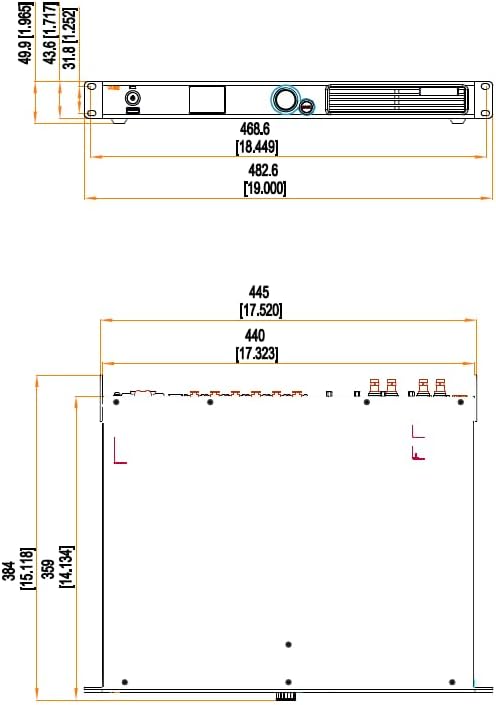
Figure 8.1: Dimensional drawing of the MX20 unit with measurements in millimeters and inches.
9. Warranty Information
According to the product specifications, there is NO explicit warranty description provided for the EnhanBili MX20. Please contact your retailer or the manufacturer directly for any warranty-related inquiries or to understand their return and repair policies.
10. Customer Support
For technical assistance, troubleshooting beyond the scope of this manual, or general inquiries, please contact EnhanBili customer support or your authorized dealer. Refer to the product packaging or the official EnhanBili website for contact details.