
wenhome PF1003
WENHOME Automatic Cat Feeder with APP
Model: PF1003
Brand: WENHOME
Product Overview
The WENHOME Automatic Cat Feeder with APP is designed to provide convenient and precise feeding for your pets. This smart feeder connects to your home's 2.4GHz WiFi network, allowing you to manage feeding schedules, monitor food levels, and dispense meals remotely via the "Smart Life" application. It features a 3-liter capacity, an anti-clog system, and dual power options to ensure your pet never misses a meal.

Image: The WENHOME Automatic Cat Feeder, a white device with a transparent food reservoir, positioned next to a cat. A smartphone screen displaying the feeder's app interface is superimposed in the background, illustrating remote control capabilities.
Setup Guide
1. Unboxing and Components
Carefully remove all components from the packaging. Ensure you have the following:
- WENHOME Automatic Pet Feeder Unit
- Food Bowl
- DC 5V Power Adapter (USB-A to USB-C cable included, power supply not included)
- Desiccant Packet (pre-installed in lid)
- User Manual
2. Power Connection
The feeder supports dual power supply for reliable operation.
- Primary Power: Connect the provided USB-C cable to the feeder's power port and the USB-A end to a DC 5V power adapter (not included). Plug the adapter into a wall outlet.
- Backup Power: For uninterrupted feeding during power outages, install 4 x AA batteries (not included) into the battery compartment located at the bottom of the feeder.

Image: An open battery compartment on the underside of the feeder, indicating where 4 AA batteries should be inserted for backup power.

Image: The WENHOME Automatic Cat Feeder connected to a power outlet via its DC 5V adapter, demonstrating its primary power source.
3. App Installation and Connection
The WENHOME feeder is controlled via the "Smart Life" app.
- Download the App: Search for "Smart Life" in your smartphone's app store (iOS or Android) and install it.
- Register/Log In: Open the app and create a new account or log in if you already have one.
- Add Device: Tap the "+" icon in the top right corner of the app to add a new device. Select "Small Home Appliance" then "Pet Feeder (Wi-Fi)".
- Connect to Wi-Fi: Follow the on-screen instructions to connect the feeder to your 2.4GHz Wi-Fi network. Ensure your phone is also connected to the same 2.4GHz network during setup.
- Pairing: The feeder's indicator light will flash during pairing. Once connected, the light will turn steady blue.
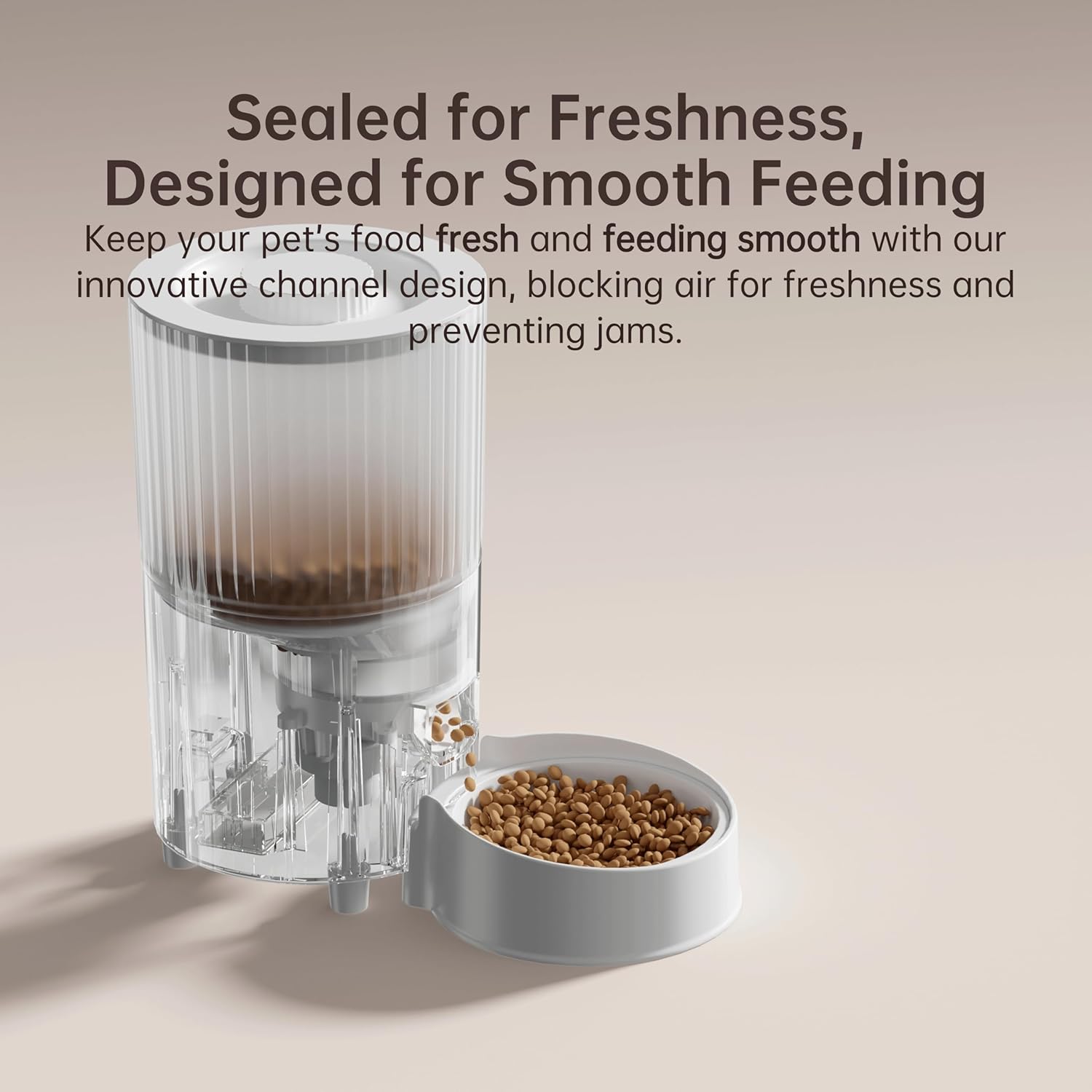
Image: A smartphone displaying the "Smart Life" app, showing the interface for controlling the automatic pet feeder, including options for manual feeding and viewing feed records.
Operating Instructions
1. Filling the Feeder
Open the lid of the food reservoir. Pour dry pet food into the reservoir. The feeder has a 3-liter capacity, suitable for approximately 14 days for cats or 6 days for dogs, depending on their diet.

Image: The WENHOME Automatic Cat Feeder next to a sleeping cat, with text overlays indicating its 3L capacity and estimated feeding durations for cats (14 days) and dogs (6 days).
2. Manual Feeding
- Via App: On the "Smart Life" app, navigate to the feeder's control interface. Use the "Feed" option to dispense a single portion or select the number of portions (1-12) to dispense immediately. Each portion is approximately 10 grams.
- Via Feeder Button: Double-press the physical "Manual Feed Button" on the front of the feeder to dispense one portion of food.
3. Setting Up Feeding Schedules (App Control)
Customize your pet's feeding schedule with up to 10 daily meals.
- Open the "Smart Life" app and select your pet feeder.
- Go to the "Meal Plan" or "Schedule" section.
- Add a new feeding time. Set the desired time and the number of portions (1-12) for that meal.
- Save the schedule. The feeder will automatically dispense food at the programmed times.

Image: A smartphone displaying the "Smart Life" app's scheduling interface, allowing users to set specific times and portion sizes for automated feeding.
4. Low Food Alerts and Anti-Clog System
- Low Food Alerts: A built-in sensor continuously monitors the food level. When food supplies run low, the feeder will send an instant alert to your "Smart Life" app, prompting you to refill.
- Anti-Clog System: The feeder is equipped with a smart anti-clog system. If a blockage is detected during dispensing, the mechanism will automatically stop, reverse, and retry to ensure smooth food delivery.

Image: An overhead view of the feeder's internal food reservoir, highlighting the low food sensor and the mechanism that dispenses kibble into the bowl.

Image: A disassembled view of the feeder's internal components, illustrating the multi-part food dispensing mechanism designed to prevent jams and ensure smooth delivery.
Maintenance
1. Cleaning the Feeder
Regular cleaning ensures hygiene and proper functioning. Disassemble the food bowl and food reservoir. Wash these parts with mild soap and water. Rinse thoroughly and ensure all parts are completely dry before reassembling. Do not immerse the main feeder unit (with electronics) in water.
2. Desiccant Replacement
The feeder includes an integrated desiccant holder in the lid to keep food fresh and dry. Replace the desiccant packet periodically (e.g., every 1-2 months) to maintain optimal freshness, especially in humid environments.

Image: A diagram illustrating the feeder's "Enhanced Freshness Locking System," showing a sealed food dispensing channel and an integrated desiccant holder within the lid to preserve food freshness.
Troubleshooting
Common Issues and Solutions
- Feeder not dispensing food:
- Check food level; refill if low.
- Verify power connection and battery backup.
- Check for food jams in the dispensing mechanism. Clear any blockages.
- Ensure the feeder is connected to Wi-Fi and the app.
- App not connecting to feeder:
- Ensure your Wi-Fi network is 2.4GHz.
- Restart the feeder and your Wi-Fi router.
- Ensure the feeder is within Wi-Fi range.
- Try re-pairing the device in the "Smart Life" app.
- Food not staying fresh:
- Ensure the lid is properly sealed.
- Replace the desiccant packet in the lid.
Indicator Light Status

Image: A close-up of the WENHOME feeder's control panel, featuring the indicator light and manual feed button. Below it, a table details the meaning of different light statuses (flashing red, long-lasting red, green, steady blue, flashing blue) corresponding to various operational states or issues.
| Indicator Light Status | Host Status |
|---|---|
| Flashing red light | Grain jams cause equipment failure |
| Long-lasting red light | Insufficient grain |
| Green light | Grain releasing |
| Steady blue light | Connecting to server / No issues / No food shortage |
| Flashing blue light | Connecting to network |
Specifications
Image: A technical drawing of the WENHOME Automatic Cat Feeder, displaying its dimensions in both millimeters and inches, including height (303mm/11.93") and width (172mm/6.77").
| Feature | Detail |
|---|---|
| Model Number | PF1003 |
| Dimensions (L x W x H) | 30 x 17 x 30 cm (11.8 x 6.7 x 11.8 inches) |
| Weight | 1 kg (2.2 lbs) |
| Capacity | 3 Liters (approx. 3 pounds of dry food) |
| Power Supply | DC 5V Adapter (USB-C), 4 x AA batteries (backup, not included) |
| Connectivity | 2.4GHz WiFi |
| Material | Plastic |
| Target Species | Cat, Dog |
| Special Features | App Control, Portion Control, Anti-Clog System, Low Food Alerts, Sealed Food Outlet |
Warranty and Support
WENHOME offers a one-year warranty for this product, covering manufacturing defects and malfunctions under normal use. For any issues, questions, or support needs, please contact the WENHOME customer support team. They are available 24/7 to assist you.
You can find contact information and further support resources on the official WENHOME website: WENHOME Store on Amazon
no relevant documents
Ask a question about this manual
Ask about setup, troubleshooting, compatibility, parts, safety, or missing instructions. Manuals+ will review the question and use this page’s manual context to help answer it.