
Grandstream GWN7665
Grandstream GWN7665 Wi-Fi 6E Access Point
User Manual
1. Introduction
The Grandstream GWN7665 is an enterprise-grade Wi-Fi 6E access point designed for business wireless network deployments requiring medium-to-high user density. This manual provides essential information for the proper installation, configuration, and maintenance of your GWN7665 access point.
It is crucial to read this manual thoroughly before attempting to install or operate the device to ensure optimal performance and safety.
2. Product Overview
The GWN7665 is a powerful tri-band 802.11ax Wi-Fi 6E access point, offering advanced features for robust and high-speed wireless connectivity.
Key Features:
- 5.4Gbps Aggregate Wireless Throughput: Provides high-speed data transfer for demanding applications.
- Tri-Band 2x2:2 MU-MIMO with DL/UL OFDMA: Enhances network efficiency and capacity for multiple devices.
- Up to 175-meter Coverage Range: Offers extensive wireless coverage.
- Support for 384 Concurrent Wi-Fi Client Devices: Capable of handling a large number of connected users simultaneously.
- Built-in Bluetooth BLE 5.2: Enables integration with Bluetooth-enabled devices.
- Advanced QoS: Ensures real-time performance for low-latency applications like voice and video.
- Anti-hacking Secure Boot and Digital Signatures: Provides robust security for device integrity and data protection.
- Self-power Adaptation: Automatically detects and adapts to PoE or PoE+ power sources.
- Flexible Management Options: Includes an embedded controller for up to 50 local GWN APs, GWN.Cloud for unlimited cloud management, and GWN Manager for on-premise software management.
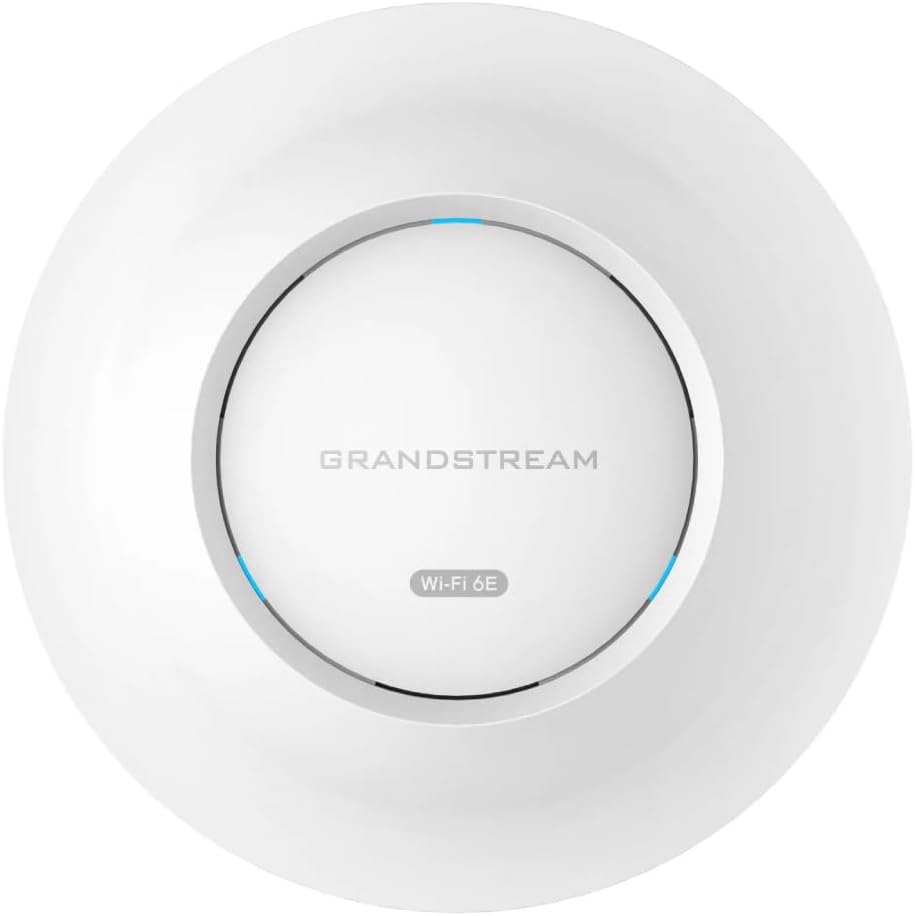
Figure 2.1: Front view of the Grandstream GWN7665 Wi-Fi 6E Access Point. This image shows the circular white casing with the Grandstream logo and "Wi-Fi 6E" text in the center.

Figure 2.2: Angled front view of the Grandstream GWN7665, highlighting its sleek, low-profile design.

Figure 2.3: Rear view of the Grandstream GWN7665, showing the mounting points, reset button, and the two Ethernet ports (1G and 2.5G) labeled NET/PoE.
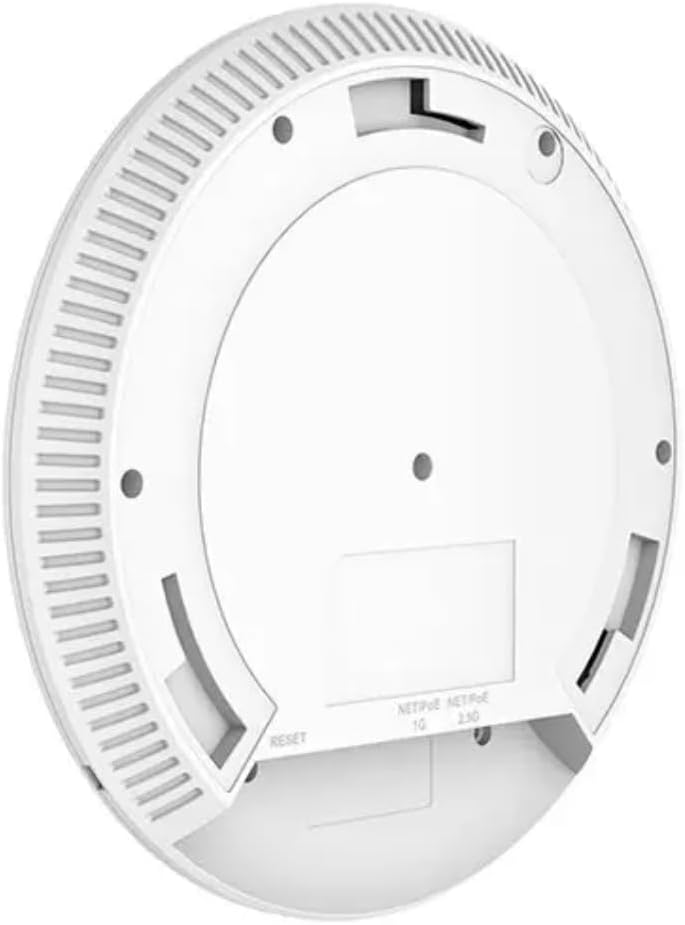
Figure 2.4: Angled rear view of the Grandstream GWN7665, providing a clearer perspective of the port labels and mounting mechanism.
3. Package Contents
Verify that your package contains the following items:
- Grandstream GWN7665 Wi-Fi 6E Access Point
Note: Power over Ethernet (PoE) injector or PoE-enabled switch is required for operation and is not included in the standard package.
4. Setup
4.1 Powering the Device
The GWN7665 supports Power over Ethernet (PoE/PoE+). Connect an Ethernet cable from a PoE/PoE+ enabled switch or a PoE injector to either of the Ethernet ports on the GWN7665. The device will power on automatically.
4.2 Network Connection
Connect the GWN7665 to your network infrastructure via one of the two Gigabit Ethernet ports (1G or 2.5G). For optimal performance, utilize the 2.5G port if your network supports it.
4.3 Mounting
The GWN7665 can be mounted on a wall or ceiling. Use the provided mounting bracket and hardware to secure the access point in a central location for optimal Wi-Fi coverage.
4.4 Initial Configuration
Upon first boot, the GWN7665 will broadcast a default SSID. You can connect to this SSID to access the web management interface. Alternatively, you can discover and manage the device using Grandstream's GWN Discovery Tool, GWN.Cloud, or GWN Manager.
- Embedded Controller: One GWN7665 can act as a controller for up to 50 local GWN APs, simplifying management for small to medium deployments.
- GWN.Cloud: For larger or distributed deployments, GWN.Cloud offers unlimited cloud-based AP management.
- GWN Manager: An on-premise software solution for managing GWN access points.
5. Operating Instructions
5.1 Network Configuration
Access the web management interface using a web browser. The default IP address can typically be found via the GWN Discovery Tool or by checking your DHCP server. Log in with the default credentials (usually admin/admin or found on the device label).
From the interface, you can configure:
- SSIDs: Create and manage multiple Wi-Fi networks (SSIDs) for different purposes (e.g., employee, guest).
- Security: Set up WPA2/WPA3 encryption, MAC filtering, and other security protocols.
- VLANs: Segment your network traffic for improved security and management.
- Radio Settings: Adjust channels, transmit power, and bandwidth for 2.4GHz, 5GHz, and 6GHz bands.
- QoS: Prioritize critical traffic to ensure smooth operation of latency-sensitive applications.
5.2 Wi-Fi 6E Benefits
The GWN7665 leverages Wi-Fi 6E technology, utilizing the 6GHz band for cleaner, less congested wireless communication. This results in higher speeds and lower latency for compatible devices. The Tri-Band (2.4GHz, 5GHz, 6GHz) operation, combined with MU-MIMO and OFDMA, allows for efficient communication with multiple devices simultaneously, improving overall network performance in high-density environments.
6. Maintenance
6.1 Firmware Updates
Regularly check for and apply firmware updates to ensure optimal performance, security, and access to new features. Firmware updates can typically be performed through the web management interface or via GWN.Cloud/GWN Manager.
6.2 Cleaning
Keep the device clean and free from dust. Use a soft, dry cloth for cleaning. Do not use liquid or aerosol cleaners.
6.3 Security Best Practices
Always change default passwords immediately after initial setup. Utilize strong, unique passwords for administrative access. Enable advanced security features like secure boot and digital signatures where applicable to protect against unauthorized access and tampering.
7. Troubleshooting
7.1 No Power
Ensure the Ethernet cable is securely connected to a PoE/PoE+ source. Verify that the PoE/PoE+ source is active and providing power.
7.2 Cannot Access Web Interface
Verify that your computer is on the same network segment as the GWN7665. Use the GWN Discovery Tool to find the device's IP address. Try clearing your browser's cache or using a different browser. If you have forgotten the password, a factory reset may be necessary (refer to the full product documentation for reset procedures).
7.3 Poor Wi-Fi Performance
Check for potential interference from other wireless devices. Adjust channel settings to less congested channels. Ensure the access point is mounted in an optimal location, free from obstructions. Verify that client devices support Wi-Fi 6E for best performance on the 6GHz band.
7.4 Limited Connectivity Outside the US
Some features, such as cloud portal access, may have regional restrictions. Consult Grandstream's official support resources for region-specific operational guidelines and limitations.
8. Specifications
| Attribute | Value |
|---|---|
| Brand | Grandstream |
| Model Name | GWN7665 802.11ax Tri-Band Wi-Fi 6E Access Point |
| Item Model Number | 10884088 |
| Connectivity Technology | Wi-Fi, Ethernet |
| Wireless Communication Standard | 802.11ax |
| Frequency Band Class | Tri-Band (2.4GHz, 5GHz, 6GHz) |
| Frequency | 6 GHz (also 2.4GHz, 5GHz) |
| Special Feature | 2x2 MU-MIMO, Wi-Fi 6E |
| Recommended Uses For Product | Wireless Networking |
| Compatible Devices | Smartphone and other Wi-Fi enabled devices |
| Item Weight | 0.634 ounces |
| Manufacturer | Grandstream |
| Country of Origin | China |
| Date First Available | November 6, 2024 |
9. Warranty and Support
Grandstream products are typically covered by a limited manufacturer's warranty. For specific warranty terms and conditions, please refer to the warranty information provided with your product or visit the official Grandstream website.
Extended Protection Plans:
Extended protection plans may be available for purchase to provide additional coverage beyond the standard manufacturer's warranty. These plans can offer:
- 3-Year Protection Plan
- 4-Year Protection Plan
- Complete Protect (monthly plan covering eligible past and future purchases)
For details on purchasing these plans, please consult your retailer or the product's sales page.
Technical Support:
For technical assistance, firmware downloads, and additional resources, please visit the official Grandstream support website. You may also find community forums and FAQs that can help resolve common issues.