
1. Introduction
This manual provides detailed instructions for setting up, operating, and maintaining your Denver PFF1016 10.1-inch Digital Photo Frame. Please read this manual thoroughly before using the device to ensure proper functionality and to maximize your experience.

Image 1.1: The Denver PFF1016 Digital Photo Frame displaying a family photo in a living room.
2. Package Contents
Please check the box for the following items:
- Denver PFF1016 10.1-inch Digital Photo Frame
- Power Adapter
- User Manual (this document)
- Stand
3. Product Overview
The Denver PFF1016 is a 10.1-inch digital photo frame designed to display your cherished photos and videos. It features an IPS touchscreen, 16GB of internal storage, and Wi-Fi connectivity, allowing you to easily share memories with family and friends via the Frameo app.
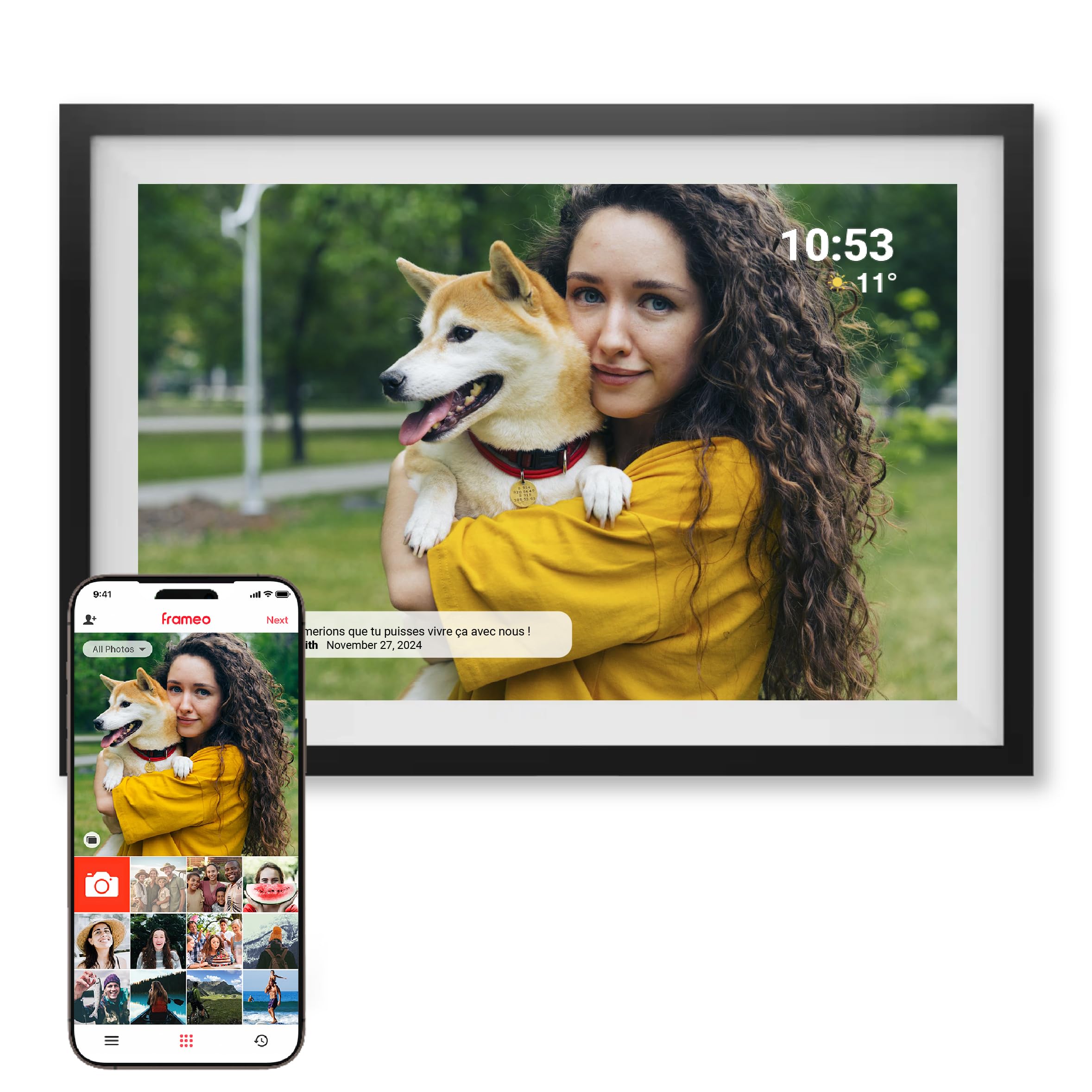
Image 3.1: Front view of the Denver PFF1016 Digital Photo Frame.
4. Setup
4.1 Power Connection
- Connect the provided power adapter to the DC port on the back of the frame.
- Plug the power adapter into a wall outlet. The frame will automatically power on.
4.2 Initial Setup and Wi-Fi Connection
Upon first power-on, the frame will guide you through the initial setup process:
- Select your preferred language.
- Connect to a Wi-Fi network. The frame will scan for available networks. Select your network and enter the password.
- Follow the on-screen instructions to complete the basic settings.
4.3 Mounting Options
The frame can be placed on a flat surface using the included stand or mounted on a wall. The frame supports both portrait and landscape orientations, with automatic rotation of displayed content.

Image 4.1: The frame automatically adjusts content for portrait or landscape orientation.
5. Operating Instructions
5.1 Using the Frameo App
The Frameo app is essential for sending photos and videos to your digital photo frame. It is available for both Android and iOS devices.
- Download the App: Search for "Frameo" in the Google Play Store or Apple App Store and install it on your smartphone or tablet.
- Create an Account: Open the app and follow the instructions to create your Frameo account.
- Connect to your Frame: In the app, you will be prompted to connect to a new frame. Enter the unique code displayed on your digital photo frame.
- Send Photos and Videos: Once connected, you can select photos and videos from your device's gallery and send them directly to the frame. You can send up to 10 photos and 15-second video clips at once.
- Add Captions: Before sending, you can add captions to your photos and videos.
- Multi-User Connection: Invite friends and family to send photos to your frame by sharing your frame's unique code with them. They will need to download the Frameo app and connect using the code.

Image 5.1: Sending photos and videos to the frame using the Frameo app.

Image 5.2: Multiple users can connect to and share photos with the frame.
5.2 Touchscreen Operation
The frame features an intuitive touchscreen interface. Tap, swipe, and pinch to navigate menus, view photos, and adjust settings.
5.3 Automatic Rotation
The frame automatically detects its orientation (portrait or landscape) and adjusts the display of photos and videos accordingly.
5.4 Storage
The frame comes with 16GB of internal storage, sufficient for thousands of photos. It also includes a MicroSD card slot for easy backup of your content.

Image 5.3: The frame offers 16GB internal storage and MicroSD card support.
5.5 Reactions Feature
When someone sends you a photo or video, you can send a reaction (like, laugh, surprised, sad) directly from the frame back to the sender via the Frameo app.

Image 5.4: Sending reactions to shared photos and videos.
5.6 Creating Albums
Organize your photos and videos into albums directly on the frame for a personalized viewing experience.

Image 5.5: Organize your memories into custom albums on the frame.
6. Maintenance
6.1 Cleaning
- To clean the screen, gently wipe it with a soft, lint-free cloth. Do not use abrasive cleaners or sprays directly on the screen.
- To clean the frame, use a soft, dry cloth.
6.2 Software Updates
The frame receives continuous software updates via Wi-Fi to improve functionality and add new features. Ensure your frame is connected to Wi-Fi to receive these updates automatically.

Image 6.1: The frame automatically downloads and installs software updates.
7. Troubleshooting
- Frame not turning on: Ensure the power adapter is securely connected to both the frame and a working power outlet.
- Touchscreen not responding: Try restarting the frame by unplugging and re-plugging the power adapter. If the issue persists, contact customer support.
- Cannot connect to Wi-Fi: Check your Wi-Fi password and ensure the frame is within range of your router. Try restarting your router and the frame.
- Photos/Videos not sending from app: Ensure your smartphone/tablet has a stable internet connection and the frame is online. Check if the frame's storage is full.
- MicroSD card not recognized: Ensure the MicroSD card is inserted correctly. Try formatting the card on a computer if it's new or if issues persist (this will erase all data on the card).
- Display quality issues: Check the frame's brightness settings. Ensure the photos being sent are of sufficient resolution.
8. Specifications
| Feature | Specification |
|---|---|
| Screen Size | 10.1 inches (25.6 cm) |
| Screen Resolution | 1280 x 800 pixels |
| Screen Type | IPS Touchscreen |
| Aspect Ratio | 16:10 |
| Internal Storage | 16 GB |
| Compatible Memory Cards | MicroSD (TransFlash) |
| Connectivity | Wi-Fi |
| Interface | USB Type-C |
| Supported Image Formats | JPEG |
| Video Playback | Yes (up to 15 seconds via app) |
| Dimensions (L x W x H) | 26.2 x 18 x 2.5 cm |
| Weight | 920 grams |
| Power Source | AC Power Adapter (100-240V, 50-60Hz) |
| Compatible Operating Systems | Android & iOS (for Frameo app) |
9. Official Product Video
Watch this video for a visual guide on how the Denver PFF1016 Digital Photo Frame works with the Frameo app to share and enjoy your memories.
Video 9.1: Demonstrating the Frameo app's functionality with the digital photo frame, including sending photos and receiving reactions.
10. Warranty and Support
The Denver PFF1016 Digital Photo Frame comes with a 2-year manufacturer's warranty.
For technical support, warranty claims, or further assistance, please refer to the contact information provided in your product packaging or visit the official Denver website.


