1. Introduction
Thank you for choosing the GYSDCAZ Keyboard Case for your Honor Pad 9 12.1 Inch 2024 Tablet (Model HEY2-W09). This manual provides essential information for setting up, operating, and maintaining your new keyboard case. Please read these instructions carefully before use to ensure optimal performance and longevity of your product.
This keyboard case is designed to enhance your tablet experience by providing a physical keyboard with a multi-touch trackpad and a protective stand cover. It offers versatility with its detachable magnetic design and multiple viewing angles.
2. Package Contents
Please check the package for the following items:
- GYSDCAZ Keyboard Case (with integrated Bluetooth keyboard and trackpad)
- USB Charging Cable
- Instruction Manual (this document)
If any items are missing or damaged, please contact customer support.
3. Setup Guide
3.1 Charging the Keyboard
Before first use, ensure the keyboard is fully charged. Connect the provided USB charging cable to the keyboard's charging port and a suitable USB power adapter (not included). The charging indicator light will typically show red while charging and turn off or change color when fully charged.
3.2 Attaching Your Tablet to the Case
Carefully align your Honor Pad 9 12.1 Inch 2024 Tablet with the protective shell of the case and gently press it into place until it is securely seated. Ensure all ports and buttons are accessible.
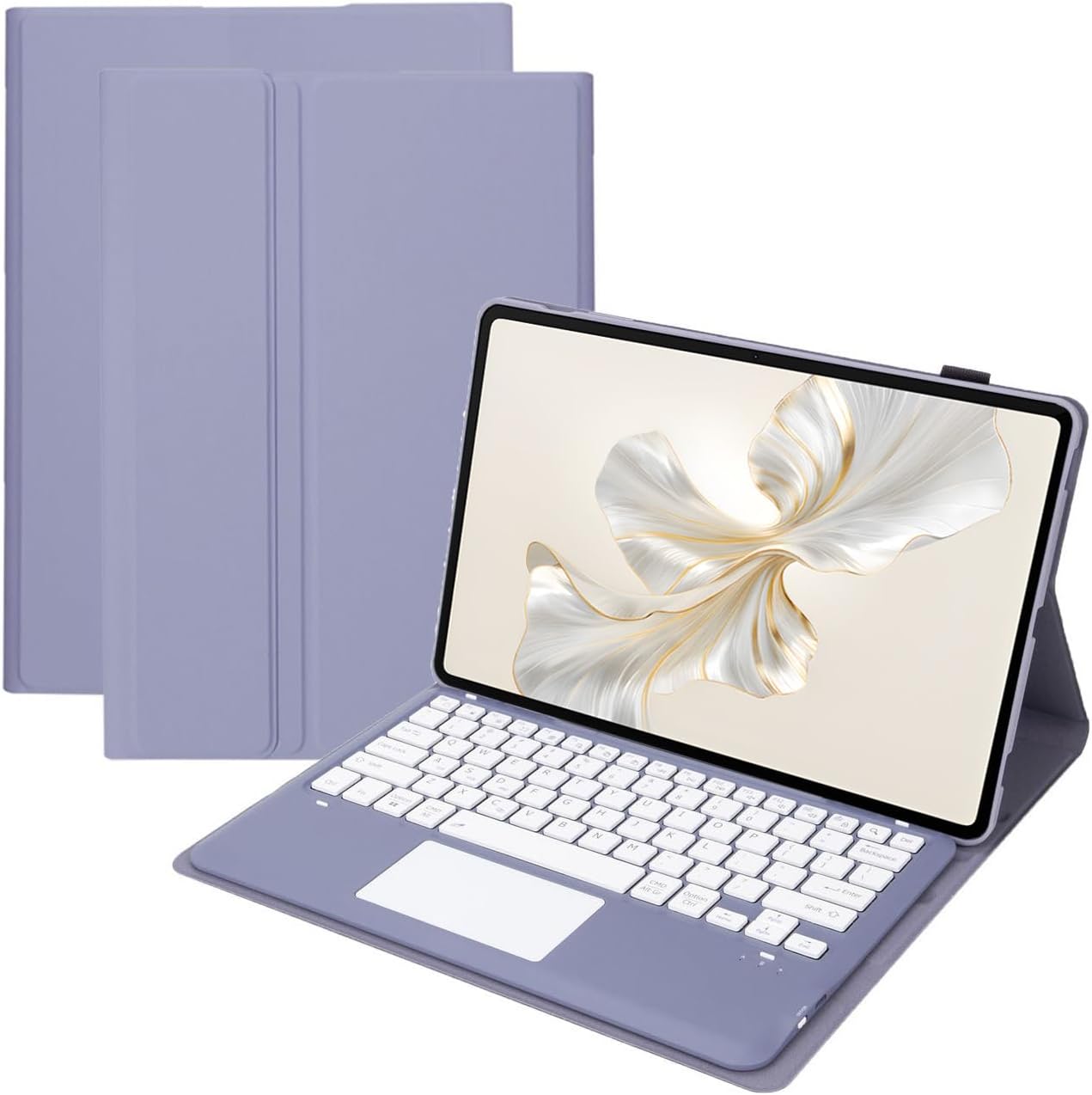
Image: The GYSDCAZ Keyboard Case with an Honor Pad 9 tablet inserted, displaying the purple case and white keyboard layout.
3.3 Bluetooth Pairing Instructions
Follow these steps to connect your keyboard to your Honor Pad 9 tablet via Bluetooth:
- Turn on the keyboard power: Locate the power switch on the keyboard and slide it to the 'ON' position.
- Enter pairing mode: Press the Fn key and the C key simultaneously. The Bluetooth indicator light on the keyboard will begin to flash, indicating it is in pairing mode.
- Connect from your tablet: On your Honor Pad 9, go to Settings > Bluetooth. Ensure Bluetooth is enabled. In the list of available devices, select the Bluetooth keyboard (it may appear as 'Bluetooth Keyboard' or a similar name).
- Confirm connection: Once connected, the Bluetooth indicator light on the keyboard will stop flashing. Your keyboard is now ready for use.

Image: The Honor Pad 9 tablet securely placed in the keyboard case, open and displaying the screen and keyboard, ready for operation.
4. Operating Instructions
4.1 Using the Multi-Touch Trackpad
The integrated multi-touch trackpad is designed to work seamlessly with your Honor Tablet's system, providing intuitive navigation. Common gestures include:
- Single-finger tap: Left-click.
- Two-finger tap: Right-click (context menu).
- Two-finger scroll: Scroll up or down.
- Pinch to zoom: Use two fingers to zoom in or out.
Refer to your Honor Tablet's operating system documentation for additional trackpad gestures and customization options.

Image: A top-down perspective of the Honor Pad 9 tablet within its keyboard case, clearly showing the full keyboard layout and the integrated trackpad.
4.2 Adjusting the Stand Angles
The case features three adjustable angles (120°, 125°, 135°) to provide comfortable viewing for various activities such as typing, reading, or gaming. Simply adjust the tablet's position against the case's grooves to select your preferred angle.

Image: A side profile of the keyboard case holding the Honor Pad 9 tablet, illustrating how the case folds to create an adjustable viewing stand.
4.3 Detachable Magnetic Keyboard
The keyboard is magnetically attached to the case, allowing for easy removal. This feature provides flexibility, enabling you to use the tablet with or without the keyboard. To detach, gently pull the keyboard away from the case. To reattach, align the keyboard with the magnetic strip in the case and it will snap into place.

Image: The keyboard component shown detached from the main protective tablet case, highlighting its magnetic separation feature.
5. Maintenance
To ensure the longevity and proper functioning of your keyboard case, follow these maintenance guidelines:
- Cleaning: Use a soft, damp cloth to wipe the exterior of the case and keyboard. Avoid using harsh chemicals or abrasive cleaners.
- Storage: When not in use, store the keyboard case in a cool, dry place away from direct sunlight and extreme temperatures.
- Battery Care: For optimal battery life, avoid fully discharging the keyboard battery frequently. Charge it regularly, even if not used for extended periods.
- Avoid Liquids: Keep the keyboard and case away from liquids to prevent damage to electronic components.
6. Troubleshooting
If you encounter issues with your keyboard case, refer to the following common solutions:
- Keyboard not connecting:
- Ensure the keyboard is powered on and fully charged.
- Make sure Bluetooth is enabled on your Honor Pad 9.
- Repeat the Bluetooth pairing steps (Section 3.3).
- Try forgetting the device on your tablet's Bluetooth settings and re-pairing.
- Trackpad not responding:
- Ensure the keyboard is connected via Bluetooth.
- Check if the trackpad has been accidentally disabled (some keyboards have a function key for this).
- Restart both the keyboard and your tablet.
- Keys not responding:
- Check battery level.
- Ensure a stable Bluetooth connection.
- Clean around the keys to remove any debris.
If the problem persists, please contact customer support for further assistance.
7. Specifications
| Feature | Specification |
|---|---|
| Model Number | 66194871 |
| Compatibility | Honor Pad 9 12.1 inch 2024 (HEY2-W09) |
| Connectivity Technology | Bluetooth |
| Keyboard Description | Integrated |
| Special Feature | Trackpad, Detachable Magnetic Keyboard, 3-Angle Stand |
| Power Source | Battery Powered |
| Color | Purple |
8. Warranty and Support
This product comes with a standard manufacturer's warranty. For details regarding warranty coverage, duration, and terms, please refer to the documentation provided at the time of purchase or contact your retailer.
For technical support, troubleshooting assistance, or any inquiries regarding your GYSDCAZ Keyboard Case, please contact our customer support team through the contact information provided by your seller or on the product packaging.