
Introduction
This instruction manual provides comprehensive guidance for the Yealink BH71 Workstation Pro Bluetooth Headset. It covers product components, setup procedures, operational instructions, maintenance tips, troubleshooting, and detailed specifications. Please read this manual thoroughly to ensure proper use and optimal performance of your device.
Package Contents
Verify that all items listed below are included in your package:
- Yealink BH71 Bluetooth Headset
- Workstation (with Wireless Charging Pad and Speakerphone)
- Charging Case
- USB-C to A Dongle
- Eartips (various sizes)
- Type-C 2.0 Cable
- Quick Start Guide and Regulatory Notices
Product Overview
The Yealink BH71 Workstation Pro is an integrated communication solution designed for office environments. It combines a Bluetooth headset with a versatile workstation base.
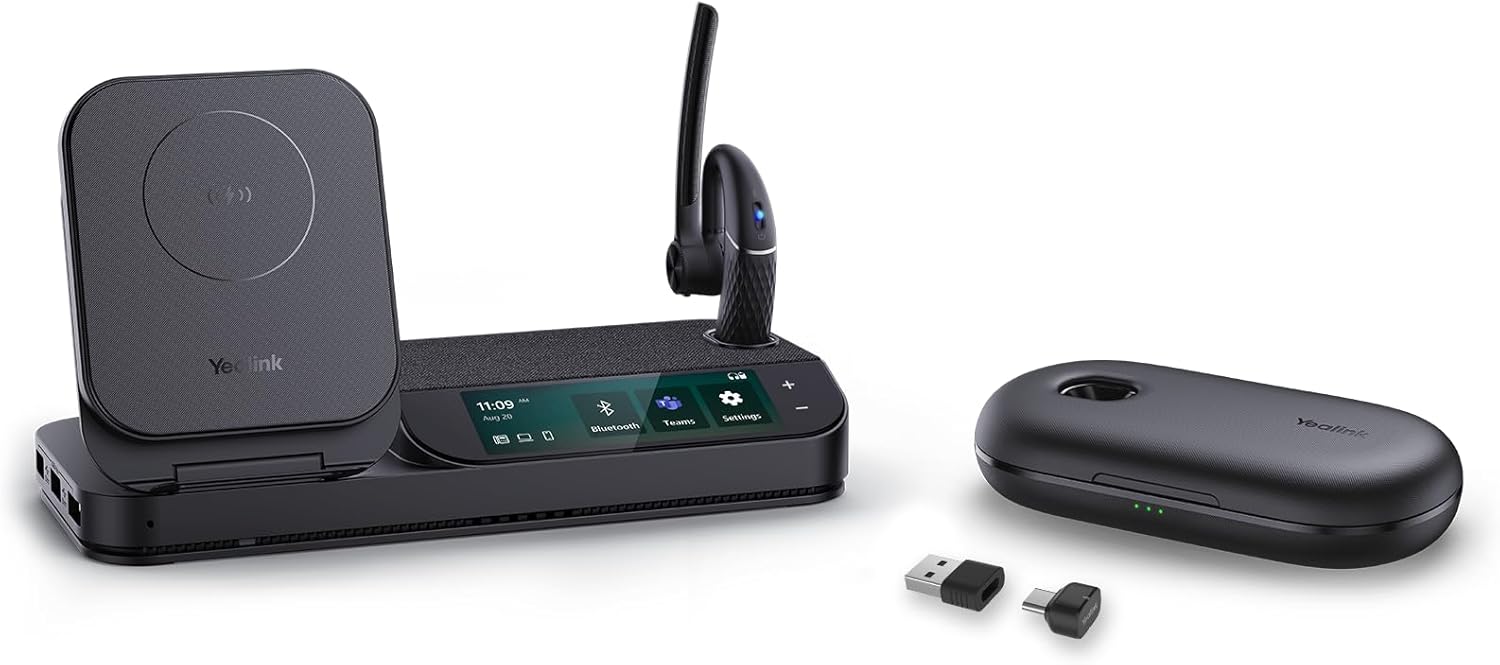
Figure 1: Yealink BH71 Workstation Pro Bluetooth Headset and its accompanying workstation.
Key Features
- Bluetooth 5.2 Technology: Provides stable and low-latency connections with a transmission distance up to 100 feet (30 meters) for the headset and 246 feet (75 meters) for the base.
- All-in-one UC Workstation: Connects simultaneously to desk phones, PCs, and smartphones, offering a unified communication experience.
- Integrated Features: Includes Qi wireless charging, a full-duplex speakerphone, a 3-inch touch console, and a 3-port USB 3.0 hub.
- Ergonomic Design: The headset weighs 0.63 oz (18 g) and features a retractable ear hook and boom arm that can rotate 330° vertically and 180° horizontally for a secure and comfortable fit.
- Clear Sound Quality: Utilizes 4 built-in microphone array beamforming noise cancellation, reducing ambient noise by up to 90%.

Figure 2: Headset featuring 4-mic beamforming noise cancellation for clear audio.

Figure 3: Intuitive controls for one-click mute and voice assistant activation.

Figure 4: Multifunctional workstation with Qi wireless charging and a 3-port USB 3.0 hub.

Figure 5: Ergonomic design with adjustable ear hook and rotatable boom arm for comfort.

Figure 6: The headset connects to multiple devices including PC, desk phone, and cell phone.

Figure 7: Universal compatibility with popular UC platforms such as Zoom, Skype, and Microsoft Teams.

Figure 8: Long battery life with up to 30 hours of talk time using the charging case.
Setup
1. Charging the Headset and Workstation
- Connect the workstation to a power source using the provided Type-C 2.0 cable.
- Place the BH71 headset into its charging case or directly onto the workstation's charging dock to charge. The headset will indicate charging status via an LED light.
- The workstation also features a Qi wireless charging pad for compatible smartphones.
2. Pairing the Headset
- Power On: Slide the power switch on the headset to the 'On' position. The LED indicator will flash to show it's powered on.
- Enter Pairing Mode: Press and hold the Bluetooth button on the headset until the LED flashes blue and red, indicating pairing mode.
- Connect to Device:
- For PC: Insert the USB-C/A dongle into your computer. The headset will automatically connect to the dongle.
- For Smartphone/Tablet: Go to your device's Bluetooth settings, search for 'Yealink BH71', and select it to connect.
- For Desk Phone: Refer to your desk phone's manual for Bluetooth headset pairing instructions. The workstation can also connect to a desk phone via a dedicated port.
- Confirmation: The headset LED will turn solid blue when successfully paired.
Operating Instructions
Headset Controls
- Power On/Off: Slide the power switch.
- Answer/End Call: Press the Multi-Function Button (MFB) once.
- Reject Call: Press and hold the MFB for 2 seconds.
- Volume Adjustment: Use the volume up/down buttons or the control knob on the headset.
- Mute/Unmute Microphone: Press the mute button on the boom arm.
- Activate Voice Assistant: In standby mode, press the MFB to activate your device's voice assistant.
Workstation Usage
- Switch Audio Source: Use the 3-inch touch console on the workstation to switch between connected devices (desk phone, PC, smartphone).
- Speakerphone Function: Activate the full-duplex speakerphone for hands-free communication.
- USB Hub: Use the 3-port USB 3.0 hub to connect other peripherals to your PC.
Wearing the Headset
The headset is designed for comfort and flexibility:
- Adjust the ear hook to fit comfortably over your ear.
- Rotate the boom arm to position the microphone near your mouth for optimal voice pickup. The boom arm can be rotated 330° vertically and 180° horizontally.
- Interchange the eartips to find the best fit for your ear canal.
Maintenance
To ensure the longevity and optimal performance of your Yealink BH71 Workstation Pro, follow these maintenance guidelines:
- Cleaning: Use a soft, dry cloth to clean the headset and workstation. Avoid using harsh chemicals or abrasive materials.
- Eartips: Regularly clean the eartips with a damp cloth and mild soap, then dry thoroughly before reattaching. Replace eartips if they become worn or damaged.
- Storage: When not in use, store the headset in its charging case or on the workstation to protect it from dust and damage.
- Temperature: Avoid exposing the device to extreme temperatures, direct sunlight, or high humidity.
Troubleshooting
If you encounter issues with your Yealink BH71 Workstation Pro, refer to the following common problems and solutions:
| Problem | Solution |
|---|---|
| Headset does not power on. | Ensure the headset is charged. Place it in the charging case or on the workstation dock. |
| Cannot pair the headset with a device. | Ensure the headset is in pairing mode (LED flashing blue and red). Check your device's Bluetooth settings and try re-pairing. Make sure the headset is within range. |
| No audio or poor sound quality. | Check the volume levels on both the headset and the connected device. Ensure the headset is properly connected and selected as the audio output device. |
| Microphone not working. | Check if the microphone is muted. Ensure the headset is selected as the input device in your computer or phone settings. |
| Workstation not charging devices. | Verify the workstation is connected to a power source. Ensure the device placed on the Qi charging pad is compatible and correctly positioned. |
Specifications
Detailed technical specifications for the Yealink BH71 Workstation Pro:
| Feature | Detail |
|---|---|
| Brand | Yealink |
| Model Number | BH71 Workstation Pro C/A |
| Color | Black |
| Connectivity Technology | Wireless (Bluetooth) |
| Bluetooth Version | 5.2 |
| Bluetooth Range (Headset) | Up to 30 meters (100 feet) |
| Bluetooth Range (Workstation Base) | Up to 75 meters (246 feet) |
| Noise Control | Active Noise Cancellation (4-Mic Beamforming) |
| Talk Time (Headset) | Up to 10 hours (single charge) |
| Talk Time (with Charging Case) | Up to 30 hours |
| Ear Placement | In Ear |
| Form Factor | In Ear |
| Control Method | Touch |
| Frequency Range | 20 Hz to 20,000 Hz |
| Material | Plastic, Silicone |
| Item Weight | 0.84 Kilograms (total package) |
| Compatible Devices | Cellphones, Laptops, Desktops |
| Built-In Media | Eartips, Type-C 2.0 Cable |
Warranty and Support
Warranty: The Yealink BH71 Workstation Pro comes with a 2-year manufacturer's warranty. Please retain your proof of purchase for warranty claims.
Support: For technical assistance, product information, or warranty service, please visit the official Yealink support website or contact their customer service department. Contact details can typically be found on the Yealink website or in the product packaging.