
Introduction
The SSYA 11.5-inch Digital Dementia Clock is designed to provide clear, easy-to-read time, date, and day information, making it an invaluable aid for seniors, individuals with memory loss, or anyone who benefits from a highly visible display. This manual provides detailed instructions to help you get the most out of your new clock.
Key Features
- Ultra-Large 11.5-inch HD Display: 1280x800 resolution clearly spells out full day of the week, month, and date without confusing abbreviations.
- Period of Day Display: Shows MORNING, AFTERNOON, EVENING, NIGHT, or PREDAWN with accompanying Sun & Moon icons.
- 7 Display Modes: Offers various visual styles, including analog and digital formats.
- 12 Customizable Alarms: Set reminders for medication, appointments, drinking water, and more.
- 8-Language Support: Accessible to individuals speaking different languages.
- Automatic Dimming: Adjusts screen brightness based on ambient light.
- Automatic Daylight Saving Time (DST) Adjustment: Automatically updates for Summer/Winter time.
- Flexible Placement: Can be used freestanding with a built-in stand or wall-mounted.
Setup
1. Unpacking and Placement
Carefully remove the clock from its packaging. The clock can be placed on a flat surface using its integrated stand or mounted on a wall.
- Freestanding: Extend the built-in stand on the back of the clock to position it upright on a table, desk, or nightstand.
- Wall Mounting: The stand can be removed. Use the keyhole slot on the back of the clock to hang it securely on a wall hook or screw (not included).
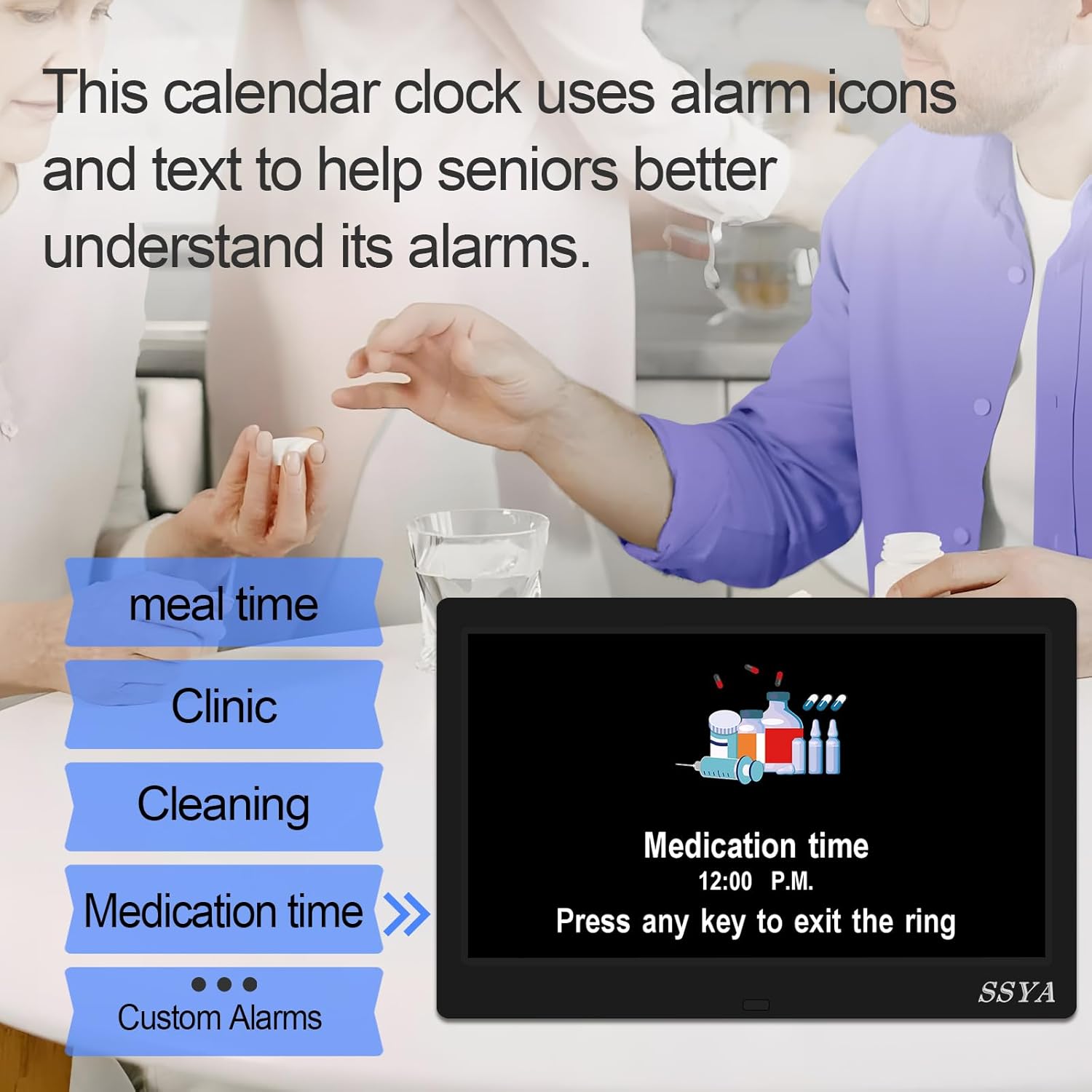
Image: The SSYA Digital Dementia Clock displayed on a bedside table, showing its large, clear display and the extended stand.
2. Power Connection
Connect the provided power adapter to the DC 5V input port on the back of the clock and plug it into a standard electrical outlet. The clock will power on automatically.

Image: Rear view of the SSYA Digital Dementia Clock, highlighting the power input port and control buttons.
3. Initial Settings (Using Remote Control)
The clock comes with a remote control for easy adjustment of settings. Insert batteries into the remote control (if not pre-installed).
- Press the MENU/EXIT/SETUP button on the remote to access the settings menu.
- Use the arrow buttons (Up/Down/Left/Right) to navigate through options.
- Press OK/ENTER to select an option and confirm changes.
- Set Time: Adjust the current time.
- Set Date: Adjust the current date.
- Time Mode: Select between 12-hour (AM/PM) or 24-hour format.
- Date Mode: Choose between Month-Day-Year or Day-Month-Year format.
- Language: Select your preferred language (8 languages supported).
Operating Instructions
1. Display Modes and Colors
The clock offers 7 different display modes and various color options for enhanced readability and personal preference.
- From the main display, use the remote control's arrow buttons to cycle through different display modes and text colors.
- Available modes include various digital layouts, an analog clock display, and different background/text color combinations.

Image: Multiple views of the SSYA Digital Dementia Clock demonstrating different display layouts and color schemes.
2. Automatic Features
- Automatic DST Adjustment: The clock is designed to automatically adjust for Daylight Saving Time in March and November.
- Automatic Dimming: The screen brightness will automatically adjust to a lower level during nighttime hours (e.g., 9:00 PM - 7:00 AM) and a brighter level during daytime (e.g., 7:00 AM - 9:00 PM) for optimal visibility without being overly bright.
- Period of Day Display: The clock automatically displays the period of the day (MORNING, AFTERNOON, EVENING, NIGHT, PREDAWN) based on the time.

Image: The SSYA Digital Dementia Clock displaying different times of day (Morning, Afternoon, Night) with corresponding sun and moon icons.
Alarms and Reminders
The clock supports up to 12 customizable alarms and reminders, which are crucial for maintaining daily routines.
Setting Alarms and Reminders
- Access the REMINDER or ALARM options from the settings menu using the remote control.
- Select an alarm slot (e.g., Medication Reminder 1, Alarm 1).
- Set the desired time for the reminder/alarm.
- Choose the frequency (e.g., daily, weekdays, weekends).
- Select a message for the reminder (e.g., "Take Medication", "Appointment", "Drink Water").
- Adjust the alarm volume and duration as needed.
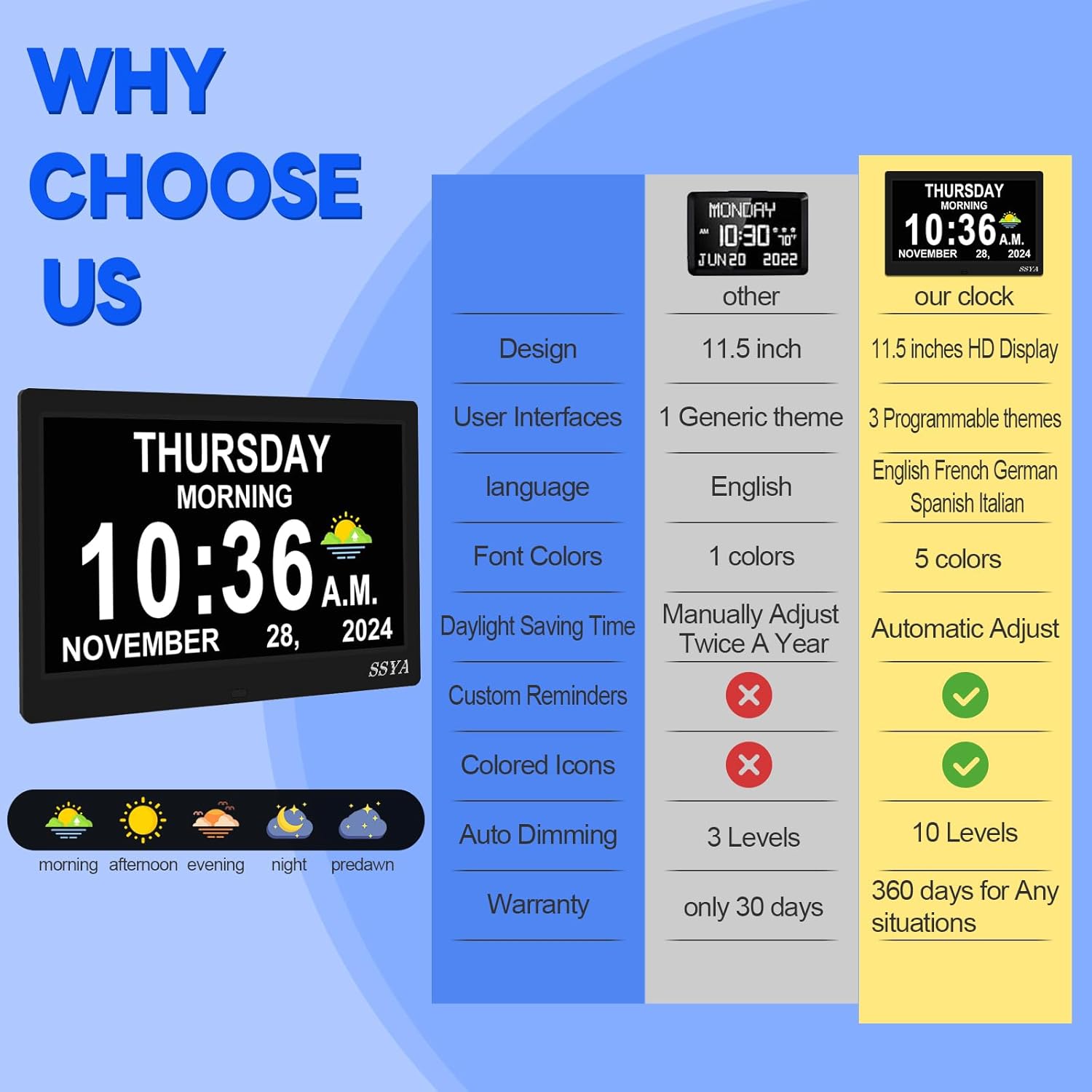
Image: The SSYA Digital Dementia Clock screen showing a 'Medication time' reminder with an icon of pills and a syringe.
Maintenance
- Cleaning: Use a soft, dry cloth to clean the screen and exterior. Avoid abrasive cleaners or solvents.
- Placement: Keep the clock away from direct sunlight, high humidity, and strong magnetic fields.
- Power: Unplug the device if not used for an extended period or during thunderstorms to prevent surge damage.
- Handling: Do not disassemble or modify the power adapter or the clock itself.
Troubleshooting
| Issue | Solution |
|---|---|
| Clock won't turn on. | Ensure the DC adapter is securely connected to the clock and the power outlet. Try a different outlet. |
| Remote control not working. | Remove the plastic insulator tab from the battery compartment. Replace batteries if needed. Ensure no obstructions between remote and clock. |
| Interference from other devices. | Move the clock away from devices that may cause interference (e.g., TVs, radios). |
| Brightness is too high/low. | Adjust brightness settings in the menu. If auto-dimming is enabled, it will adjust automatically. |
Specifications (Model Z071)
- Brand: SSYA
- Model Number: Z071
- Display Type: Digital
- Screen Size: 10 inches (11.5-inch overall product dimensions)
- Resolution: 1280x800 HD
- Color: Black
- Material: Plastic
- Power Source: Corded Electric (AC Power)
- Product Dimensions: 9.72"W x 6.36"H
- Item Weight: 1.37 pounds (0.62 Kilograms)
- Mounting Type: Wall Mount or Freestanding
- Special Features: Corded, Daylight Saving, LED Display, 8-Language Support, Automatic Dimming, 12 Customizable Alarms
- Batteries Required: No
Warranty and Support
For specific warranty details and customer support, please refer to the documentation included with your purchase or contact the retailer/manufacturer directly. Warranty terms may vary.