
ienRon IES1060 Graphic Drawing Tablet User Manual
Model: IES1060
Introduction
This manual provides essential information for setting up, operating, and maintaining your ienRon IES1060 Graphic Drawing Tablet. Please read these instructions carefully to ensure optimal performance and longevity of your device.
1. Setup and Installation
1.1 Package Contents
Before you begin, verify that all items are present in the package:
- Graphic Drawing Tablet
- Digital Pen
- 30 Replacement Nibs
- USB Cable
- Aluminum Alloy Stand
- Cleaning Cloth
- Soft Brush
- Glove
- Quick Start Guide

Image: The complete package contents of the ienRon IES1060 Graphic Drawing Tablet, showing the tablet, digital pen, replacement nibs, USB cable, aluminum alloy stand, cleaning cloth, soft brush, glove, and quick start guide.
1.2 Connecting the Tablet
The ienRon IES1060 Graphic Drawing Tablet is designed for use with computers and Android devices. It is not a standalone device and requires connection to function.
- Connect the tablet to your PC, laptop, or Android phone/tablet using the provided USB or OTG cable.
- For optimal performance, download and install the latest driver from the official ienRon website.
- Follow the on-screen instructions in the user guide (available on the official website) to complete the setup of your drawing tablet and stylus.
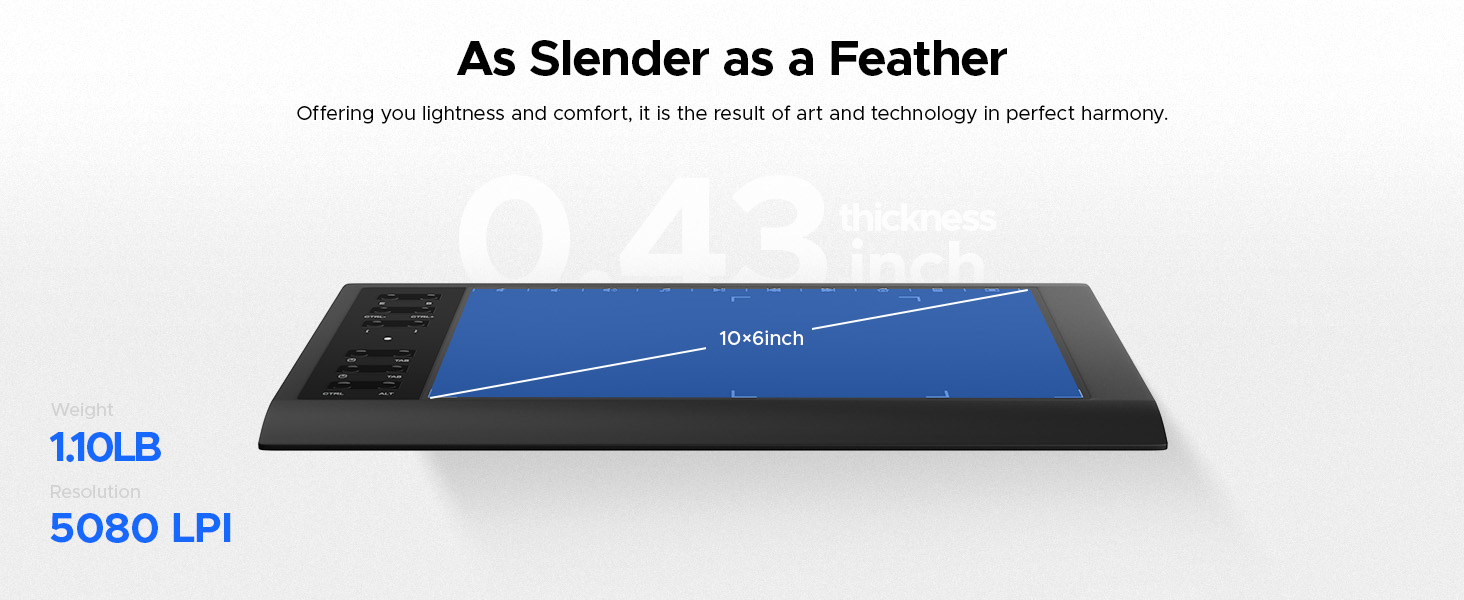
Image: A visual guide illustrating the connection of the tablet to a computer, the process of downloading and installing drivers, and the final setup steps for the drawing tablet and stylus.
1.3 Adjustable Stand
The included aluminum alloy stand is portable and foldable, offering multi-angle adjustments to enhance comfort and reduce fatigue during long drawing sessions. Adjust the stand to your preferred viewing and working angle.

Image: The adjustable aluminum alloy stand, demonstrating its range of motion from a minimum angle of 12 degrees (3.5 cm height) to a maximum angle of 42 degrees (8.5 cm height).
1.4 Compatibility
The ienRon IES1060 Graphic Drawing Tablet is compatible with the following operating systems and software:
- Operating Systems: Windows XP, 7, 8, 10, 11 and later; Android 5.0 and above; Mac OS 10.7.0 and later. (Not compatible with iPhone/iPad/Chromebook).
- Software: Works with most major creative drawing software such as Photoshop, SAI, FlipaClip, Medibang, Adobe Illustrator, Lightroom, and supports Microsoft Office.

Image: A compatibility chart detailing supported operating systems (Android, Windows, Mac) for both mobile and desktop devices, alongside icons of compatible creative software applications.

Image: The ienRon IES1060 tablet in use, demonstrating its compatibility and operation across multiple devices including laptops, tablets, and smartphones.
2. Operating the Tablet
2.1 Digital Pen Usage
The tablet features an innovative battery-free stylus. This pen does not require charging and comes with 30 replacement nibs for extended use.
- Pressure Sensitivity: The pen offers 8192 levels of pressure sensitivity, allowing for precise control over line thickness and opacity.
- Tilt Recognition: With 60° tilt recognition, the pen provides accurate cursor positioning and natural brush strokes at various angles.
- Shortcut Keys: The pen includes two customizable shortcut keys for quick access to frequently used functions.

Image: A detailed view of the digital pen, illustrating its key features such as 8192 pressure levels, 60-degree tilt support, 10mm sensing height, 266 RPS report rate, and battery-free design.
2.2 Customizable Shortcut Keys
The ienRon IES1060 tablet is equipped with 12 customizable shortcut keys and 10 soft multimedia keys. These keys can be programmed to perform your favorite shortcuts, enhancing workflow efficiency across different software applications.
- Customization: Use the tablet driver software to assign specific functions to each of the 12 physical shortcut keys.
- Multimedia Keys: The 10 soft multimedia keys provide quick access to common functions like volume control, play/pause, and track skipping.

Image: A close-up of the tablet's interface, highlighting the 12 customizable shortcut keys on the left and the 10 soft multimedia keys at the top, designed for efficient operation.
2.3 General Operation and Applications
The ienRon IES1060 Graphic Drawing Tablet is versatile and can be used for various applications:
- Digital Drawing and Painting: Create digital artwork with precision and natural feel.
- Online Teaching and Learning: Facilitate interactive online classes, take handwritten notes, and use as a shared whiteboard.
- Photo Editing: Enhance and manipulate images with greater control than a standard mouse.
- Mouse Replacement: Use the pen and tablet as an intuitive alternative to a traditional mouse for general computer navigation.

Image: A collage demonstrating the diverse applications of the graphic tablet, such as digital art creation, interactive online education, note-taking, photo manipulation, and general computer interaction.
Operation Video: Graphic Drawing Tablet
Video: An official ienRon video demonstrating the basic operation and various uses of the graphic drawing tablet for creative tasks and teaching.
Operation Video: Graphic Drawing Tablet Functions
Video: An official ienRon video showcasing the operational aspects and functional capabilities of the graphic drawing tablet.
3. Maintenance
3.1 Cleaning the Tablet
To ensure the longevity and optimal performance of your tablet, regular cleaning is recommended:
- Use the provided cleaning cloth and soft brush to gently wipe the tablet surface and pen.
- Avoid using harsh chemicals or abrasive materials, as these can damage the surface.
- Ensure the tablet is disconnected from power before cleaning.
3.2 Replacing Pen Nibs
The digital pen comes with 30 replacement nibs. Replace the nib when it becomes worn to maintain drawing precision:
- Gently pull out the old nib using the nib extractor tool.
- Insert a new nib firmly into the pen until it is secure.
4. Troubleshooting
4.1 Common Issues and Solutions
- Pen not registering or intermittent response: If the pen stops responding or has an inconsistent connection, try unplugging the tablet from your computer and plugging it back in. Ensure the pen tip is within approximately half an inch to one inch of the tablet surface for proper detection.
- Driver or software issues: If you experience clunky software or unexpected behavior, ensure you have downloaded and installed the correct and latest drivers from the official ienRon website. If issues persist, consult the detailed PDF manual for your model, often available on the manufacturer's support page.
- Difficulty reading instructions: If the printed instructions are too small, consider using a smartphone camera to zoom in on the text or refer to the digital manual available online.
5. Specifications
| Feature | Detail |
|---|---|
| Brand | ienRon |
| Model Name | IES1060 |
| Connectivity Technology | USB |
| Pressure Sensitivity | 8192 levels |
| Operating System Compatibility | Android OS, Mac OS X 10.7 and above, Windows 7 and above |
| Special Features | 12 Customizable Shortcuts Keys, 5080 LPI Resolution, 60° Tilt Support, Battery-Free Stylus |
| Active Surface Area | 10 x 6.25 inches (approx. 60 square inches) |
| Item Weight | 1.1 pounds |
| Item Dimensions (L x W) | 13.99"L x 9.39"W |
| Thickness | 0.43 inches |
| Color | Black |

Image: An overhead view of the ienRon IES1060 Graphic Drawing Tablet, detailing its physical dimensions and active drawing area, along with the length of the digital pen.

Image: A side view of the tablet emphasizing its slender profile (0.43 inches thick), accompanied by specifications for its weight (1.10 lbs) and resolution (5080 LPI).
6. Warranty Information
The ienRon IES1060 Graphic Drawing Tablet comes with a One Year manufacturer's warranty. Please retain your proof of purchase for warranty claims. For detailed warranty terms and conditions, refer to the official ienRon website or contact customer support.
7. Customer Support
For further assistance, driver downloads, or additional product information, please visit the official ienRon website. You can also refer to the comprehensive digital manual for your specific model, which provides in-depth guidance on features and troubleshooting.
Official Website: ienRon Store on Amazon (for product information and links to official resources)