
Boult Crown R Pro
Boult Crown R Pro Smart Watch User Manual
Model: Crown R Pro (e5ea99c5-e835-4962-9b05-7df26e37b8ae)
Introduction
Welcome to the user manual for your new Boult Crown R Pro Smart Watch. This guide provides essential information on setting up, operating, maintaining, and troubleshooting your device. Please read this manual thoroughly to ensure optimal performance and longevity of your smartwatch.
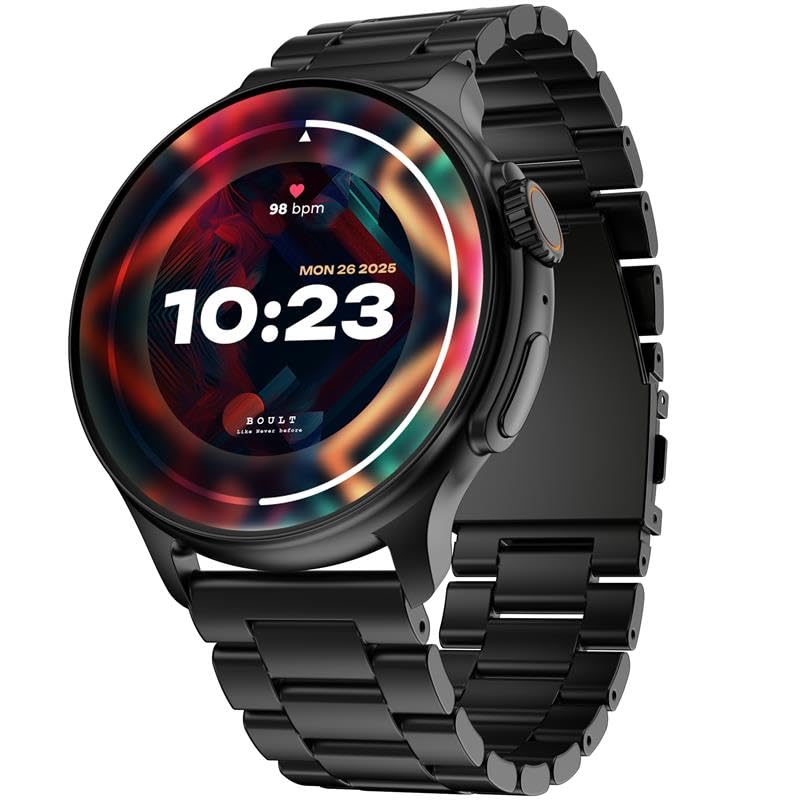
Image: The Boult Crown R Pro Smart Watch in Jet Black, showcasing its round display and metallic strap.
What's in the Box
Upon unboxing your Boult Crown R Pro Smart Watch, verify that all the following components are present:
- Boult Crown R Pro Jet Black Smart Watch
- Charging Cable
- User Manual (this document)
- Warranty Card
Setup Guide
1. Initial Charging
Before first use, fully charge your smartwatch. Connect the provided charging cable to the charging port on the back of the watch and plug the other end into a USB power adapter (not included). A full charge takes approximately 1.3 hours.
2. Powering On/Off
- To Power On: Press and hold the side button until the Boult logo appears.
- To Power Off: Press and hold the side button, then select 'Power Off' on the screen.
3. Pairing with Your Smartphone
To unlock all features, pair your smartwatch with the official Boult app on your smartphone (iOS or Android).
- Download the Boult app from your device's app store.
- Ensure Bluetooth is enabled on your smartphone.
- Open the Boult app and follow the on-screen instructions to add a new device.
- Select 'Boult Crown R Pro' from the list of available devices.
- Confirm the pairing request on both your watch and smartphone.

Image: Overview of key features including the 1.43" Super AMOLED Display, 120+ Sports Modes, Health Monitor, and the functional working crown.
Operating Your Smart Watch
Display and Navigation
The Boult Crown R Pro features a 1.43-inch AMOLED HD display with 466 x 466 pixels resolution and 600 nits brightness for clear visibility. It supports an Always-On Display mode.
- Touch Screen: Swipe left/right, up/down to navigate menus and access features.
- Working Crown: Rotate the crown for scrolling through lists or adjusting settings. Press the crown to return to the home screen or confirm selections.
- Side Button: Press to access the app menu or return to the previous screen. Long press for power options or AI Voice Assistant activation.

Image: Close-up of the working crown, illustrating its mechanical design and "One Tap Customisation" feature.
Key Features
- Bluetooth Calling: Make and receive calls directly from your wrist using the built-in speaker and microphone.
- Health Tracking: Monitor SpO2 (blood oxygen), 24/7 heart rate, female menstrual cycle, activity, sleep, and perform breath training.
- Sports Modes: Track over 120 different sports activities. A dedicated button is available for quick activation.
- Customization: Choose from 150+ cloud-based watch faces or create a custom watch face.
- Smart Notifications: Receive SMS, social media notifications, sedentary alerts, and drink water reminders.
- AI Voice Assistant: Press the side button for 3 seconds to activate the AI voice assistant for hands-free commands.
- Find My Phone: Use this feature to locate your connected smartphone by making it ring/vibrate.
- Calculator: Access a basic calculator directly on your watch.

Image: The smartwatch screen showing the AI voice assistant icon and a calculator interface, alongside text indicating SMS and push notification capabilities.

Image: The smartwatch displaying a sports tracking interface, emphasizing its support for over 120 sports modes.

Image: The back of the smartwatch with its sensors, illustrating the "Boult Health" features including 24x7 Heart Rate Monitor, SpO2 Blood Oxygen Saturation Monitor, Female Menstrual Cycle Tracking, Activity Tracker, Sleep Monitoring, and Breath Training.
Maintenance
Cleaning Your Smart Watch
Regular cleaning helps maintain the appearance and functionality of your device.
- Wipe the screen and body with a soft, lint-free cloth.
- For stubborn smudges, slightly dampen the cloth with water. Avoid using harsh chemicals or abrasive materials.
- Clean the charging contacts periodically to ensure proper charging.
Water and Dust Resistance
The Boult Crown R Pro is IP67 water resistant, meaning it can be submerged in water up to 1.0 meter for 30 minutes. It is also dust proof, offering complete protection against ingress of dust and airborne particles. While resistant, avoid prolonged exposure to water, hot water, or steam.
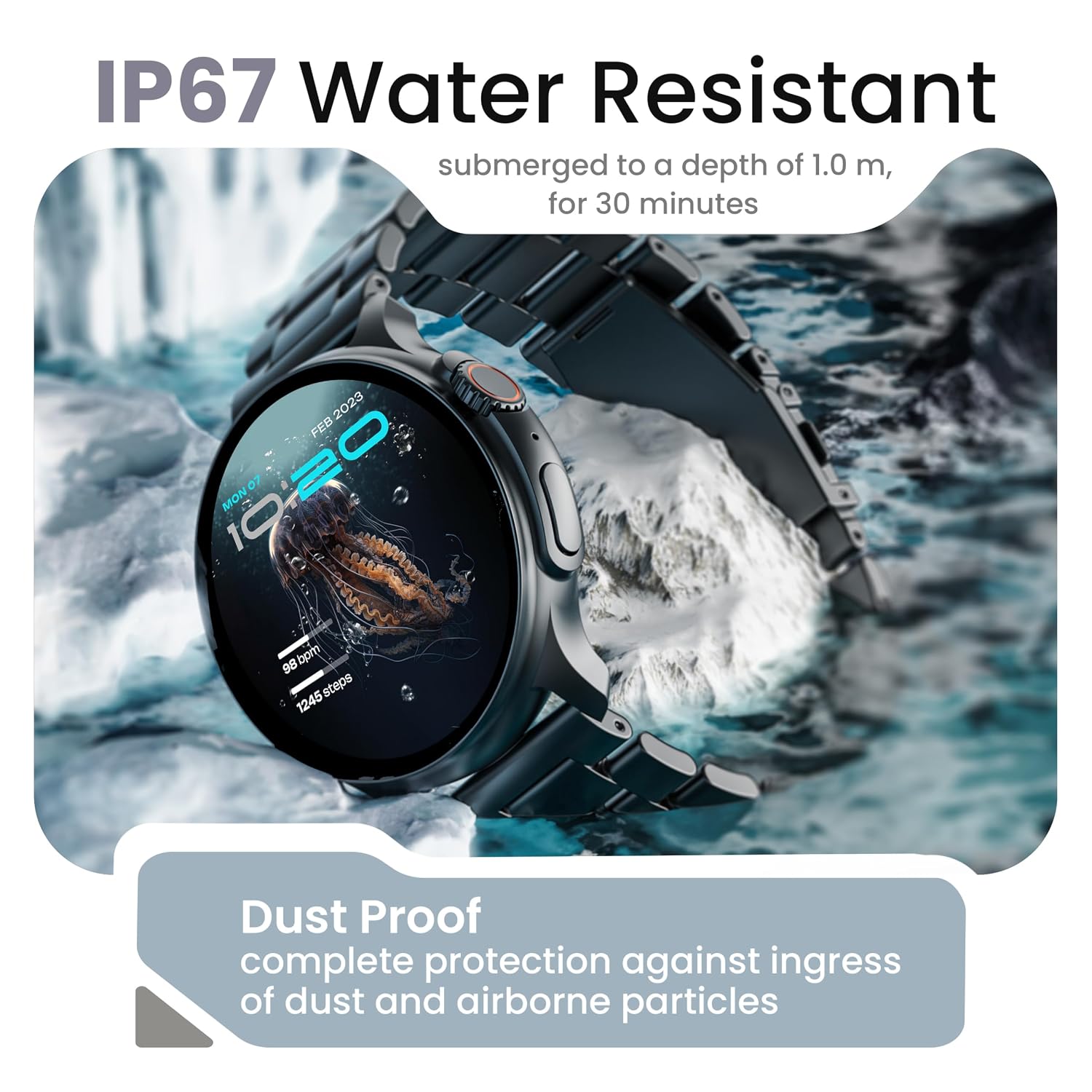
Image: The smartwatch partially submerged in water, illustrating its IP67 water resistance and dust-proof capabilities.
Troubleshooting
| Problem | Possible Solution |
|---|---|
| Watch not powering on | Ensure the watch is fully charged. Connect to the charging cable and allow it to charge for at least 15 minutes before attempting to power on again. |
| Cannot pair with smartphone |
|
| Inaccurate health data | Ensure the watch is worn snugly on your wrist, not too tight or too loose. Clean the sensors on the back of the watch. Ensure your profile information (age, height, weight) in the app is accurate. |
| Notifications not appearing |
|
| Short battery life | Reduce screen brightness, disable Always-On Display, limit frequent heart rate monitoring, and turn off unnecessary notifications. Ensure no background apps are excessively draining power. |
Specifications
| Feature | Detail |
|---|---|
| Model Name | Crown R Pro |
| Item Model Number | e5ea99c5-e835-4962-9b05-7df26e37b8ae |
| Display Size | 1.43 Inches |
| Display Type | AMOLED HD |
| Resolution | 466 x 466 pixels |
| Brightness | 600 Nits |
| Connectivity | Bluetooth 5.2 |
| Operating System Compatibility | iOS, Android |
| Battery Type | Lithium Polymer |
| Battery Capacity | 300 Milliamp Hours |
| Battery Charge Time | 1.3 Hours |
| Water Resistance Rating | IP67 (Submersible up to 1.0m for 30 minutes) |
| Frame Material | Zinc Alloy |
| Item Weight | 57 g |
| Included Components | Smart Watch, Charging Cable, User Manual, Warranty Card |
Warranty and Support
Your Boult Crown R Pro Smart Watch comes with a Warranty Card included in the box. Please refer to the Warranty Card for detailed terms and conditions of your product warranty.
For technical support, service, or further inquiries, please contact Boult customer service through their official website or the contact information provided on your Warranty Card.
You can also visit the official Boult Store on Amazon for additional product information and support: Boult Audio Store
Related documentsCrown R Pro

Ask a question about this manual
Ask about setup, troubleshooting, compatibility, parts, safety, or missing instructions. Manuals+ will review the question and use this page’s manual context to help answer it.