
1. Introduction
Thank you for choosing the KurieTim 15.6 Inch Laptop Computer. This manual provides essential information for setting up, operating, maintaining, and troubleshooting your new device. Designed for efficiency and performance, this laptop is equipped with a 12th generation Celeron N95 processor, 32GB RAM, and a 1TB NVMe SSD, running on Windows 11 Pro.
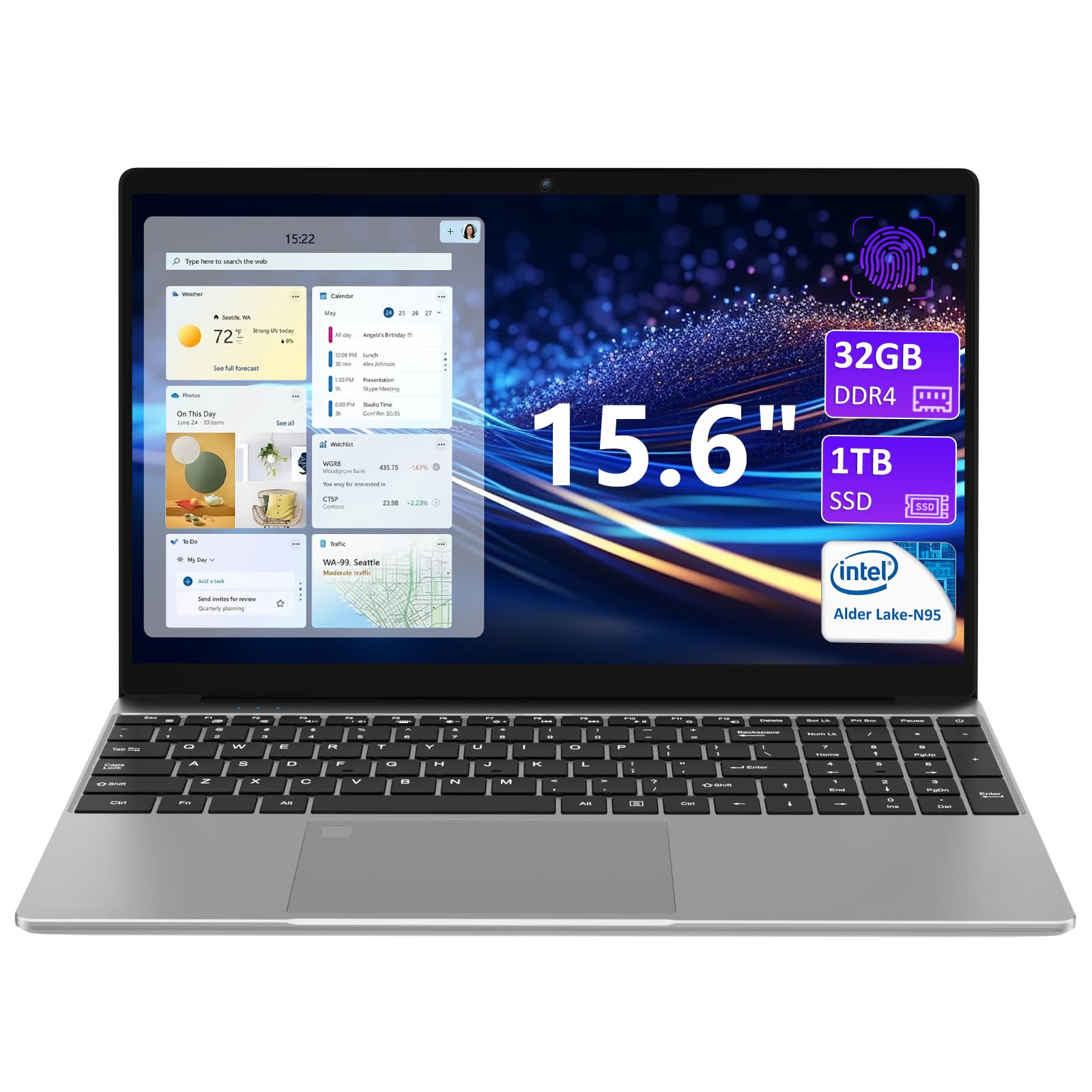
Image 1: KurieTim 15.6 Inch Laptop Computer. This image displays the laptop in a closed position, showcasing its sleek silver design.
2. What's in the Box
Upon unboxing your KurieTim laptop, please ensure all the following items are present:
- KurieTim 15.6 Inch Laptop Computer
- Universal 100-240V Charger
- Charging Cable
- Instruction Manual (this document)
3. Setup
3.1 Physical Components
Familiarize yourself with the laptop's layout and ports:
- Display: 15.6-inch FHS IPS HD display (1920x1080 pixels).
- Keyboard: Full-size backlit keyboard.
- Touchpad: Glass-like touchpad with integrated fingerprint reader.
- Webcam: 300K-pixel webcam.
- Speakers: Dual 8Ω/1.0W stereo speakers.
- Ports: 2x USB 3.0, 1x MicroSD slot (supports up to 2TB), Mini HDMI output, 3.5mm audio jack, DC3.5mm power port.

Image 2: Multi-connected design of the KurieTim laptop. This image highlights the various ports available on the laptop, including Mini HDMI, DC Jack, USB 3.0, Micro SD Card Slot, and 3.5mm headphone jack.
3.2 Initial Power-On and Windows 11 Pro Setup
- Charge the Laptop: Connect the provided charger to the DC3.5mm power port on the laptop and plug it into a power outlet. Allow the laptop to charge for at least 30 minutes before initial use.
- Power On: Press the power button, usually located on the top right of the keyboard area.
- Follow On-Screen Prompts: The laptop comes with Windows 11 Pro preinstalled. Follow the on-screen instructions to complete the initial setup, including selecting your region, connecting to a Wi-Fi network, and creating a user account.
- Fingerprint Setup: During or after the initial Windows setup, you can configure the fingerprint reader for secure and convenient login. Navigate to Windows Settings > Accounts > Sign-in options to set up your fingerprint.
4. Operating Instructions
4.1 Power Management
- Power On: Press the power button.
- Sleep Mode: Close the lid or press the power button briefly.
- Shut Down: Click the Windows Start button, then Power > Shut down.
- Restart: Click the Windows Start button, then Power > Restart.
4.2 Keyboard and Touchpad
- Backlit Keyboard: Use the dedicated function keys (Fn + F key combination, typically F5 or F6) to adjust the keyboard backlight brightness or turn it on/off.
- Touchpad Gestures: The glass-like touchpad supports multi-touch gestures for navigation. Refer to Windows settings for customizable gestures.
- Fingerprint Reader: Located on the touchpad, simply place your registered finger on the sensor to unlock your device.
4.3 Connectivity
- Wi-Fi: Access network settings via the taskbar icon or Windows Settings > Network & internet > Wi-Fi to connect to available networks. Supports dual-band 5GHz Wi-Fi (802.11ac/g/n).
- Bluetooth: Enable Bluetooth via Windows Settings > Bluetooth & devices to pair with compatible devices like headphones or mice. Supports Bluetooth 5.0.
- External Displays: Connect an external monitor using the Mini HDMI output port.
- USB Devices: Use the 2x USB 3.0 ports for connecting peripherals such as external hard drives, mice, or keyboards.
- MicroSD Card: Insert a MicroSD card into the dedicated slot for expanded storage up to 2TB.
5. Maintenance
- Cleaning: Use a soft, lint-free cloth to clean the screen and exterior. Avoid harsh chemicals.
- Software Updates: Regularly check for and install Windows 11 Pro updates to ensure optimal performance and security. Go to Windows Settings > Windows Update.
- Storage Management: Periodically review and manage your 1TB NVMe SSD storage to free up space. Use Windows Disk Cleanup or Storage Sense.
- Cooling: Ensure the built-in cooling fan vents are not obstructed to prevent overheating.
6. Troubleshooting
- Laptop Not Powering On: Ensure the charger is properly connected and the battery has sufficient charge. Try holding the power button for 10-15 seconds for a hard reset.
- Slow Performance: Close unnecessary applications, check for background processes, ensure sufficient free storage space, and update Windows.
- Wi-Fi/Bluetooth Connectivity Issues: Restart the laptop, toggle Wi-Fi/Bluetooth on/off, and check router/device connections.
- Display Problems: If the screen is blank or flickering, try connecting to an external monitor via Mini HDMI to diagnose if the issue is with the laptop's display or graphics driver.
- Fingerprint Reader Not Working: Ensure your finger is clean and dry. Re-register your fingerprint in Windows Settings if the issue persists.
7. Specifications
| Feature | Detail |
|---|---|
| Brand | KurieTim |
| Model Name | T152A-N95 |
| Screen Size | 15.6 Inches |
| Screen Resolution | 1920 x 1080 pixels (FHS IPS HD) |
| Processor | 12th Gen Intel Celeron N95 (4-core, up to 3.4GHz) |
| RAM | 32 GB DDR4 SDRAM |
| Hard Drive | 1 TB NVMe SSD |
| Graphics Coprocessor | Intel HD Graphics 600 (Integrated) |
| Operating System | Windows 11 Pro |
| Wireless Type | 802.11a/b/g/n/ac (Dual-band 5GHz Wi-Fi) |
| Bluetooth | Bluetooth 5.0 |
| Battery | 8000mAh, 61.6Wh Lithium Ion (Approx. 5 hours average life) |
| Ports | 2x USB 3.0, 1x MicroSD slot, Mini HDMI, 3.5mm audio jack, DC3.5mm power port |
| Special Features | Backlit Keyboard, Fingerprint Reader, HD Audio, Webcam (0.3 MP) |
| Item Weight | 2.86 pounds |
| Product Dimensions | 12.64 x 0.55 x 8.19 inches |
8. Warranty and Support
For warranty information and technical support, please refer to the documentation included in your product packaging or visit the official KurieTim website. The instruction manual included in the box contains specific details regarding warranty coverage and how to contact customer service for assistance.