
Introduction
Thank you for choosing the Auskang Smart Tag 4 Pack. These smart tags are designed to help you easily locate your valuable items such as keys, wallets, bags, and luggage. Utilizing Apple's Find My network, these tags provide a reliable and efficient way to keep track of your belongings. This manual provides detailed instructions on setting up, operating, and maintaining your Smart Tags.
Product Overview
The Auskang Smart Tag is a compact, water-resistant item tracker that works exclusively with Apple iOS devices through the Find My app. Each pack contains four Smart Tags, allowing you to track multiple items simultaneously.
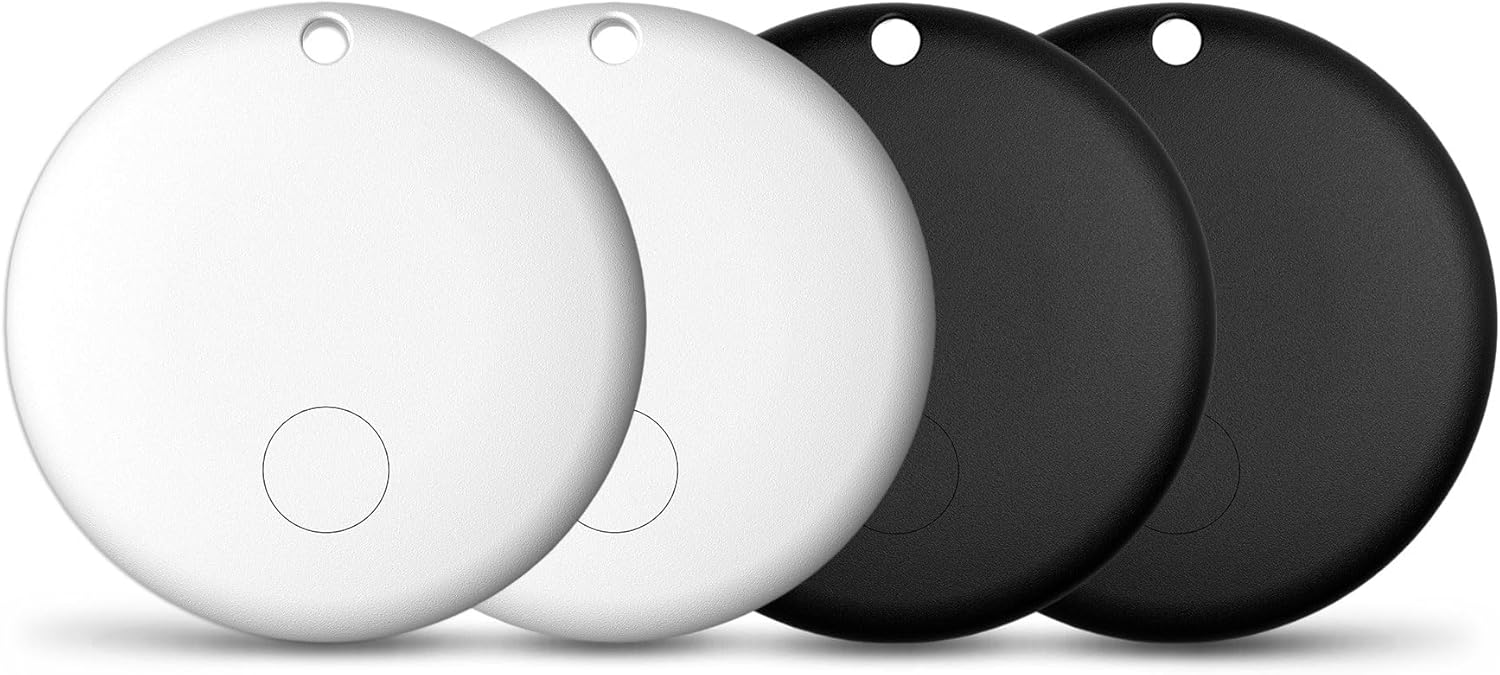
Image: Auskang Smart Tag 4 Pack. The image displays four circular smart tags, two in white and two in black, showcasing the product's design and quantity.
Package Contents:
- 4 x Auskang Smart Tags (2 Black, 2 White)
- 1 x User Manual (this document)
- 4 x CR2032 Batteries (pre-installed or included)
Physical Specifications:
- Dimensions: Diameter 1.14 inches (30 mm), Thickness 0.27 inches (7 mm)
- Weight: Approximately 0.2 oz (5.84 g) per tag
- Material: Plastic
- Connectivity: Bluetooth
- Battery: CR2032 (replaceable)
- Range: Up to 250 feet (Bluetooth range)
- Water Resistance: Yes

Image: Detailed dimensions of a single Auskang Smart Tag. The image shows a white tag held between fingers, with measurements indicating a diameter of 1.14 inches (30 mm) and a thickness of 0.27 inches (7 mm).
Setup
The Auskang Smart Tags are designed for easy integration with Apple's Find My network. Please ensure your iOS device is updated to the latest version for optimal performance.
- Activate the Smart Tag: If the tag is not already active, press the button on the tag to wake it up. You may hear a small chime.
- Open Find My App: On your iPhone, iPad, or iPod touch, open the "Find My" app.
- Add New Item: Go to the "Items" tab and tap the "+" icon. Select "Add Other Item."
- Connect the Tag: Your device will begin searching for nearby items. Place the Smart Tag close to your iOS device. Once detected, follow the on-screen prompts to name your tag and assign an emoji.
- Register: Confirm the registration of the Smart Tag to your Apple ID.
- Attach: Securely attach the Smart Tag to the item you wish to track (e.g., keys, backpack, wallet).

Image: Features of the Auskang Smart Tag. This graphic highlights that the tag "Works with Apple Find My," has "Privacy is Built in," supports "Hey Siri, find my Key," and features a "Replaceable Battery" that lasts over one year.
Note: These Smart Tags are compatible only with Apple iOS devices and the Find My network. They do not support Android devices.
Operating Instructions
1. Play a Sound to Find Your Device
If your Smart Tag is nearby but out of sight, you can make it play a sound to help you locate it.
- Open the "Find My" app on your iOS device.
- Go to the "Items" tab.
- Select the Smart Tag you wish to locate.
- Tap "Play Sound." The Smart Tag will emit a series of beeps, guiding you to its location.
- Tap "Stop Sound" once you have found your item.

Image: "Play a sound to find your device." This image shows a smartphone screen displaying the Apple Find My app, with an option to "Play Sound" for a "Victor's Key" item, indicating the tag is emitting sound waves.
2. Left Behind Remind
Receive notifications if you accidentally leave your Smart Tag behind in an unfamiliar location.
- Open the "Find My" app.
- Go to the "Items" tab and select your Smart Tag.
- Under "Notifications," toggle on "Notify When Left Behind."
- You can also set "New Location" exceptions where you don't want to be notified (e.g., your home or office).

Image: "Left Behind Remind" feature. The image shows a smartphone displaying a notification that reads "TIME SENSITIVE 'victor's Key' left behind. This item is no longer detected near you. It was last seen near xxxxxxxx St."
3. Lost Mode
If your Smart Tag goes missing, you can put it into Lost Mode to help recover it.
- Open the "Find My" app.
- Go to the "Items" tab and select your Smart Tag.
- Under "Lost Mode," tap "Enable."
- Follow the prompts to enter a phone number or email address where you can be contacted if someone finds your item.
- You can also choose to be notified when the item's location is updated.
When your Smart Tag is in Lost Mode and detected by another device on the Find My network, you will receive a notification of its updated location. The person who finds your tag can tap it with their NFC-enabled smartphone to see your contact information.

Image: "Lost Mode" feature. The image displays a smartphone screen within the Find My app, showing details for a lost item, including its serial number, owner information, and a message indicating the item has been marked as lost with a contact number.
Maintenance
Battery Replacement
The Auskang Smart Tag uses a standard CR2032 coin cell battery, which is replaceable and typically lasts over one year. When the battery is low, you will receive a notification on your iOS device.
- Locate the small groove or opening on the side of the Smart Tag.
- Using a small, flat tool (like a coin or a small screwdriver), gently twist or pry open the tag's casing.
- Remove the old CR2032 battery.
- Insert a new CR2032 battery with the positive (+) side facing up.
- Align the two halves of the tag and press firmly until it clicks securely back into place.
Water Resistance
The Smart Tag is designed to be water-resistant, protecting it from splashes and dust. However, it is not waterproof and should not be submerged in water or exposed to high-pressure water jets. Ensure the casing is properly sealed after battery replacement to maintain water resistance.
Troubleshooting
| Problem | Possible Cause | Solution |
|---|---|---|
| Smart Tag not connecting to Find My app. |
|
|
| "Play Sound" feature not working. |
|
|
| "Notify When Left Behind" not triggering. |
|
|
| Tag appears offline or location is not updating. |
|
|
Specifications
| Attribute | Detail |
|---|---|
| Brand | Auskang |
| Model Number | Macaron, Loshall Tag, F08 |
| ASIN | B0DM5HVRYM |
| Package Dimensions | 3.5 x 2.56 x 0.63 inches |
| Item Weight (per tag) | 0.2 oz (5.84 g) |
| Batteries | 1 x CR2032 per tag (included) |
| Connectivity Technologies | Bluetooth |
| Bluetooth Range | Up to 250 feet |
| Color | Black, White |
| Material | Plastic |
| Compatible Devices | iOS devices only (iPhone, iPad, iPod touch) |
| Water Resistance | Yes |
Warranty and Support
Auskang provides a 2-year warranty for any problems related to the Smart Tag. For warranty claims, technical support, or any inquiries regarding your Auskang Smart Tags, please contact Auskang customer service through the retailer where you purchased the product or visit the official Auskang website for contact information.
Please retain your proof of purchase for warranty validation.