
1. Introduction
This manual provides instructions for the setup, operation, and maintenance of your EPOMAKER HE75 Wireless Mechanical Keyboard. Please read this manual thoroughly before using the product to ensure proper function and longevity.
The EPOMAKER HE75 is a 75% form factor mechanical keyboard featuring multi-mode connectivity (wired, 2.4G wireless, Bluetooth 5.0), hot-swappable switches, a gasket-mounted design, and customizable RGB backlighting. It is designed for compatibility with Windows, macOS, and Android devices.
2. Package Contents
Verify that all items are present in your package:
- EPOMAKER HE75 Wireless Mechanical Keyboard
- USB-C Cable
- Keycap Puller
- Switch Puller
- 2.4G USB Receiver (may be stored in keyboard)
- User Manual (this document)

Image: The EPOMAKER HE75 keyboard, USB-C cable, keycap puller, and user manual laid out next to its packaging box.
3. Product Overview
3.1 Key Features
- 75% Form Factor: Compact layout with 81 keys and an interchangeable module.
- Multi-Mode Connectivity: Supports wired (USB-C), 2.4G wireless, and Bluetooth 5.0.
- Hot-Swappable PCB: Compatible with 3/5-pin mechanical switches, allowing for easy switch replacement without soldering.
- Gasket-Mounted Design: Provides a cushioned typing experience and uniform sound profile.
- Customizable RGB Backlight: Per-key south-facing LEDs with dynamic lighting effects.
- Interchangeable Knob Module: Allows swapping between a programmable knob or two customizable keys.
- 4000mAh Battery: Offers extended wireless usage.
- PBT Keycaps: Durable, oil-resistant keycaps with a Cherry profile.

Image: A detailed breakdown of the keyboard's features, including the metal knob, 4000mAh battery capacity, multi-mode connectivity, Flamingo switches, gasket structure, and PBT keycaps with Cherry profile.
3.2 Keyboard Layout
The HE75 features a 75% ANSI US layout with 81 keys, including function keys and arrow keys, along with a multi-function knob.

Image: A diagram showing the physical dimensions and key layout of the EPOMAKER HE75 keyboard, highlighting its 81 keys and knob module.
4. Setup
4.1 Initial Charging
Before first use, connect the keyboard to a USB power source using the provided USB-C cable to fully charge the 4000mAh battery. The RGB lighting will indicate charging status.

Image: The keyboard displaying a battery charge level indicator, with hands interacting with the keys.
4.2 Connecting the Keyboard
The EPOMAKER HE75 supports three connection modes:
- Wired Mode (USB-C): Connect the keyboard directly to your computer using the USB-C cable. The keyboard will automatically switch to wired mode. This mode offers low latency (2ms).
- 2.4G Wireless Mode:
- Locate the 2.4G USB receiver, usually stored in a compartment on the keyboard's underside.
- Plug the receiver into an available USB port on your computer.
- Switch the keyboard to 2.4G mode (refer to the switch on the back/side of the keyboard).
- Press Fn + R to activate 2.4G pairing if needed.
- Bluetooth 5.0 Mode:
- Switch the keyboard to Bluetooth mode.
- Press Fn + Q, Fn + W, or Fn + E to select a Bluetooth channel. The corresponding key will flash, indicating pairing mode.
- On your device (computer, tablet, smartphone), search for Bluetooth devices and select "EPOMAKER HE75" to connect.
- Once connected, the key will stop flashing.

Image: The EPOMAKER HE75 keyboard connected to a display, illustrating its compatibility with various operating systems and devices via 2.4GHz wireless, USB-C wired, and Bluetooth 5.0 connections.
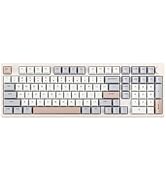
Image: A close-up of the keyboard's underside, revealing the mode switches for operating system (Mac/Win) and connection type (BT/USB/2.4G), along with the integrated storage for the 2.4G USB receiver. Key combinations for wireless pairing are also shown.
4.3 Operating System Compatibility
Use the switch on the back of the keyboard to select between Windows (WIN) and macOS (MAC) modes for optimal key mapping.
5. Operating Instructions
5.1 Basic Functions
- Function Keys (Fn): The Fn key is used in combination with other keys to access secondary functions (e.g., media controls, lighting adjustments).
- Volume Knob: The metal knob typically controls system volume. Rotate to adjust, press to mute/unmute.
Image: A close-up view of the metal knob on the top right of the keyboard, used for volume control and other programmable functions.
5.2 RGB Backlighting
The keyboard features customizable RGB backlighting. Use Fn key combinations or the dedicated software to change lighting modes, colors, and brightness.

Image: The EPOMAKER HE75 keyboard illuminated with vibrant RGB backlighting, demonstrating its customizable lighting effects.
5.3 Interchangeable Knob Module
The HE75 features an interchangeable module on the top right. This allows you to swap the default knob with two alternative keys (if provided) or other compatible modules. To change, gently pull the module upwards to remove and push the desired module into place until it clicks.

Image: The EPOMAKER HE75 keyboard with its interchangeable knob module removed, displaying the knob and two alternative key modules that can be inserted.
5.4 Software Customization
Download the official EPOMAKER software for the HE75 to unlock advanced customization options, including:
- Key Remapping
- Macro Recording
- Advanced RGB Effect Settings
- Music Rhythm Sync
Refer to the software's built-in help or the EPOMAKER website for detailed instructions on using the software.

Image: A screenshot of the EPOMAKER HE75's dedicated software, illustrating the user interface for customizing lighting modes, remapping keys, recording macros, and adjusting RGB effects.
6. Maintenance
6.1 Cleaning
- Disconnect the keyboard before cleaning.
- Use a soft, dry cloth to wipe the surface of the keyboard.
- For deeper cleaning, use the provided keycap puller to remove keycaps and clean underneath with compressed air or a small brush.
- Avoid using harsh chemicals or abrasive materials.
6.2 Hot-Swapping Switches
The HE75 features a hot-swappable PCB, allowing you to change switches without soldering. Use a switch puller to carefully remove existing switches and insert new 3-pin or 5-pin compatible mechanical switches. Ensure the pins are aligned correctly before pressing the new switch into place to avoid bending pins.

Image: A close-up view of the keyboard with a keycap and switch partially removed, demonstrating the hot-swappable PCB feature compatible with 3-pin and 5-pin mechanical switches.
7. Troubleshooting
| Problem | Possible Cause | Solution |
|---|---|---|
| Keyboard not responding (Wired) | Loose cable connection; faulty USB port; driver issue. | Ensure USB-C cable is securely connected. Try a different USB port or cable. Restart your computer. |
| Keyboard not responding (2.4G Wireless) | Receiver not plugged in; keyboard in wrong mode; low battery; interference. | Ensure 2.4G receiver is plugged in. Switch keyboard to 2.4G mode. Recharge keyboard. Move closer to receiver or reduce interference. Re-pair using Fn + R. |
| Keyboard not responding (Bluetooth) | Keyboard in wrong mode; not paired; low battery; device Bluetooth off. | Switch keyboard to Bluetooth mode. Ensure device Bluetooth is on. Re-pair using Fn + Q/W/E. Recharge keyboard. |
| RGB backlight not working | Backlight turned off; brightness set to minimum; software conflict. | Adjust backlight settings using Fn combinations or software. Ensure software is not overriding settings. |
| Keys double-typing or not registering | Faulty switch; debris under keycap. | Remove keycap and clean. If issue persists, hot-swap the switch with a new one. |
8. Specifications
| Feature | Detail |
|---|---|
| Model | HE75 |
| Connectivity | 2.4GHz Wireless, Bluetooth 5.0, USB-C Wired |
| Layout | 75% ANSI US (81 keys + knob) |
| Switches | Hot-swappable (3/5-pin compatible) |
| Keycaps | PBT, Cherry Profile |
| Backlight | RGB (South-facing LEDs) |
| Battery Capacity | 4000mAh |
| Battery Life (Backlight Off) | Up to 400 hours |
| Dimensions | 12.95 x 12.95 x 1.81 inches (329.5 x 139.9 x 32mm) |
| Weight | 2.77 pounds (0.86kg) |
| Compatible OS | Windows, macOS, Android |
9. Warranty and Support
EPOMAKER products typically come with a standard manufacturer's warranty. For specific warranty terms and conditions, please refer to the warranty card included with your product or visit the official EPOMAKER website.
For technical support, troubleshooting assistance, or inquiries regarding your EPOMAKER HE75 keyboard, please contact EPOMAKER customer service through their official website or the contact information provided in your product packaging.
Official EPOMAKER Website: www.epomaker.com


