
1. Introduction
The Artograph Smart HD Digital Art Projector Flare 100 is a versatile tool designed for artists, muralists, and creatives. It allows for tracing, enlarging, and projecting images onto various surfaces like walls or canvases. Featuring sharp HD resolution, built-in art grids, and flexible setup options, this portable projector enhances precision and efficiency in artistic endeavors. This manual provides detailed instructions for setting up, operating, maintaining, and troubleshooting your Flare 100 projector.
2. What's in the Box
Upon opening your Artograph Smart HD Digital Art Projector Flare 100 package, please verify that all the following components are included:
- Artograph Flare 100 Digital Art Projector
- Power Cord
- Remote Control
- User Manual (this document)
- Monopod Arm Clamp Stand
- HDMI Cable
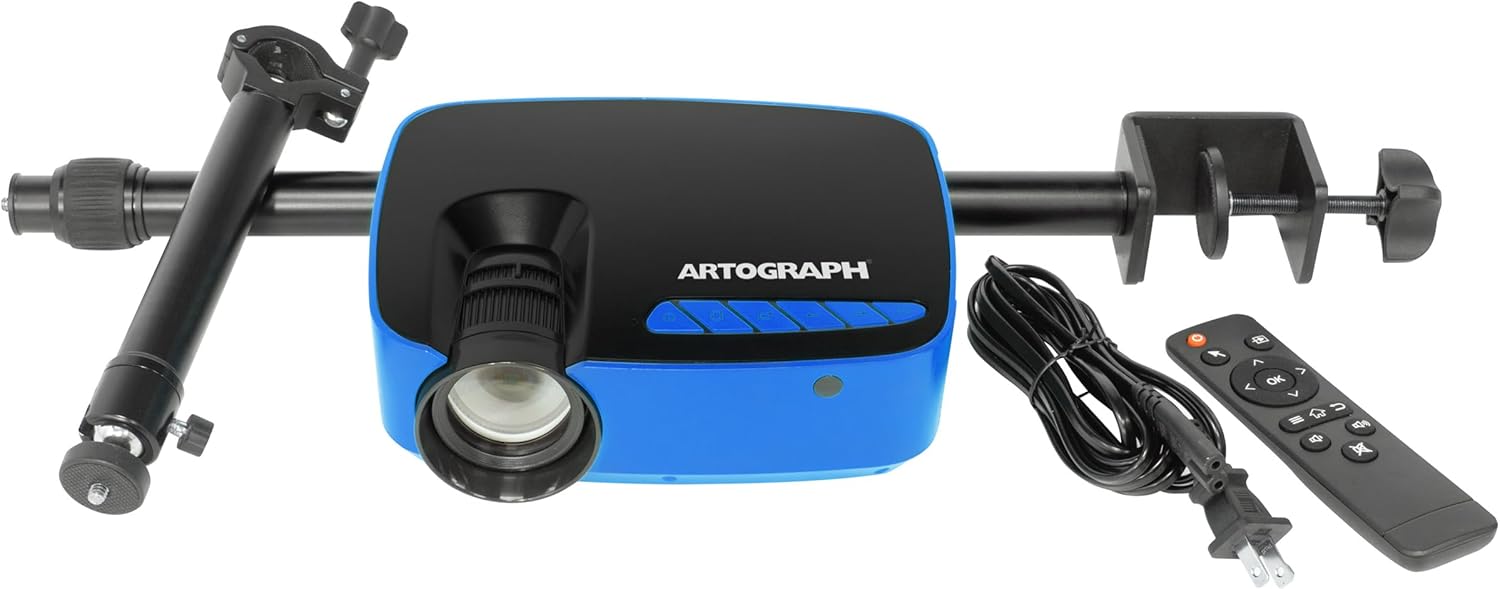
Image: The Artograph Flare 100 Digital Art Projector shown with its included accessories: the projector unit, power cord, remote control, and the monopod arm clamp stand.
3. Setup
Follow these steps to set up your Artograph Flare 100 projector for optimal performance.
3.1 Physical Setup
- Positioning the Projector: Place the projector on a stable, flat surface or attach it to the included Monopod Arm Clamp Stand. The stand allows for flexible positioning, including projecting onto vertical surfaces or down onto a desktop.
- Attaching the Monopod Arm Clamp Stand: Securely attach the monopod arm to a table or desk using the clamp. Then, screw the projector onto the monopod's swivel ball head. This allows for 360° projection and adjustment to various angles.

Image: The Artograph Flare 100 projector securely mounted on its adjustable monopod arm clamp stand, ready for use.

Image: Demonstrates the versatility of the Flare 100, showing how it can project images straight, down onto a surface, or up onto a ceiling, thanks to its monopod stand with swivel ball.
3.2 Power Connection
- Connect Power: Plug the provided power cord into the projector's power input port and then into a standard electrical outlet.
3.3 Connectivity
The Flare 100 supports various input sources:
- HDMI: Connect your computer, tablet, or other HDMI-enabled device using the HDMI cable.
- USB-A 2.0: Insert a USB flash drive containing images or media files.
- TF Card: Insert a TF (microSD) card with your media.
- AV Port: Use the AV port for composite video and audio input.
- Wi-Fi: Connect to a Wi-Fi network for wireless screen sharing from compatible devices. Refer to the on-screen menu for Wi-Fi setup instructions.
3.4 Focus and Keystone Correction
Adjust the image clarity and shape using the manual controls:
- Focus: Rotate the focus ring on the projector lens until the projected image is sharp and clear.
- Keystone Correction: Use the keystone adjustment dial to correct trapezoidal distortion, ensuring the projected image is rectangular, especially when projecting at an angle.
4. Operation
This section details the basic operation of your Artograph Flare 100 projector.
4.1 Power On/Off
- Power On: Press the power button on the projector or the remote control.
- Power Off: Press the power button again to turn off the projector.
4.2 Navigating the Menu
Use the control buttons on the projector or the remote control to navigate the on-screen menu. The buttons typically include OK, Left, Right, Return, and Page for selection and navigation.

Image: A detailed diagram illustrating the control buttons (OK, Left, Right, Return, Page, On/Off, Focus, Keystone) on the top of the projector and all available input/output ports (Audio Out, AV, HDMI, USB, TF) on the rear and side.
4.3 Media Playback
The Flare 100 features a built-in media player. Select the desired input source (HDMI, USB, TF Card, Wi-Fi) from the main menu.
- Supported Photo Formats: BMP, JPG, PNG, TXT
- Supported Audio Formats: AAC, APE, FLAC, MP3, OGG, WAV, WMA
- Supported Video Formats: 3GP, AVI, FLV, MKV, MOV, MP4, MPG, RMVB, VOB
4.4 Using Built-In Art Grids
The projector includes five built-in art grids to assist with proportion and composition when transposing images to a wall or canvas.
- Rule of Thirds
- Horizontal Lines
- Concentric Circles
- Crosshatch
- Perspective
To activate and select a grid, navigate through the projector's menu options. The grid will overlay your projected image.

Image: The Artograph Flare 100 projecting an image with various grid overlays, demonstrating the built-in tools for artistic proportion and composition.
5. Maintenance
Proper maintenance ensures the longevity and optimal performance of your projector.
5.1 Cleaning
- Lens: Use a soft, lint-free cloth specifically designed for optical lenses. Gently wipe the lens to remove dust or smudges. Avoid abrasive materials or harsh chemicals.
- Casing: Wipe the projector's exterior with a soft, dry cloth. For stubborn marks, a slightly damp cloth can be used, but ensure no moisture enters the device.
- Vents: Periodically check the ventilation openings for dust accumulation. Use a soft brush or compressed air to clear any blockages, ensuring proper airflow and preventing overheating.
5.2 Storage
When not in use, store the projector in a cool, dry place away from direct sunlight and extreme temperatures. If storing for an extended period, consider using the original packaging or a protective case to prevent dust buildup and accidental damage.
6. Troubleshooting
This section addresses common issues you might encounter with your Artograph Flare 100 projector.
| Problem | Possible Cause | Solution |
|---|---|---|
| No image projected | Power not connected; Input source not selected; Device not connected properly. | Ensure power cord is securely plugged in. Select the correct input source (HDMI, USB, TF, Wi-Fi). Verify cables are firmly connected to both projector and source device. |
| Image is blurry or out of focus | Focus ring not adjusted; Projector too close/far from surface; Minimum projection distance not met. | Rotate the focus ring on the lens until the image is clear. Adjust the distance between the projector and the projection surface. Note that the minimum focus distance may result in a projected image size of over 16 inches. |
| Image is distorted (trapezoid shape) | Keystone correction not adjusted. | Use the keystone adjustment dial to correct the image shape until it is rectangular. |
| No sound from projector | Volume too low; Audio format not supported; External audio device connected. | Increase the volume using the remote or projector controls. Ensure the audio file format is supported. If using external speakers via the 3.5mm jack, ensure they are connected and powered on. |
| Difficulty connecting to Wi-Fi | Incorrect password; Network issues; Device compatibility. | Double-check the Wi-Fi password. Restart your router and the projector. Ensure your device is compatible with the projector's screen sharing feature. |
| Projector overheating | Blocked vents; Prolonged use in hot environment. | Ensure ventilation openings are clear of obstructions. Operate the projector in a well-ventilated area. Allow the projector to cool down if it has been in continuous use for an extended period. |
7. Specifications
Detailed technical specifications for the Artograph Smart HD Digital Art Projector Flare 100.
| Feature | Detail |
|---|---|
| Model Number | 25707 |
| Dimensions (L x W x H) | 7.75 x 6.25 x 2.75 inches |
| Item Weight | 1.68 pounds |
| Color | Blue / Black |
| Display Resolution (Native) | 1280 x 720 (HD) |
| Maximum Resolution Support | 1920 x 1080 (Full HD) up to 3840 x 2160 (4K) |
| Brightness | 300 Lumens |
| Projection Size | 30" - 100" |
| Wattage | 55 Watts |
| Connectivity Technology | 3.5mm Jack, AV Port, TF Card, HDMI, USB-A 2.0, Wi-Fi |
| Special Features | Built-In Media Player, Five Built-In Art Grids, Includes Monopod Arm, Manual Keystone and Focus Correction |
8. Warranty & Support
8.1 Product Warranty
Artograph products are manufactured with quality and durability in mind. For specific warranty terms and conditions applicable to your Flare 100 projector, please refer to the warranty card included in your product packaging or visit the official Artograph website. The warranty typically covers manufacturing defects under normal use.
8.2 Customer Support
If you encounter any issues not covered in the troubleshooting section or require further assistance, please contact Artograph customer support. You can find contact information, FAQs, and additional resources on the official Artograph website:
Visit Artograph Official Website
Please have your product model number (25707) and purchase information ready when contacting support.