
1. Introduction
The aMZCaSE Mouse Jiggler is a compact USB device designed to prevent your computer from entering sleep mode or showing an idle status. It simulates subtle mouse movements, ensuring your system remains active without requiring software installation or administrative privileges. This device features three distinct jiggle modes and a convenient on/off switch for ease of use.
2. Product Overview
The aMZCaSE Mouse Jiggler is a small, portable USB device. It consists of a main body with a USB-A connector, an integrated button for power and mode selection, and an LED indicator light. A protective lid is also included.

Figure 1: Product components and dimensions. The device measures approximately 1.2 inches in length, 0.8 inches in width, and 0.2 inches in height, featuring a protective cover, indicator light, and an operate button.

Figure 2: The compact size of the mouse jiggler, emphasizing its security, driver-free operation, undetectable nature, and mini-size.
3. Setup
Setting up the aMZCaSE Mouse Jiggler is a simple plug-and-play process. No software installation or drivers are required.
- Insert the USB-A connector of the mouse jiggler into an available USB port on your computer or laptop.
- Upon connection, the indicator light will turn green, signifying that the device is active in Mode 1.
Video 1: Demonstrates how to plug in the aMZCaSE Mouse Jiggler and cycle through its three modes. The video shows the indicator light changing from green (Mode 1), to blue (Mode 2), to orange (Mode 3), and finally turning off.
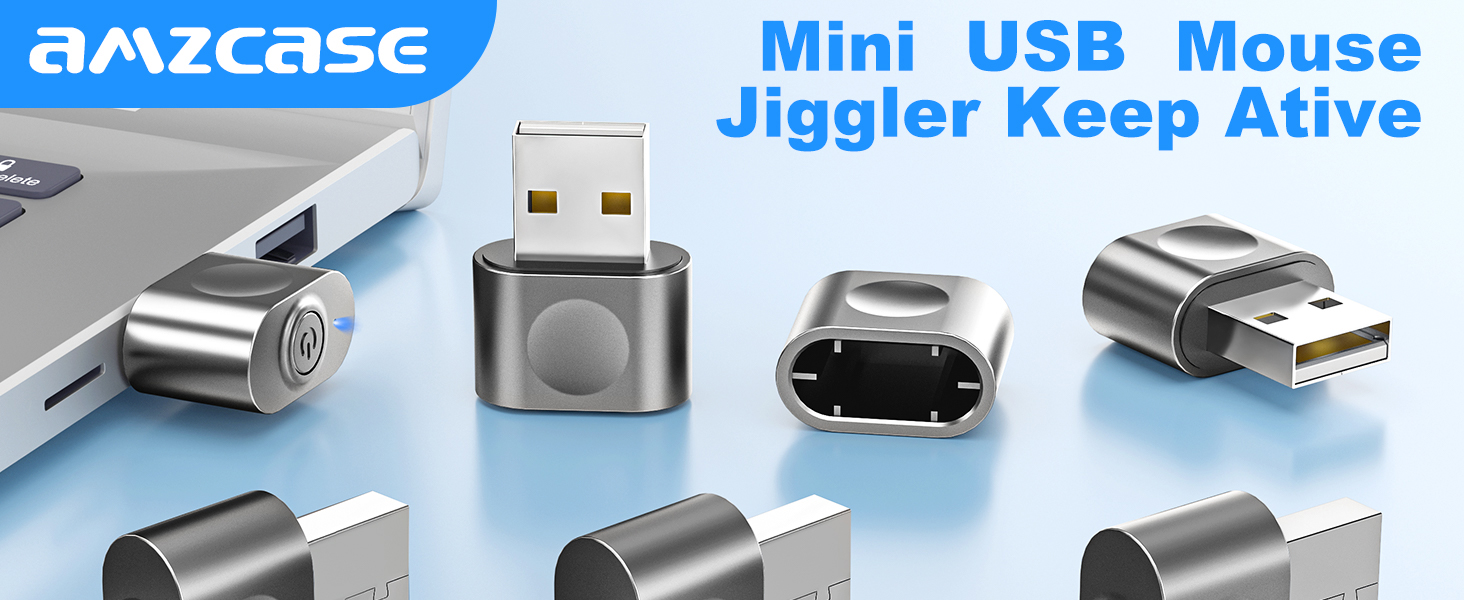
Figure 3: Visual guide to connecting the device and understanding indicator light status for each mode.
4. Operating Instructions
The aMZCaSE Mouse Jiggler features a single button for controlling power and switching between its three jiggle modes.
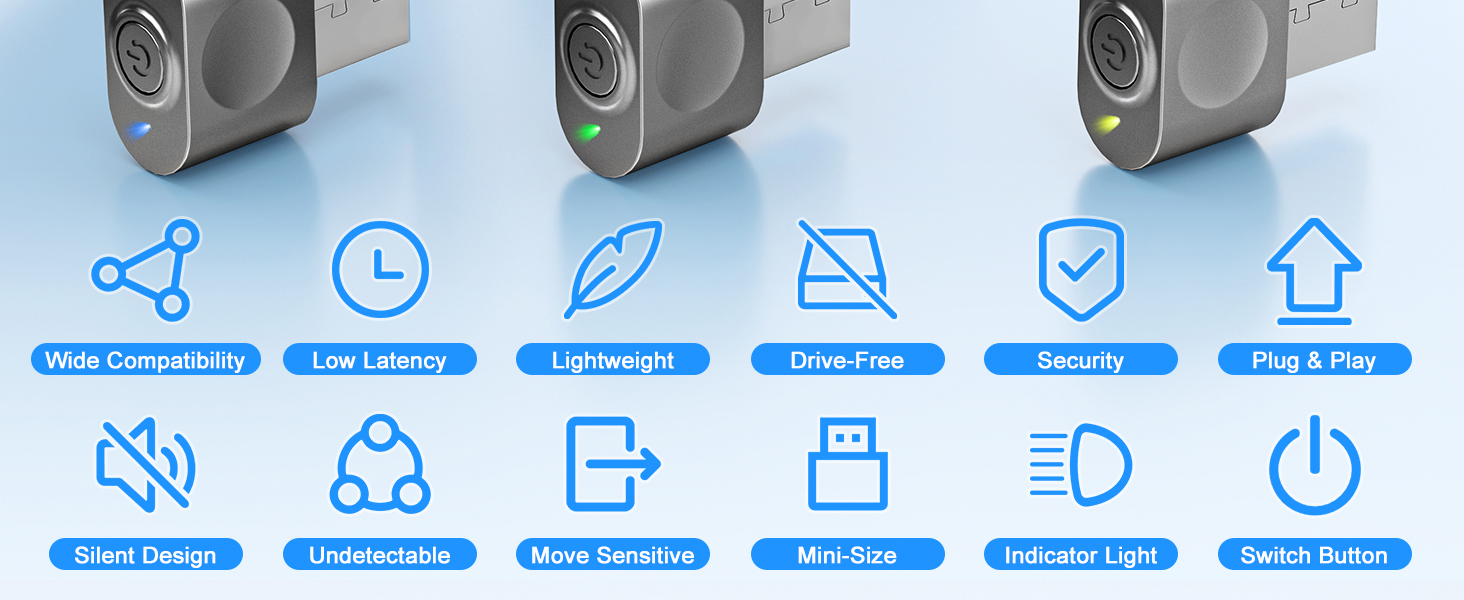
Figure 4: The multi-function button for power and mode selection.
Mode Selection:
- Mode 1 (Green Light): Activated automatically upon connection. This mode provides a subtle, small pixel movement from left to right.
- Mode 2 (Blue Light): Press the button once. This mode provides small pixel movements back and forth within a small range.
- Mode 3 (Orange Light): Press the button a second time. This mode generates widely random mouse movements.
Power Off:
- To turn off the device, press the button a third time (after Mode 3), or long-press the button for 3 seconds from any mode. The indicator light will turn off.
The mouse jiggler operates by subtly moving the mouse cursor. This action is designed not to interfere with your normal mouse operation, allowing you to use your mouse flexibly even while the jiggler is active. It is recommended to use Mode 1 for a better experience if you need to actively use your mouse.
Figure 5: Visual representation of the three distinct jiggle modes.
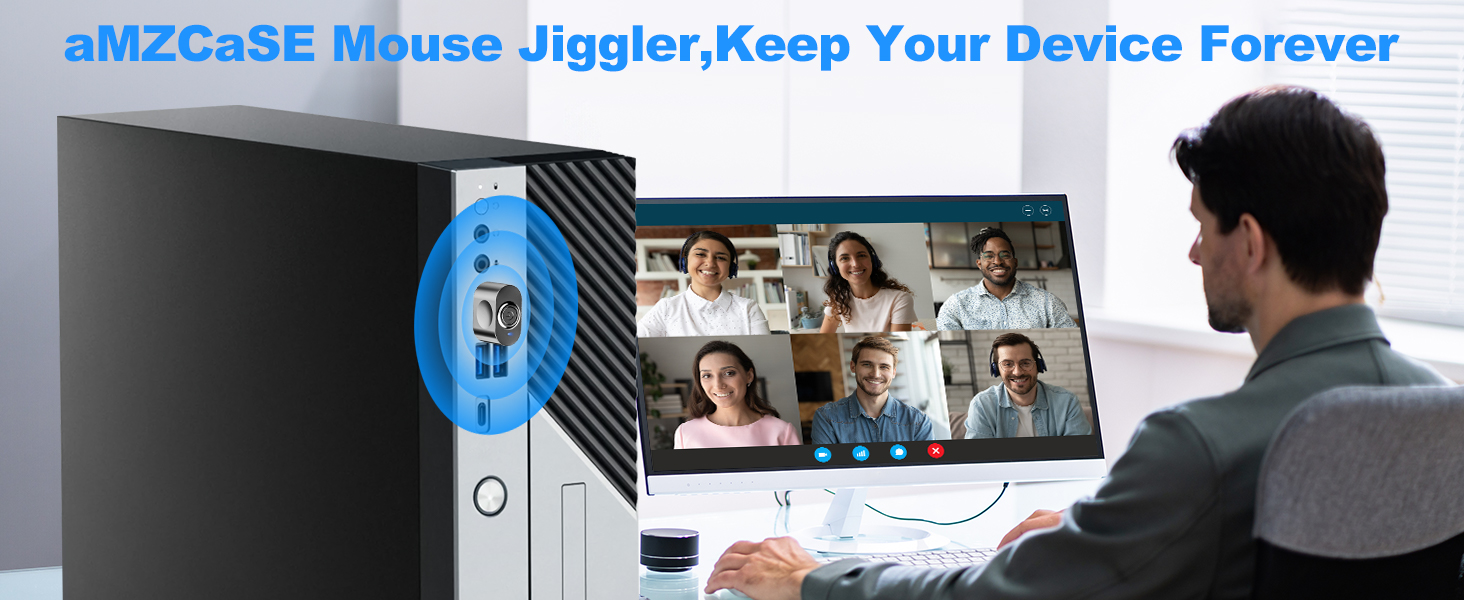
Figure 6: Operational diagram detailing mode switching and device components.
Applications:
The mouse jiggler is useful in various scenarios to maintain computer activity:
- Keeping screens active during presentations, classes, or meetings.
- Maintaining online status on communication platforms like Microsoft Teams, Lync, Webex, and Skype.
- Preventing screen savers or sleep modes during long downloads or background tasks.

Figure 7: Examples of how the mouse jiggler can be used in professional and personal settings.
5. Compatibility
The aMZCaSE Mouse Jiggler is designed for broad compatibility across various operating systems and devices:
- Operating Systems: Windows XP/7/8/10/11, Linux, Mac OS, Android System.
- Devices: PCs, Laptops, Hubs.
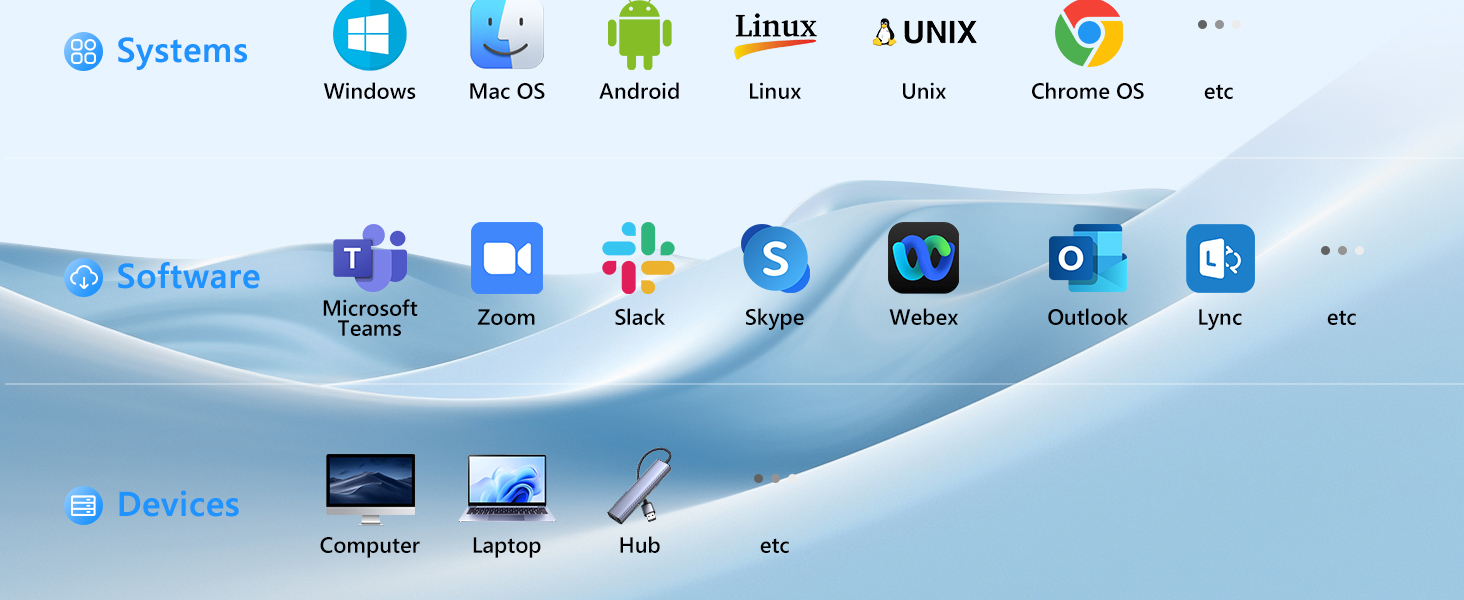
Figure 8: Overview of compatible devices and operating systems.
6. Maintenance
The aMZCaSE Mouse Jiggler requires minimal maintenance. To ensure optimal performance and longevity:
- Keep the device clean and free from dust. Use a soft, dry cloth for cleaning.
- Avoid exposing the device to extreme temperatures or moisture.
- Store the device with its protective lid when not in use to prevent damage to the USB connector.
7. Troubleshooting
If you encounter issues with your aMZCaSE Mouse Jiggler, consider the following:
- Device not responding: Ensure the device is fully inserted into a functional USB port. Try a different USB port or a different computer to rule out port issues.
- Indicator light not on: If the light is off, the device might be powered off. Press the button once to activate Mode 1 (green light).
- Mouse movement not detected: Confirm the indicator light is on, indicating an active mode. If it's on, but no movement is observed, try switching to a different mode.
- Interference with normal mouse use: While designed not to interfere, if you experience issues, switch the jiggler to Mode 1 for the most subtle movement, or temporarily power it off when precise mouse control is needed.
8. Specifications
| Feature | Detail |
|---|---|
| Brand | aMZCaSE |
| Model | B0DM256W1S |
| Color | Light Gray |
| Connectivity Technology | USB |
| Special Features | LED Lights, Lightweight, Portable, USB, Wireless |
| Movement Detection Technology | Trackball (Note: This refers to the underlying technology for mouse movement simulation, not a physical trackball) |
| Compatible Devices | PC, Mac OS, Laptop, Windows 7/8/10, iOS, Android, Linux |
| Operating System Compatibility | Linux, Mac OS, Windows 10, Windows 11, Windows 7, Windows 8, Windows XP |
| Item Weight | 0.01 Kilograms |
| Item Dimensions (L x W) | 1.06" x 0.39" |
| Material | Metal, Plastic |
9. Warranty and Support
For warranty information or technical support, please refer to the product packaging or contact aMZCaSE customer service through the retailer's platform where the product was purchased. Please have your model number (B0DM256W1S) available when contacting support.