
1. Introduction and Overview
This manual provides detailed instructions for the installation, operation, and maintenance of your B4U 10.2 Inch Android 12 Car Stereo. This unit is specifically designed for Toyota Camry models from 2015 to 2017, offering an enhanced in-car entertainment and navigation experience with features like Wireless CarPlay, Android Auto, Bluetooth 5.2, GPS, WiFi, and support for a backup camera.
Please read this manual thoroughly before installation and use to ensure proper functionality and to maximize your product experience. Keep this manual for future reference.
2. Product Features
- Operating System: Android 12.0 for smooth performance.
- Memory: 4GB RAM + 64GB ROM for ample storage and fast response.
- Display: 10.2-inch IPS Touch Screen with 1024 x 600 resolution.
- Smartphone Integration: Wireless/Wired Apple CarPlay and Android Auto support.
- Connectivity: Bluetooth 5.2 for hands-free calls and audio streaming, built-in WiFi for online access.
- Navigation: Integrated GPS module with external GPS antenna for online and offline map navigation.
- Safety Features: Supports rearview camera input (camera included) with 170° wide view and night vision.
- Control: Steering Wheel Control (SWC) compatibility for convenient operation.
- Audio: DSP & EQ settings for customizable sound, FM Radio.
- Multitasking: Split-screen function for running multiple applications simultaneously.
- Output: Full RCA Output for connecting external displays like headrest monitors.
3. Package Contents
Verify that all items are present in the package before proceeding with installation:
- B4U 10.2 Inch Android 12 Car Stereo Unit
- Power Cable & RCA Cable
- USB Cables (2)
- Microphone Cable
- Rearview Camera & Camera Cable
- GPS Antenna & Signal Cable
- User Manual (this document)

Image: Overview of included components and wiring connections.
4. Compatibility
This car stereo is compatible with Toyota Camry models manufactured between 2015 and 2017. Before purchasing or installing, please verify the year, dimensions, and shape of your vehicle's center console to ensure proper fitment. If you are uncertain about compatibility, consult with a professional or contact customer support with pictures of your dashboard.

Image: The B4U Android 12 Car Stereo seamlessly integrated into a Toyota Camry dashboard.
5. Setup & Installation
Installation of the B4U car stereo requires basic automotive electrical knowledge. If you are not comfortable performing the installation yourself, it is recommended to seek professional assistance.
5.1 Pre-Installation Checklist
- Ensure the vehicle's battery is disconnected before starting any electrical work.
- Confirm all included components are present.
- Review your vehicle's specific dashboard disassembly instructions (not included in this manual).
5.2 General Installation Steps
- Carefully remove the original car stereo and dashboard trim.
- Connect the provided power cable and RCA cables to the corresponding ports on the new stereo and the vehicle's wiring harness.
- Connect the GPS antenna and route it to a location with a clear view of the sky (e.g., dashboard corner).
- Install the rearview camera (if applicable) and connect its cable to the stereo's reversing input.
- Connect the USB cables and microphone cable.
- Mount the new B4U car stereo into the dashboard opening.
- Reconnect the vehicle's battery and test the unit before fully reassembling the dashboard trim.
5.3 Installation Videos
Video: Unboxing and component overview for the 10-inch Camry 2015-2017 stereo. This video provides a visual guide to the parts included and their initial handling.
Video: General car radio installation guide. This video demonstrates the process of installing a car radio, which can be helpful for understanding the steps involved.
Video: Upgrade Camry Radio. This video shows the process of upgrading a Camry radio, offering visual context for the installation.
6. Operating Instructions
6.1 Initial Power On and Setup
- After installation, turn on your vehicle's ignition. The stereo should power on automatically.
- Follow the on-screen prompts for initial setup, including language selection and time zone.
- Connect to a Wi-Fi network or personal hotspot to enable online features and app downloads.
6.2 Wireless CarPlay & Android Auto
This unit supports both Wireless/Wired Apple CarPlay and Android Auto, allowing seamless integration with your smartphone for navigation, music, calls, and messages.
- Ensure Bluetooth and Wi-Fi are enabled on your smartphone.
- On the car stereo, open the CarPlay or Android Auto application.
- Follow the on-screen instructions to pair your phone via Bluetooth. Once paired, the system will automatically connect for CarPlay or Android Auto.
- Alternatively, connect your phone via a USB cable for a wired connection.

Image: Display showing the Wireless CarPlay and Android Auto interfaces.
6.3 Bluetooth 5.2 Functionality
Connect your phone via Bluetooth for hands-free calling and audio streaming.
- Go to the Bluetooth settings on the car stereo.
- Enable Bluetooth on your smartphone and search for available devices.
- Select the car stereo from the list on your phone and confirm the pairing code.
- Once connected, you can make/receive calls and play music through the car's speakers.
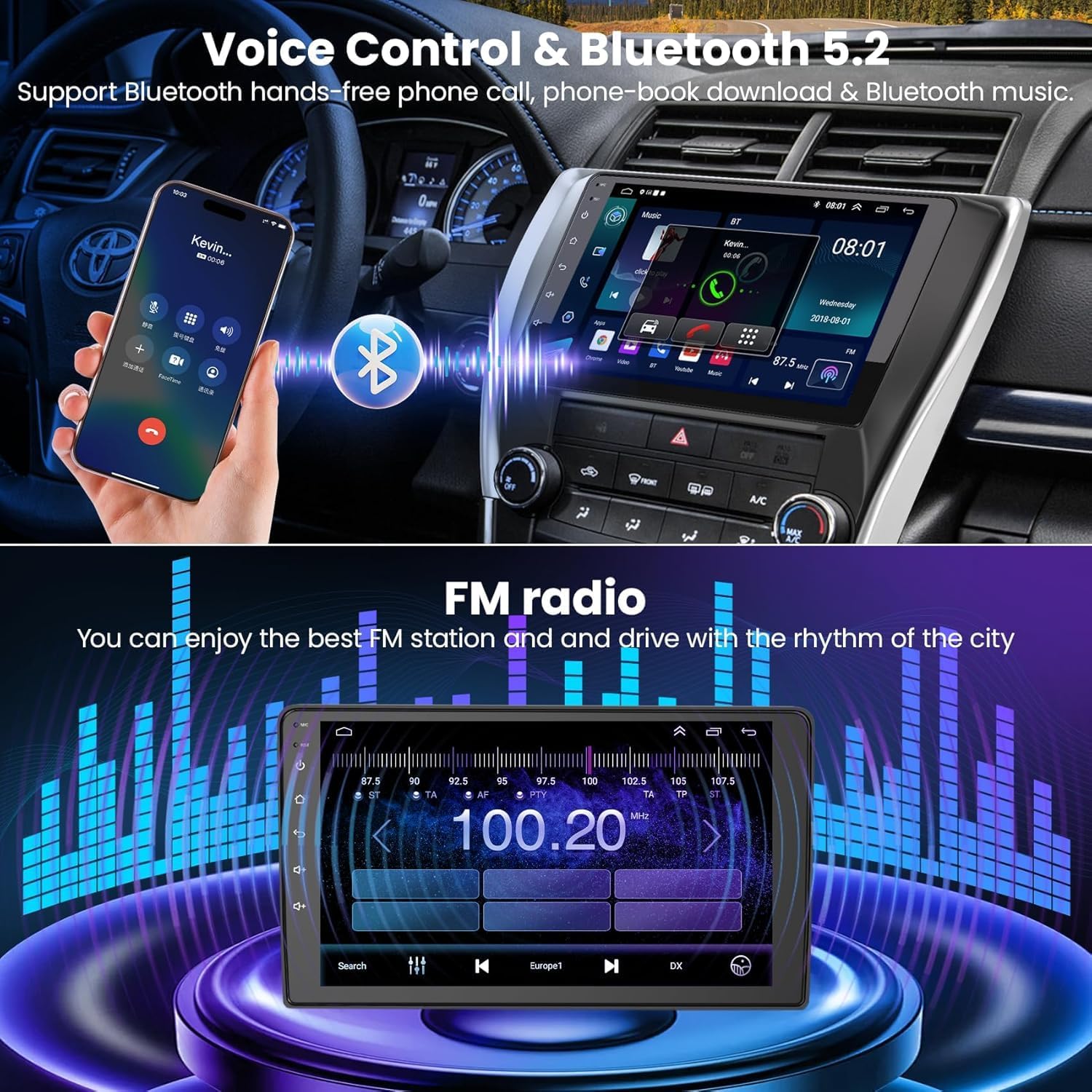
Image: Bluetooth 5.2 call interface and FM radio display.
6.4 GPS Navigation
The unit comes with a built-in GPS module and supports both online and offline navigation.
- Offline Maps: Preloaded with offline map data (e.g., Here WeGo). Access through the 'Navigation' or 'Maps' app.
- Online Maps: Connect to Wi-Fi to use online navigation apps like Google Maps or Waze.
- Ensure the GPS antenna is properly installed for optimal signal reception.

Image: GPS navigation display showing online and offline map options, and WiFi connection icons.
6.5 Rearview Camera
The system automatically displays the rearview camera feed when the vehicle is shifted into reverse gear.
- The included camera provides a 170° wide viewing angle and night vision capabilities.
- This feature enhances safety by providing a clear view of obstacles behind your vehicle.

Image: Rearview camera display with guidelines and an illustration of steering wheel controls.
6.6 Steering Wheel Control (SWC)
If your vehicle supports steering wheel controls, the stereo can be configured to respond to these buttons for functions like volume, track changes, and call management.
- Access the 'Steering Wheel Control' settings in the stereo's system menu.
- Follow the on-screen instructions to map your vehicle's steering wheel buttons to the desired functions.
6.7 Split Screen Function
The split-screen feature allows you to run two applications side-by-side on the 10.2-inch display.
- To activate, open an application, then long-press the recent apps button or drag from the side (depending on the specific Android interface).
- Select a second application to run alongside the first.
7. Maintenance
- Screen Cleaning: Use a soft, lint-free cloth to clean the touchscreen. For stubborn marks, lightly dampen the cloth with water or a screen-safe cleaner. Avoid harsh chemicals.
- Software Updates: Periodically check for software updates through the system settings to ensure optimal performance and access to new features.
- Environmental Conditions: Avoid exposing the unit to extreme temperatures, direct sunlight for prolonged periods, or excessive moisture.
- Cable Connections: Ensure all cables remain securely connected. Loose connections can lead to intermittent issues.
8. Troubleshooting
This section addresses common issues you might encounter. For more complex problems, refer to the troubleshooting video or contact customer support.
| Problem | Possible Cause | Solution |
|---|---|---|
| Unit does not power on. | Loose power connection, blown fuse, vehicle battery issue. | Check power cable connections. Inspect vehicle fuses. Ensure car battery is charged. |
| No sound or distorted audio. | Incorrect wiring, volume too low, speaker issues, DSP/EQ settings. | Verify speaker wiring. Adjust volume. Check DSP/EQ settings. |
| Bluetooth connection issues. | Phone not discoverable, incorrect pairing, interference. | Ensure phone Bluetooth is on and discoverable. Delete previous pairings and re-pair. Restart both devices. |
| GPS signal weak or inaccurate. | GPS antenna placement, environmental interference. | Ensure GPS antenna has a clear view of the sky. Check antenna connection. |
| Rearview camera not displaying. | Camera wiring, reverse trigger wire, camera malfunction. | Check camera cable connections. Verify reverse trigger wire is correctly connected. |
| Steering Wheel Controls not working. | Incorrect wiring, SWC settings not configured. | Verify SWC wiring. Configure SWC settings in the stereo menu. |
| Screen freezes or is unresponsive. | Software glitch, system overload. | Restart the unit (turn off car ignition and restart). If persistent, perform a factory reset (refer to system settings). |
8.1 Troubleshooting Video
Video: Essential Troubleshooting Guide. This video provides solutions for common issues, which can help resolve problems quickly.
9. Specifications
| Feature | Specification |
|---|---|
| Brand | B4U |
| Model Name | B4U 10.2 Inch Android 12 Car Stereo (4GB+64GB for Camry 2015-2017) |
| Operating System | Android 12 |
| Memory Storage Capacity | 64 GB (ROM) |
| RAM | 4 GB |
| Screen Size | 10.2 Inches |
| Resolution | 1024 x 600 |
| Display Type | LCD, Capacitive Touch Screen |
| Connectivity Technology | USB, Wi-Fi, Bluetooth 5.2 |
| Supported Navigation System | GPS (Worldwide Map Type) |
| Audio Output Mode | Stereo |
| Vehicle Service Type | Car (Toyota Camry 2015-2017) |
| Item Weight | 1.99 Kilograms |
10. Warranty and Support
Your B4U car stereo comes with a 2-Year Warranty from the date of purchase. This warranty covers manufacturing defects and ensures your product functions as intended under normal use.
For technical assistance, troubleshooting, or warranty claims, please contact B4U customer support. Provide your product model name and purchase details when contacting support to facilitate a quicker resolution.
Please note that the warranty does not cover damage caused by improper installation, misuse, accidents, unauthorized repairs, or normal wear and tear.