
PRXOUIEO ST-N003-3
PRXOUIEO Smart Indoor Fingerprint Door Lock User Manual
Model: ST-N003-3
1. Introduction
Thank you for choosing the PRXOUIEO Smart Indoor Fingerprint Door Lock. This advanced security device offers multiple access methods, including fingerprint, mobile app, password, RFID card, and traditional key, providing enhanced convenience and safety for your home or office. This manual provides detailed instructions for installation, operation, and maintenance to ensure optimal performance and longevity of your smart lock.

Image: Overview of the PRXOUIEO Smart Indoor Fingerprint Door Lock, showcasing the main unit, RFID cards, and physical keys.
2. Product Features
- One-Key Fingerprint Unlock: Rapid fingerprint recognition for quick and secure access.
- Remote Control via Mobile App: Control the lock, view records, and send temporary passwords from anywhere using the Tuya App.
- Multiple Access Methods: Supports fingerprint, mobile app (wireless remote, Bluetooth), RFID card, password, and traditional key.
- Anti-Peeping Password Design: Protects your passcode from being observed by allowing random digits before and after the actual code.
- Intelligent Alarm System: Features anti-pry alarm, low battery alert, and wrong attempt alert.
- Durable Construction: Made from high-quality iron for long-term reliability.
- Easy Installation: Designed for straightforward installation on existing doors without additional drilling.

Image: Visual representation of the smart door lock's main features, highlighting its security and convenience aspects.
3. Specifications
| Attribute | Detail |
|---|---|
| Brand | PRXOUIEO |
| Model Number | ST-N003-3 |
| Color | Glossy Black |
| Material | Iron |
| Product Dimensions (L x W x H) | 6.5 x 26.01 x 2.31 cm |
| Lock Type | Biometric, Deadbolt |
| Special Features | Alarm, Anti-Peeping Password, Auto-Lock, Fingerprint |
| Included Components | Key |
| Fingerprint User Capacity | Up to 300 sets |
| Fingerprint Recognition Time | Less than or equal to 1 second |
| False Recognition Rate | Less than 0.001% |

Image: Dimensional labeling of the smart door lock, indicating its physical measurements.

Image: Display of available color options for the smart door lock, including Glossy Black.
4. Setup and Installation
The PRXOUIEO Smart Indoor Fingerprint Door Lock is designed for easy installation. It can typically be installed on existing door bodies without requiring additional drilling. For detailed step-by-step instructions, please refer to the installation guide provided in the product packaging. Ensure all components are present before beginning installation.
4.1. Pre-Installation Checklist
- Verify door thickness and backset compatibility.
- Ensure all parts listed in the packaging are included.
- Gather necessary tools (e.g., screwdriver, measuring tape).
5. Operating Instructions
5.1. Initial Setup and User Management
Upon first use, follow the instructions in the full manual to set up the administrator fingerprint and password. All subsequent user management (adding/deleting fingerprints, passwords, RFID cards) will be done through the administrator account or the Tuya App.

Image: The smart lock supports up to 300 unique fingerprints and access codes, suitable for multiple users.
5.2. Unlocking Methods
- Fingerprint Unlock: Place your registered finger on the fingerprint sensor. The lock will unlock within approximately 1 second upon successful recognition.
- Password Unlock: Enter your registered password on the keypad. For enhanced security, utilize the anti-peeping feature by entering random digits before and after your actual password.
- RFID Card Unlock: Present your registered RFID card to the card reader area on the lock.
- Mobile App Unlock: Open the Tuya App on your smartphone. Ensure Bluetooth is enabled or the lock is connected to Wi-Fi (if applicable). Follow the app prompts to unlock remotely.
- Key Unlock: In case of emergency or battery depletion, use the provided physical key to unlock the door.

Image: Visual guide to the various access methods supported by the smart lock.
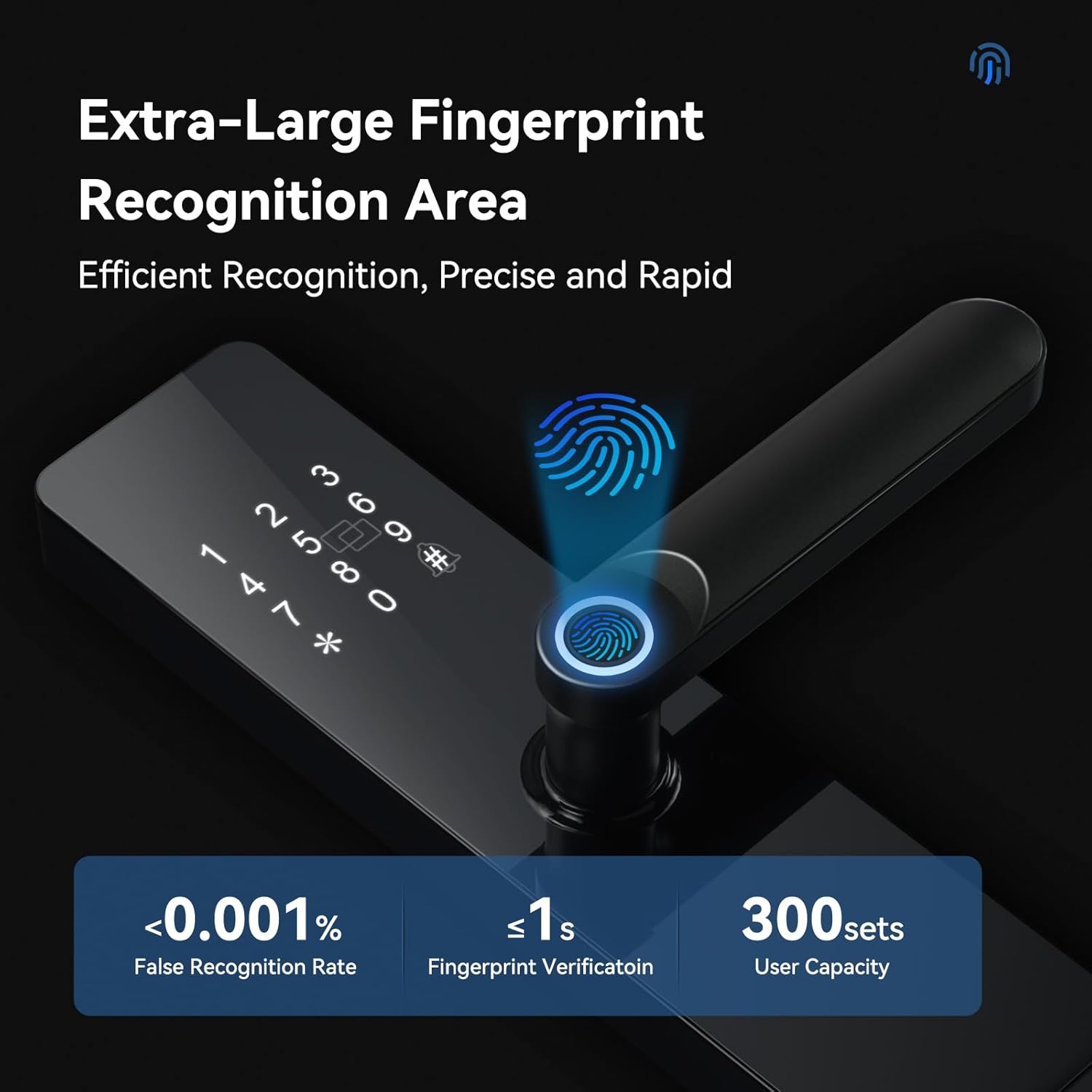
Image: Details on the extra-large fingerprint recognition area, emphasizing its speed and accuracy.

Image: Explanation of the anti-peep passcode function, demonstrating how to protect your actual password.

Image: Further illustration of the anti-peep passcode feature for enhanced security.
5.3. Locking Mechanism
The lock features an auto-lock function. To manually secure the door, lift the handle upwards to engage the deadbolt. To unlock, press the handle downwards.

Image: Visual guide on how to engage the anti-lock mechanism by lifting the handle and how to unlock by pressing down.
5.4. App Features (Tuya Smart)
- Remote Unlock: Unlock the door from anywhere.
- Access History: View a log of all lock and unlock events, including method and time.
- Temporary Passwords: Generate time-limited or one-time passwords for guests or service providers.
- User Management: Add, modify, or delete user fingerprints, passwords, and RFID cards.

Image: Remote control functionality via the Tuya Smart app, allowing management from anywhere.

Image: The ability to share timed passwords for temporary access.

Image: The feature to view a detailed history of all lock access events.
6. Maintenance
- Cleaning: Wipe the lock surface with a soft, dry cloth. Avoid using abrasive cleaners or solvents that may damage the finish or electronic components.
- Battery Replacement: The lock will provide a low battery alert when power is running low. Replace batteries promptly to ensure continuous operation. Use only recommended battery types.
- Fingerprint Sensor Care: Keep the fingerprint sensor clean and dry for optimal performance. Avoid scratching the sensor surface.

Image: Visual alert for low battery status, prompting timely battery replacement.
7. Troubleshooting
- Lock Not Responding: Check battery levels. If batteries are depleted, use the physical key for access and replace batteries immediately.
- Fingerprint Not Recognized: Ensure your finger is clean and dry. Re-register your fingerprint if issues persist.
- Password Entry Issues: Verify the correct password is being entered. Remember to use the anti-peeping feature correctly. If multiple incorrect attempts are made, the lock may temporarily disable the keypad.
- App Connectivity Problems: Ensure Bluetooth is enabled on your phone and the lock is within range. For Wi-Fi features, check your home network connection.
- Alarm Activation: If the anti-pry or wrong attempt alarm activates, verify the security of the door and re-enter credentials carefully.

Image: Overview of the smart lock's intelligent alarm features for enhanced safety.
8. Warranty and Support
For warranty information and customer support, please refer to the documentation included with your product packaging or contact PRXOUIEO customer service directly. Our dedicated support team is available to assist with any installation queries or after-sales concerns.
Ask a question about this manual
Ask about setup, troubleshooting, compatibility, parts, safety, or missing instructions. Manuals+ will review the question and use this page’s manual context to help answer it.