
Introduction
Thank you for choosing the Bangsanth KY-4680 Wireless RGB Gaming Keyboard. This manual provides detailed instructions for setting up, operating, and maintaining your new keyboard. Please read this manual thoroughly before use to ensure optimal performance and longevity of your device.
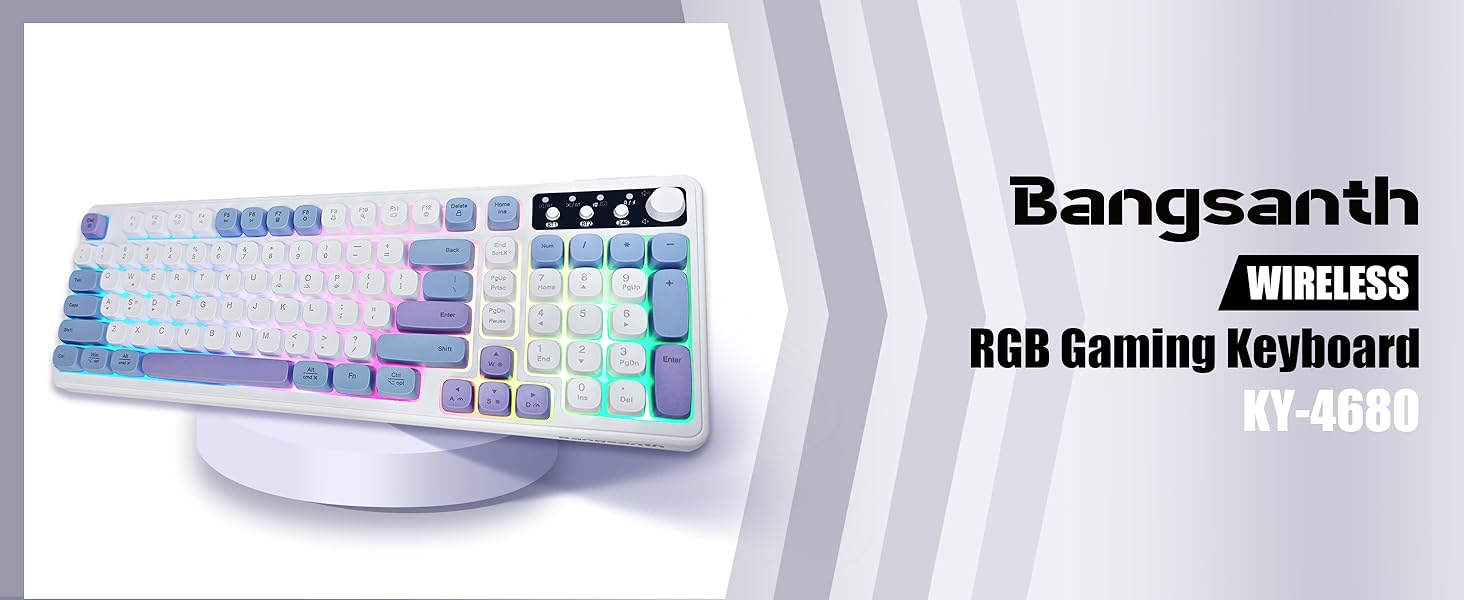
Image: The Bangsanth KY-4680 Wireless RGB Gaming Keyboard, highlighting its RGB lighting and model number.
Package Contents
Ensure all items are present in the package:
- Bangsanth KY-4680 Wireless RGB Gaming Keyboard
- USB-C Cable
- 2.4GHz USB Dongle (stored in the keyboard)
- User Manual (this document)
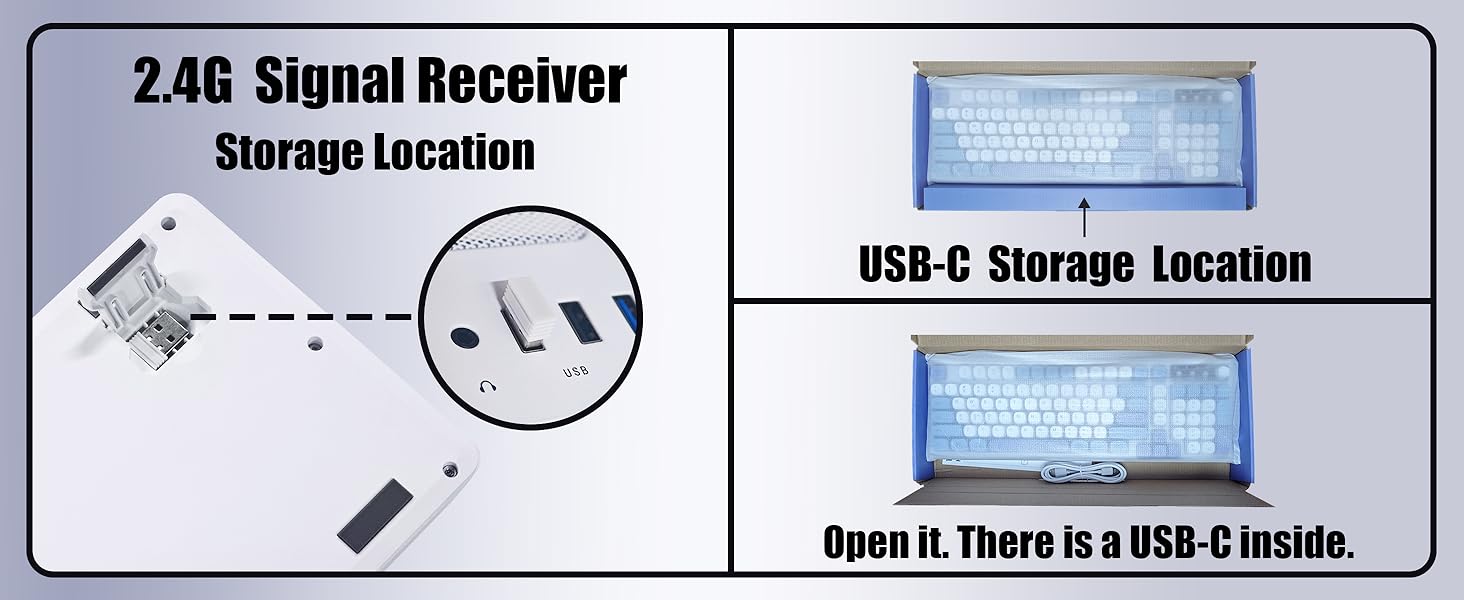
Image: Illustration showing the storage location for the 2.4GHz USB dongle and the USB-C cable within the keyboard packaging.
Specifications
| Model Number | KY-4680 |
| Connectivity | Bluetooth 5.0, 2.4GHz Wireless, USB-C Wired |
| Key Count | 99 Keys |
| Key Type | Creamy Mechanical Feel (Membrane) |
| Backlighting | RGB (8 flashing modes, 7 solid color modes) |
| Battery Life | Approx. 30 hours continuous use, 3000 hours standby |
| Compatible Devices | PC, Mac, Gaming Consoles, Laptops, Tablets, iOS, Windows |
| Material | Plastic, Silicone |
| Weight | 2.14 pounds |
Setup and Connection
The Bangsanth KY-4680 keyboard offers three versatile connection methods: wired, 2.4GHz wireless, and Bluetooth 5.0.

Image: Close-up of the keyboard's upper right section, showing the BT1, BT2, and 2.4G indicators, along with the volume knob and connection switch.
1. Wired Connection (USB-C)
- Locate the USB-C port on the keyboard.
- Connect the provided USB-C cable to the keyboard and your computer.
- Press Fn + U on the keyboard to enter wired mode. The keyboard will be ready for use.
2. 2.4GHz Wireless Connection
- Locate the 2.4GHz USB dongle, typically stored in a compartment on the underside of the keyboard.
- Insert the USB dongle into an available USB port on your computer.
- Slide the power switch on the keyboard to the 'ON' position.
- Press the 2.4G button in the upper right corner of the keyboard. The indicator light will glow steadily, confirming the connection.
- If the connection is unsuccessful, pull out the 2.4G receiver, restart the keyboard, long-press the 2.4G button for three seconds, and re-insert the receiver.
3. Bluetooth 5.0 Connection
The keyboard supports up to two Bluetooth devices (BT1 and BT2).
- Slide the power switch on the keyboard to the 'ON' position.
- For a new device: Long-press either the BT1 or BT2 button for three seconds. The indicator light will flash rapidly.
- On your device (laptop, tablet, phone), search for Bluetooth devices. The keyboard will appear as 'Keyboard BT5.0_1' or 'Keyboard BT5.0_2'.
- Select the keyboard to connect. The indicator light will glow steadily once connected.
- To switch between saved devices: Short-press the BT1 or BT2 button.
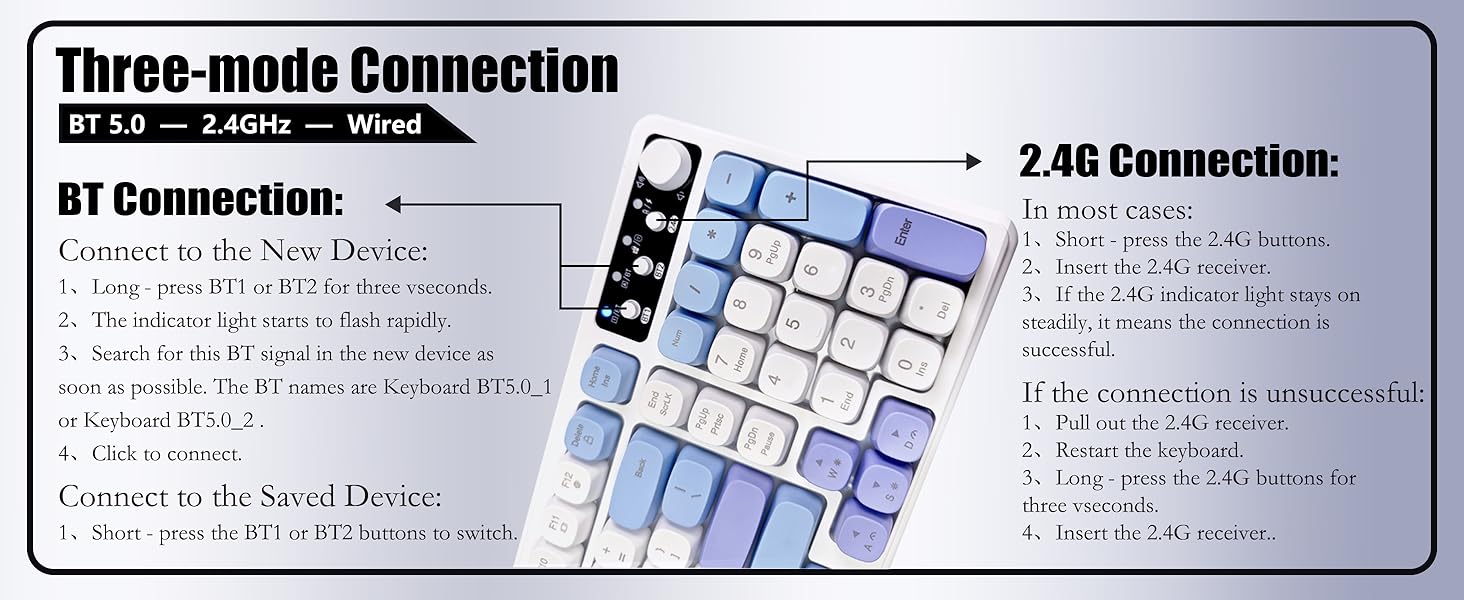
Image: Detailed diagram illustrating the steps for Bluetooth and 2.4GHz wireless connections.
Operating Instructions
RGB Lighting Control
The keyboard features 8 adjustable lighting flashing modes and 7 solid-color transformation modes.
- To change lighting modes: Press Fn + I or Fn + O.
- To adjust brightness: Press Fn + Up Arrow or Fn + Down Arrow.
- To adjust speed: Press Fn + Left Arrow or Fn + Right Arrow.

Image: The Bangsanth keyboard illuminated with colorful RGB lighting, showcasing its visual effects.
Volume Control
The keyboard is equipped with a multi-function scroll wheel for easy volume adjustment.
- Press down on the scroll wheel to mute/unmute.
- Turn the scroll wheel to the right to increase volume.
- Turn the scroll wheel to the left to decrease volume.
System Switching
The keyboard supports various operating systems.
- To switch between Mac/iOS and Windows: Use the dedicated switch button located on the side of the keyboard.

Image: Side view of the keyboard, highlighting the power switch, USB-C port, and the system compatibility switch for Mac/Win/iOS.
Key Functions
The keyboard features a 99-key layout with anti-ghosting capabilities and upgraded creamy keys for a comfortable typing experience.

Image: Visual representation of the keyboard's functional details, including USB-C, system switching, RGB lighting, wireless connectivity, battery, anti-ghosting, and satellite axis.
Official Product Video
Video: An official product video from Bangsanth showcasing the RGB Wireless Gaming Keyboard's features and design.
Maintenance and Care
- Cleaning: Use a soft, dry cloth to wipe the keyboard surface. For deeper cleaning, gently remove keycaps and use compressed air to clear debris.
- Battery: The keyboard is powered by a Lithium Ion battery. Avoid exposing the battery to extreme temperatures or direct sunlight. Charge the keyboard using the provided USB-C cable.
- Storage: When not in use for extended periods, turn off the keyboard to conserve battery life. Store in a cool, dry place.
Troubleshooting
- Keyboard not connecting: Ensure the keyboard is powered on and the correct connection mode (2.4G, BT1, BT2, or Wired) is selected. For wireless connections, check if the dongle is properly inserted or if Bluetooth is enabled on your device. Try restarting the keyboard and your device.
- Keys not responding: Check the battery level. If low, connect the USB-C cable to charge. Ensure the keyboard is in the correct operating system mode (Mac/Win/iOS).
- RGB lights not working: Verify that the keyboard is powered on. Adjust brightness and mode settings using the Fn key combinations.
- Intermittent connection: Ensure the keyboard is within range of your device for wireless connections. Avoid interference from other wireless devices.
Warranty and Support
For warranty information and customer support, please refer to the official Bangsanth website or contact your retailer. Keep your purchase receipt for warranty claims.
For additional assistance, visit the Bangsanth Store on Amazon.


