
MINISFORUM U700
MINISFORUM U700 Mini PC User Manual
Model: U700 (Series: DeskMini)
Brand: MINISFORUM
1. Introduction
This manual provides detailed instructions for the setup, operation, and maintenance of your MINISFORUM U700 Mini PC. Please read this manual thoroughly before using the device to ensure proper functionality and longevity.

Image 1.1: Front view of the MINISFORUM U700 Mini PC, showcasing its compact design and front-facing ports.

Image 1.2: The MINISFORUM U700 Mini PC set up with a monitor, keyboard, and mouse, demonstrating its compact size and suitability for desktop use.
2. Package Contents
Upon opening the package, verify that all the following items are included:
- 1x MINISFORUM U700 Mini PC
- 1x HDMI Cable
- 1x US Power Adapter
- 1x User Manual (this document)
3. Product Features
The MINISFORUM U700 Mini PC is designed for efficient performance and versatile connectivity. Key features include:
- Processor: Intel Core i5-5257U (2 Cores/4 Threads, up to 3.1GHz) for enhanced performance.
- Graphics: Integrated Intel Iris Graphics 6100.
- Triple 4K Output: Supports simultaneous connection of three 4K displays via HDMI, Mini DP, and USB-C ports.
- Expandable Storage: Pre-installed 8GB DDR3L RAM and 128GB M.2 2280 SSD, with additional slots for a 2.5-inch SATA HDD/SSD (up to 2TB) and a TF Card (up to 128GB).
- Multiple Interfaces: Comprehensive port selection including USB 3.0, RJ45 Gigabit Ethernet, HDMI, Mini DP, USB-C, and audio jacks.
- Efficient Cooling: Designed for silent operation even under 100% CPU load.

Image 3.1: Illustration of the triple 4K display capability, showing connections via HDMI, Mini DP, and USB-C ports.

Image 3.2: Internal view highlighting the super large turbo fan and airflow for silent operation under heavy CPU load.
4. Specifications
Detailed technical specifications for the MINISFORUM U700 Mini PC are provided below:

Image 4.1: Official specification table for the MINISFORUM U700 Mini PC.
| Component | Specification |
|---|---|
| Processor | Intel Core i5-5257U (2C/4T, up to 3.1GHz) |
| Graphics Coprocessor | Intel Iris Graphics 6100 (up to 1.05GHz) |
| RAM | 8GB DDR3L-1600 SDRAM (SODIMM Slot x2) |
| Internal Storage | 128GB M.2 2280 SSD |
| Storage Expansion | 1x 2.5-inch SATA HDD Slot (up to 2TB), 1x TF Card Slot (up to 128GB) |
| Video Output | 1x HDMI 1.4 (4K@30Hz), 1x Mini DP (4K@60Hz), 1x USB-C (4K@60Hz) |
| Audio Output | HDMI 1.4, Mini DP, 3.5mm Audio Jack |
| Network | 2x 1000M RJ45 Port, 802.11ac Wireless, Bluetooth 4.2 |
| USB Ports | 3x USB 3.0 Type-A Port |
| Operating System | Windows 10 OS (pre-installed) |
| Power Input | DC 19V/1.9A or via USB-C Port |
| Dimensions | 7.95 x 5.98 x 3.19 inches (Package) |
| Weight | 2.16 pounds |

Image 4.2: Size comparison of the MINISFORUM U700 Mini PC with a typical smartphone, illustrating its compact footprint.
5. Setup Guide
Follow these steps to set up your MINISFORUM U700 Mini PC:
- Connect to Display: Use the provided HDMI cable or a compatible Mini DP/USB-C cable to connect the Mini PC to your monitor or TV. The U700 supports up to three displays simultaneously.
- Connect Peripherals: Plug in your USB keyboard, mouse, and any other USB devices into the available USB 3.0 ports.
- Network Connection: For wired internet, connect an Ethernet cable to one of the RJ45 ports. For wireless internet, ensure your Wi-Fi network is available; you will configure it during the initial Windows setup.
- Power Connection: Connect the US Power Adapter to the DC Jack on the Mini PC, then plug the adapter into a power outlet.
- Power On: Press the power button located on the front of the Mini PC. The system will boot up, and you will be guided through the initial Windows 10 setup process.
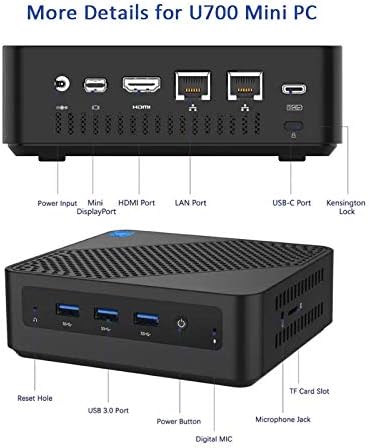
Image 5.1: Detailed view of the front and rear ports of the MINISFORUM U700 Mini PC, including USB 3.0, HDMI, Mini DP, USB-C, RJ45, and power input.
6. Operating Instructions
The MINISFORUM U700 Mini PC comes with Windows 10 pre-installed, providing a familiar operating environment.
6.1 Basic Operation
- Power On/Off: Press the power button to turn the device on. To turn off, use the Windows Shut Down option or press and hold the power button for a few seconds.
- Restart: Use the Windows Restart option.
- Sleep Mode: Use the Windows Sleep option or briefly press the power button.
6.2 Connectivity and Usage Scenarios
The U700 Mini PC is versatile and can be used in various settings:
- Office and Home Work: Connect to a monitor for daily computing tasks, document editing, and browsing.
- Multimedia and Home Theater: Utilize 4K output for high-definition video playback on TVs or projectors.
- Business and Education: Suitable for presentations, digital signage, and video conferencing.

Image 6.1: Examples of how the MINISFORUM U700 Mini PC can be integrated into different environments, such as office, home theater, and business applications.

Image 6.2: The Mini PC facilitating a video conference, demonstrating its capability for communication and remote work.
7. Storage and Memory Expansion
The MINISFORUM U700 Mini PC offers flexible options for expanding its storage and memory capacity.
7.1 Adding a 2.5-inch SATA HDD/SSD
You can install an additional 2.5-inch SATA HDD or SSD (up to 2TB, thickness within 7mm) to expand your storage.

Image 7.1: Internal layout of the Mini PC, indicating the locations for the 2.5-inch SATA HDD, M.2 2280 SSD, and TF Card slot for storage expansion.
7.2 Upgrading RAM
The Mini PC has two SODIMM slots for DDR3L RAM. It comes with 8GB installed, and you can upgrade or add another module for dual-channel performance.

Image 7.2: Close-up view of the DDR3L SODIMM slots, illustrating the dual-channel memory configuration.
7.3 Using a TF Card
The integrated TF Card slot allows for additional portable storage expansion.
8. Maintenance
To ensure the longevity and optimal performance of your MINISFORUM U700 Mini PC, follow these maintenance guidelines:
- Keep Clean: Regularly clean the exterior of the Mini PC with a soft, dry cloth. Avoid using liquid cleaners directly on the device.
- Ventilation: Ensure that the ventilation holes are not obstructed to prevent overheating. Do not place the Mini PC in enclosed spaces without adequate airflow.
- Software Updates: Keep your operating system and drivers updated to the latest versions for security and performance improvements.
- Power Off Properly: Always shut down the system through the operating system's power options rather than simply unplugging it.
9. Troubleshooting
If you encounter issues with your MINISFORUM U700 Mini PC, refer to the following common troubleshooting steps:
- No Power:
- Ensure the power adapter is securely connected to both the Mini PC and a working power outlet.
- Verify the power outlet is functional by plugging in another device.
- No Display:
- Check that the HDMI, Mini DP, or USB-C cable is securely connected to both the Mini PC and the monitor.
- Ensure the monitor is powered on and set to the correct input source.
- Try a different display cable or monitor if available.
- No Internet Connection:
- For wired connection, check the Ethernet cable and router status.
- For Wi-Fi, ensure Wi-Fi is enabled in Windows settings and you are connected to the correct network with the correct password.
- Restart your router and modem.
- System Slowdown:
- Close unnecessary applications running in the background.
- Ensure sufficient free space on the primary drive.
- Check for and install any pending Windows updates.
- Consider upgrading RAM or adding an SSD if performance issues persist and are related to heavy usage.
If these steps do not resolve the issue, please refer to the official MINISFORUM support resources.
10. Warranty and Support
For detailed warranty information and technical support, please refer to the warranty card included with your product or visit the official MINISFORUM website. The website typically provides FAQs, driver downloads, and contact information for customer service.
MINISFORUM Official Website: www.minisforum.com
Related Documents - U700
 |
Minisforum MS-01-S1390 Mini-PC User Manual and Safety Guide Comprehensive user manual and safety guide for the Minisforum MS-01-S1390 Mini-PC, featuring Intel Core i9-13900H. Includes setup, installation, safety precautions, interface details, and environmental information. |
 |
MINISFORUM New Gen Venus Series Mini PC User Manual Comprehensive user manual for the MINISFORUM New Gen Venus Series Mini PC. Get detailed information on package contents, system overview, ports, interfaces, and safety guidelines for your MINISFORUM mini computer. |
 |
Minisforum UM760 Mini PC User Manual User manual for the Minisforum UM760 Mini PC, detailing package contents, hardware overview, interface specifications, setup guide, DIY installation of RAM and SSD, and mounting instructions. |
 |
MINISFORUM MKB i83 Three-Mode Mechanical Keyboard Quick Start Guide Concise guide for the MINISFORUM MKB i83 mechanical keyboard, covering setup, connectivity (Bluetooth, 2.4G, Wired), function keys, backlighting, and specifications. |
 |
Minisforum Mini PC User Manual and Installation Guide User manual for Minisforum Mini PCs, detailing setup, port functions (USB4, HDMI, DisplayPort, OCulink), installation of DDR and SSD, and operational guides. Includes FCC compliance information. |
 |
MINISFORUM MS-A1 New Gen Mini Workstation Series User Manual User manual and installation guide for the MINISFORUM MS-A1 New Gen Mini Workstation Series. Covers setup, safety, interface, and component installation. |