
DC HOUSE L131211800077-1
DC HOUSE Bluetooth Battery Capacity Monitor User Manual
Model: L131211800077-1 | Brand: DC HOUSE
1. Introduction
This manual provides detailed instructions for the DC HOUSE Bluetooth Battery Capacity Monitor (Model L131211800077-1). This device is designed to monitor the capacity, voltage, and temperature of DC 8-90V Bluetooth lithium batteries, commonly found in golf carts, trolling motors, scooters, RVs, and solar systems. It offers convenient monitoring through its LCD screen and a dedicated mobile application.

Image: The DC HOUSE Bluetooth Battery Capacity Monitor, showing its LCD screen, connecting cable, and a mounting bracket.

Image: Visual representation of the monitor being used in various applications, including a golf cart, an RV, and a boat with a trolling motor.
2. What's in the Box
Upon opening the package, verify that all components are present:
- DC8-90V LCD Bluetooth Battery Capacity Monitor
- Mounting Bracket
- Connection Cable
3. Key Features
- Dual Connection Methods: Connect via a 5-second button press on the monitor or remotely through the DC HOUSE mobile application (within 5 meters).
- Wide Compatibility: Designed for DC 8-90V DC HOUSE Bluetooth lithium batteries (12V, 24V, 36V, 48V).
- Color LCD Display: Clear display of battery capacity, voltage, and percentage from various viewing angles.
- Multifunctional Monitoring: Detects voltage, current, and temperature, suitable for golf carts, trolling motors, and scooters.
4. Specifications

Image: A table detailing the technical parameters of the monitor, including input voltage, working current, temperature ranges, protection grade, display area, and dimensions.
| Parameter | Value |
|---|---|
| Item Model Number | L131211800077-1 |
| Brand | DC HOUSE |
| Power Source | Battery Powered |
| Color | Black |
| Min. Operating Voltage | 8 Volts (DC) |
| Max. Operating Voltage | 90 Volts (DC) |
| Measurement Type | Voltmeter, Ammeter, Temperature Sensor |
| Dimensions | 70mm x 45mm x 25mm (2.76in x 1.77in x 0.98in) |

Image: The monitor displaying its compact dimensions: 2.76 inches (70mm) length, 1.77 inches (45mm) height, and 0.98 inches (25mm) depth.
5. Setup and Installation
5.1. Mounting the Monitor
The monitor comes with a mounting bracket for convenient installation. Choose a suitable location on your golf cart, RV, or other application where the display is easily visible and accessible.
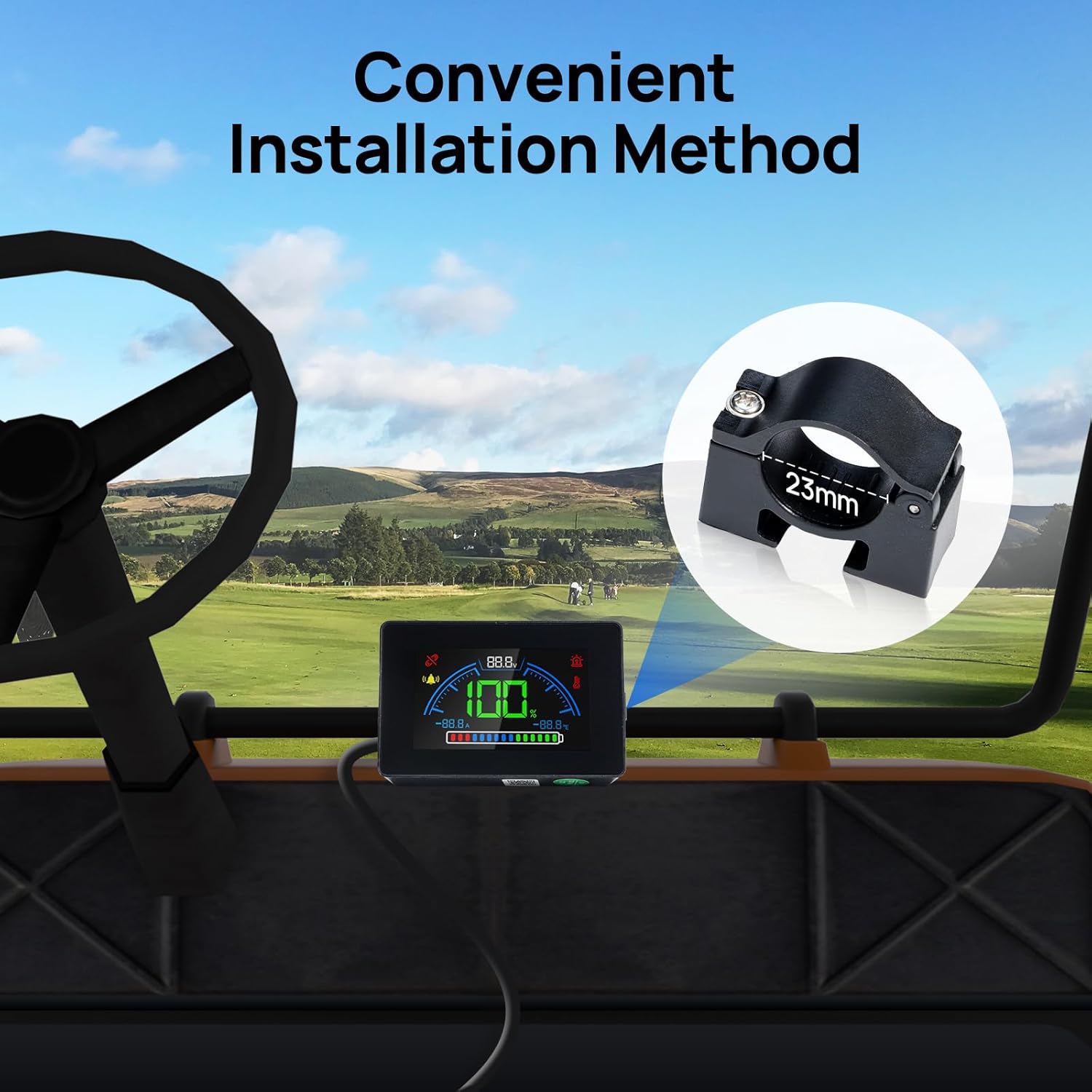
Image: The monitor installed on the dashboard of a golf cart, demonstrating a convenient installation method using the provided bracket.

Image: Detailed views of the monitor's side profile showing the mounting slot and the separate mounting clamp with its 23mm diameter.
5.2. Electrical Connection
Connect the monitor to your DC HOUSE Bluetooth lithium battery. Ensure the voltage of your battery is within the 8-90V operating range of the monitor. Refer to the wiring diagram provided with your battery for correct polarity and connection points. Incorrect wiring can damage the device or battery.

Image: The monitor displayed alongside various DC HOUSE Bluetooth batteries (e.g., 51.2V 100Ah, 38.4V 100Ah, 12.8V 100Ah, 12.8V 165Ah, 12.8V 150Ah), illustrating its compatibility.
6. Operation
6.1. Connecting to Bluetooth
The monitor offers two methods for Bluetooth connection:
- Direct Connection: Long press and hold the button on the right side of the monitor for approximately five seconds. The Bluetooth connection indicator on the display will activate.
- Mobile App Control: Use the DC HOUSE mobile application on your smartphone to remotely connect to the monitor. Ensure your phone is within 5 meters of the monitor for a stable connection.

Image: Illustration showing the two connection methods: a finger pressing the monitor's button for 5 seconds, and a smartphone screen displaying the DC HOUSE app interface for remote control.
6.2. LCD Display Introduction
The color LCD screen provides real-time information about your battery's status. Familiarize yourself with the display indicators:

Image: A diagram labeling the different sections of the LCD display: 1) Bluetooth connection indicator, 2) Alarm indicators, 3) SOC (State of Charge) display area, 4) Charge and discharge current display area, 5) Fault indicator, 6) Temperature alarm indicator, 7) BMS temperature display area, and 8) Power display area.
- Bluetooth Connection Indicator: Shows if the monitor is connected via Bluetooth.
- Alarm Indicators: General alarm notifications.
- SOC Display Area: Displays the State of Charge (percentage).
- Charge and Discharge Current Display Area: Shows current flow.
- Fault Indicator: Indicates system faults.
- Temperature Alarm Indicator: Alerts to temperature issues.
- BMS Temperature Display Area: Shows the battery management system's temperature.
- Power Display Area: Visual representation of battery power level.
6.3. Warning Indicators
The monitor provides visual warnings for various battery protection statuses:
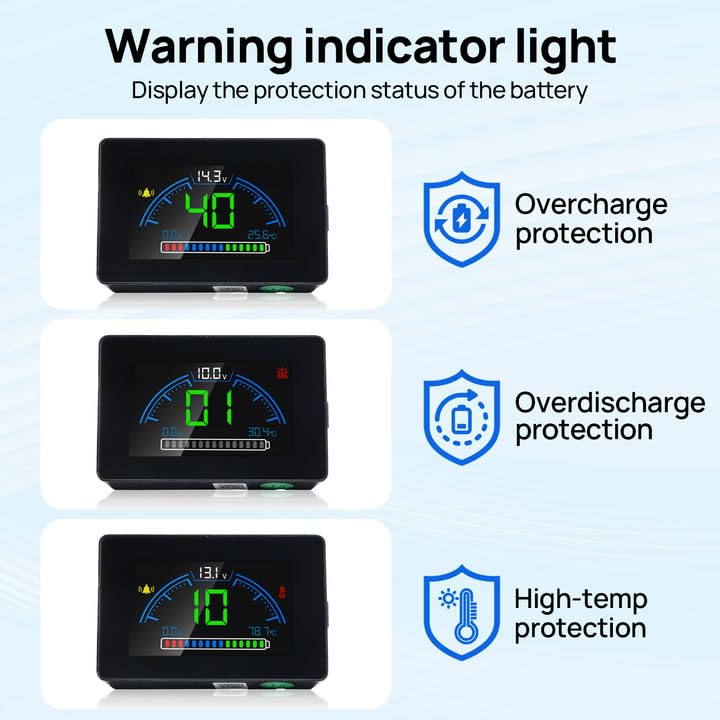
Image: Three examples of the monitor's display showing warning indicators for overcharge protection (14.3V), overdischarge protection (10.0V), and high-temperature protection (39.7°C).
- Overcharge Protection: Indicated when the battery voltage exceeds safe charging limits.
- Overdischarge Protection: Indicated when the battery voltage drops below safe discharge limits.
- High-Temperature Protection: Indicated when the battery temperature exceeds safe operating limits.
7. Maintenance
- Cleaning: Use a soft, dry cloth to clean the display screen and casing. Avoid abrasive cleaners or solvents.
- Environmental Conditions: Ensure the monitor is not exposed to extreme temperatures, direct sunlight for prolonged periods, or excessive moisture.
- Cable Inspection: Periodically check the connection cable for any signs of wear, damage, or loose connections.
8. Troubleshooting
| Problem | Possible Cause | Solution |
|---|---|---|
| Monitor does not power on or shows "8888" | Incorrect wiring, no power supply, or faulty unit. | Verify all electrical connections are secure and correctly wired according to polarity. Ensure the battery is charged and providing power. If the issue persists, contact support. |
| Bluetooth connection fails or is unstable | Device too far from phone, interference, or app issue. | Ensure your smartphone is within 5 meters of the monitor. Restart the DC HOUSE app and try connecting again. Check for any physical obstructions or strong electromagnetic interference. |
| Inaccurate readings (voltage, capacity) | Improper calibration (unlikely for this device), or battery issue. | Ensure the monitor is correctly connected to the battery. Verify the battery itself is functioning correctly. |
| Display is difficult to see | Excessive ambient light or screen glare. | Relocate the monitor to a shaded area or adjust its angle to minimize glare. The display is optimized for various viewing angles but extreme conditions may affect visibility. |
9. Warranty Information
For specific warranty details regarding your DC HOUSE Bluetooth Battery Capacity Monitor, please refer to the warranty card included with your product or visit the official DC HOUSE website. Keep your purchase receipt as proof of purchase for any warranty claims.
10. Customer Support
If you encounter any issues or have questions not covered in this manual, please contact DC HOUSE customer support. You can typically find contact information on the product packaging, the official DC HOUSE website, or through your point of purchase.
DC HOUSE Official Website: Visit DC HOUSE Store on Amazon