
1. Introduction
The KATOVJJTS 4K UHD PTZ Camera System (Model H45GH1-PB-2) is designed for high-quality video capture and live streaming in various professional environments, including church worship, video conferences, and educational settings. Featuring a 20X optical zoom lens and 4K UHD resolution at 30 frames per second, this camera delivers clear and detailed visuals. Its advanced PTZ (Pan-Tilt-Zoom) capabilities, coupled with versatile connectivity options like IP/LAN, HDMI, and USB3.0, ensure flexible integration and superior performance.

Figure 1.1: KATOVJJTS 4K UHD PTZ Camera System with included remote control.
2. Package Contents
Verify that all items are present in your package:
- KATOVJJTS 4K UHD PTZ Camera
- Remote Control
- Power Adapter
- USB 3.0 Cable
- LAN Cable
- Control Port Terminal Box
- Ceiling Mount Bracket
- Wall Mount Bracket
- Self-tapping screws and plastic expansion screws
- User Manual
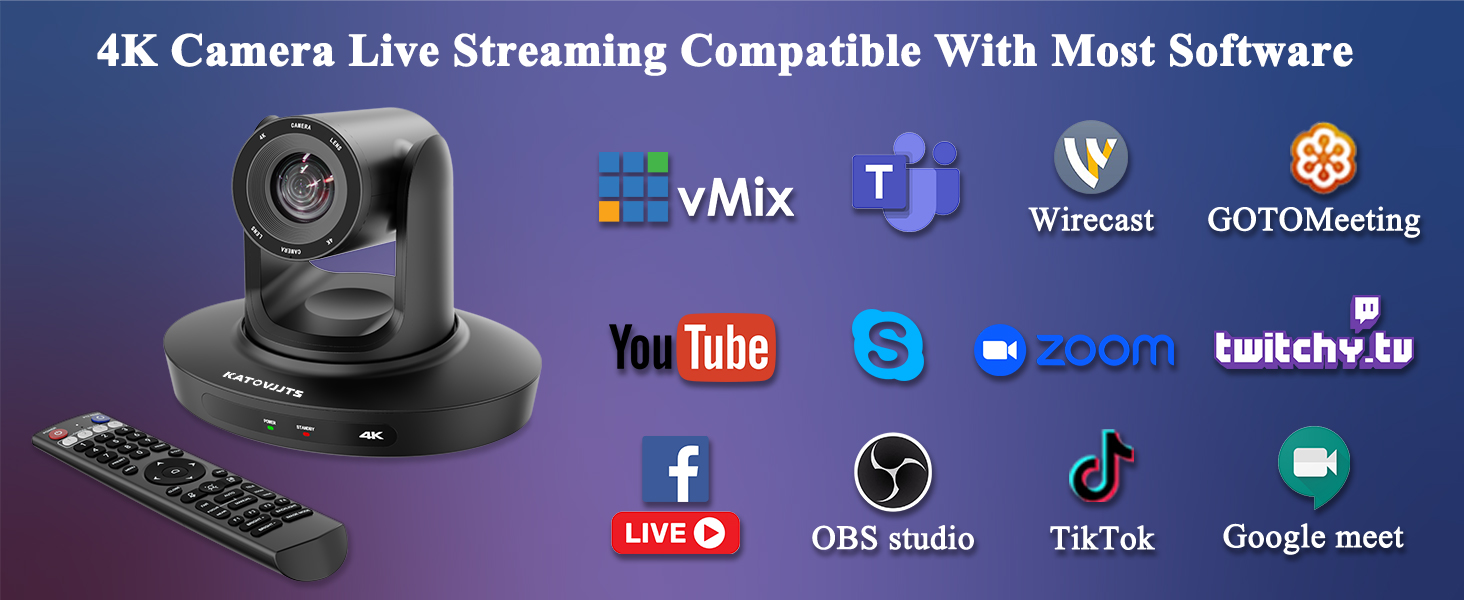
Figure 2.1: Overview of camera ports and included accessories.
3. Product Features
- 4K UHD 30FPS Resolution: Delivers detailed and sharp image quality (3840 x 2160 pixels) with smooth 30 frames per second playback, minimizing stuttering or motion blur.
- 20X Optical Zoom Lens: Provides high-quality remote shooting, capturing detailed scenes with a wide field of view of 58.7°.
- PTZ Movement: Features 340° pan and 120° tilt for capturing images from various angles. Supports transmission distances up to 320 feet (100 meters).
- Versatile Connectivity: Supports IP/LAN, HDMI, and USB3.0 for live streaming. Includes PoE (Power over Ethernet) for simplified installation with a single Ethernet cable for power, control, and HD video/audio transmission.
- High-Quality CMOS Sensor: Equipped with a 1/2.8" SONY CMOS sensor and 2D/3D noise reduction technology for enhanced image quality, especially in low-light conditions.
- AI Framing: Automatically keeps the subject in focus, allowing for free movement and expression.
- Preset Positions: Seamlessly switch between up to 10 shooting positions for smooth transitions.
- Broad Compatibility: Supports Windows XP, Vista, 7, 8, 8.1, 10, 11, and Mac OS 10.4+. Integrates with popular conferencing software like Zoom, Skype, WebEx, Microsoft Teams, GoToMeeting, and BlueJeans.

Figure 3.1: Unrivaled 4K 8MP Video quality.

Figure 3.2: 20X Optical Zoom in a church setting.
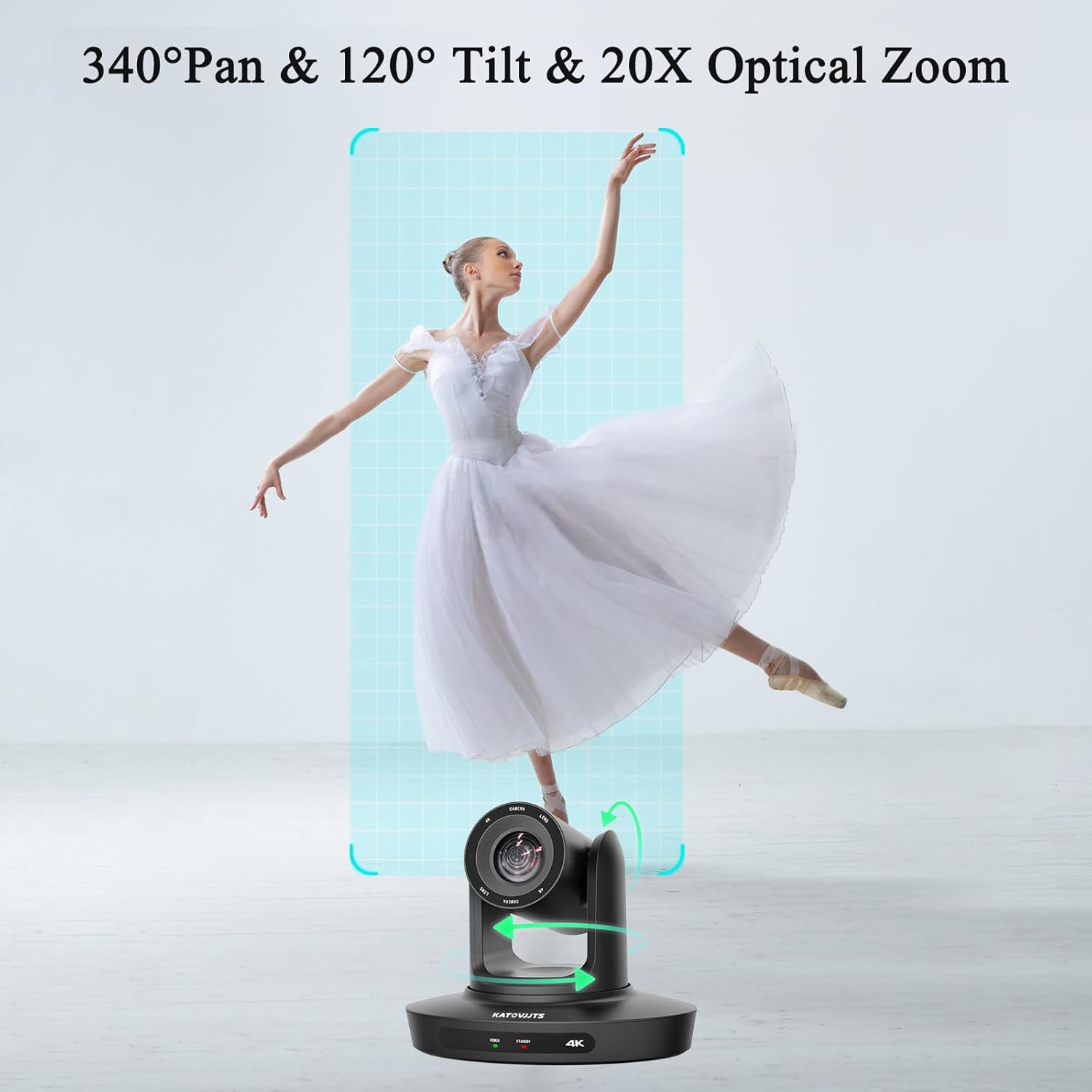
Figure 3.3: 340° Pan & 120° Tilt movement.

Figure 3.4: Low-light image enhancement.

Figure 3.5: AI Framing for automatic subject tracking.

Figure 3.6: Preset position settings for quick scene changes.
4. Setup
4.1 Physical Connections
Connect the camera to your power source and video output devices using the appropriate cables. The camera supports multiple output options:
- DC 12V: Power input.
- LAN (PoE): Connect to a network for IP streaming and Power over Ethernet.
- HDMI: Connect to a display or video switcher for video output.
- LINE IN: Audio input.
- USB 3.0: Connect to a computer for video output and control.
- RS-232/RS-485: Serial ports for external joystick control.

Figure 4.1: Camera rear panel with connection ports.
4.2 Power over Ethernet (PoE)
For simplified installation, connect the camera to a PoE-enabled network switch using a single Ethernet cable. This cable will provide power, transmit HD video, and audio signals.

Figure 4.2: PoE connection for simplified setup.
4.3 Camera Placement
Strategic placement of multiple cameras is crucial for capturing comprehensive coverage. Consider placing cameras to cover key areas such as the main stage, worship band area, and congregation.
Video 4.1: Demonstrates effective multi-camera setup and placement in a church environment.
4.4 Network Configuration
For IP control and streaming, configure the camera's network settings. This typically involves assigning IP addresses to the camera, controller, and switcher. A PoE switch can automatically assign IP addresses for convenience.
Video 4.2: Illustrates network configuration and IP address assignment for PTZ cameras.
5. Operating Instructions
5.1 Remote Control Operation
The included remote control allows for quick adjustments of the camera's pan/tilt, presets, and zoom speed. It also provides access to various menu settings.
Figure 5.1: Remote control for camera adjustments.
Video 5.1: Guide to using the PTZ camera remote controller for various functions.
5.2 Setting and Recalling Presets
The camera supports up to 10 preset positions. Use the remote control or a PTZ controller to set and recall these positions for smooth transitions between different views.
5.3 AI Auto-Tracking
Activate the AI auto-tracking feature to automatically follow a presenter or subject, ensuring they remain in the frame without manual intervention.
Video 5.2: Demonstration of AI auto-tracking functionality.
5.4 Live Streaming
The camera is compatible with most online conferencing and streaming software, including vMix, OBS, Zoom, YouTube, Facebook Live, Skype, Twitch, and Google Meet. Connect via HDMI or USB for plug-and-play functionality.

Figure 5.2: Product connection diagram for live streaming.
6. Specifications
| Feature | Detail |
|---|---|
| Manufacturer | KATOVJJTS |
| Model Number | H45GH1-PB-2 |
| Product Dimensions | 17 x 22.4 x 17.3 cm; 2.89 kg |
| Photo Sensor Technology | CMOS (1/2.8" SONY CMOS) |
| Video Capture Resolution | 4K (3840 x 2160 pixels) |
| Optical Zoom | 20X |
| Pan/Tilt Range | 340° Pan / 120° Tilt |
| Connectivity Technology | Ethernet, HDMI, USB |
| Video Capture Format | H.264/H.265 |
| Supported Audio Format | AAC |
| Special Features | PoE, RTSP, RTMP, 2D/3D Noise Reduction, AI Auto-Tracking |
7. Maintenance
To ensure the longevity and optimal performance of your KATOVJJTS PTZ Camera System, follow these maintenance guidelines:
- Cleaning: Use a soft, dry cloth to clean the camera body. For the lens, use a specialized lens cleaning cloth and solution. Avoid abrasive cleaners or solvents.
- Storage: When not in use for extended periods, store the camera in a cool, dry place away from direct sunlight and extreme temperatures.
- Firmware Updates: Periodically check the manufacturer's website for firmware updates to ensure your camera has the latest features and performance enhancements.
- Cable Management: Ensure all cables are securely connected and properly routed to prevent damage or accidental disconnection.
8. Troubleshooting
If you encounter issues with your camera, refer to the following common troubleshooting steps:
- No Video Output: Check all cable connections (HDMI, USB, LAN). Ensure the camera is powered on and the correct input source is selected on your display or switcher. Verify video format settings in the camera's menu.
- No PTZ Control: Ensure the remote control has fresh batteries and is pointed towards the camera's IR receiver. For IP control, verify network connectivity and correct IP address settings. Check serial cable connections for joystick control.
- Poor Image Quality: Check lighting conditions. Ensure the lens is clean and free from smudges. Adjust focus and exposure settings using the remote control or OSD menu. Verify resolution settings.
- Network Connectivity Issues: Confirm the LAN cable is properly connected to a functional network port. If using PoE, ensure the switch is PoE-enabled. Check IP address, subnet mask, and gateway settings.
9. Warranty and Support
For warranty information and technical support, please refer to the documentation included with your product or visit the official KATOVJJTS website. Keep your purchase receipt as proof of purchase for warranty claims.