1. Introduction and Overview
The Fantech MK875 V2 Atom81 Hot Swappable Mechanical Gaming Keyboard is designed for gamers and typists seeking a versatile and high-performance input device. This manual provides detailed instructions for setting up, operating, maintaining, and troubleshooting your keyboard to ensure optimal performance and longevity.
Key features include an 81-key layout for space efficiency, 3-pin hot-swappable switches for customization, 26 anti-ghosting keys for precise input, 17 dynamic RGB lighting modes, a unique three-color keycap combination, and a convenient volume knob for media control. The keyboard utilizes durable double-injection keycaps and offers adjustable feet for ergonomic comfort. It connects via a reliable Type-C wired connection and is compatible with both Windows and Mac operating systems.

Image 1.1: The Fantech MK875 V2 Mechanical Gaming Keyboard, showcasing its compact 81-key layout and vibrant keycap design.
2. Setup Guide
2.1 Package Contents
- Fantech MK875 V2 Mechanical Gaming Keyboard
- Type-C USB Cable
- Keycap Puller (usually included for hot-swappable keyboards)
- Switch Puller (usually included for hot-swappable keyboards)
- User Manual (this document)
2.2 Connecting the Keyboard
- Locate the Type-C port on the back or side of the Fantech MK875 V2 keyboard.
- Connect one end of the provided Type-C USB cable to the keyboard's Type-C port.
- Connect the other end of the USB cable to an available USB port on your computer (Windows PC or Mac).
- The keyboard will automatically be recognized by your operating system. No additional drivers are typically required for basic functionality.
2.3 Adjusting Keyboard Height
For optimal ergonomic comfort, the MK875 V2 features adjustable feet. Gently flip out the feet located on the underside of the keyboard to raise the typing angle. Adjust to your preferred height.

Image 2.1: Close-up view of the adjustable feet on the Fantech MK875 V2 keyboard, allowing users to customize the typing angle for ergonomic comfort.
3. Operating Instructions
3.1 Hot-Swappable Switches
The Fantech MK875 V2 supports 3-pin hot-swappable mechanical switches, allowing you to easily change switches without soldering. This feature enables customization of your typing feel and sound.
- Removing a Switch: Use the provided switch puller. Align the prongs of the puller with the two clips on the top and bottom of the switch. Squeeze the puller gently and pull the switch straight up.
- Installing a Switch: Ensure the new 3-pin switch's pins are straight. Align the pins with the holes on the PCB (Printed Circuit Board). Gently push the switch straight down until it clicks into place. Do not force the switch if it doesn't go in easily, as bent pins can damage the PCB.

Image 3.1: Demonstration of the 3-pin hot-swappable feature, showing switches being removed and installed on the keyboard's PCB.
3.2 Anti-Ghosting Keys
The keyboard features 26 anti-ghosting keys, ensuring that multiple simultaneous key presses are registered accurately. This is crucial for fast-paced gaming where complex key combinations are common.

Image 3.2: Visual representation of the 26-key rollover (anti-ghosting) capability, highlighting the keyboard's ability to register multiple simultaneous key presses.
3.3 Lighting Modes
The MK875 V2 is equipped with 17 dynamic spectrum lighting effects. Specific key combinations (often Fn + a designated key like Fn + Ins, Fn + Home, etc.) are used to cycle through these modes or adjust brightness and speed. Refer to the quick start guide or on-keyboard legends for exact key combinations.

Image 3.3: The Fantech MK875 V2 keyboard displaying one of its 17 vibrant RGB lighting effects, enhancing the aesthetic appeal.
3.4 Volume Knob
A dedicated volume knob is located on the top right of the keyboard for quick and convenient media control. Rotate the knob clockwise to increase volume, counter-clockwise to decrease volume. Press the knob to mute/unmute audio.
3.5 Keycap Design and Switches
The keyboard features durable double-injection keycaps with a unique three-color combination, ensuring legends remain clear and fade-resistant over time. This model comes with Red Switches, which are linear and provide a smooth keystroke, ideal for fast-paced gaming and comfortable typing.
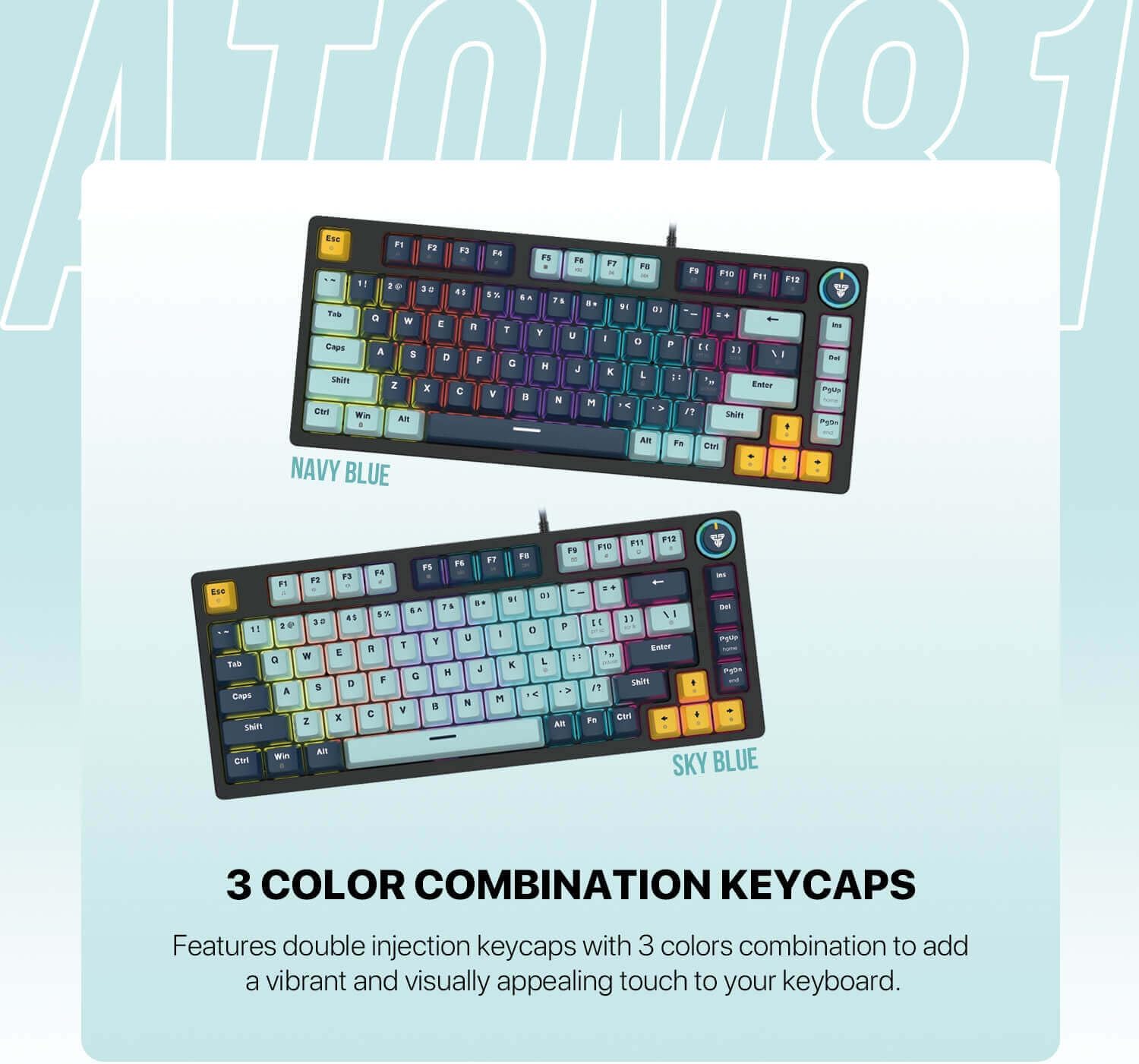
Image 3.4: The Fantech MK875 V2 keyboard showcasing its three-color combination keycaps, available in Navy Blue and Sky Blue variants.

Image 3.5: Comparison of Red (linear) and Blue (clicky) mechanical switches, illustrating the type of switch used in this keyboard model (Red Switch).
4. Maintenance
4.1 Cleaning the Keyboard
- General Cleaning: Use a soft, lint-free cloth slightly dampened with water or a mild cleaning solution to wipe down the keycaps and keyboard frame. Avoid excessive moisture.
- Dust Removal: Use compressed air to blow away dust and debris from between the keycaps.
- Deep Cleaning (Keycaps): For thorough cleaning, you can remove the keycaps using the provided keycap puller. Wash keycaps with mild soap and water, rinse thoroughly, and ensure they are completely dry before reattaching.
4.2 Switch Maintenance
While hot-swappable switches allow for easy replacement, regular maintenance is generally not required. If a switch feels inconsistent, you may try removing it, inspecting for debris, and reinserting it. If issues persist, consider replacing the switch.
5. Troubleshooting
| Problem | Possible Cause | Solution |
|---|---|---|
| Keyboard not responding | Loose cable connection; USB port issue; Driver conflict |
|
| Keys not registering or double-typing | Debris under keycap/switch; Faulty switch |
|
| Lighting not working or incorrect | Lighting mode setting; Software conflict |
|
6. Specifications
| Feature | Detail |
|---|---|
| Model | Fantech MK875 V2 Atom81 |
| Brand | Fantech |
| Keys Layout | 81 Keys |
| Switch Type | Mechanical (Red Switch - Linear) |
| Hot-Swappable | Yes, 3-pin compatible |
| Anti-Ghosting | 26 Keys Rollover |
| Lighting | 17 Spectrum Lighting Modes |
| Keycaps | Double-Injection, 3-Color Combination |
| Connectivity | Type-C Wired |
| Compatibility | Windows, Mac |
| Special Features | Volume Knob, Adjustable Feet |
| Dimensions (approx.) | 34.6 x 17.4 x 4.2 cm |
| Weight (approx.) | 760 g |
7. Warranty and Support
The Fantech MK875 V2 Mechanical Gaming Keyboard comes with a standard manufacturer's warranty. Please refer to the warranty card included in your product packaging for specific terms and conditions, including warranty period and coverage details.
For technical support, troubleshooting assistance, or warranty claims, please visit the official Fantech website or contact their customer service department. Keep your proof of purchase for warranty validation.
Official Fantech Website: www.fantechworld.com


