
Introduction
This instruction manual provides essential information for the proper installation, operation, and maintenance of your new Generic Japan JP White Laptop Keyboard. Please read this manual thoroughly before attempting installation or use to ensure optimal performance and longevity of the product. Keep this manual for future reference.
Product Overview
The Generic Japan JP White Laptop Keyboard is a replacement component designed for specific CLEVO laptop models. It features a standard Japanese layout and is provided without a frame, intended for integration into your existing laptop chassis.
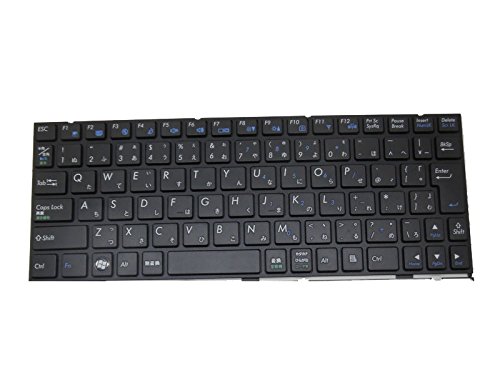
Figure 1: Generic Japan JP White Laptop Keyboard. This image displays the top-down view of the replacement keyboard, highlighting its key layout and white color, without the surrounding laptop frame.
Setup and Installation
Installation of a laptop keyboard requires careful handling and basic technical knowledge. If you are unsure about any step, it is recommended to seek assistance from a qualified technician.
- Preparation: Power off your laptop completely and disconnect it from the power adapter. Remove the battery if it is externally accessible.
- Disassembly: Carefully follow your laptop's specific service manual for instructions on how to remove the old keyboard. This typically involves removing screws, releasing latches, or prying open retaining clips.
- Disconnect Old Keyboard: Gently disconnect the ribbon cable(s) connecting the old keyboard to the motherboard. Be extremely careful not to damage the connectors.
- Install New Keyboard: Connect the ribbon cable(s) of the new Generic keyboard to the corresponding connectors on the motherboard. Ensure the cables are seated correctly and securely.
- Secure Keyboard: Position the new keyboard into its slot. Secure it using the screws or latches that held the original keyboard in place.
- Reassembly: Reassemble your laptop by reversing the disassembly steps.
- Initial Test: Reconnect the battery and power adapter. Power on the laptop and test all keys to ensure proper functionality.
Caution: Improper installation can lead to damage to the keyboard or laptop components. Always handle electronic components with care and avoid static discharge.
Operating Instructions
Once installed, your new keyboard operates identically to the original. All standard keyboard functions, including typing, function keys (Fn), and special characters, will be available. Ensure your operating system's keyboard layout settings match the physical Japanese layout of this keyboard for correct character input.
- Typing: Press keys firmly but gently.
- Function Keys (Fn): Use the 'Fn' key in combination with the F1-F12 keys to access laptop-specific functions (e.g., volume control, screen brightness, Wi-Fi toggle).
- Special Characters: Access special characters and symbols using the Shift key or Alt Gr key, as indicated on the keycaps.
Maintenance
Regular maintenance helps prolong the life and maintain the performance of your keyboard.
- Cleaning: Use a soft, lint-free cloth slightly dampened with water or a mild cleaning solution to wipe the keycaps. Avoid excessive moisture.
- Dust Removal: Use compressed air to remove dust and debris from between the keys. Hold the can upright to prevent propellant discharge.
- Spills: In case of a liquid spill, immediately power off the laptop, disconnect the power, and remove the battery. Turn the laptop upside down to drain liquid and allow it to dry completely before attempting to power it on again. Professional inspection is recommended after a significant spill.
- Avoid Force: Do not apply excessive force to the keys or attempt to remove keycaps unless specifically instructed by a service manual.
Troubleshooting
If you encounter issues with your keyboard, try the following troubleshooting steps:
- Keys Not Responding:
- Ensure the keyboard ribbon cable(s) are securely connected to the motherboard.
- Restart your laptop.
- Check your operating system's keyboard settings and drivers.
- Incorrect Characters Appearing:
- Verify that your operating system's keyboard layout is set to "Japanese" or the appropriate layout for your region.
- Keyboard Not Detected:
- Re-check all cable connections.
- Ensure the laptop's BIOS/UEFI settings recognize the keyboard.
- Consider reinstalling keyboard drivers from your laptop manufacturer's website.
If problems persist after attempting these steps, contact customer support or a qualified technician.
Specifications
| Product Type | Laptop Replacement Keyboard |
| Brand | Generic |
| Model Compatibility | CLEVO W212CUQ, W215CU, W217CUQ, W310CZ, W310CZ-T, W311CZ, W510LU, W510TU, W510TU-B, W510TU-D |
| Layout | Japan (JP) |
| Color | White |
| Frame | Without Frame |
| Product Dimensions | 11.81 x 7.87 x 3.94 inches |
| Item Weight | 2.2 pounds |
| ASIN | B0DLVW52WK |
| Date First Available | November 4, 2024 |
Warranty Information
This product comes with a 90-day warranty from the date of purchase. This warranty covers manufacturing defects and ensures the product is free from material and workmanship flaws under normal use. The warranty does not cover damage caused by improper installation, misuse, accidents, unauthorized repairs, or normal wear and tear. Please retain your proof of purchase for warranty claims.
Support
For technical assistance, warranty claims, or any questions regarding your Generic Laptop Keyboard, please refer to the contact information provided by your seller at the time of purchase. It is recommended to check your registered email after payment for any specific instructions or contact details from the seller.
When contacting support, please have the following information ready:
- Product Model Number: W215CU W217CUQ W310CZ
- ASIN: B0DLVW52WK
- Date of Purchase
- A detailed description of the issue