
1. Introduction
This manual provides comprehensive instructions for the installation, operation, maintenance, and troubleshooting of your new MEDION ERAZER Deputy P60 series laptop keyboard. Please read this guide carefully before proceeding with installation or use to ensure proper functionality and longevity of the product. This keyboard features a French (FR) layout and backlighting.
2. Product Overview
The MEDION ERAZER Deputy P60 series laptop keyboard is a replacement component designed for specific MEDION ERAZER Deputy P60 laptop models. It features a standard French (FR) QWERTY layout with integrated backlighting for improved visibility in low-light conditions. The keyboard is designed for precise fit and function, ensuring a seamless replacement experience.
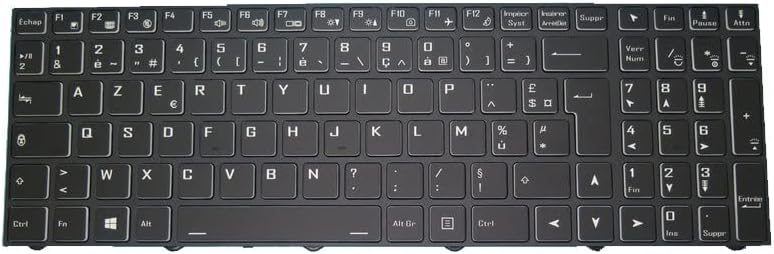
Image 2.1: This image displays the full layout of the MEDION ERAZER Deputy P60 series laptop keyboard. It features a black finish with white key legends, including French (FR) specific characters and symbols. The keyboard is backlit, indicated by the illuminated key legends. The layout includes a full alphanumeric section, function keys (F1-F12), a numeric keypad on the right, and standard navigation keys. The 'Ctrl', 'Fn', 'Alt', and 'Alt Gr' keys are visible at the bottom.
3. Setup and Installation
Replacing a laptop keyboard requires careful handling and technical knowledge. It is recommended that installation be performed by a qualified technician. If you choose to proceed with self-installation, please follow these general guidelines:
- Compatibility Check: Verify that the keyboard model (MD62588, MD62590, MD62591, MD62594, MD62603, NP50RND1) is compatible with your specific MEDION ERAZER Deputy P60 laptop model.
- Power Off: Ensure your laptop is completely powered off and disconnected from the power adapter. Remove the battery if it is user-removable.
- Disassembly: Carefully follow your laptop's service manual or a reliable disassembly guide to remove the old keyboard. This typically involves removing screws, releasing latches, and disconnecting the ribbon cable.
- Installation: Connect the new keyboard's ribbon cable securely to the motherboard connector. Ensure it is properly seated and latched. Position the new keyboard into its frame.
- Reassembly: Secure the keyboard with any screws or latches. Reassemble the laptop components in reverse order of disassembly.
- Initial Test: Power on the laptop and test all keys, including function keys and backlighting, before fully securing all panels.
Warning: Improper installation can damage your laptop. If you are unsure, seek professional assistance.
4. Operating Instructions
This keyboard functions as a standard laptop input device with additional features:
- Standard Typing: Use the alphanumeric keys for text input.
- Function Keys (F1-F12): These keys often have secondary functions (e.g., volume control, brightness adjustment, Wi-Fi toggle) when pressed in combination with the Fn key, usually located near the bottom-left of the keyboard. Refer to your laptop's user manual for specific Fn key combinations.
- Backlighting: The keyboard features integrated backlighting. The backlight can typically be toggled on/off or adjusted in brightness using a specific Fn key combination (e.g., Fn + F5 or Fn + F6, or a dedicated key with a backlight icon).
- Numeric Keypad: The dedicated numeric keypad on the right provides quick entry for numbers and mathematical operations. Ensure Num Lock is active if needed.
- French (FR) Layout: The keyboard adheres to the AZERTY layout standard for French-speaking regions, including specific characters like 'é', 'à', 'ç', and 'ù'.
5. Maintenance
Proper maintenance ensures the longevity and performance of your keyboard:
- Cleaning: Regularly clean the keyboard surface with a soft, lint-free cloth. For dust and debris between keys, use compressed air. For stubborn grime, lightly dampen a cloth with isopropyl alcohol (ensure the laptop is powered off and disconnected). Avoid excessive moisture.
- Spills: In case of a liquid spill, immediately power off the laptop, disconnect it from power, and remove the battery. Invert the laptop to drain liquid and allow it to dry completely before attempting to power it on again. Professional inspection is recommended after a significant spill.
- Storage: If the keyboard is not installed immediately, store it in its original packaging in a cool, dry place, away from direct sunlight and extreme temperatures.
6. Troubleshooting
If you encounter issues with your keyboard, consider the following troubleshooting steps:
- Keys Not Responding:
- Ensure the keyboard ribbon cable is securely connected.
- Restart your laptop.
- Check for any software conflicts or outdated drivers (consult your laptop manufacturer's support).
- Backlight Not Working:
- Verify that the backlight function is enabled via the appropriate Fn key combination.
- Ensure the backlight cable (if separate) is properly connected.
- Incorrect Key Output:
- Check your operating system's keyboard language settings to ensure it is set to French (France) or AZERTY.
If problems persist after attempting these steps, professional technical assistance may be required.
7. Specifications
- Brand: Generic
- Manufacturer: Generic
- Compatible Models: MEDION ERAZER Deputy P60 series, MD62588, MD62590, MD62591, MD62594, MD62603, NP50RND1
- Layout: French (FR) AZERTY
- Features: Backlit, with frame
- Product Dimensions: 11.81 x 7.87 x 3.94 inches
- Item Weight: 1.76 pounds
- ASIN: B0DLV4V3RB
- Date First Available: June 21, 2024
8. Warranty and Support
This product comes with a 90-day warranty from the date of purchase. This warranty covers manufacturing defects and ensures the product is free from material and workmanship flaws under normal use.
For warranty claims, technical support, or any inquiries regarding the product, please contact the seller directly through your purchase platform. Please have your order details and product information ready when contacting support.