
AOC 24G4/P
AOC 24G4/P Gaming Monitor User Manual
Model: 24G4/P
1. Introduction
This manual provides comprehensive instructions for the setup, operation, maintenance, and troubleshooting of your AOC 24G4/P Gaming Monitor. Please read this manual thoroughly before using the product to ensure proper functionality and to maximize your gaming experience.

Figure 1.1: Front view of the AOC 24G4/P Gaming Monitor, showcasing its sleek design and immersive display.
2. Setup
2.1 Unboxing and Package Contents
Carefully remove all components from the packaging. Ensure all items listed below are present:
- AOC 24G4/P Gaming Monitor
- Monitor Stand (Base and Neck)
- Power Cable
- DisplayPort Cable
- HDMI Cable (may vary by region)
- User Manual and Warranty Card
2.2 Monitor Assembly
- Place the monitor panel face down on a soft, clean surface to prevent scratches.
- Attach the stand neck to the back of the monitor panel. Ensure it clicks securely into place or is fastened with screws if provided.
- Attach the stand base to the bottom of the stand neck. Tighten the thumb screw or screws to secure the base.

Figure 2.1: Side profile of the monitor, illustrating the attached stand and its ergonomic design.
2.3 Connecting the Monitor
Connect the necessary cables to the monitor and your computer:
- Power Connection: Connect the power cable to the monitor's power input and then to a power outlet.
- Video Connection: For optimal performance, use the DisplayPort cable to connect the monitor to your computer's graphics card. Alternatively, use an HDMI cable.
- Audio Connection (Optional): If using external speakers or headphones, connect them to the monitor's audio output jack.

Figure 2.2: Rear view of the monitor, highlighting the various input ports including DisplayPort and HDMI.
3. Operating the Monitor
3.1 Powering On/Off
Press the power button located on the bottom right side of the monitor to turn it on or off. The power LED will indicate the monitor's status.
3.2 On-Screen Display (OSD) Menu Navigation
The OSD menu allows you to adjust various monitor settings. Use the joystick button located on the back of the monitor (typically near the power button) to navigate the menu:
- Press Joystick: Opens the OSD menu or selects an option.
- Move Joystick Up/Down: Navigates through menu options.
- Move Joystick Left/Right: Adjusts values or moves between sub-menus.
3.3 Key Features and Adjustments
Your AOC 24G4/P monitor is equipped with several features to enhance your viewing and gaming experience:
- NVIDIA G-Sync Compatibility: This technology synchronizes the monitor's refresh rate with your GPU's frame rate, eliminating screen tearing and stuttering for a smoother gaming experience. Ensure your graphics card drivers are up to date and G-Sync is enabled in your NVIDIA control panel.
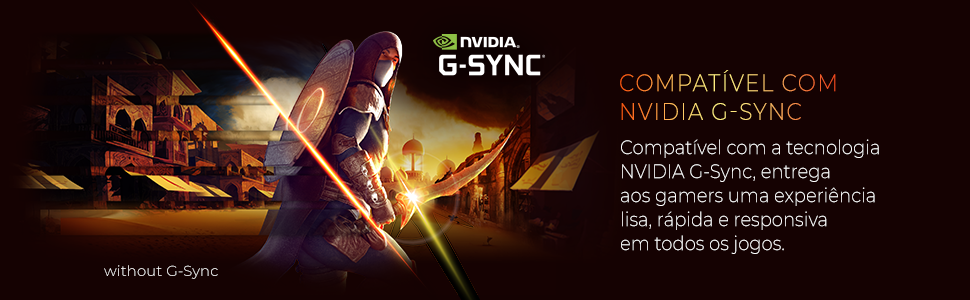
Figure 3.1: Visual representation of NVIDIA G-Sync compatibility, ensuring smooth gameplay.
- 180Hz Refresh Rate: Provides ultra-smooth motion and reduced input lag, crucial for fast-paced games. This high refresh rate allows for more frames per second, making gameplay feel more fluid.
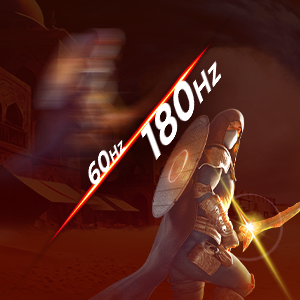
Figure 3.2: Illustration of the difference between 60Hz and 180Hz refresh rates, highlighting enhanced motion clarity.
- 0.5ms MPRT Response Time: Minimizes motion blur and ghosting, ensuring sharp images even during rapid movements. This ultra-fast response time is ideal for competitive gaming.

Figure 3.3: Comparison demonstrating the benefit of 0.5ms MPRT response time in reducing motion blur.
- IPS Panel: Offers wide viewing angles and accurate color reproduction, providing consistent image quality from various perspectives. This is beneficial for both gaming and general use.
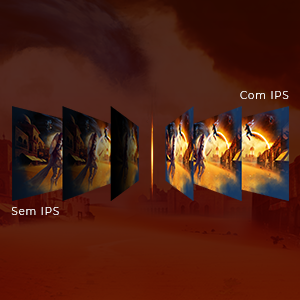
Figure 3.4: Diagram illustrating the superior viewing angles and color consistency of an IPS panel.
- HDR (High Dynamic Range): Enhances contrast and color depth, making bright areas brighter and dark areas darker for a more immersive visual experience. Enable HDR in your operating system display settings.

Figure 3.5: Visual comparison between SDR and HDR, demonstrating the expanded contrast and color of HDR.
- Ergonomic Adjustments: The monitor stand allows for height, tilt, swivel, and pivot adjustments to ensure optimal viewing comfort during long sessions.
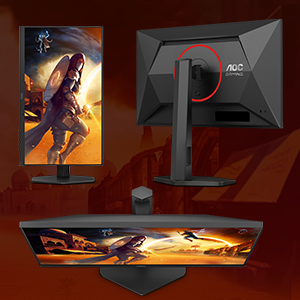
Figure 3.6: Illustration of the monitor's versatile ergonomic adjustments for personalized comfort.
- Low Blue Light Mode: Reduces harmful blue light emissions to minimize eye strain during extended use. This mode can be activated through the OSD menu.
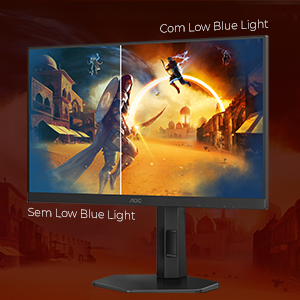
Figure 3.7: Comparison showing the visual difference with Low Blue Light mode enabled, reducing eye strain.
- Flicker-Free Technology: Eliminates screen flickering, which can cause eye fatigue and discomfort, by using a smooth DC (Direct Current) backlight system.
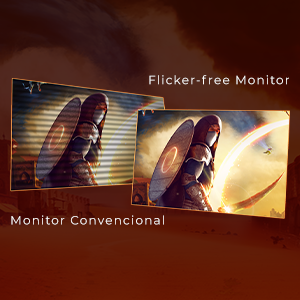
Figure 3.8: Visual demonstrating the absence of flickering on a Flicker-Free monitor compared to a conventional one.
- Shadow Control: Adjusts the gamma levels in dark areas of the screen without affecting the bright areas, allowing you to see details in shadows more clearly. This feature is particularly useful in games with dark environments.

Figure 3.9: Illustration of Shadow Control enhancing visibility in dark game scenes.
4. Maintenance
Proper maintenance ensures the longevity and optimal performance of your monitor.
4.1 Cleaning the Monitor
- Always unplug the monitor from the power outlet before cleaning.
- Use a soft, lint-free cloth slightly dampened with water or a non-abrasive screen cleaner.
- Do not spray liquid directly onto the screen or monitor casing.
- Avoid using benzene, thinner, ammonia-based cleaners, or abrasive cleaning agents.
4.2 General Care
- Avoid placing the monitor in direct sunlight or near heat sources.
- Ensure adequate ventilation around the monitor.
- Do not block the ventilation openings.
- Avoid placing heavy objects on the monitor or its cables.
5. Troubleshooting
If you encounter issues with your monitor, refer to the following table for common problems and solutions.
| Problem | Possible Cause | Solution |
|---|---|---|
| No image on screen | Power cable not connected; Video cable not connected; Incorrect input selected. | Ensure power and video cables are securely connected. Press the OSD joystick to select the correct input source (HDMI/DisplayPort). |
| Image is blurry or distorted | Incorrect resolution; Graphics card driver issues. | Set the display resolution to 1920x1080. Update your graphics card drivers. |
| Colors appear incorrect | Color settings in OSD; Graphics card settings. | Adjust color settings in the OSD menu. Calibrate colors through your operating system or graphics card control panel. |
| Monitor flickering | Refresh rate mismatch; Cable quality. | Ensure the refresh rate is set to 180Hz in your display settings. Try a different, higher-quality DisplayPort or HDMI cable. |
| No sound from monitor (if applicable) | Volume too low; Incorrect audio output selected. | Increase volume via OSD or computer. Ensure monitor is selected as the default audio output device in your operating system. |
6. Specifications
Key technical specifications for the AOC 24G4/P Gaming Monitor:
| Feature | Specification |
|---|---|
| Brand | AOC |
| Model Number | 24G4/P |
| Screen Size | 23.8 Inches |
| Panel Type | IPS |
| Resolution | 1920 x 1080 (FHD 1080p) |
| Refresh Rate | 180Hz |
| Response Time | 0.5ms MPRT |
| Aspect Ratio | 16:9 |
| Connectivity | DisplayPort, HDMI |
| Ergonomics | Height Adjustment, Tilt, Swivel, Pivot |
| Product Dimensions (LxWxH) | 20.76 x 54 x 49.36 cm |
| Product Weight | 6.9 Kilograms |
7. Warranty and Support
For detailed warranty information, please refer to the warranty card included with your product or visit the official AOC website. Standard manufacturer warranties typically cover defects in materials and workmanship for a specified period.
Extended warranty options may be available for purchase, such as:
- 12-month extended warranty against failures and defects.
- 24-month extended warranty against failures and defects.
7.1 Customer Support
If you require technical assistance or have questions not covered in this manual, please contact AOC customer support through their official website or the contact information provided in your product documentation. When contacting support, please have your monitor's model number (24G4/P) and serial number ready.
Related documents24G4/P


Ask a question about this manual
Ask about setup, troubleshooting, compatibility, parts, safety, or missing instructions. Manuals+ will review the question and use this page’s manual context to help answer it.