
1. Introduction
This manual provides detailed instructions for the installation, operation, and maintenance of your Jufodrca Android 13 Car Stereo Radio. Please read this manual thoroughly before using the product to ensure proper function and safety.
Key Features:
- Operating System: Android 13 with 1.6GHz Octa-Core CPU, 4GB RAM + 32GB storage.
- Display: 10.1-inch 1280×800 HD Touchscreen.
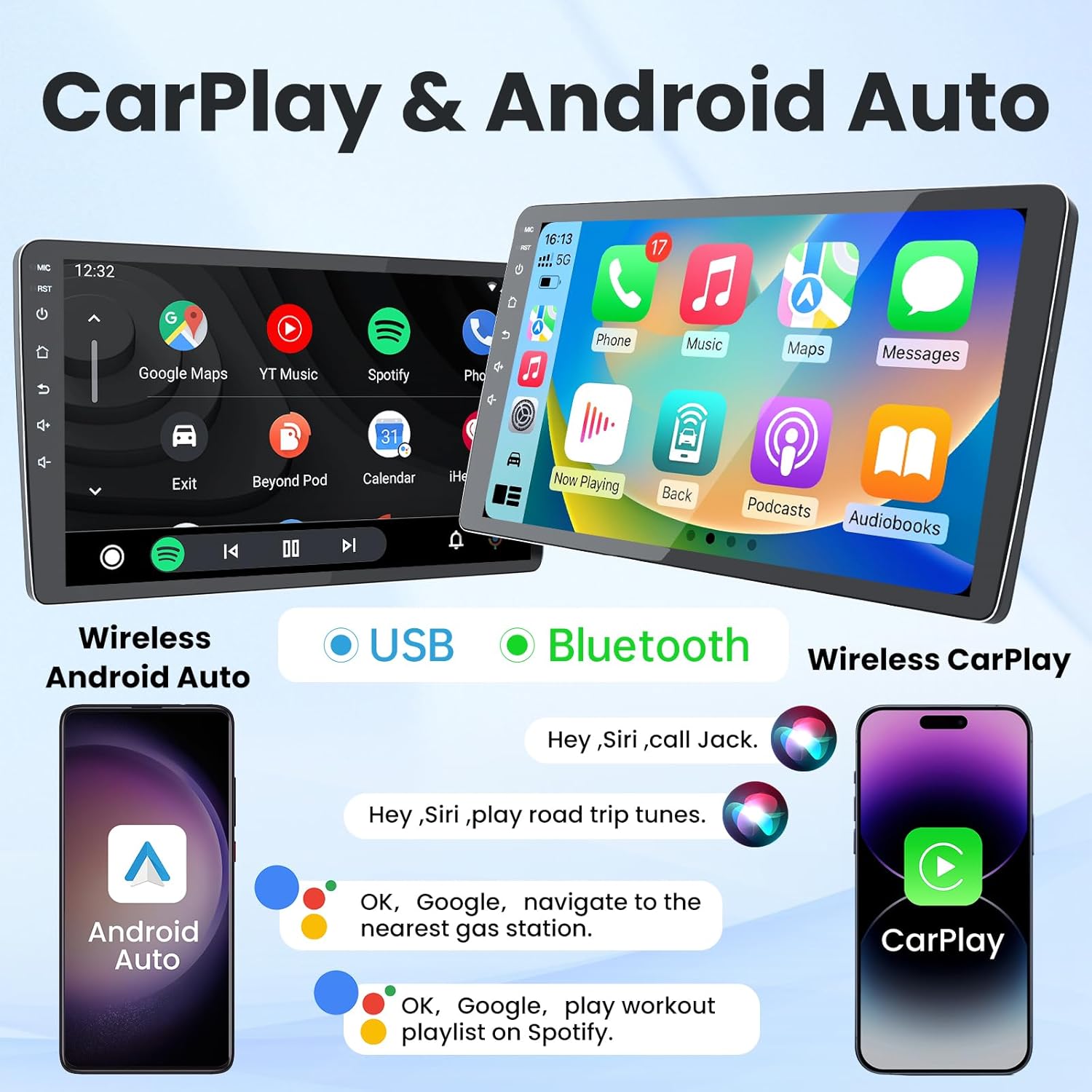
- Connectivity: Wireless CarPlay & Android Auto, Bluetooth 5.0, Dual-band 2.4G/5G WiFi, USB.
- Navigation: Built-in GPS supporting offline and online maps.
- Audio: AM/FM/RDS Radio, 36-band EQ, DSP Sound.
- Camera Support: AHD 720P/1080P backup camera input.
- Control: Steering Wheel Control (SWC) support.
2. What's in the Box
Verify that all components are present before beginning installation:
- 1 x Head Unit
- 1 x Backup Camera
- 1 x Reversing Cable
- 1 x CanBus Box
- 1 x Crowbar (for trim removal)
- 1 x Power Cord
- 1 x RCA Cable Set
- 2 x USB Cables
- 1 x GPS Antenna
- 1 x 3.5mm Microphone

3. Installation Guide
Professional installation is recommended. Ensure the vehicle's battery is disconnected before starting the installation process.
3.1 Wiring Connections
Follow these steps to connect the wiring harness to the head unit:
- Connect the main power cable to the corresponding port on the head unit.
- Connect the Canbus box to the 8-pin connector on the wiring harness, then plug the 8-pin connector into the head unit.
- Connect the 20-pin RCA cable set to the head unit. This includes audio output, video input/output, and auxiliary inputs.
- Connect the 3.5mm microphone to the designated input on the RCA cable set.
- Connect the 4-pin and 6-pin USB cables to the head unit.
- Connect the GPS antenna to the dedicated GPS port on the head unit.
- Connect the 10-pin rear camera signal wire to the head unit.
3.2 Physical Installation
After connecting all necessary wires, carefully mount the head unit into your vehicle's dashboard. Ensure all connections are secure and no wires are pinched. Test the unit before fully reassembling the dashboard trim.

4. Operating Instructions
4.1 Wireless CarPlay & Android Auto
Connect your iPhone or Android device wirelessly to access navigation, music, calls, and messages directly on the stereo's display. Use voice commands for hands-free operation.
4.2 GPS Navigation
The unit features built-in GPS with support for both offline and online maps. Download map data for North America for navigation without an internet connection. Connect to WiFi for real-time traffic updates and online map services.

4.3 Bluetooth 5.0
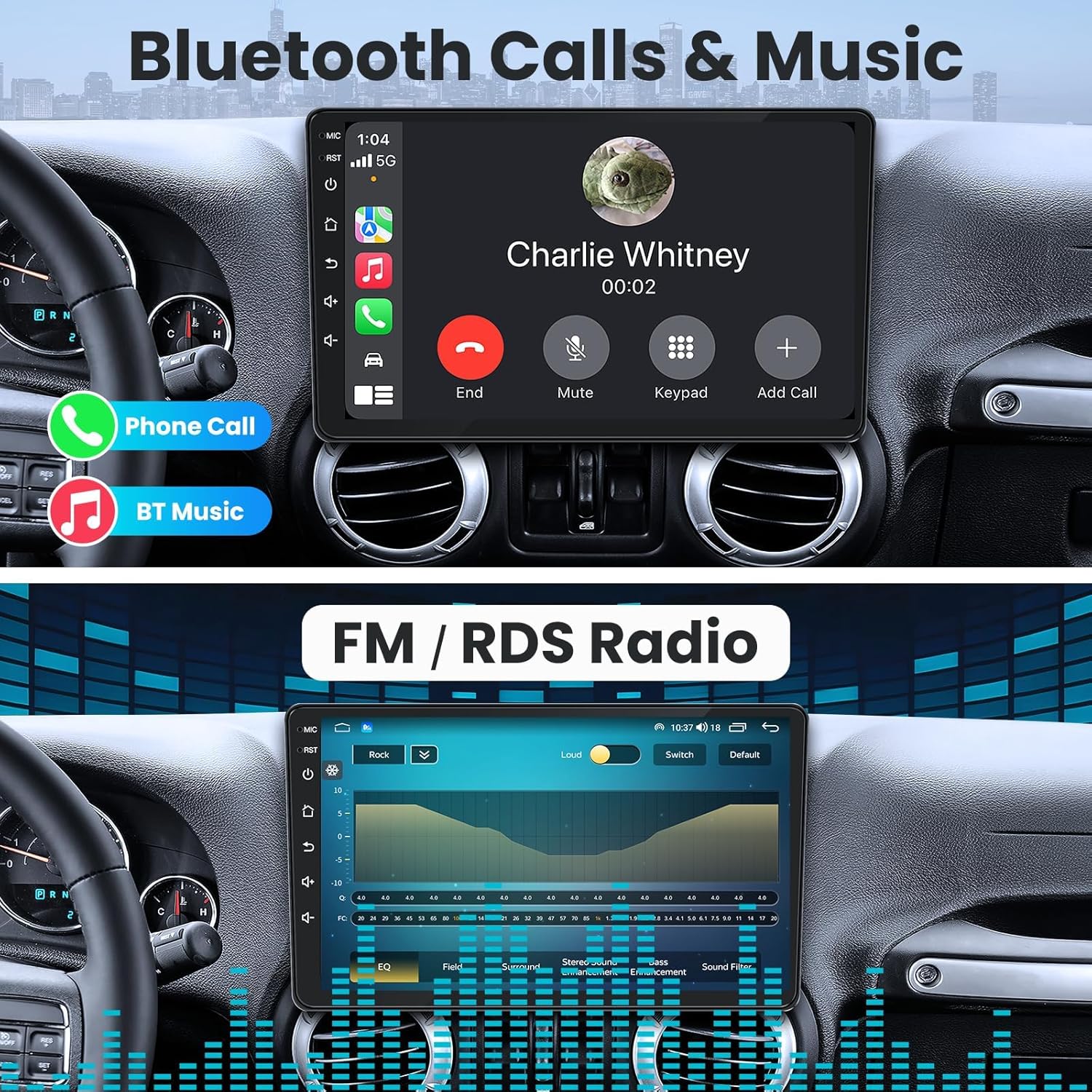
Pair your smartphone via Bluetooth 5.0 for hands-free calling and audio streaming. Access your phonebook and call history directly from the stereo.

4.4 AM/FM/RDS Radio
Tune into your favorite AM/FM radio stations. RDS (Radio Data System) provides additional information like station name and song titles where available.
4.5 Backup Camera
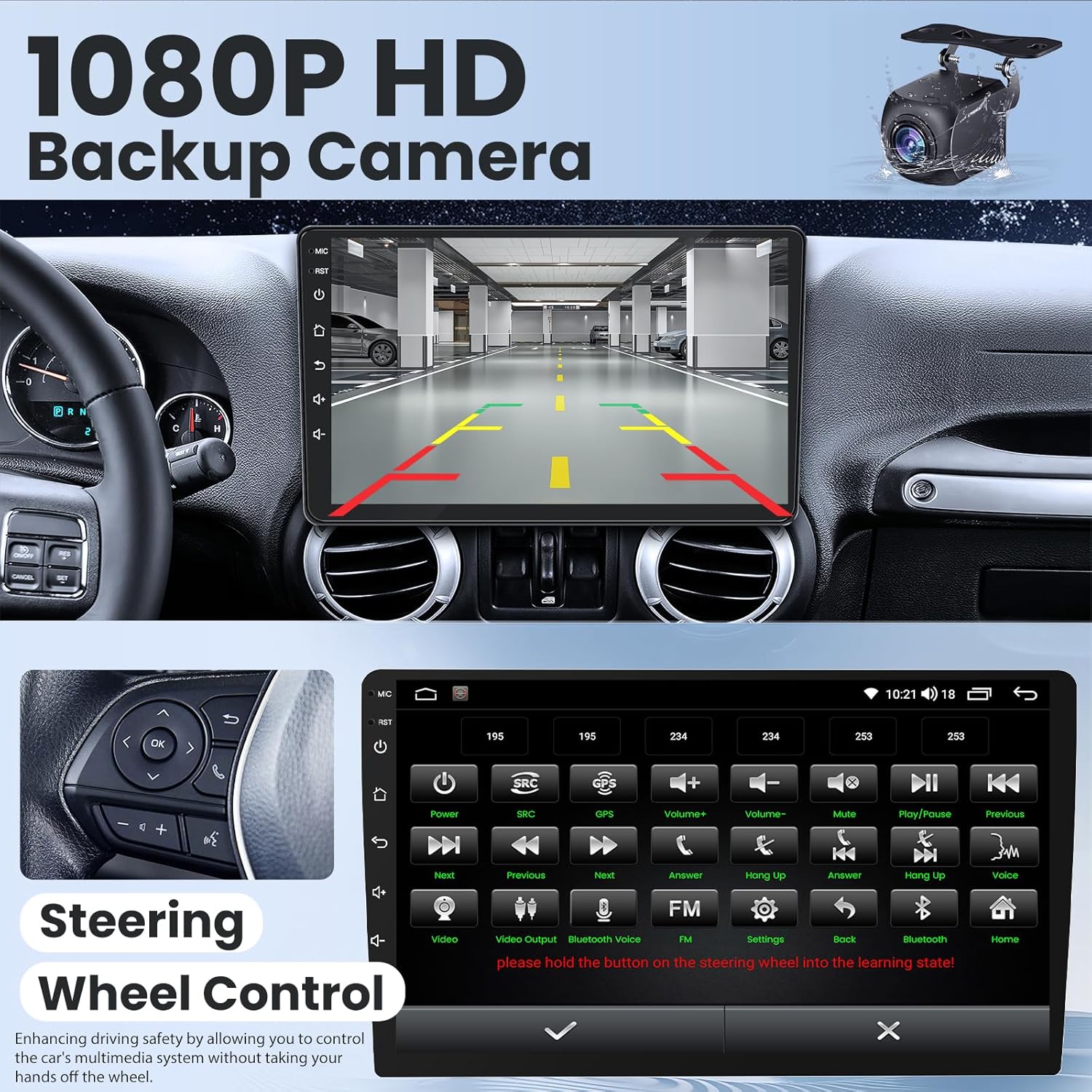
The system supports AHD 720P/1080P backup cameras, providing a clear view of the area behind your vehicle when reversing. The image automatically displays when the vehicle is shifted into reverse gear.

4.6 Steering Wheel Control (SWC)
Integrate with your vehicle's existing steering wheel controls for safe and convenient operation of the stereo's functions, such as volume, track changes, and call management.
4.7 DSP Sound Effects & EQ
Utilize the built-in Digital Sound Processor (DSP) and 36-band equalizer to fine-tune your audio experience. Adjust sound fields, surround effects, bass enhancement, and apply sound filters to match your preferences.

4.8 Split Screen Functionality
The split-screen feature allows you to run two applications simultaneously, such as navigation and music, or radio and web browsing, enhancing multitasking capabilities.

4.9 UI Replacement
Customize the user interface (UI) of your car stereo with various available themes and layouts to personalize your experience.

5. Specifications
| Feature | Detail |
|---|---|
| Product Dimensions | 5.5 x 12.2 x 8.3 inches |
| Item Weight | 3.56 pounds |
| Screen Size | 10.1 Inches |
| Operating System | Android 13 |
| Memory/Storage | 4GB RAM + 32GB ROM |
| Connectivity Technology | Bluetooth 5.0, USB, Wi-Fi (2.4G/5G) |
| Special Features | 1080P Rear View Camera Support, FM RDS Radio & DSP, GPS, SWC, Mirror Link, Wireless Carplay & Android Auto |
| Map Type | North America |
| Audio Output Mode | Stereo |
| Mounting Type | Dashboard Mount |
6. Troubleshooting
If you encounter issues with your Jufodrca car stereo, refer to the following common troubleshooting steps:
- No Power: Check all power connections and ensure the vehicle's battery is properly connected and charged. Verify fuses.
- No Sound: Check speaker connections, volume levels, and audio settings (EQ, DSP). Ensure the correct audio source is selected.
- Bluetooth Connection Issues: Ensure Bluetooth is enabled on both the stereo and your device. Delete previous pairings and try reconnecting.
- GPS Signal Loss: Ensure the GPS antenna is properly installed and has a clear view of the sky. Check map data for corruption or outdated versions.
- CarPlay/Android Auto Not Connecting: Verify your phone's operating system is up to date. Ensure the feature is enabled on the stereo and your phone. Try restarting both devices.
- Backup Camera Not Displaying: Check the camera's power and video signal connections. Ensure the reverse gear signal wire is correctly connected to the stereo.
- Steering Wheel Controls Not Working: Ensure the SWC wires are correctly connected and the controls are programmed in the stereo's settings.
For persistent issues, contact Jufodrca customer support.
7. Maintenance
To ensure the longevity and optimal performance of your car stereo, follow these maintenance guidelines:
- Cleaning: Use a soft, dry cloth to clean the screen and exterior. Avoid abrasive cleaners or solvents.
- Software Updates: Periodically check for and install software updates to improve performance and add new features.
- Temperature: Avoid exposing the unit to extreme temperatures, which can affect its electronic components.
- Wiring: Regularly inspect wiring for any signs of wear or damage.
8. Warranty and Support
Your Jufodrca car stereo is covered by a manufacturer's warranty. Please refer to the warranty card included in your package for specific terms and conditions. For technical support, troubleshooting assistance, or warranty claims, please contact Jufodrca customer service through their official website or the retailer where the product was purchased.
Keep your purchase receipt as proof of purchase for warranty purposes.