
1. Introduction
The S25HH0 303DH US KVM Switch allows you to control up to three computers using a single set of keyboard, mouse, and three monitors. This device supports high-resolution video output and USB 3.0 peripheral sharing, enhancing productivity in multi-computer environments.
Please read this manual thoroughly before installation and operation to ensure proper use and to maximize the performance of your KVM switch.
2. Safety Information
- Ensure the KVM switch is placed on a stable, flat surface.
- Do not expose the device to water, moisture, or extreme temperatures.
- Use only the provided power adapter. Using an incorrect adapter may damage the device and void the warranty.
- Avoid blocking ventilation openings to prevent overheating.
- Do not attempt to open or repair the device yourself. Refer all servicing to qualified personnel.
- Disconnect power before cleaning. Clean the device with a soft, dry cloth.
3. Package Contents
Please check the package contents upon receipt. If any items are missing or damaged, contact your vendor.
- S25HH0 303DH US Triple Monitor KVM Switch
- Power Adapter
- Wired Remote Switch
- USB 3.0 Cables (Quantity may vary based on package)
- HDMI Cables (Quantity may vary based on package)
- User Manual (This document)
4. Product Overview
The KVM switch features multiple ports for connecting your computers, monitors, and USB peripherals. Familiarize yourself with the port layout before proceeding with installation.

Image: Front and rear view of the S25HH0 303DH US KVM Switch. This image illustrates the various input and output ports, including HDMI, USB 3.0, and the power input, along with the physical switch buttons for PC selection.
Front Panel
- PC Selection Buttons: Used to manually switch between connected computers.
- USB 3.0 Ports: For connecting keyboard, mouse, and other USB 3.0 peripherals.
- LED Indicators: Show which computer is currently selected.
Rear Panel
- HDMI Input Ports (PC1, PC2, PC3): Connect to the HDMI output of your computers.
- USB 3.0 Input Ports (PC1, PC2, PC3): Connect to the USB 3.0 ports of your computers.
- HDMI Output Ports (Monitor 1, Monitor 2, Monitor 3): Connect to your monitors.
- DC 12V Power Input: Connect the provided power adapter.
- Remote Switch Port: Connect the wired remote control for switching.
5. Setup Instructions
Follow these steps to connect your KVM switch:
- Power Off Devices: Ensure all computers and monitors are powered off before making any connections.
- Connect Monitors: Connect your three monitors to the HDMI Output ports (Monitor 1, Monitor 2, Monitor 3) on the KVM switch using HDMI cables.
- Connect Computers (PC1):
- Connect the HDMI output from your first computer to the HDMI Input (PC1) on the KVM switch.
- Connect a USB 3.0 cable from your first computer's USB 3.0 port to the USB 3.0 Input (PC1) on the KVM switch.
- Connect Computers (PC2 & PC3): Repeat step 3 for your second and third computers, connecting them to the respective HDMI Input (PC2/PC3) and USB 3.0 Input (PC2/PC3) ports.
- Connect Peripherals: Connect your keyboard, mouse, and any other USB 3.0 peripherals to the USB 3.0 ports on the front panel of the KVM switch.
- Connect Wired Remote (Optional): If desired, connect the wired remote switch to the dedicated port on the KVM switch.
- Power On: Connect the provided 12V power adapter to the DC 12V input on the KVM switch, then plug it into a power outlet.
- Power On Devices: Power on your monitors, then power on your computers.

Image: Connection diagram illustrating how two PCs share four USB 3.0 devices and multiple monitors through the KVM switch. This highlights the USB 3.0 ports for peripherals like keyboards, mice, and printers.
6. Operating Instructions
6.1 Switching Between Computers
You can switch between connected computers using two methods:
- Physical Button Switch: Press the corresponding PC selection button (PC1, PC2, or PC3) on the front panel of the KVM switch. The LED indicator will light up for the selected computer.
- Wired Remote Switch: Use the wired remote control to switch between computers. Press the button on the remote to cycle through the connected PCs.
Image: Two switching methods for the KVM switch: the physical buttons on the device and the external wired remote control. This illustrates the flexibility in controlling which computer is active.
6.2 Display Modes (Extend Mode / Copy Mode)
After connecting correctly, you can choose your desired display mode:
- Press "Windows + P" on your keyboard.
- A pop-up window will appear, allowing you to select between display modes such as Extend or Duplicate (Copy).

Image: Comparison of Extend Mode and Copy Mode. In Extend Mode, each monitor displays unique content, expanding the desktop. In Copy Mode, all three monitors display the same content, duplicating the desktop.
6.3 USB 3.0 Device Sharing
The KVM switch allows up to four USB 3.0 devices to be shared between the connected computers. When you switch to a different computer, the connected USB peripherals (keyboard, mouse, USB drives, etc.) will automatically switch to that computer.
USB 3.0 offers a faster transfer rate of 5Gbps compared to USB 2.0's 480Mbps, ensuring efficient data transfer for your peripherals.
7. Display Resolution and Refresh Rate
The KVM switch supports high-resolution video outputs, ensuring a clear and smooth visual experience.
- DisplayPort (DP1.4) Support: Up to 8K@30Hz, 4K@144Hz, 4K@120Hz. Backward compatible with lower resolutions and refresh rates.
- HDMI (HDMI2.1) Support: Up to 8K@60Hz, 4K@120Hz. Backward compatible with lower resolutions and refresh rates.
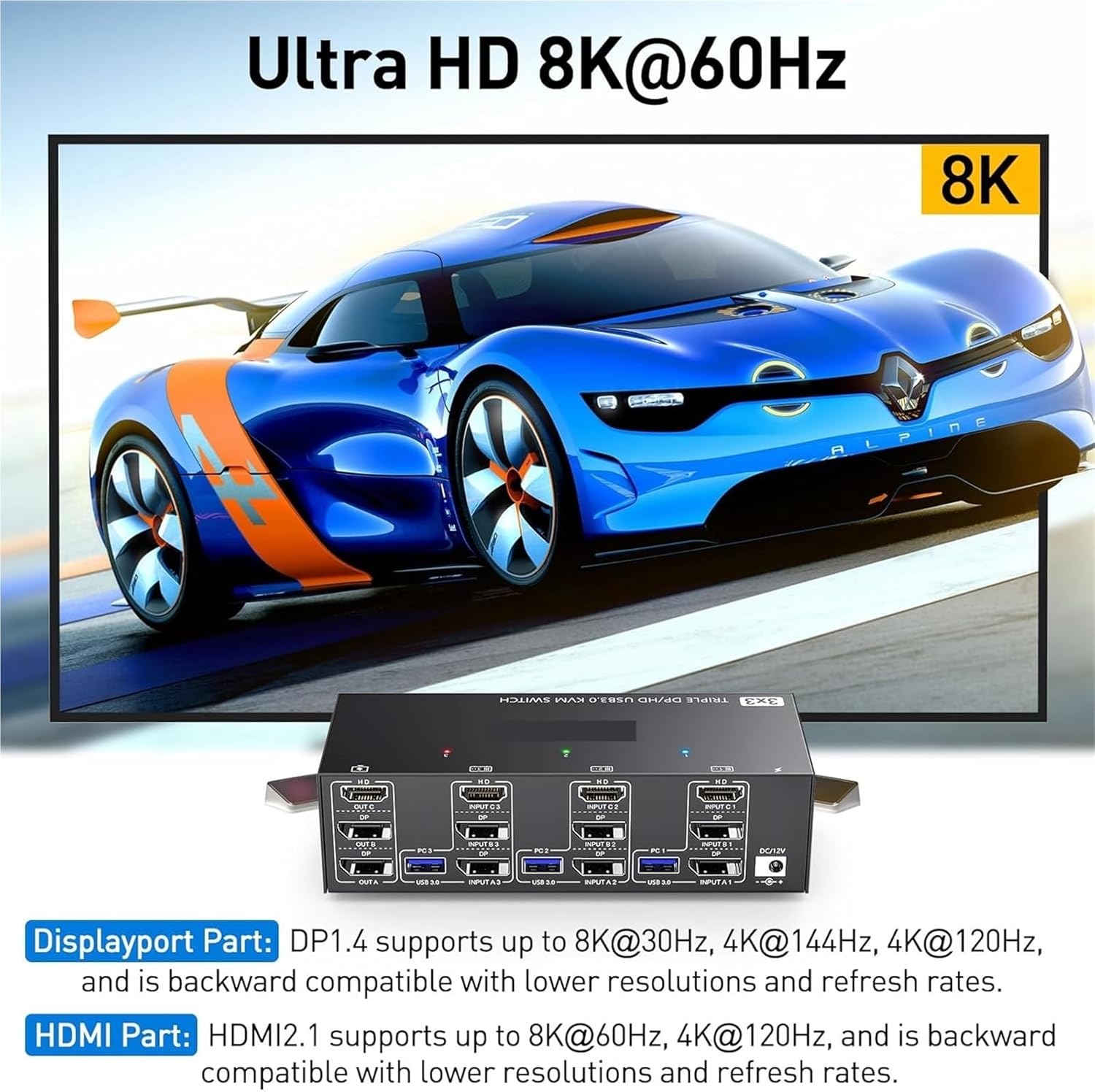
Image: Visual representation of Ultra HD 8K@60Hz capability. This image details the supported resolutions and refresh rates for both DisplayPort 1.4 and HDMI 2.1 connections, emphasizing high-quality video output.
8. Maintenance
- Keep the KVM switch in a cool, dry place away from direct sunlight.
- Regularly clean the exterior of the device with a soft, dry, lint-free cloth.
- Do not use liquid or aerosol cleaners, as they may contain flammable substances or chemicals that can damage the device.
- Ensure all cables are securely connected and free from kinks or damage.
9. Troubleshooting
If you encounter issues with your KVM switch, please refer to the following common problems and solutions:
| Problem | Possible Cause / Solution |
|---|---|
| No display on monitors. |
|
| Keyboard or mouse not working. |
|
| Cannot switch between computers. |
|
| Poor video quality or flickering. |
|
10. Specifications
| Feature | Specification |
|---|---|
| Brand | S25HH0 |
| Model | 303DH US |
| Input Ports | 3 x HDMI, 3 x USB 3.0 |
| Output Ports | 3 x HDMI, 4 x USB 3.0 |
| Video Standard | HDMI 2.1, DisplayPort 1.4 (backward compatible) |
| Max Resolution (HDMI) | 8K@60Hz, 4K@120Hz |
| Max Resolution (DisplayPort) | 8K@30Hz, 4K@144Hz, 4K@120Hz |
| USB Standard | USB 3.0 (5Gbps) |
| Control Method | Physical Button, Wired Remote |
| Operating Voltage | 12 Volts |
| Item Weight | 50 Grams |
| Certifications | CE, RoHS |
11. Warranty and Support
This product comes with a standard manufacturer's warranty. Please refer to the warranty card included in your package or contact your retailer for specific warranty terms and conditions.
For technical support or further assistance, please contact your vendor or the manufacturer's customer service. Contact information can typically be found on the product packaging or the manufacturer's official website.