
1. Introduction
Thank you for purchasing the Paihao HY400 Native 1080P Smart Projector. This manual provides essential information for setting up, operating, and maintaining your projector. Please read it thoroughly before use to ensure optimal performance and safety.
Safety Information
- Do not look directly into the projector lens when the lamp is on.
- Ensure proper ventilation around the projector to prevent overheating.
- Keep the projector away from water or other liquids.
- Use only the provided power adapter.
- Do not attempt to disassemble or repair the projector yourself. Contact qualified service personnel.
2. Package Contents
Verify that all items are present in the package:
- Paihao HY400 Smart Projector
- Remote Controller
- User Manual (this document)
- Power Cable
3. Product Overview
Familiarize yourself with the components and interfaces of your Paihao HY400 projector.

Figure 3.1: Front view of the Paihao HY400 Smart Projector, showing the lens and ventilation.
Interfaces and Controls
- USB Port: For connecting USB storage devices.
- HD (HDMI) Port: For connecting external video sources (e.g., Blu-ray player, game console).
- AV Port: For connecting older analog video sources.
- 3.5mm Earphone Jack: For connecting external audio devices or headphones.
- Power Input: For connecting the power adapter.
- Built-in Speaker: 5W speaker with SRS Sound Technology and Dolby support.
- Focus Sensor: For automatic focus adjustment.
4. Setup
4.1 Power Connection
- Connect the power cable to the projector's power input port.
- Plug the other end of the power cable into a wall outlet.
- The projector has a built-in battery, allowing for portable use for approximately 2-3 hours on a full charge.
4.2 Initial Placement and Adjustment
Position the projector on a stable surface. The built-in bracket allows for 360-degree rotation, offering flexible projection angles.

Figure 4.1: The projector's 360-degree rotatable bracket for flexible positioning.
4.3 Network and Bluetooth Connection
- Wi-Fi 6: Navigate to the network settings on the Android 11 interface to connect to your Wi-Fi network for internet access and streaming.
- Bluetooth 5.2: Access Bluetooth settings to pair with external audio devices like speakers or headphones.

Figure 4.2: The projector supports Wi-Fi 6 and Bluetooth 5.2 for enhanced connectivity.
5. Operating Instructions
5.1 Powering On/Off
Press the power button on the projector or the remote control to turn the device on or off.
5.2 Android 11.0 Interface Navigation
The projector runs on Android 11.0, providing access to various applications and streaming services. Use the remote control to navigate the interface, select apps, and adjust settings.

Figure 5.1: The Android 11.0 interface allows access to popular streaming applications.
5.3 Automatic Focus and Keystone Correction
The HY400 features automatic focus and trapezoidal (keystone) correction, including automatic side correction. This ensures a clear and rectangular image even when the projector is not perfectly aligned with the screen.
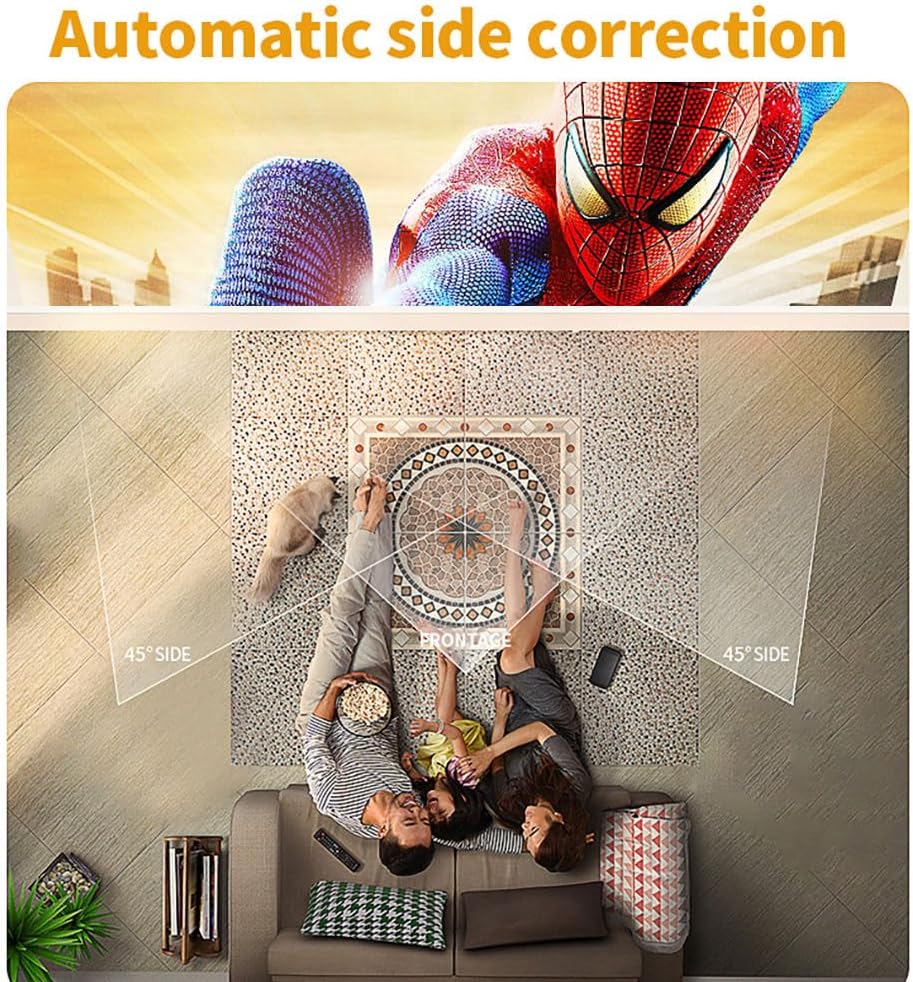
Figure 5.2: Automatic side correction adjusts the image for optimal viewing from various angles.

Figure 5.3: The HY400 maintains image clarity even with side projection, compared to other projectors.
5.4 Image Quality and Enhancement
- Native 1080P, Max 4K Support: The projector delivers native 1080P resolution and supports 4K content for detailed visuals.
- MEMC (Motion Estimation, Motion Compensation): This technology enhances motion clarity by inserting interpolated frames, reducing motion blur in fast-paced scenes.
- HDR10+: Provides enhanced contrast and color accuracy for compatible content.
- 3D Function: Supports Red-Blue and Red-Green 3D decoding. Requires compatible 3D glasses (not included).
- Color and Brightness Adjustment: Fine-tune color temperature and brightness settings via the projector's menu.

Figure 5.4: MEMC technology provides smoother motion in dynamic scenes.

Figure 5.5: Adjust color temperature and brightness for personalized viewing.
5.5 Audio Features
The built-in 5W speaker features SRS Sound Technology and Dolby surround sound for an immersive audio experience.

Figure 5.6: Enjoy rich audio with Dolby and SRS sound technologies.
6. Specifications
| Feature | Specification |
|---|---|
| Model | HY400 |
| Brightness | 200 ANSI Lumens (5000 Lumens) |
| Native Resolution | 1920 x 1080p |
| Max Supported Resolution | 3840 x 2160p (4K) |
| Contrast Ratio | 5000:1 |
| Display Technology | LCD with LED lights |
| LED Lifetime | 50,000 hours |
| Battery | Built-in, approx. 3 hours runtime |
| Throw Ratio | 1.2:1 |
| Keystone Correction | Automatic |
| Focus | Automatic |
| Projection Screen Size | 30-200 inches (Recommended: 60-150 inches) |
| Image Flip | 360 degrees |
| Operating System | Android 11.0 |
| RAM/ROM | 1GB RAM / 8GB ROM |
| Wi-Fi | Wi-Fi 6 (Dual-band 2.4G+5G) |
| Bluetooth | BT5.2 |
| MEMC | Yes |
| Input Ports | USB, HD (HDMI), AV |
| Output Ports | 3.5mm Earphone |
| Speakers | 5W x1 (SRS Sound Technology, Dolby) |
| Input Voltage | 100-240V 50/60Hz |
| Power Consumption | 85W max |
| Item Weight | 3.52 pounds |
| Package Dimensions | 12.99 x 5.91 x 5.51 inches |
7. Maintenance
7.1 Cleaning the Lens
Use a soft, lint-free cloth specifically designed for optical lenses to gently wipe the projector lens. Avoid using abrasive cleaners or excessive force, as this can scratch the lens.
7.2 Cleaning the Projector Body
Wipe the exterior of the projector with a soft, dry cloth. For stubborn dirt, slightly dampen the cloth with water, then wipe dry immediately. Do not allow liquids to enter the projector.
7.3 Storage
When not in use for extended periods, store the projector in a cool, dry, dust-free environment. Consider using the original packaging or a protective case.
8. Troubleshooting
- No Power:
- Ensure the power cable is securely connected to both the projector and the power outlet.
- Check if the power outlet is functional.
- If using battery, ensure it is charged.
- No Image:
- Verify the projector is powered on.
- Check the input source selection (HDMI, USB, AV) matches your connected device.
- Ensure the connected device is powered on and outputting a signal.
- Blurry Image:
- Allow the automatic focus to adjust. If still blurry, try repositioning the projector.
- Ensure the lens is clean.
- Image is Distorted (Trapezoid Shape):
- Allow the automatic keystone correction to adjust.
- Ensure the projector is placed on a level surface or adjust its angle.
- No Sound:
- Increase the volume on both the projector and the connected source device.
- Check if external speakers or headphones are properly connected via Bluetooth or the 3.5mm jack.
- Ensure the audio output setting on the source device is correct.
- Remote Control Not Working:
- Replace the batteries in the remote control.
- Ensure there are no obstructions between the remote and the projector's IR receiver.
9. Warranty and Support
For warranty information or technical support, please refer to the warranty card included with your purchase or contact Paihao customer service through the retailer where the product was purchased. Please have your model number (HY400) and purchase date available when contacting support.
Online Support: For additional resources and FAQs, visit the official Paihao support website (if available, link not provided in source data).