
PPMUE MC-G02
PPMUE MC-G02 Maintenance Cartridge User Manual
Model: MC-G02 | Brand: PPMUE
1. Introduction
This manual provides essential information for the proper installation, operation, and maintenance of your PPMUE MC-G02 Maintenance Cartridge. This cartridge is designed to collect waste ink during printer cleaning cycles and printing operations, ensuring optimal performance and longevity of your compatible Canon printer.
The MC-G02 Maintenance Cartridge is compatible with a range of Canon printers, including G2520, G2560, G3520, G3560, G3620, G2960, G2962, G3920, G3923, G3960, G3962, G3963, and G3360 models.
2. Safety Information
Please read and understand the following safety precautions before handling or installing the maintenance cartridge:
- Keep the cartridge out of reach of children.
- Do not attempt to open, disassemble, or modify the cartridge.
- Avoid contact with ink. If ink comes into contact with skin or eyes, wash immediately with soap and water. Seek medical attention if irritation persists.
- Store the cartridge in its original packaging in a cool, dry place, away from direct sunlight and extreme temperatures.
- Dispose of used cartridges according to local environmental regulations. Do not incinerate.
3. Package Contents
Your package should contain the following item:
- 1 x PPMUE MC-G02 Maintenance Cartridge (1 Pack Black)

Image: The PPMUE MC-G02 Maintenance Cartridge shown alongside its black packaging box, which features a colorful cat illustration and the text "Maintenance MC-G02 1 item".
4. Setup and Installation
Follow these steps to install the MC-G02 Maintenance Cartridge into your compatible Canon printer:
- Power Off Printer: Ensure your printer is turned off and unplugged from the power source before beginning the installation.
- Locate Maintenance Cartridge Slot: Refer to your printer's specific user manual to locate the maintenance cartridge compartment. This is typically found at the rear or side of the printer.
- Open Cover: Open the maintenance cartridge cover.
- Remove Old Cartridge: Carefully remove the old, full maintenance cartridge. Be cautious as it may contain waste ink. Place it in a plastic bag to prevent spills.
- Unpack New Cartridge: Remove the new PPMUE MC-G02 Maintenance Cartridge from its packaging. Avoid touching the electrical contacts or the ink absorption pad.
- Insert New Cartridge: Insert the new cartridge into the slot, ensuring it clicks firmly into place. Make sure it is oriented correctly.
- Close Cover: Close the maintenance cartridge cover securely.
- Power On Printer: Plug in and power on your printer. The printer should recognize the new maintenance cartridge automatically.
For detailed, printer-specific instructions, always consult your Canon printer's official user manual.
5. Operating Instructions
The MC-G02 Maintenance Cartridge operates automatically within your printer. It collects waste ink generated during print head cleaning cycles and regular printing operations. There are no manual operating steps required for the cartridge itself.
Your printer will notify you when the maintenance cartridge is nearing full capacity or is full. At this point, it will need to be replaced to ensure continued printer functionality and prevent ink overflow.
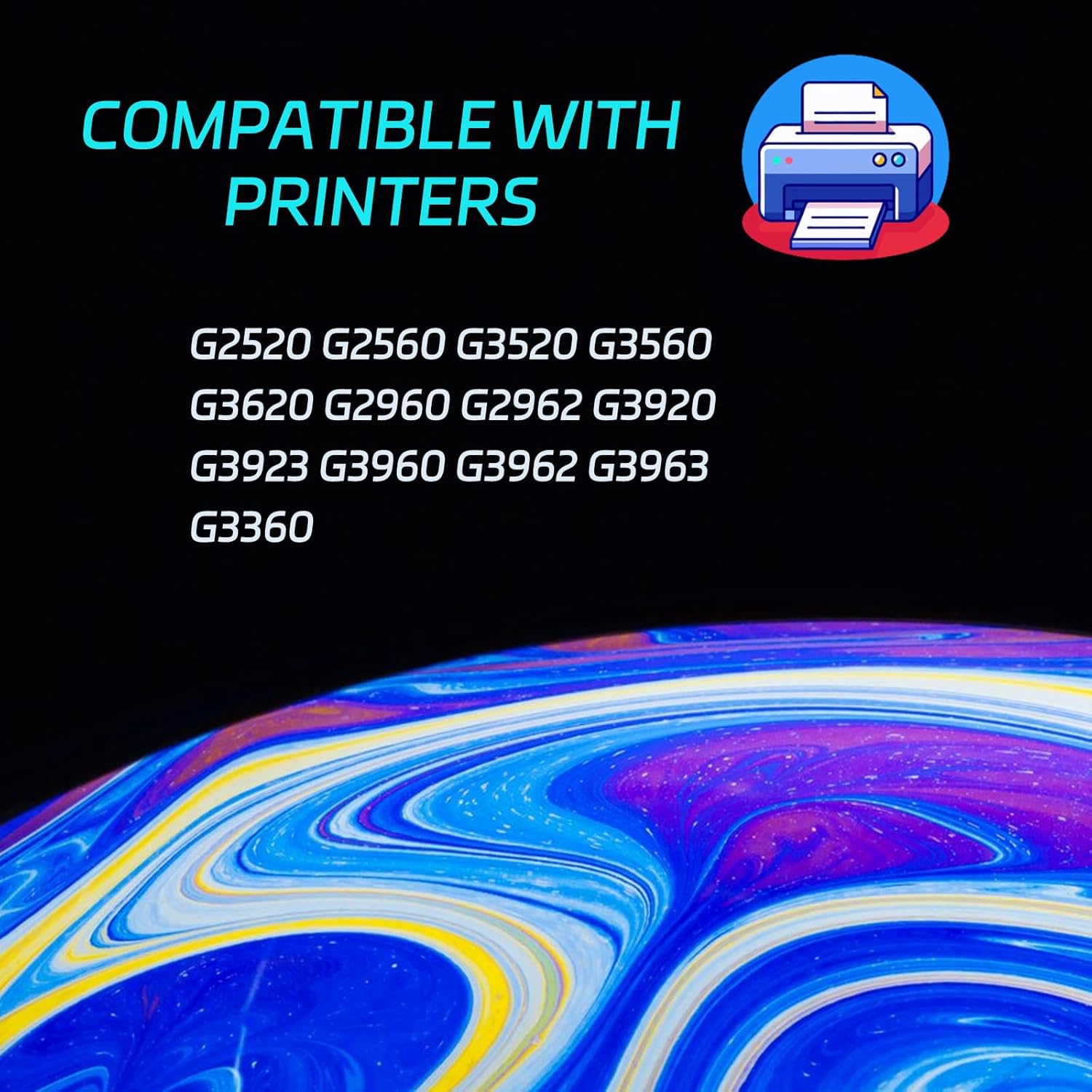
Image: A graphic displaying "COMPATIBLE WITH PRINTERS" and a list of Canon printer models: G2520, G2560, G3520, G3560, G3620, G2960, G2962, G3920, G3923, G3960, G3962, G3963, G3360.
6. Maintenance
The MC-G02 Maintenance Cartridge is a consumable item and does not require user maintenance. It is designed to be replaced once it reaches its capacity.
To ensure optimal printer performance and extend the life of your printer, it is recommended to:
- Replace the maintenance cartridge promptly when indicated by your printer.
- Use only compatible and high-quality replacement cartridges.
- Keep the printer area clean and free of dust.

Image: A graphic titled "Number Of Printed Pages" indicating a yield of "BLACK: 3000 Pages pages" at 5% coverage on A4 paper, accompanied by a printer icon.
7. Troubleshooting
If you encounter issues related to the maintenance cartridge, consider the following:
| Problem | Possible Cause | Solution |
|---|---|---|
| Printer displays "Maintenance Cartridge Full" error. | The maintenance cartridge has reached its capacity. | Replace the maintenance cartridge with a new one. |
| Printer does not recognize the new cartridge. | Cartridge not installed correctly, or a faulty cartridge. |
|
| Poor print quality (streaks, missing lines) after cartridge replacement. | This is usually not directly related to the maintenance cartridge but might indicate print head issues or low ink. |
|

Image: A comparison graphic titled "THE CLEAR PRINT YOU EXPECT" showing a blurry image labeled "OTHERS" next to a clear, sharp image labeled "OURS", demonstrating print quality difference.
8. Specifications
| Feature | Detail |
|---|---|
| Product Name | PPMUE MC-G02 Maintenance Cartridge |
| Model Number | MC-G02 |
| Compatibility | Canon G2520, G2560, G3520, G3560, G3620, G2960, G2962, G3920, G3923, G3960, G3962, G3963, G3360 printers |
| Page Yield | Up to 3000 pages (at 5% coverage on A4 paper) |
| Color | Black (Waste Ink) |
| Product Dimensions | 9 x 8 x 8 inches |
| Item Weight | 2.2 pounds |
| Manufacturer | PPMUE |
| Country of Origin | China |
9. Warranty and Support
Warranty Information: Specific warranty details for this product are not provided in the available information. Please refer to the retailer's return policy or contact PPMUE customer support for warranty inquiries.
Customer Support: For any questions, concerns, or technical assistance regarding your PPMUE MC-G02 Maintenance Cartridge, please contact your point of purchase or the manufacturer directly. Ensure you have your product model number (MC-G02) and purchase details ready when contacting support.

Image: A graphic titled "Excellent Choice for Printing" featuring six circular icons representing "GREAT QUALITY", "AWARD WINNING CUSTOMER SERVICE", "SECURELY PACKED", "GREAT VALUE", "ENVIRONMENTALLY AWARE", and "GREAT USABILITY".
10. Application Scenarios
The PPMUE MC-G02 Maintenance Cartridge supports consistent and reliable printing across various environments where compatible Canon printers are used. This includes:
- Office: For daily document printing, reports, and presentations.
- Home: For personal documents, school projects, and casual printing needs.
- School: Supporting educational printing requirements for students and faculty.
- Bank: Ensuring clear and reliable printing for financial documents.
- Hospital: For printing medical records, prescriptions, and administrative documents.

Image: A graphic titled "APPLICATION SCENARIOS" showing four distinct images: an office desk with computers, a handshake in a bank setting, a student writing in a school, and a person using a tablet at home.
Related Documents - MC-G02
 |
Ortofon MC Cadenza Moving Coil Phono Cartridge User Guide Comprehensive user guide for the Ortofon MC Cadenza series moving coil phono cartridges, covering mounting, azimuth adjustment, stylus care, and detailed technical specifications for Mono, Red, Blue, Bronze, and Black models. |
 |
Clearaudio concept mc / essence mc User Manual Comprehensive user manual for the Clearaudio concept mc and essence mc moving coil phono cartridges, covering installation, adjustment, technical specifications, and warranty information. |
 |
Clearaudio concept mc / essence mc User Manual: Installation and Operation Guide Comprehensive user manual for Clearaudio concept mc and essence mc phono cartridges, covering installation, setup, technical specifications, and warranty information. Learn how to properly mount and adjust your high-fidelity audio cartridge. |
 |
Canon MC-G01 Maintenance Cartridge Installation Guide Step-by-step installation guide for the Canon MC-G01 maintenance cartridge (CFINK). Compatible with Canon GX6000 and GX7000 series printers. Includes safety warnings and multilingual instructions. |
 |
Audio-Technica AT-ART1000X Direct Power Stereo MC Cartridge User Manual Comprehensive user manual for the Audio-Technica AT-ART1000X Direct Power Stereo MC Cartridge. Includes installation, safety, maintenance, and technical specifications. |
 |
Canon MP280 series: Полное электронное руководство пользователя Подробное электронное руководство для многофункционального принтера Canon MP280 series. Узнайте о настройке, функциях копирования, сканирования, печати, обслуживании и устранении неполадок. |
Ask a question about this manual
Ask about setup, troubleshooting, compatibility, parts, safety, or missing instructions. Manuals+ will review the question and use this page’s manual context to help answer it.