
1. Introduction
Thank you for choosing the FASTWD L231-EEA Kids Tablet. This manual provides essential information for setting up, operating, maintaining, and troubleshooting your device. Please read it carefully to ensure optimal performance and safety.
2. Package Contents
Verify that all items are present in the package:
- FASTWD L231-EEA Kids Tablet
- Protective Cover
- USB Type-C Charging Cable
- Power Adapter
- User Manual (this document)
3. Device Overview
Familiarize yourself with the tablet's physical features and ports.

Image: The FASTWD Kids Tablet displaying its various ports and charging capabilities. Visible ports include a 3.5mm audio jack, a USB Type-C port for charging and data transfer, and an OTG (On-The-Go) port. The image also indicates 5V/2A charging input.
The tablet features a 3.5mm audio jack for headphones, a USB Type-C port for charging and data transfer, and supports OTG functionality for connecting peripherals. The power input is 5V/2A.
4. Setup
4.1. Charging the Tablet
Before first use, fully charge the tablet. Connect the USB Type-C cable to the tablet's charging port and the power adapter to a wall outlet. The battery indicator on the screen will show charging status. A full charge typically takes several hours.
4.2. Powering On/Off
- To Power On: Press and hold the Power button until the screen lights up.
- To Power Off: Press and hold the Power button until a power-off menu appears. Select "Power Off" to shut down the device.
4.3. Initial Setup Wizard
Upon first power-on, the tablet will guide you through an initial setup process:
- Language Selection: Choose your preferred language.
- Wi-Fi Connection: Select your Wi-Fi network and enter the password to connect to the internet.
- Google Account: Sign in with an existing Google account or create a new one. This is necessary for downloading apps from the Google Play Store and using Google services.
- Date & Time: Set the correct date and time.
- Parental Control Setup: Follow the on-screen prompts to configure parental control settings, including user profiles, time limits, and content restrictions.
5. Operating the Tablet
5.1. Basic Navigation
The tablet uses a touchscreen interface. Use gestures such as tapping, swiping, pinching, and spreading to navigate menus, open apps, and interact with content.
5.2. Wi-Fi Connectivity
To connect or manage Wi-Fi networks:
- Go to Settings > Network & internet > Wi-Fi.
- Toggle Wi-Fi On.
- Select your desired network from the list and enter the password if prompted.
5.3. Bluetooth Connectivity
To pair with Bluetooth devices (e.g., headphones, speakers):
- Go to Settings > Connected devices > Bluetooth.
- Toggle Bluetooth On.
- Ensure your Bluetooth device is in pairing mode.
- Select the device from the list to pair.
5.4. Parental Controls
The tablet includes robust parental control features to manage your child's usage.
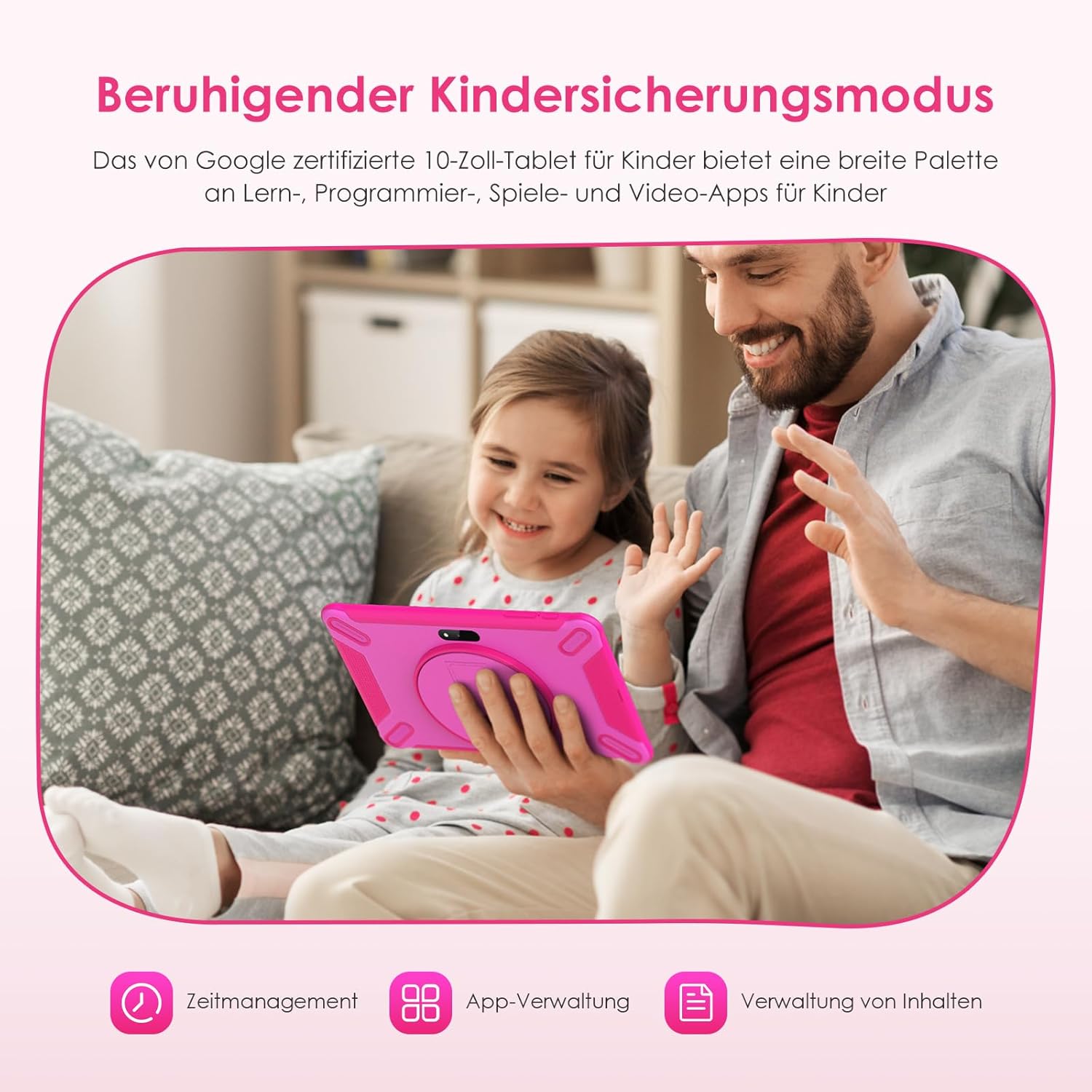
Image: A child and adult using the FASTWD Kids Tablet, illustrating the parental control features. Icons for Time Management, App Management, and Content Management are displayed, indicating the tablet's capabilities for safe usage.
Access parental control settings through the dedicated app or within the system settings. You can:
- Set daily usage time limits.
- Manage and restrict access to specific applications.
- Filter web content and block inappropriate websites.
- Create multiple child profiles with customized settings.
5.5. Installing Applications
The tablet comes with Google Play Store pre-installed, allowing access to a wide range of educational and entertainment apps.

Image: Multiple FASTWD Kids Tablets displaying the home screen with various apps, including the Google Play Store. The image also highlights features like privacy settings, widgets, and memory expansion up to 256GB.
To download apps:
- Open the Google Play Store app.
- Search for the desired app.
- Tap Install to download and install the app.
5.6. Storage Management
The tablet has 128GB of internal storage. You can expand this by inserting a TF (microSD) card up to 256GB.

Image: An overview of the FASTWD 10-inch Kids Tablet's key features, including Wi-Fi, 36GB RAM, 128GB ROM, TF card expandability up to 256GB, Google Play access, and parental control.
To insert a TF card, locate the card slot on the side of the tablet, open the cover, and gently push the card in until it clicks. To manage storage, go to Settings > Storage.
6. Maintenance
6.1. Cleaning
Use a soft, lint-free cloth to clean the screen and body of the tablet. For stubborn smudges, slightly dampen the cloth with water or a screen cleaner. Avoid harsh chemicals or abrasive materials.
6.2. Battery Care
- Avoid fully discharging the battery frequently.
- Do not expose the tablet to extreme temperatures (hot or cold).
- Use only the provided charging cable and adapter.
6.3. Software Updates
Periodically check for software updates to ensure your tablet has the latest features and security patches. Go to Settings > System > System update.
7. Troubleshooting
Here are solutions to common issues:
| Problem | Solution |
|---|---|
| Tablet won't turn on. | Ensure the tablet is charged. Connect it to the charger for at least 30 minutes. If it still doesn't turn on, try a forced restart by holding the Power button for 10-15 seconds. |
| Screen is unresponsive. | Restart the tablet. If the issue persists, ensure the screen is clean and free of debris. |
| Wi-Fi connection issues. | Check if Wi-Fi is enabled in Settings. Restart your Wi-Fi router. Forget the network and reconnect. |
| Apps are crashing or running slowly. | Close background apps. Clear app cache (Settings > Apps > [App Name] > Storage > Clear cache). Ensure sufficient storage space. Restart the tablet. |
| Parental controls not working as expected. | Review the parental control settings within the dedicated app or system settings. Ensure the correct profiles are active. |
8. Specifications
Detailed technical specifications for the FASTWD L231-EEA Kids Tablet:
- Model: L231-EEA
- Operating System: Android 14
- Display: 10.1-inch IPS, 1280 x 800 pixels resolution, 16:9 aspect ratio
- Processor: MediaTek (Brand)
- RAM: 12GB (Physical) + 24GB (Virtual) = Up to 36GB
- Internal Storage: 128GB
- Expandable Storage: Up to 256GB via TF (microSD) card
- Battery: 8000 mAh Lithium-ion
- Wireless Connectivity: Wi-Fi 802.11ac (supports 5GHz), Bluetooth 5.0
- Cameras: 5MP Front, 8MP Rear
- Ports: USB Type-C, 3.5mm Audio Jack
- Input Method: Touchscreen
- Color: Pink
- Included Components: Protective Cover
- Age Range: Child
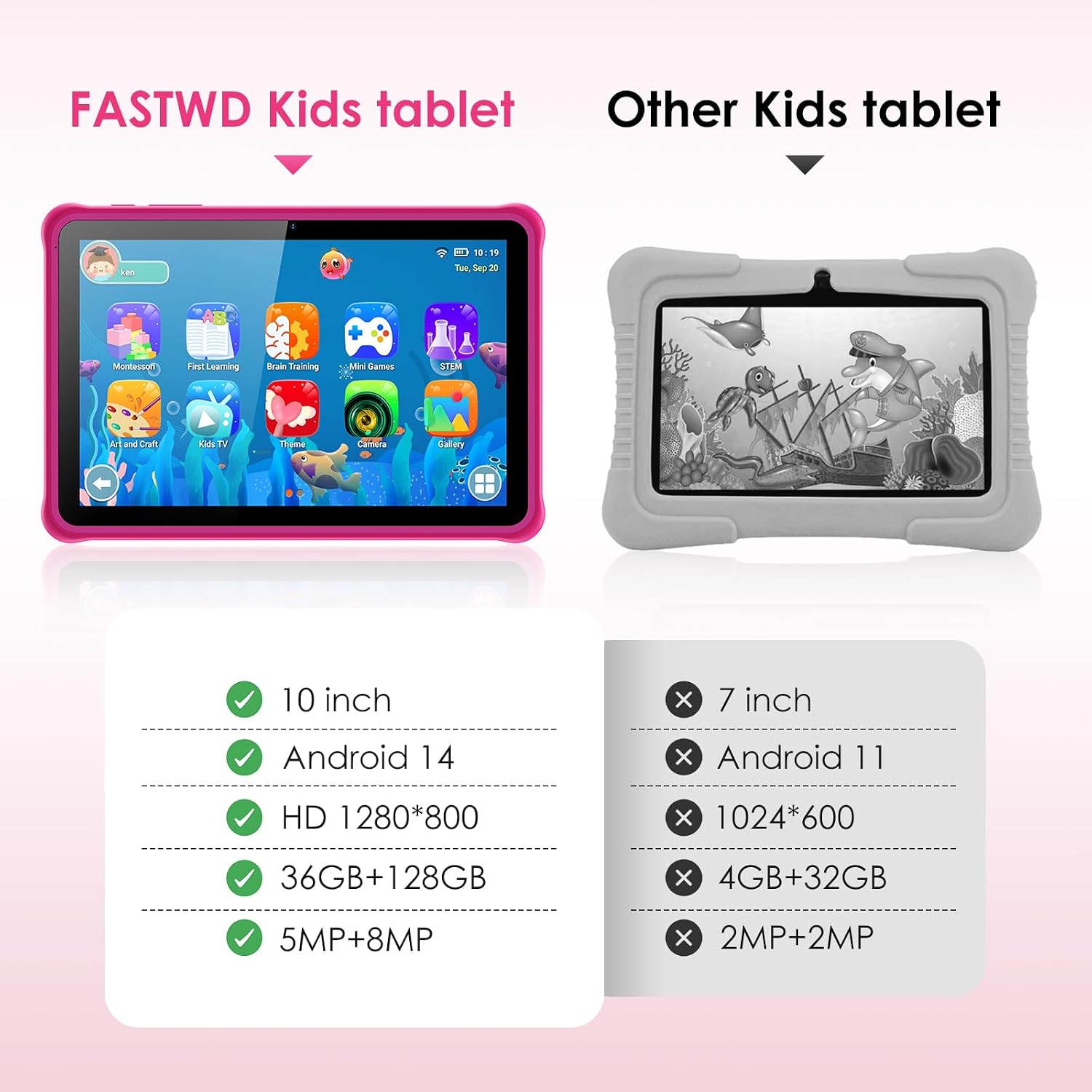
Image: A side-by-side comparison highlighting the specifications of the FASTWD Kids Tablet (10-inch, Android 14, HD 1280*800, 36GB+128GB, 5MP+8MP) against a generic 'Other Kids tablet' (7-inch, Android 11, 1024*600, 4GB+32GB, 2MP+2MP).
9. Warranty and Support
9.1. Warranty Information
This product comes with an extended warranty. For specific terms and conditions, please refer to the warranty card included in your package or contact the seller directly.
9.2. Customer Support
If you encounter any issues not covered in this manual or require further assistance, please contact the seller or manufacturer's customer support. Refer to your purchase documentation for contact details.
