Product Overview
The Olycism P5 MP3 Player is a versatile portable music device designed for high-quality audio playback and various multi-functional uses. It features a compact design, a 2-inch LCD screen, and a robust 128GB storage capacity (64GB internal + 64GB TF card).

Image: Front and back view of the Olycism P5 MP3 Player, showcasing its sleek black design and compact form factor. A 64GB TF card is also visible, indicating expandable storage.
Key Features:
- 128GB Large Capacity: Includes 64GB internal memory and a 64GB TF card for extensive music storage.
- HIFI Lossless Sound Quality: Supports multiple audio formats including MP3, WMA, WAV, APE, FLAC, AAC-LC, M4A, and OGG.
- Bluetooth 5.0: Provides stable and fast wireless connection to compatible audio devices.
- OTG Function: Allows direct data transfer from mobile devices with OTG support without needing a computer.
- Multi-functional: Acts as a music player, voice recorder, e-book reader, FM radio, repeater, and features a built-in HD speaker and alarm clock.
- Long Battery Life: Up to 54 hours of continuous music playback on a single charge.

Image: A visual representation highlighting the multi-functional capabilities of the MP3 player, including built-in 64GB storage, 64GB TF card support, recording, e-book, video playback, A-B repeat, FM radio, and Bluetooth 5.0.
Package Contents
Please check the package for the following items:
- Olycism P5 MP3 Player
- 64GB TF Card (pre-installed or included separately)
- USB Charging Cable
- User Manual (this document)
Setup and First Use
1. Charging the Device
Before first use, fully charge the MP3 player. Connect the provided USB charging cable to the player's charging port and the other end to a USB power adapter (not included) or a computer's USB port. The charging indicator will show the charging status and turn off when fully charged.
A full charge typically takes approximately 2-3 hours and provides up to 54 hours of music playback.
2. Powering On/Off
- To Power On: Press and hold the Power button (usually located on the side or top) for a few seconds until the screen lights up.
- To Power Off: Press and hold the Power button until the "Power Off" prompt appears, then confirm.
3. Transferring Music and Files
You can transfer files to your MP3 player using two methods:
Via USB Connection (Computer)
- Connect the MP3 player to your computer using the USB cable.
- The player will appear as a removable disk drive on your computer.
- Drag and drop your music files (MP3, WMA, WAV, APE, FLAC, AAC-LC, M4A, OGG) or other supported files (e.g., e-books, videos) into the appropriate folders on the player.
- Safely eject the device from your computer before disconnecting the USB cable.
Via OTG Function (Smartphone/Tablet)
The MP3 player supports OTG (On-The-Go) function, allowing direct file transfer from compatible smartphones or tablets without a computer. Ensure your mobile device supports OTG.
- Connect the MP3 player to your OTG-enabled smartphone/tablet using an OTG adapter (not included) and the USB cable.
- Your mobile device should recognize the MP3 player as external storage.
- Use your mobile device's file manager to copy or move files to and from the MP3 player.

Image: Illustration of the OTG function, showing the MP3 player connected to a smartphone for direct file transfer, bypassing the need for a computer. Note: This function is only suitable for smartphones with OTG capability.
Operating Instructions
Navigation and Menu
The MP3 player features a 2-inch LCD screen and touch-sensitive buttons for navigation. The main menu provides access to various functions such as Music, Record, Video, Radio, Pictures, E-Book, Settings, and Bluetooth.

Image: A hand holding the MP3 player, displaying its main menu interface with icons for Music, Record, Video, Radio, Pictures, E-Book, Settings, and Bluetooth.
1. Music Playback
From the main menu, select "Music" to browse your audio files. You can navigate through folders, artists, albums, or genres. The player supports MP3, WMA, WAV, APE, FLAC, AAC-LC, M4A, and OGG formats.
- Play/Pause: Press the central play button.
- Next/Previous Track: Use the left/right navigation buttons.
- Volume Control: Use the up/down navigation buttons or dedicated volume buttons if available.
- A-B Repeat: This function allows you to loop a specific segment of an audio file. Select the start point (A) and end point (B) during playback.

Image: A girl and her dog enjoying music from the MP3 player, symbolizing the Hi-Fi Lossless Sound Quality experience. Musical notes float around, indicating immersive audio.
2. Bluetooth Connectivity
The MP3 player is equipped with Bluetooth 5.0 for stable and fast wireless audio transmission to Bluetooth headphones or speakers.
- From the main menu, select "Bluetooth".
- Turn on Bluetooth on the MP3 player.
- Ensure your Bluetooth headphones or speaker are in pairing mode.
- The MP3 player will scan for available devices. Select your device from the list to connect.
- Once connected, audio will be routed through the Bluetooth device.

Image: A diagram showcasing the upgraded Bluetooth 5.0 chip, demonstrating its ability to connect stably and faster with various Bluetooth devices such as headphones, earphones, and speakers.
3. FM Radio
To use the FM Radio function, ensure wired earphones are connected as they act as the antenna.
- From the main menu, select "Radio" or "FM Radio".
- The player will automatically scan for available stations or allow manual tuning.
- Use the navigation buttons to change stations.
- You can save your favorite stations for quick access.
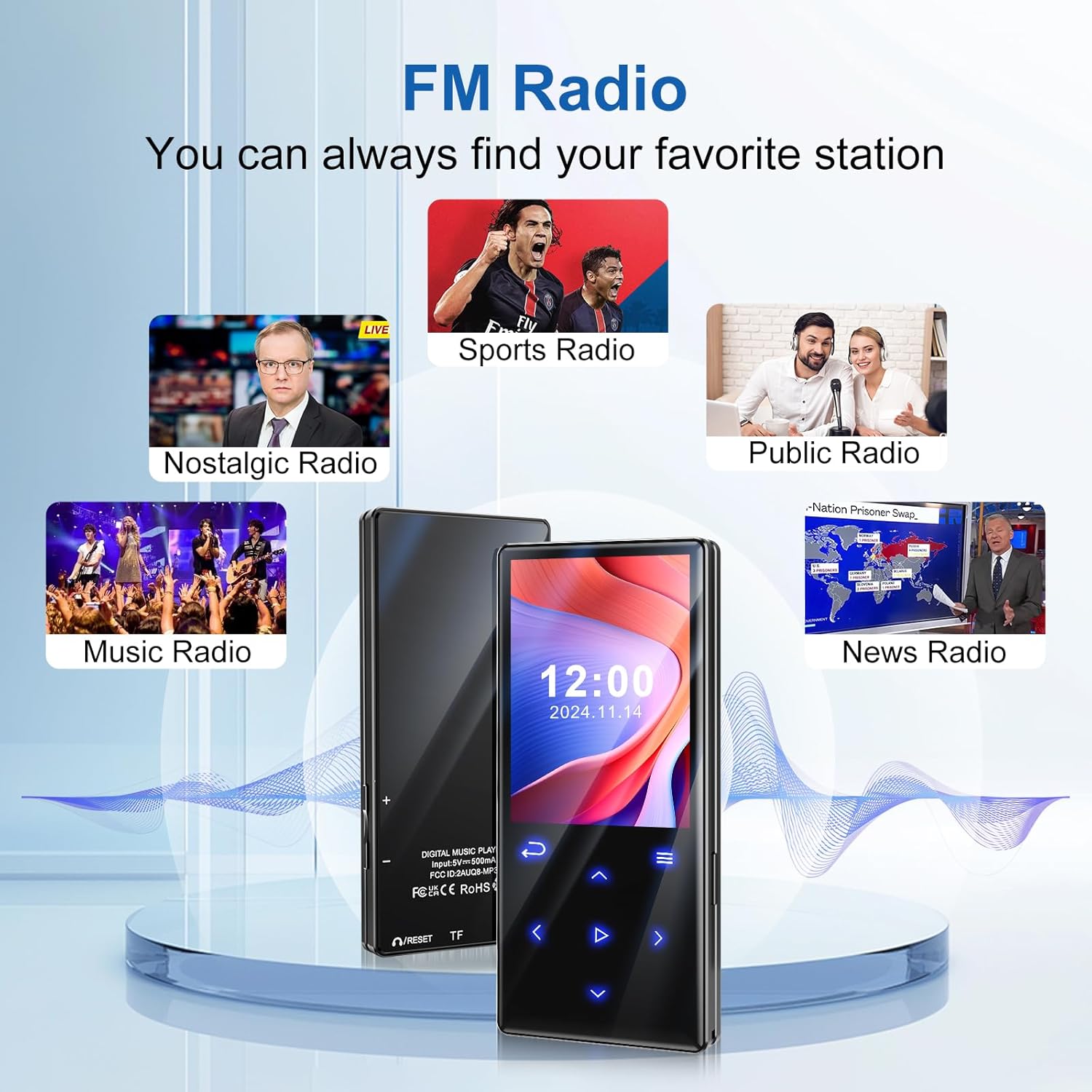
Image: The MP3 player screen showing the FM Radio interface, surrounded by icons representing different radio content like Sports Radio, Nostalgic Radio, Public Radio, Music Radio, and News Radio, indicating the variety of stations available.
4. Voice Recorder
The built-in voice recorder allows you to capture audio notes, lectures, or meetings.
- From the main menu, select "Record".
- Press the record button to start recording.
- Press it again to pause/resume, and press a designated stop button to end and save the recording.
- Recordings are saved in a dedicated folder and can be played back later.

Image: A hand holding the MP3 player, which displays the voice recorder interface, set against a background of people in a meeting, illustrating its use for recording discussions or lectures.
5. E-Book Reader
The player supports reading e-books, typically in TXT format.
- Transfer TXT files to the player's E-Book folder.
- From the main menu, select "E-Book".
- Choose the desired e-book to open and read.
- Use navigation buttons to scroll through pages.

Image: A hand holding the MP3 player, displaying an e-book with text content, demonstrating its functionality as a portable e-book reader.
6. Alarm Clock
Set an alarm to wake up or for reminders.
- Navigate to "Settings" and then "Alarm Clock".
- Set the desired time and alarm sound.
- Ensure the alarm is enabled.

Image: The MP3 player displaying an alarm time (7:30) on a bedside table next to a sleeping child, illustrating its use as an alarm clock.
Maintenance and Care
- Cleaning: Use a soft, dry cloth to clean the device. Do not use liquid cleaners or aerosols.
- Storage: Store the player in a cool, dry place away from direct sunlight and extreme temperatures.
- Battery Care: To prolong battery life, avoid fully discharging the battery frequently. Charge the device regularly, even if not in use for extended periods.
- Avoid Impacts: Protect the device from drops and impacts, which can damage internal components or the screen.
- Water Resistance: This device is not waterproof. Avoid exposure to water or high humidity.
Troubleshooting
| Problem | Possible Cause / Solution |
|---|---|
| Device does not power on. | Battery might be depleted. Connect to charger and try again. If unresponsive, try pressing the reset button (if available, often a small pinhole). |
| Cannot connect to computer. | Ensure USB cable is securely connected. Try a different USB port or cable. Restart both the player and the computer. Ensure necessary drivers are installed (usually automatic). |
| Bluetooth connection issues. | Ensure both devices are in pairing mode and within range. Disconnect and re-pair. Check if other Bluetooth devices are interfering. |
| No sound from headphones/speaker. | Check volume level. Ensure headphones are properly plugged in (if wired). If using Bluetooth, ensure it's connected and volume is up on both devices. Test with different headphones/speakers. |
| Files not playing or recognized. | Check if the file format is supported (MP3, WMA, WAV, APE, FLAC, AAC-LC, M4A, OGG). Ensure files are not corrupted. Re-transfer the files. |
| Screen is frozen or unresponsive. | Press and hold the power button to force a restart. If that doesn't work, locate the reset pinhole (if present) and use a thin object (like a paperclip) to press it. |
Specifications
| Feature | Detail |
|---|---|
| Model Name | P5 MP3 |
| Brand | Olycism |
| Memory Storage Capacity | 64GB Internal + 64GB TF Card (Total 128GB) |
| Screen Size | 2 Inches |
| Display Technology | LCD |
| Connectivity Technology | Bluetooth 5.0, USB |
| Special Features | Built-In Speaker, FM Radio, Voice Recorder, E-book, Alarm Clock, OTG Function |
| Supported Audio Formats | MP3, WMA, WAV, APE, FLAC, AAC-LC, M4A, OGG |
| Battery Type | Lithium Polymer (450mAh) |
| Battery Life (Music Playback) | Up to 54 hours |
| Color | Black |
| Item Weight | 5.6 ounces |
| Package Dimensions | 4.88 x 4.02 x 0.75 inches |
Warranty and Support
Olycism products are designed and manufactured to the highest quality standards. For warranty information and customer support, please refer to the warranty card included with your purchase or visit the official Olycism website.
Please retain your proof of purchase for warranty claims.
For further assistance, you may contact Olycism customer service through their official channels.