
1. Introduction
This manual provides essential information for the proper setup, operation, and maintenance of your Topsand N8 Plus 8.7-inch Android 14 Tablet. Please read this guide thoroughly before using your device to ensure optimal performance and longevity.
2. Package Contents
Verify that all items listed below are present in your product packaging:
- 1x Topsand N8 Plus 8.7 Inch Android 14 Tablet
- 1x Power Adapter
- 1x Charging Cable (USB-C)
- 1x Warranty Card
The image below illustrates the typical package contents and key components of the tablet.

Image: Package contents and tablet component diagram.
3. Device Overview
The Topsand N8 Plus tablet features a slim and light design, making it portable for various uses. It includes essential ports and buttons for user interaction.

Image: Tablet dimensions and weight for portability.
Physical Components
Refer to the diagram below for the location of buttons, ports, and other features:
Image: Detailed diagram of tablet ports and buttons.
- Power Button: Located on the side, used to power on/off or wake/sleep the device.
- Volume Buttons: Adjust audio levels.
- USB-C Port: For charging and data transfer.
- 3.5mm Headphone Jack: For connecting wired headphones.
- Memory Card Tray: Insert a MicroSD card for expanded storage.
- Speakers: Stereo speakers for audio output.
- Microphone: For audio input during calls or recordings.
- Front Camera: 5MP camera for video calls and selfies.
- Rear Camera: 16MP camera for photos and videos.
4. Setup
4.1 Initial Charging
Before first use, fully charge the tablet using the provided power adapter and USB-C cable. Connect the USB-C cable to the tablet's USB-C port and the power adapter to a wall outlet. The battery indicator on the screen will show charging status.

Image: Tablet charging via USB-C.
4.2 Powering On/Off
- To Power On: Press and hold the Power button until the Topsand logo appears.
- To Power Off: Press and hold the Power button until the power options menu appears, then select "Power off."
- To Restart: Press and hold the Power button until the power options menu appears, then select "Restart."
4.3 Initial Setup Wizard
Upon first power-on, the tablet will guide you through a setup wizard. Follow the on-screen instructions to:
- Select your language.
- Connect to a Wi-Fi network.
- Sign in with your Google account or create a new one.
- Set up screen lock (PIN, pattern, password, or Face Unlock).
4.4 Inserting a MicroSD Card
The tablet supports MicroSD cards up to 2TB for expanded storage. Locate the memory card tray on the side of the tablet. Use the provided SIM ejector tool (if included) or a thin pin to open the tray. Carefully place the MicroSD card into the designated slot and reinsert the tray.

Image: MicroSD card insertion for storage expansion.
5. Operating Instructions
5.1 Basic Navigation
The Topsand N8 Plus operates on Android 14, offering an intuitive touch interface. Use standard gestures such as tapping, swiping, pinching, and spreading to navigate the system and applications.
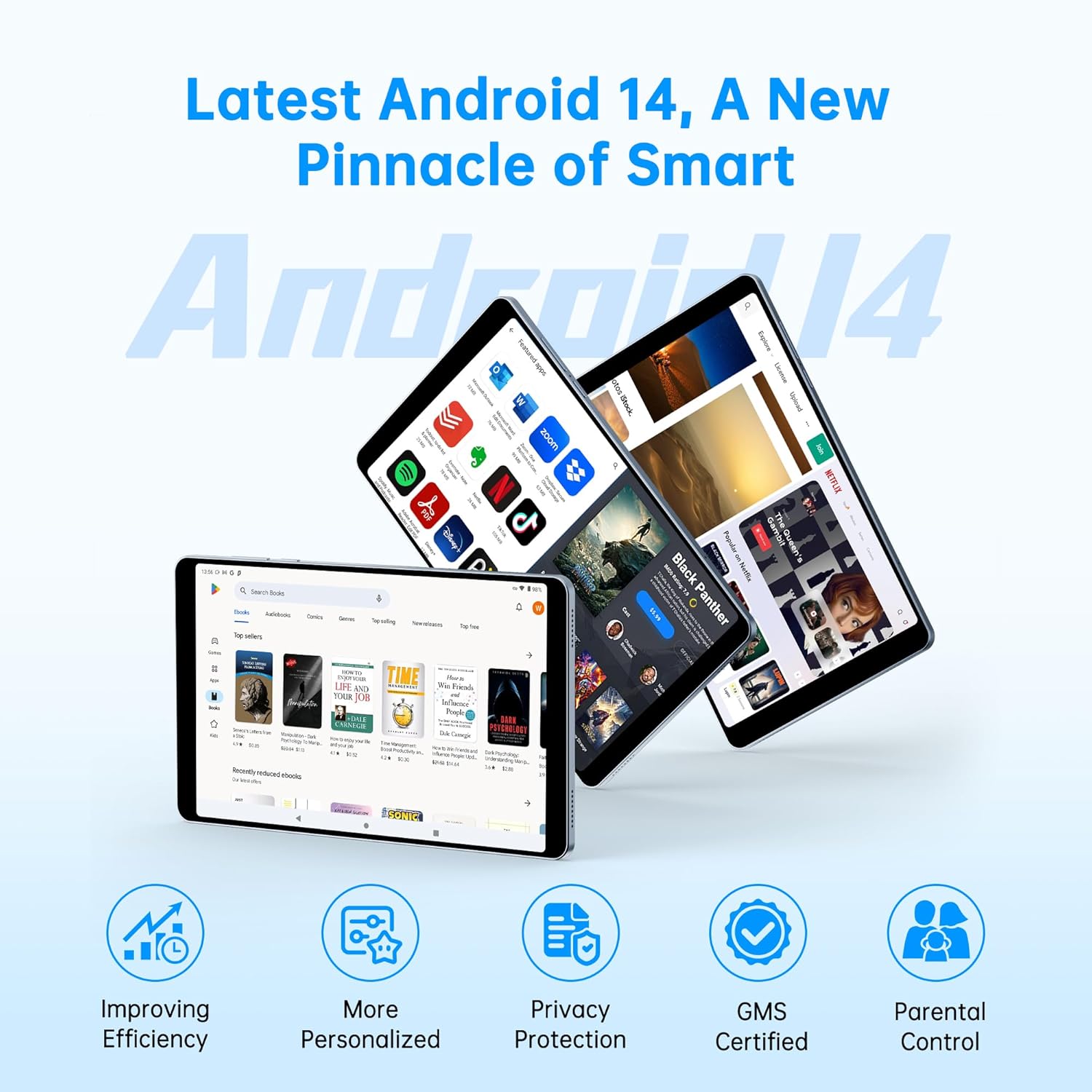
Image: Android 14 interface and key features.
5.2 Wi-Fi and Bluetooth Connectivity
To connect to Wi-Fi or Bluetooth devices:
- Go to Settings.
- Select Network & internet for Wi-Fi or Connected devices for Bluetooth.
- Toggle Wi-Fi or Bluetooth On.
- Select the desired network or device and enter credentials if required.
The tablet supports 2.4G/5G Wi-Fi and Bluetooth 5.0 for stable and fast wireless connections.

Image: Wireless connectivity features.
5.3 Camera Usage
The tablet is equipped with a 16MP rear camera and a 5MP front camera. Open the Camera app to capture photos and videos. Features include:
- 16MP Rear Camera: For high-resolution photos and document scanning.
- 5MP Front Camera: Ideal for video conferencing and selfies.

Image: Camera features and face unlock.
5.4 Face Unlock
For quick and secure access, set up Face Unlock in the tablet's security settings. This allows you to unlock your device using facial recognition.

Image: Face Unlock feature in use.
5.5 GPS Navigation
The tablet supports multiple navigation systems including GPS, BeiDou, Galileo, and Glonass. You can download maps for offline navigation using compatible applications.

Image: Tablet used for GPS navigation in a vehicle.
5.6 Media Consumption
Enjoy a high-quality visual experience with the 1340x800 HD IPS display and stereo speakers. The tablet supports Google Widevine L1 DRM, allowing for 1080P streaming on platforms like Netflix, YouTube, Amazon Prime Video, and Hulu.

Image: Display features and streaming service compatibility.
5.7 Productivity Features
- Split Screen Function: Open two applications simultaneously for enhanced multitasking.
- Three-finger Screenshots: Swipe down on the screen with three fingers to quickly capture a screenshot.

Image: Split screen and three-finger screenshot features.
5.8 Parental Control (Family Link)
Utilize Google Family Link to set digital boundaries and manage your child's device usage. This feature allows you to control app access, screen time, and location tracking.

Image: Google Family Link for parental controls.
5.9 Reading Modes
The tablet offers various display modes to enhance your reading experience and reduce eye strain:
- Reading Mode: Optimizes the screen for text-based content.
- Eye Protection Mode: Reduces blue light emission.
- Dark Mode: Inverts colors for a darker interface, suitable for low-light environments.

Image: Various reading and display modes.
6. Maintenance
6.1 Cleaning the Device
To clean your tablet, use a soft, lint-free cloth. For stubborn smudges, slightly dampen the cloth with water or a screen cleaner specifically designed for electronics. Avoid using harsh chemicals or abrasive materials.
6.2 Battery Care
The tablet is equipped with a 5100mAh battery. To maximize battery life:
- Avoid extreme temperatures.
- Do not let the battery completely drain frequently.
- Use the provided charger.
- Adjust screen brightness to a comfortable level.
- Close unused applications running in the background.

Image: Battery life estimates for different usage scenarios.
6.3 Software Updates
Regularly check for and install software updates to ensure your tablet has the latest features, security patches, and performance improvements. Go to Settings > System > System update.
6.4 Storage Management
The tablet comes with 128GB of internal storage, expandable up to 2TB with a MicroSD card. Regularly manage your storage by deleting unnecessary files, uninstalling unused apps, and moving media to external storage.
7. Troubleshooting
If you encounter issues with your Topsand N8 Plus tablet, refer to the following common solutions:
- Device not powering on: Ensure the battery is charged. Connect the charger and wait a few minutes before attempting to power on again.
- Wi-Fi connectivity issues: Restart your tablet and your Wi-Fi router. Ensure you are within range and have entered the correct password.
- Apps crashing or freezing: Close and reopen the app. If the issue persists, clear the app's cache (Settings > Apps > [App Name] > Storage > Clear cache) or uninstall and reinstall the app.
- Slow performance: Close background apps, clear cache, or free up storage space. A restart can also improve performance.
- Screen unresponsive: Perform a forced restart by pressing and holding the Power button for approximately 10-15 seconds until the device restarts.
- Factory Reset (Last Resort): If problems persist, you may need to perform a factory reset. This will erase all data on your tablet. Go to Settings > System > Reset options > Erase all data (factory reset). Backup important data before proceeding.
8. Specifications
Detailed technical specifications for the Topsand N8 Plus 8.7-inch Android 14 Tablet:
| Feature | Specification |
|---|---|
| Model Name | N8 Plus |
| Operating System | Android 14 |
| Screen Size | 8.7 Inches |
| Screen Resolution | 1340x800 HD IPS |
| Processor | Octa-core (1.6 GHz, Dual Cortex-A75 + Hexa Cortex-A55) |
| Graphics Coprocessor | Mali-G57 |
| RAM | 12GB (4GB physical + 8GB expansion) |
| Internal Storage (ROM) | 128GB |
| Expandable Storage | Up to 2TB via MicroSD card |
| Rear Camera | 16 MP |
| Front Camera | 5 MP |
| Battery Capacity | 5100 mAh |
| Wireless Connectivity | 2.4G/5G Wi-Fi (802.11a/b/g/n/ac), Bluetooth 5.0 |
| Navigation | GPS/BeiDou/Galileo/Glonass |
| Ports | USB-C, 3.5mm Headphone Jack |
| Dimensions (LxWxH) | 8.38 x 4.94 x 0.33 inches |
| Item Weight | 12.3 ounces |
| Color | Blue |
9. Warranty and Support
Topsand tablet products come with a 1-year warranty. For seamless assistance and dedicated support, please contact the seller directly.
How to Get Technical Help:
- Refer to the contact information provided on your warranty card.
- If purchased online, use the "Contact Seller" button on your order page.
- If the return window has closed, contact the seller directly for assistance rather than the marketplace.