
HD1024
Brightsign HD1024 Full HD Expanded I/O HTML5 Player User Manual
Model: HD1024
Product Overview
The BrightSign HD1024 is a robust and reliable media player designed for mainstream 4Kp60, Full HD, and HTML5 applications. It offers advanced features such as H.265 decoding, HTML5 rendering, and Gigabit Ethernet connectivity, making it suitable for a wide range of digital signage and media playback solutions. Its compact design and comprehensive I/O options ensure ease of integration and high performance.
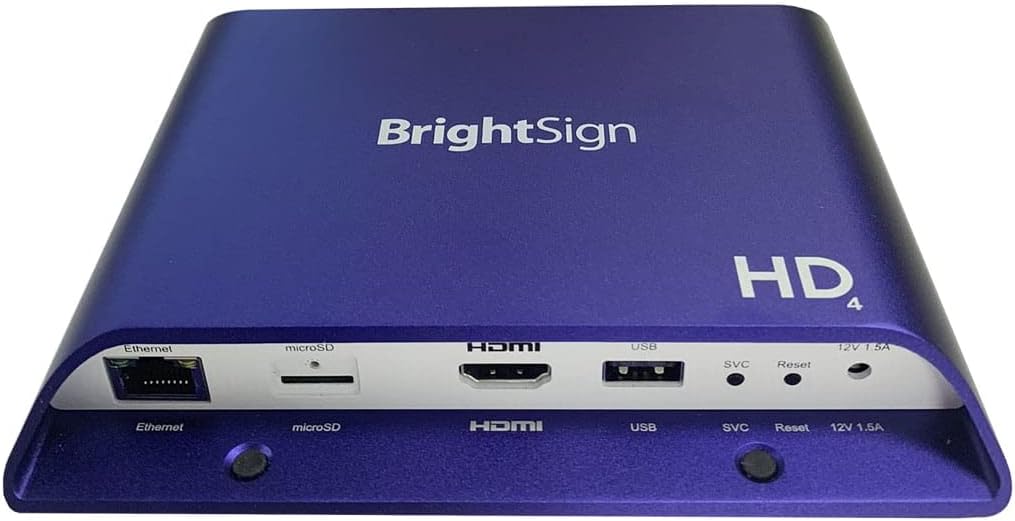
Image: The BrightSign HD1024 player, showcasing its compact blue casing. Visible ports on the front include Ethernet, microSD card slot, HDMI output, USB port, SVC (service) button, Reset button, and a 12V 1.5A power input. The top surface features the "BrightSign" logo and "HD4" branding.
Setup Guide
Package Contents
Before you begin, ensure all items are present in the package:
- BrightSign HD1024 Player
- Power Adapter
- Quick Start Guide (not included in this manual)
Connecting the Device
Follow these steps to set up your BrightSign HD1024 player:
- Connect to Display: Use an HDMI cable (not included) to connect the HDMI output port on the BrightSign HD1024 player to the HDMI input port on your display device (TV, monitor, projector).
- Connect to Network (Optional): For network-enabled content updates and control, connect an Ethernet cable (not included) from your network router or switch to the Ethernet port on the player.
- Insert Storage (Optional): If using local content, insert a microSD card (not included) into the microSD slot on the player. Ensure the card is formatted correctly for your content.
- Connect Power: Plug the provided Power Adapter into the 12V 1.5A power input port on the player, then plug the adapter into a standard electrical outlet. The player will power on automatically.
Initial Power On
Upon connecting power, the BrightSign HD1024 will automatically boot up. The initial boot process may take a few moments. Once complete, the player will display content based on its configuration (e.g., default BrightSign splash screen, or pre-loaded content from the microSD card).
Operating Instructions
Basic Operation
The BrightSign HD1024 is primarily controlled via an application. Content playback and device management are typically handled through BrightSign's BrightAuthor software or BrightSign Network, allowing for remote scheduling, publishing, and monitoring of digital signage content.
Content Playback
The player supports Full HD and 4Kp60 video playback with H.265 decoding. It is also capable of rendering HTML5 content, making it versatile for various media types. Supported file formats include MP4 for video content.
Network Connectivity
Utilize the Gigabit Ethernet port for high-speed network access. This enables seamless content updates, remote management, and integration with network-based interactive features.
Maintenance
Cleaning
To maintain the player's appearance and functionality, periodically clean the exterior with a soft, dry cloth. Do not use liquid cleaners or abrasive materials, as they may damage the casing or internal components. Ensure the device is powered off and unplugged before cleaning.
Storage
When not in use for extended periods, store the BrightSign HD1024 in a cool, dry place, away from direct sunlight and extreme temperatures. Protect it from dust and moisture. It is recommended to disconnect all cables before storage.
Troubleshooting
Common Issues and Solutions
- No Power:
- Ensure the power adapter is securely connected to the player and a working electrical outlet.
- Verify the power outlet is active by testing it with another device.
- No Video Output:
- Check the HDMI cable connection between the player and the display.
- Ensure the display is set to the correct HDMI input source.
- Try a different HDMI cable or display to rule out component issues.
- Network Connectivity Issues:
- Verify the Ethernet cable is properly connected to both the player and the network router/switch.
- Check your network router/switch for proper operation.
- Ensure network settings (IP address, DNS) are correctly configured if using a static IP.
- Content Not Playing:
- Ensure the content is in a supported format (e.g., MP4).
- Verify the microSD card is properly inserted and the content is correctly loaded onto it.
- Check the content schedule and publishing settings in your BrightSign management software.
- Player Unresponsive:
- Press the "Reset" button on the front of the device using a small, pointed object (e.g., a paperclip).
- If the issue persists, disconnect the power adapter, wait 10 seconds, and reconnect it to perform a power cycle.
Technical Specifications
| Model Name | HD1024 |
| Brand | Generic (BrightSign) |
| Product Dimensions | 7"L x 6"W x 2"H (approx. 17.78 x 15.24 x 5.08 cm) |
| Resolution Support | Up to 3840x2160 (4K) at 60fps |
| Media Type | Full HD, 4Kp60, HTML5 |
| Supported File Format | MP4 (H.265 decoding) |
| Connectivity Technology | HDMI, Gigabit Ethernet |
| Connector Type | HDMI, Ethernet, USB, MicroSD, 12V DC |
| Controller Type | App Control |
| Audio Output Mode | Surround |
| Power Input | 12V 1.5A DC |
Warranty Information
This product is covered by a standard manufacturer's warranty. For specific details regarding warranty duration, coverage, and terms, please refer to the warranty card included with your purchase or visit the official BrightSign website. Keep your proof of purchase for warranty claims.
Customer Support
For technical assistance, troubleshooting beyond this manual, or service inquiries, please contact BrightSign customer support. Support resources, including FAQs, software downloads, and contact information, are typically available on the official BrightSign website.
Ask a question about this manual
Ask about setup, troubleshooting, compatibility, parts, safety, or missing instructions. Manuals+ will review the question and use this page’s manual context to help answer it.