
1. Introduction
This manual provides detailed instructions for the installation, operation, and maintenance of your RICHCHO H-ACT397-4 2K Wireless Outdoor Security Camera. This 3MP IP66 waterproof camera features 2K FHD color night vision, AI smart motion detection, cloud storage capabilities, and compatibility with Alexa and Google Assistant for enhanced home security.

Image 1.1: Overview of the RICHCHO 2K Wireless Outdoor Security Camera highlighting its key features.
2. What's in the Box
Verify that all components are present before proceeding with installation:
- 1x 3MP Security Camera (Note: This product is a 4-pack, so you will receive four cameras)
- 1x Power Adapter (per camera)
- 1x Quick Guide
- 1x Metal Bracket (per camera)
- Tools for Installation
3. Setup and Installation
3.1 Mounting the Camera
- Choose a Location: Select an outdoor or indoor location with a clear view of the area you wish to monitor. Ensure the location is within range of your 2.4GHz Wi-Fi network and a power outlet.
- Secure the Bracket: Use the provided metal bracket and installation tools to securely mount the camera to a wall or desired surface.
- Adjust Angle: Position the camera to cover the desired viewing area. The camera offers a 90-degree viewing angle.
3.2 Power Connection
Connect the provided power adapter to the camera and plug it into a standard electrical outlet. The power cord length is 6ft (1.85m).
3.3 App Download and Pairing
- Download the App: Search for the recommended control app (e.g., "meshare" or as specified in the Quick Guide) on your Android or iOS smartphone or tablet.
- Create Account: Open the app and follow the on-screen instructions to create a new user account or log in if you already have one.
- Add Camera: Follow the app's instructions to add your new camera. This typically involves scanning a QR code on the camera or manually entering its ID.
- Connect to Wi-Fi: Ensure your smartphone is connected to a 2.4GHz Wi-Fi network. Follow the app prompts to connect the camera to your home's 2.4GHz Wi-Fi network. Note: This camera only supports 2.4GHz Wi-Fi.

Image 3.1: Illustrates the wall-mounted installation process and voice control integration with Alexa.
4. Operating the Camera
4.1 Live View and Recording
Once connected, open the app on your smartphone or tablet to view the live feed from your camera. The camera supports 24/7 continuous recording, ensuring constant surveillance.

Image 4.1: Demonstrates the 24/7 continuous recording feature and cloud service benefits.
4.2 2K FHD Night Vision
The camera provides 2K Full HD resolution, offering clear and detailed images. It features color night vision with IR-Cut technology and infrared light sources for effective monitoring in low-light conditions.

Image 4.2: Visual comparison illustrating the superior clarity of 2K resolution over 1080P.
4.3 AI Smart Motion Detection
The camera is equipped with AI smart motion detection, capable of distinguishing between humans, animals, and vehicles. This feature helps reduce false alarms by focusing on relevant events. You will receive notifications with a key image when motion is detected.
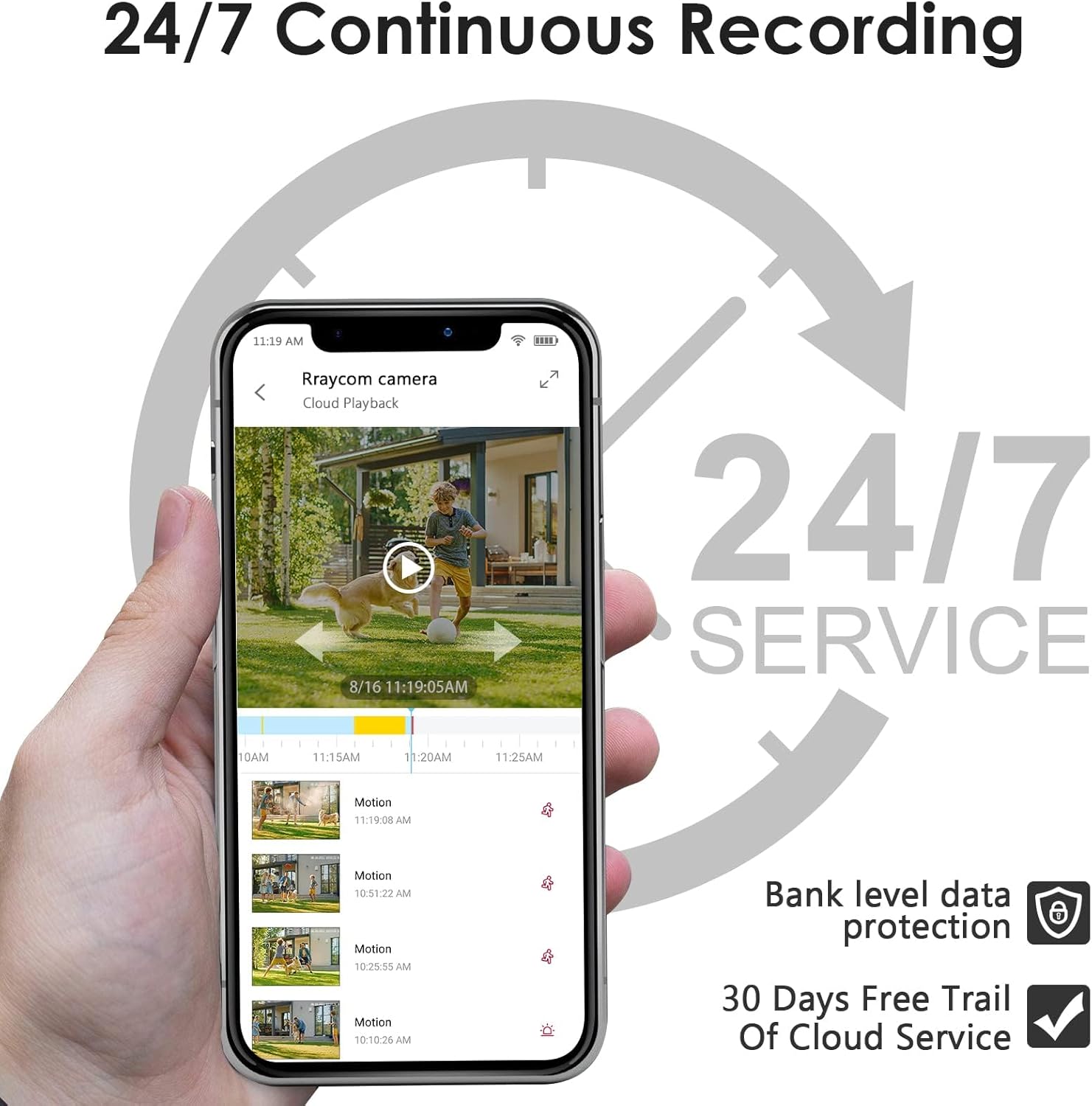
Image 4.3: Explanation of AI Human Motion Detection, showing how it differentiates between humans, animals, and vehicles.
Image 4.4: Example of a motion detection alert received on a smartphone.
4.4 Cloud Storage
The camera supports cloud storage for recorded footage. A 30-day free trial of the "meshare" 7-day cloud recording plan is included. This service offers bank-level data protection to ensure the security of your video data. You can review, save, and share footage at any time through the app.
4.5 Voice Control
The camera is compatible with Amazon Alexa and Google Assistant. You can use voice commands to view live streams on compatible smart displays. For example, say "Alexa, show me the living room" to view the camera feed. Note: This outdoor camera does not support two-way audio.
5. Maintenance
- Cleaning: Periodically clean the camera lens with a soft, dry cloth to ensure clear image quality. Avoid abrasive cleaners.
- Weather Protection: The camera is IP66 weatherproof, designed to resist harsh weather conditions. However, ensure the power connection is secure and protected from direct heavy rainfall if possible.
- Firmware Updates: Check the app regularly for firmware updates to ensure optimal performance and security.
- Connection Check: Occasionally verify the Wi-Fi connection strength and power supply to prevent interruptions in surveillance.
6. Troubleshooting
6.1 Camera Not Connecting to Wi-Fi
- Ensure your Wi-Fi router is operating on a 2.4GHz frequency. The camera does not support 5GHz Wi-Fi.
- Verify the Wi-Fi password is entered correctly in the app.
- Move the camera closer to the Wi-Fi router to improve signal strength.
- Restart your Wi-Fi router and the camera.
6.2 Poor Image Quality
- Clean the camera lens to remove any dust or smudges.
- Ensure the camera is receiving adequate power.
- Check your internet connection speed. A stable connection is required for optimal 2K streaming.
6.3 Motion Detection Not Working or Too Many False Alarms
- Adjust the motion detection sensitivity settings within the app.
- Configure AI detection settings to filter for humans only if desired.
- Ensure there are no obstructions in the camera's field of view that could trigger unwanted alerts.
6.4 Voice Control Issues
- Ensure your Alexa or Google Assistant device is properly linked to your camera's app account.
- Verify that the voice command used is correct (e.g., "Alexa, show me [camera name]").
- Check the internet connection of both the camera and the smart assistant device.
7. Specifications
| Feature | Detail |
|---|---|
| Model Name | H-ACT397-4 |
| Resolution & Frame Rate | 3MP / 25fps (2K FHD) |
| Angle of View | 90 Degrees |
| Waterproof Level | IP66 Outdoor & Indoor |
| Network Environment | 2.4GHz Wi-Fi ONLY |
| Distant Viewing Platforms | Smartphone & Tablet (Android & iOS) |
| Power Source | Corded Electric (5 Volts DC, 5 Watt-hours) |
| Power Cord Length | 6ft (1.85m) |
| Mounting Type | Wall Mount |
| Controller Type | Amazon Alexa, Google Assistant |
| Material | Acrylonitrile Butadiene Styrene (ABS) |
| Low Light Technology | Night Color, Infrared |
| Alert Type | Motion Only (AI Human Detection) |
| Video Capture Format | MPEG-4 |
| Effective Still Resolution | 3 MP |
8. Warranty and Support
8.1 Warranty Information
Specific warranty details for the RICHCHO H-ACT397-4 camera are typically provided with your purchase documentation. Please refer to the warranty card or contact your retailer for information regarding warranty coverage and duration.
8.2 Customer Support
For technical assistance, troubleshooting beyond this manual, or inquiries regarding your product, please contact RICHCHO customer support. Contact information can usually be found on the product packaging, the official RICHCHO website, or within the product's mobile application.