
RICHCHO 5MP Wireless Outdoor Security Camera
RICHCHO 5MP Wireless Outdoor Security Camera User Manual
Model: 5MP Wireless Outdoor Security Camera (ASIN: B0DLH1ZHSK)
1. Introduction
This manual provides detailed instructions for the installation, operation, and maintenance of your RICHCHO 5MP Wireless Outdoor Security Camera. Please read this manual thoroughly before using the product to ensure proper function and safety. This camera is designed for both indoor and outdoor surveillance, offering high-resolution video, advanced motion detection, and two-way communication capabilities.
2. Package Contents
Verify that all items listed below are present in your package:
- RICHCHO 5MP Wireless Outdoor Security Camera
- Mounting Bracket
- Mounting Screws and Wall Anchors
- USB Charging Cable
- User Manual
3. Product Overview
Familiarize yourself with the components of your security camera.
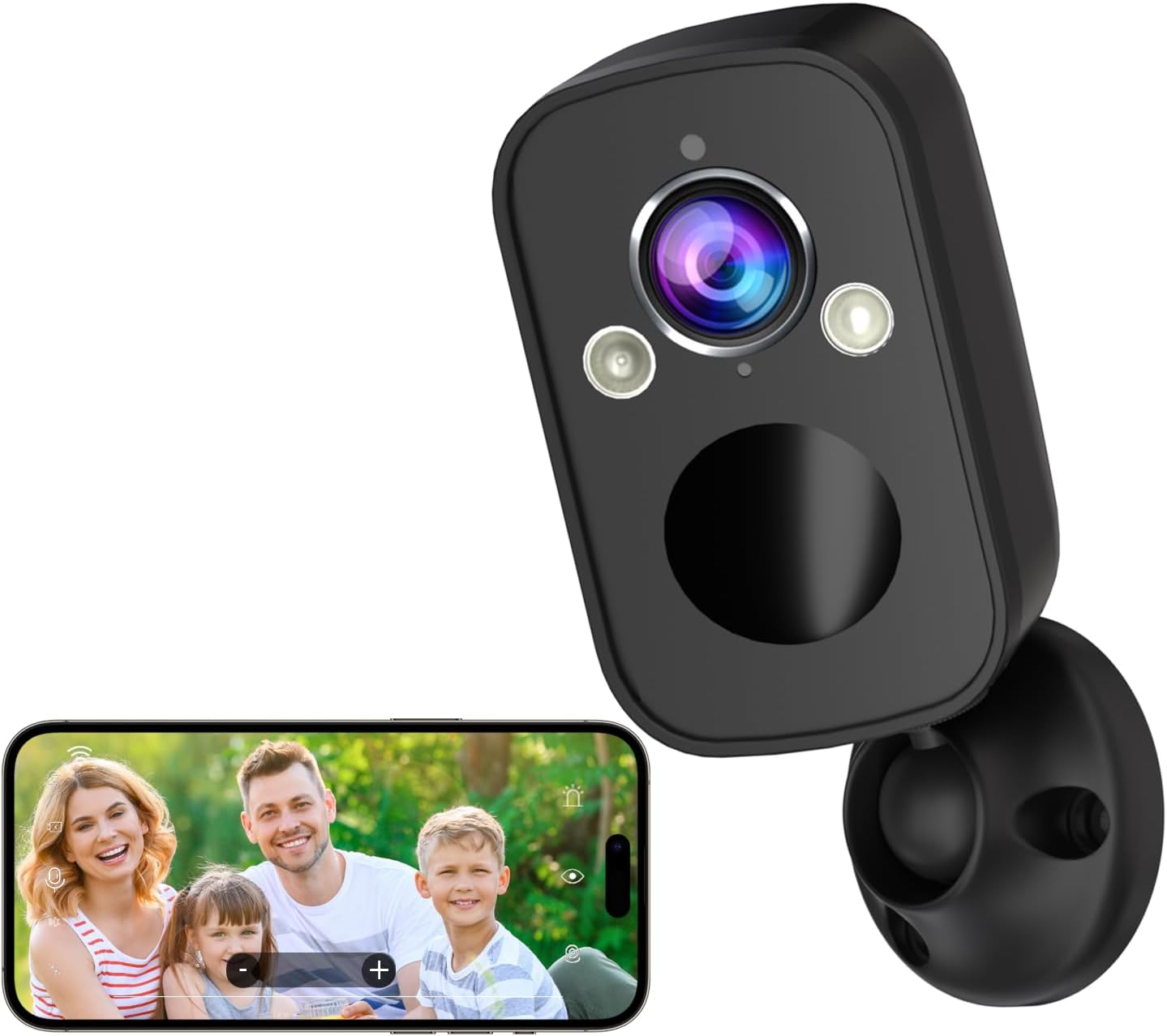
Image 3.1: Front view of the RICHCHO 5MP Wireless Outdoor Security Camera alongside a smartphone showing its live feed. The camera features a lens, two spotlights, and a PIR sensor. The smartphone displays a family in the live view.
The camera unit includes a high-resolution lens, infrared LEDs for night vision, spotlights for color night vision and deterrence, a PIR motion sensor, a microphone, and a speaker for two-way audio. The back of the camera typically houses the charging port and a reset button.
Key Features:

Image 3.2: Visual representation of the camera's main features, including Color Night Vision, IP65 weather resistance, Two-way Audio, Human Detection, 5MP video resolution, Cloud/SD Storage, 130-degree wide angle, and customizable motion zones.
- 5MP Ultra-HD Video: Provides clear and detailed surveillance footage.
- 130° Wide View: Offers extensive coverage of the monitored area.
- Full-Color Night Vision: Utilizes dual light sources for enhanced visibility in low-light conditions.
- PIR Motion Detection with AI Analysis: Intelligently detects human movement to reduce false alarms.
- Two-Way Talk: Enables real-time communication through the camera.
- Siren Alarm & Spotlight: Deters intruders with audible and visual alerts.
- IP65 Waterproof: Ensures durability and reliable operation in various weather conditions.
- Rechargeable Battery: Offers wire-free installation and flexible placement.
- Cloud/SD Storage: Supports both cloud storage (3-day loop free) and local microSD card storage (up to 256GB).
4. Setup Guide
Follow these steps to set up your RICHCHO security camera.
4.1. Charge the Camera
Before initial use, fully charge the camera battery using the provided USB cable and a standard 5V/2A USB power adapter (not included). The charging indicator light will typically turn solid green when fully charged.
4.2. Download and Install the App
Search for the companion app (e.g., "O-KAM" as seen in some product images) in your smartphone's app store (App Store for iOS or Google Play Store for Android). Download and install the app.
4.3. Register an Account
Open the app and follow the on-screen instructions to register a new account. If you already have an account, log in.
4.4. Add the Camera to the App
- Ensure your smartphone is connected to a 2.4GHz Wi-Fi network. The camera does not support 5GHz Wi-Fi.
- In the app, tap the "+" icon or "Add Device" to begin the pairing process.
- Select your camera model from the list of devices.
- Power on the camera. If it's the first time, it should enter pairing mode automatically (indicated by a flashing LED). If not, press and hold the reset button for 5 seconds until the LED flashes.
- Follow the app's instructions to connect the camera to your Wi-Fi network. This usually involves scanning a QR code generated by the app with the camera's lens.
- Once connected, you will hear a confirmation sound from the camera, and the app will display a success message.
4.5. Install the Camera
- Choose a suitable location for installation. Consider the camera's 130° wide view and ensure it covers the desired area without obstructions.
- Use the mounting bracket, screws, and wall anchors to securely attach the camera to a wall or ceiling.
- Adjust the camera angle to achieve optimal surveillance coverage.
5. Operating Instructions
Learn how to use the various features of your RICHCHO security camera.
5.1. Live View
Open the app and select your camera from the device list to access the live video feed. You can view real-time footage from your camera at any time.
5.2. Recording and Playback
The camera supports both cloud storage and local microSD card storage (up to 256GB, sold separately).
- Cloud Storage: The camera offers a free 3-day loop cloud event recording. Access recorded events directly from the app's playback section.
- MicroSD Card: Insert a formatted microSD card into the camera's slot. The camera will automatically record motion-triggered events or continuous video (depending on settings). Access recordings via the app's playback interface.
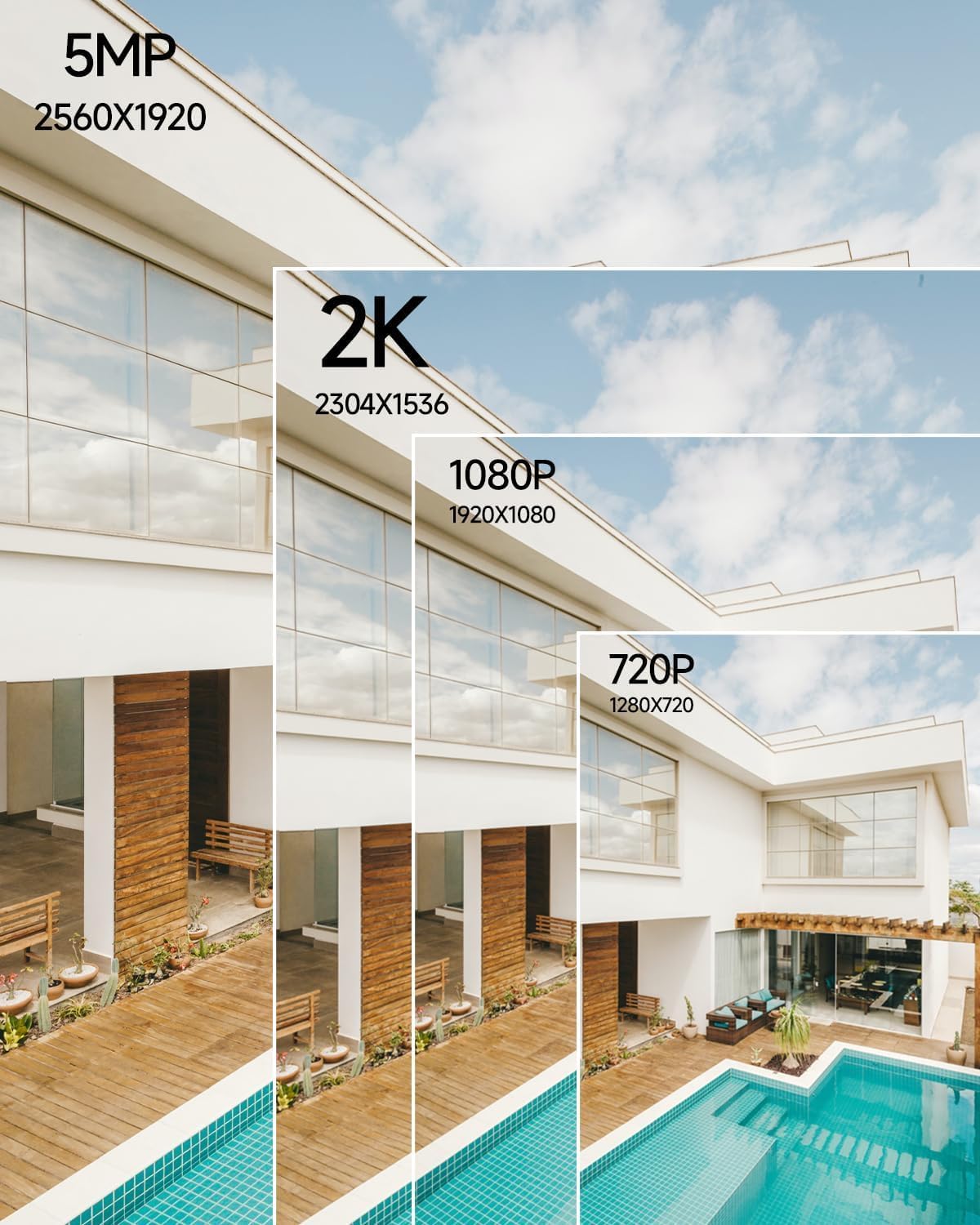
Image 5.1: Visual comparison demonstrating the clarity and detail provided by 5MP resolution (2560x1920) compared to lower resolutions like 2K, 1080P, and 720P.
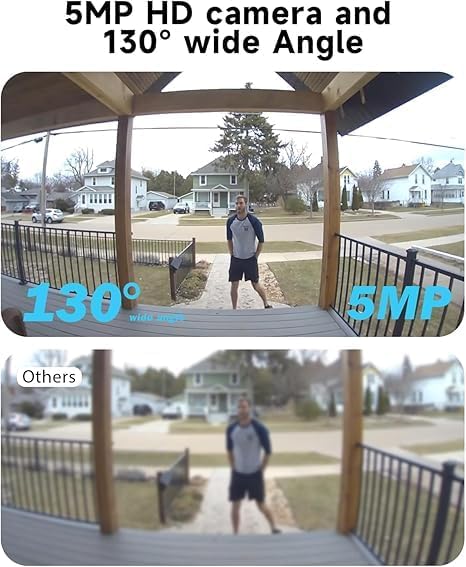
Image 5.2: A split image showing the superior coverage and clarity of the camera's 5MP HD 130-degree wide-angle view compared to a standard, narrower view.
5.3. Two-Way Audio
From the live view in the app, tap the microphone icon to speak through the camera's speaker. Tap the speaker icon to listen to audio from the camera's microphone. This feature allows for communication with visitors or deterrence of unwanted individuals.

Image 5.3: Illustration of the two-way audio function, showing a smartphone app interface used to communicate with someone at the camera's location.
5.4. Motion Detection and Alerts
The camera features advanced PIR motion detection with AI analysis to distinguish between humans and other moving objects, minimizing false alerts.
- Enable/Disable: In the app settings, navigate to the motion detection section to enable or disable this feature.
- Sensitivity: Adjust the motion detection sensitivity level to suit your environment.
- Motion Zones: Customize specific areas within the camera's view where motion detection should be active.
- Notifications: When motion is detected, the app will send real-time push notifications to your smartphone.
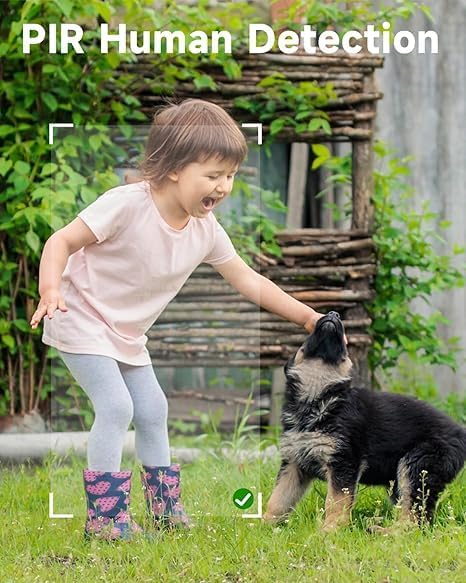
Image 5.4: Demonstrates the PIR Human Detection feature, highlighting its ability to identify human figures within the camera's field of view.

Image 5.5: Illustrates the camera's ability to detect motion, trigger an alarm notification, and enable mobile monitoring when a person is detected near a property.
5.5. Night Vision Modes
The camera offers two night vision modes:
- Infrared Night Vision: Provides black and white video in complete darkness.
- Full-Color Night Vision: Activates the built-in spotlights to provide color video even in low-light conditions. This can also act as a deterrent.
You can switch between these modes or set them to automatic in the app settings.

Image 5.6: Depicts the 5MP Color Night Vision feature, showing how the camera's spotlights enable full-color video capture at night, contrasted with traditional black and white infrared vision.
5.6. Siren Alarm and Spotlight
In the event of suspicious activity, you can manually activate the siren alarm and spotlight through the app to deter intruders. You can also configure these to activate automatically upon motion detection.
6. Maintenance
Proper maintenance ensures the longevity and optimal performance of your camera.
6.1. Battery Charging
The camera is powered by a rechargeable battery. When the battery level is low, you will receive a notification via the app. Recharge the camera using the provided USB cable. The 5200 mAh battery provides extended usage between charges.
6.2. Cleaning
Periodically clean the camera lens and housing with a soft, dry cloth to remove dust and smudges. Do not use harsh chemicals or abrasive materials, as this may damage the lens or finish.
6.3. Firmware Updates
Check the app regularly for available firmware updates. Keeping your camera's firmware up-to-date ensures you have the latest features, security enhancements, and bug fixes.
7. Troubleshooting
If you encounter issues with your camera, refer to the following common problems and solutions.
| Problem | Possible Solution |
|---|---|
| Camera fails to connect to Wi-Fi. |
|
| No motion detection alerts. |
|
| Poor video quality. |
|
| Two-way audio not working. |
|
| Camera battery drains quickly. |
|
8. Specifications
Technical details for the RICHCHO 5MP Wireless Outdoor Security Camera.
| Feature | Detail |
|---|---|
| Model | 5MP Wireless Outdoor Security Camera |
| Resolution | 5 Megapixels (2560x1920) |
| Field of View | 130° Wide Angle |
| Night Vision | Full-Color Night Vision, Infrared Night Vision |
| Motion Detection | PIR with AI Human Detection |
| Audio | Two-Way Talk |
| Storage Options | Cloud Storage (3-day loop free), MicroSD Card (up to 256GB) |
| Connectivity | 2.4GHz Wi-Fi (IEEE 802.11b/g/n) |
| Power Source | Rechargeable Battery (5200 mAh) |
| Weather Resistance | IP65 Waterproof |
| Compatible Devices | Android & iOS |
| Controller Type | Amazon Alexa (via app integration) |

Image 8.1: Illustrates the camera's use of a US-based cloud server, emphasizing data security through AES Encryption.
9. Warranty and Support
RICHCHO products are designed for reliability and performance. For warranty information, technical support, or any inquiries regarding your product, please refer to the contact information provided on the product packaging or visit the official RICHCHO website. Please retain your proof of purchase for warranty claims.
Ask a question about this manual
Ask about setup, troubleshooting, compatibility, parts, safety, or missing instructions. Manuals+ will review the question and use this page’s manual context to help answer it.