
Introduction
Thank you for choosing the Dexnor Magic Style Keyboard Case. This manual provides detailed instructions on how to set up, operate, and maintain your new keyboard case, transforming your iPad into a powerful, laptop-like device for enhanced productivity and versatility.
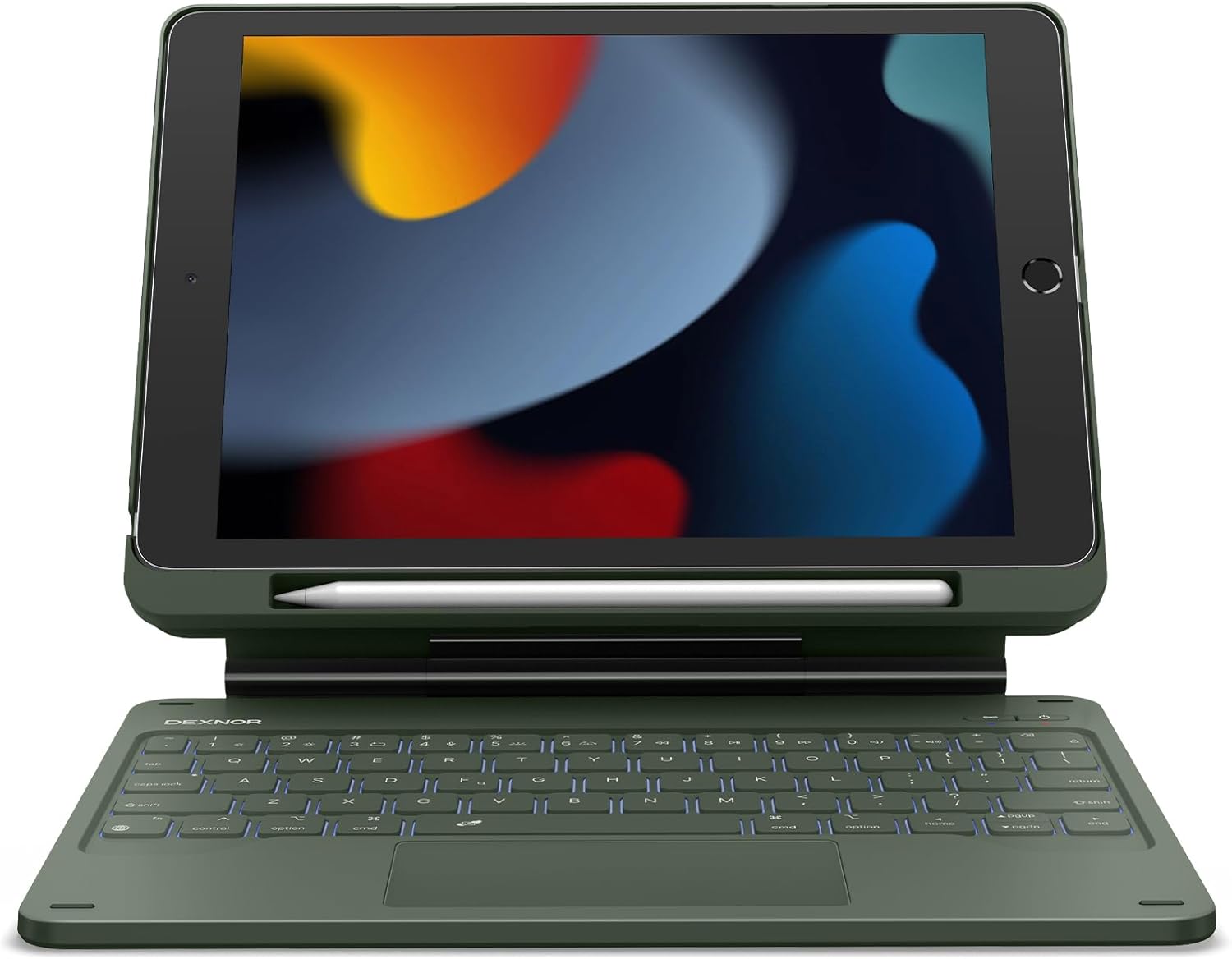
Image: Dexnor Magic Style Keyboard Case in Army Green with an iPad, showcasing its design.
Package Contents
Please check the package contents to ensure all items are present:
- 1x Dexnor Bluetooth Keyboard Case
- 1x USB-C Charging Cable
- 1x Quick-start Guide
- 1x User Manual (this document)
Compatibility
This keyboard case is compatible with the following iPad 10.2-inch models:
- iPad 9th Generation (2021): Models A2602, A2603, A2604, A2605
- iPad 8th Generation (2020): Models A2270, A2428, A2429, A2430
- iPad 7th Generation (2019): Models A2197, A2198, A2200
Important: Please verify your iPad model number before use to ensure compatibility.
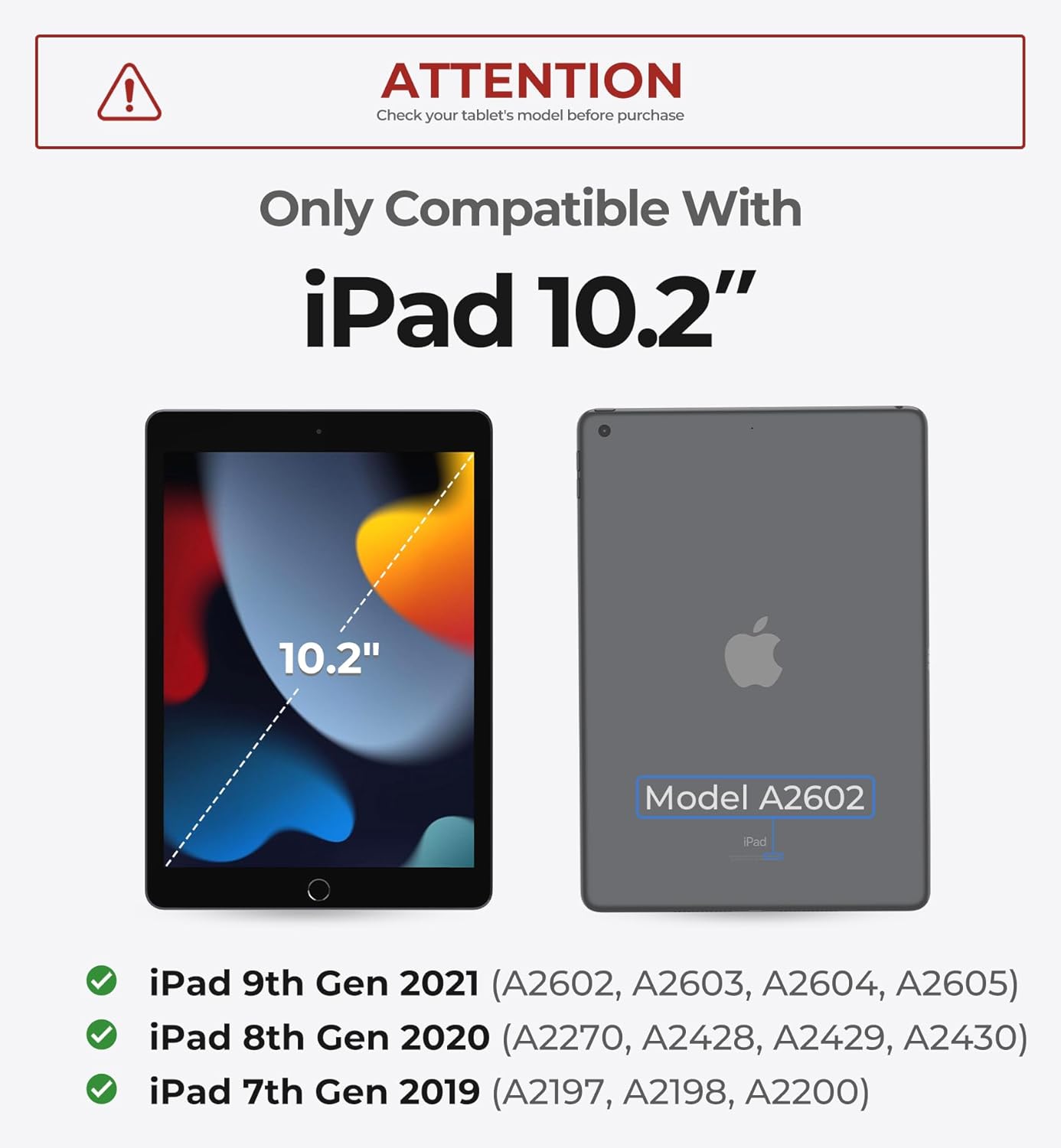
Image: Visual guide showing iPad 10.2-inch dimensions and compatible model numbers.
Setup Guide
1. Installing Your iPad
- Carefully take off the PC case from the keyboard unit.
- Align your iPad with the PC case and gently press it into place until it is securely seated.
- Attach the iPad (now in its PC case) to the magnetic stand of the keyboard unit. The strong magnets will securely hold it in place, allowing for a floating cantilever setup.

Image: Demonstrates the secure magnetic attachment of the iPad to the keyboard stand, showing both landscape and portrait modes.
2. Powering On and Bluetooth Pairing
- Turn On Keyboard: Press the power button on the keyboard for 2 seconds to turn it on.
- Enter Pairing Mode: Press the Bluetooth pairing button (often indicated by a Bluetooth icon) for 2 seconds to enter pairing mode. The indicator light will flash.
- Pair with iPad: On your iPad, go to Settings > Bluetooth. Ensure Bluetooth is turned on. Find "Dexnor Keyboard" in the list of available devices and tap to connect. Once connected, the indicator light on the keyboard will stop flashing.
Video: Demonstrates the setup process, including installing the iPad, turning on the keyboard, and Bluetooth pairing. (Duration: 0:56)
Operating Instructions
Typing Experience
The keyboard features a scissor-switch key mechanism for a comfortable and quiet typing experience. The keys are perfectly spaced for ultimate typing ease, boosting your productivity.
Multi-Touch Trackpad
Navigate your iPad with unparalleled precision using the high-precision multi-touch trackpad. It seamlessly supports multi-finger gestures for actions like tap, pinch, scroll, and swipe, allowing for efficient task management, web browsing, and presentation crafting.
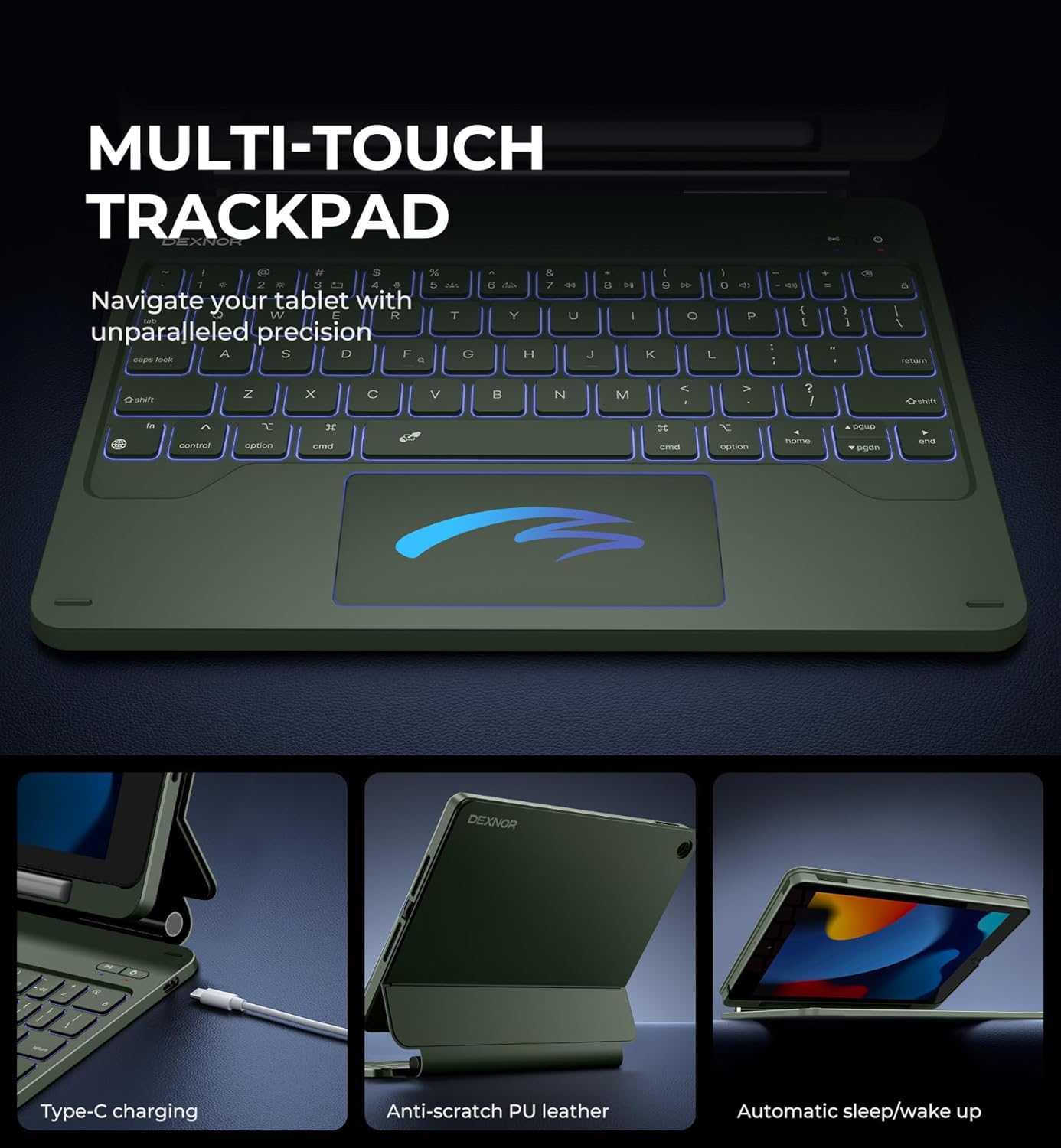
Image: Highlights the multi-touch trackpad, Type-C charging port, anti-scratch PU leather, and automatic sleep/wake function.
Backlit Keys
Illuminate your typing experience with 7 solid color backlights and 3 adjustable brightness levels. This feature is ideal for typing in low-light conditions.

Image: Shows the keyboard with various backlight colors, illustrating the 7 backlight modes.
Shortcut Keys
The keyboard features a full row of practical shortcut keys, providing easy access to media controls, volume adjustments, and other functions. To activate shortcut functions and adjust backlight, press the Fn key together with the relevant shortcut key.
Built-in Pencil Holder
The detachable PC case includes a built-in pencil holder for secure storage and quick access to your Apple Pencil.

Image: Close-up of the detachable magnetic case, highlighting the built-in pencil holder.
Versatile Usage Modes
The floating cantilever stand allows for customizable angles tailored for typing, reading, and immersive viewing, making it a perfect companion for various activities.
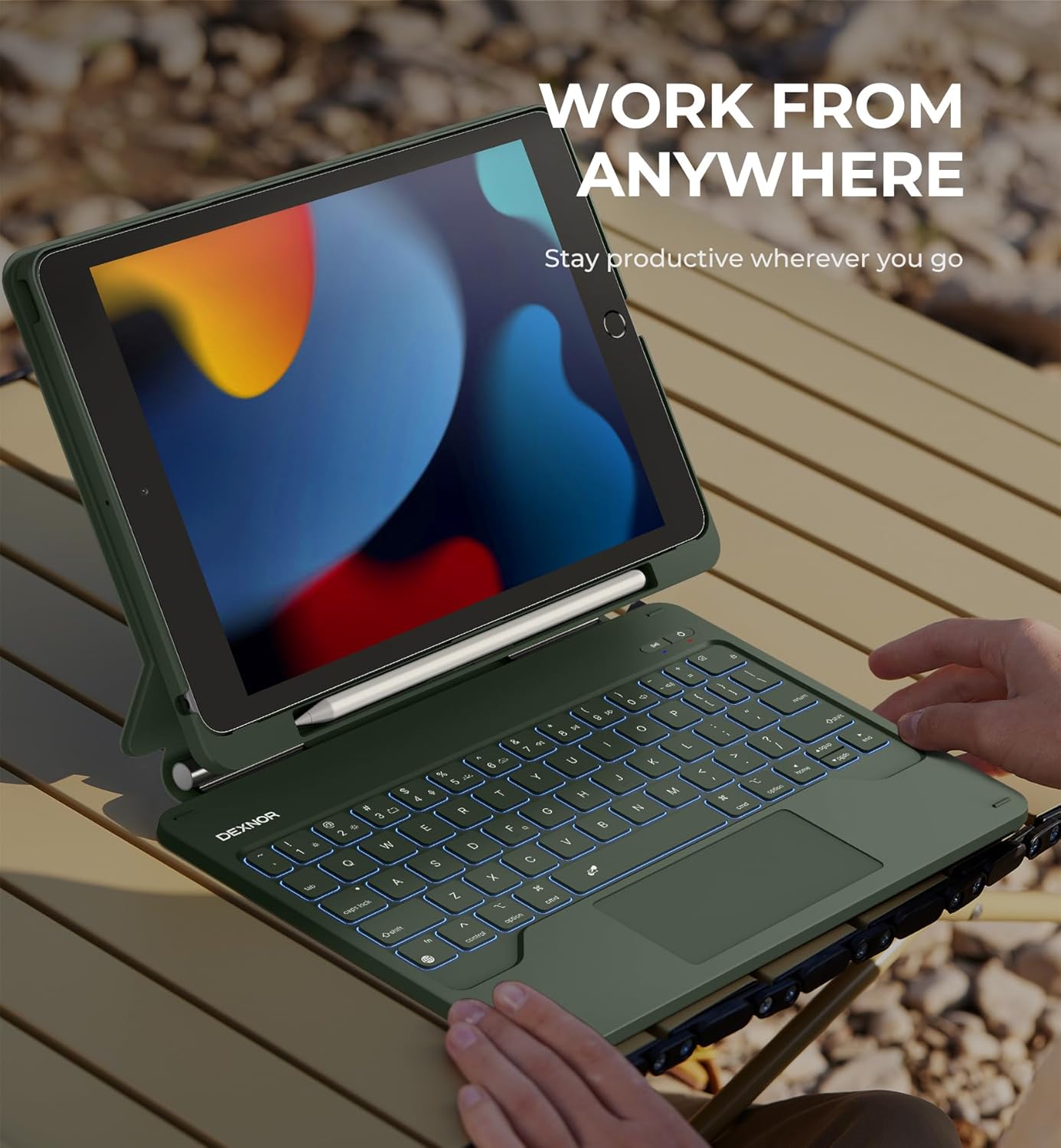
Image: A person using the Dexnor keyboard case with their iPad in a 'work from anywhere' scenario, demonstrating portability and functionality.
Video: Showcases the Magic Style Keyboard Case's features, including tablet-to-laptop transformation, built-in touchpad, typing experience, pencil holder, and various viewing modes. (Duration: 0:45)
Charging and Battery
The keyboard is equipped with a long-lasting 650mAh battery, providing up to 200 hours of working time and 1200 hours of standby time on a single charge. It can be fully recharged in approximately 3.5 hours using the included USB-C cable.
Charging Indicators:
- The red LED will flash when the battery is low and requires charging.
- The yellow LED will remain on during charging.
- The yellow LED will turn off once the keyboard is fully charged.
The auto wake/sleep function helps conserve battery power and extend battery life.
Maintenance
To ensure the longevity and optimal performance of your Dexnor Magic Style Keyboard Case, please follow these maintenance guidelines:
- Cleaning: Use a soft, lint-free cloth slightly dampened with water or a mild cleaning solution to wipe down the keyboard and case. Avoid harsh chemicals or abrasive materials.
- Storage: When not in use, store the keyboard case in a cool, dry place away from direct sunlight and extreme temperatures.
- Protection: The case offers all-around protection for your iPad. While durable, avoid dropping the device from excessive heights or exposing it to sharp objects.
- Charging: Use only the provided USB-C cable or a certified equivalent for charging to prevent damage to the battery.
Troubleshooting
If you encounter any issues with your Dexnor Magic Style Keyboard Case, please refer to the following common solutions:
| Problem | Possible Solution |
|---|---|
| Keyboard not turning on | Ensure the keyboard is charged. Press and hold the power button for 2-3 seconds. |
| Unable to pair via Bluetooth | Make sure the keyboard is in pairing mode (indicator light flashing). On your iPad, turn Bluetooth off and on again. Forget the device if previously paired and try reconnecting. Ensure the keyboard is charged. |
| Keys not responding | Check Bluetooth connection. Recharge the keyboard. Restart both the iPad and the keyboard. |
| Trackpad not working | Ensure Bluetooth is connected. Check iPad settings for trackpad functionality. Restart the keyboard and iPad. |
| Backlight not working/adjusting | Press Fn + backlight key (often a sun icon) to cycle through brightness levels and colors. Ensure the keyboard is charged. |
If the issue persists after trying these solutions, please contact Dexnor customer support for further assistance.
Specifications
| Feature | Detail |
|---|---|
| Model Number | DK007 |
| Compatible Devices | iPad 9th Gen, iPad 8th Gen, iPad 7th Gen (10.2-inch) |
| Connectivity Technology | Bluetooth |
| Keyboard Description | Multi Functional |
| Special Features | Floating Cantilever Design, Laptop-like Experience, Multi-Touch Trackpad, USB-C Rechargeable, Backlit Keys (7 colors, 3 brightness levels), Built-in Pencil Holder |
| Battery Capacity | 650mAh |
| Working Time | Up to 200 hours |
| Standby Time | Up to 1200 hours |
| Charging Time | Approx. 3.5 hours |
| Item Weight | 1.79 pounds |
| Package Dimensions | 11.46 x 9.53 x 1.73 inches |
| Manufacturer | Dexnor |
| Country of Origin | China |
Warranty and Support
Dexnor products come with a standard manufacturer's warranty. For specific warranty details, registration, or technical support, please refer to the warranty card included in your package or visit the official Dexnor website. You can also contact Dexnor customer service through the platform where you purchased the product.
Please retain your proof of purchase for warranty claims.

