
PHILIPS 32B1U3900/00
PHILIPS 32" 4K UHD Monitor User Manual
Model: 32B1U3900/00
1. Introduction
Thank you for choosing the PHILIPS 32" 4K UHD monitor with USB-C docking. This manual provides essential information for setting up, operating, and maintaining your new display. This monitor is designed to deliver stunning 4K resolution visuals with a wide color gamut, making it ideal for professional and personal use. Its integrated USB-C docking station simplifies connectivity, allowing for a single-cable solution for video, data, and power delivery.

Figure 1.1: Front view of the PHILIPS 32" 4K UHD monitor, showcasing its key features including 32-inch screen, 4K Ultra HD resolution, USB-C docking, wide viewing angle, CompactErgo Base, and SmartImage technology.
Key features of this monitor include:
- Integrated USB Type-C Docking Station: Features a slim, reversible USB-C connector for easy one-cable docking. Connect peripherals like keyboard, mouse, and RJ-45 Ethernet directly to the monitor. It supports high-resolution video, super-speed data transfer, and simultaneous notebook charging.
- VA LED Display Technology: Utilizes advanced multi-domain vertical alignment technology for super-high static contrast ratios, resulting in vivid and bright images. Offers a 178/178 degree extra-wide viewing angle for crisp images.
- 10-bit Display with 1.074 Billion Colors: Delivers rich color depth and 12-bit internal processing for smooth, natural color reproduction without gradations or color banding.
- UltraClear 4K UHD (3840 x 2160) Resolution: High-performance panel provides extremely detailed images, suitable for CAD solutions, 3D graphics applications, and large spreadsheets.
- SmartImage Technology: An exclusive Philips technology that analyzes screen content and optimizes display performance, offering various user-friendly modes.
2. Safety Information
Please read and follow all safety instructions carefully before operating the monitor to prevent electric shock, fire, and damage to the unit.
- Ensure the monitor is connected to a power source with the correct voltage.
- Do not expose the monitor to rain or moisture to avoid fire or shock hazards.
- Do not open the monitor casing. There are no user-serviceable parts inside. Refer all servicing to qualified service personnel.
- Place the monitor on a stable, flat surface to prevent it from falling.
- Keep the monitor away from direct sunlight, heat sources, and excessive dust.
- Ensure proper ventilation around the monitor. Do not block ventilation openings.
- Unplug the monitor from the power outlet during lightning storms or when unused for long periods.
3. Package Contents
Verify that all items listed below are included in your package. If any items are missing or damaged, please contact your retailer.
- PHILIPS 32" 4K UHD Monitor Unit
- Monitor Stand (Base and Neck)
- Power Cable
- USB-C to USB-C Cable
- HDMI Cable
- User Manual (this document)
4. Setup
4.1. Assembling the Monitor Stand
Follow these steps to attach the stand to your monitor:
- Carefully place the monitor face down on a soft, clean surface to prevent scratches.
- Align the stand neck with the mounting holes on the back of the monitor.
- Secure the stand neck to the monitor using the provided screws.
- Attach the stand base to the stand neck and tighten the thumb screw at the bottom of the base.
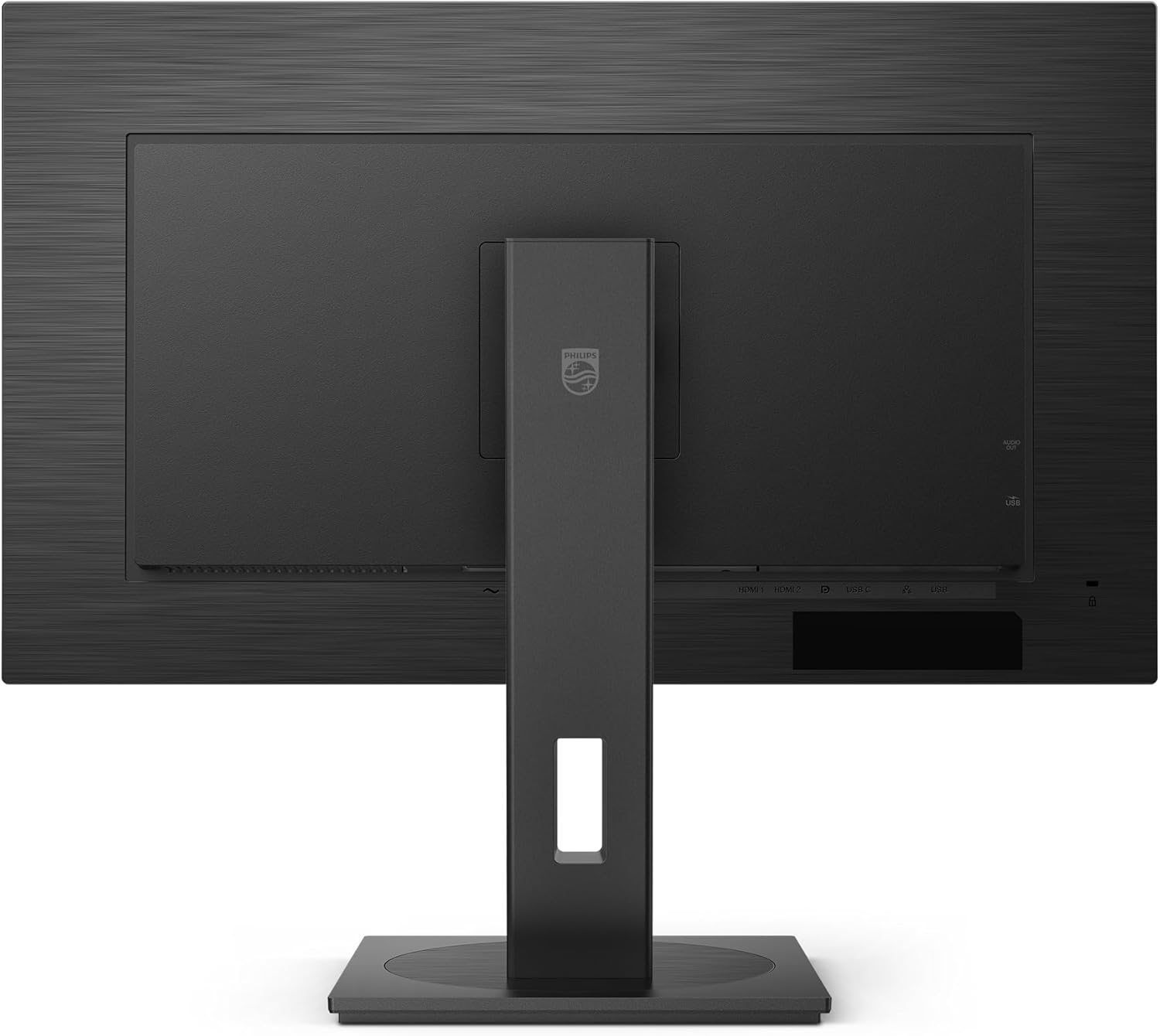
Figure 4.1: Rear view of the monitor with the stand assembled, illustrating the attachment points.
4.2. Connecting the Monitor
Connect the monitor to your computer and power source using the appropriate cables.
- Power Connection: Connect the power cable to the AC input port on the monitor and then to a wall outlet.
- USB-C Connection: For a single-cable solution for video, data, and power delivery, connect one end of the USB-C cable to the USB-C port on the monitor and the other end to a compatible USB-C port on your laptop or computer.
- HDMI Connection: Connect one end of the HDMI cable to the HDMI port on the monitor and the other end to the HDMI output port on your computer.
- USB Peripherals: Connect your keyboard, mouse, or other USB devices to the USB-A ports on the monitor's built-in USB hub.
- Ethernet Connection: If using the USB-C docking feature, connect an Ethernet cable to the RJ-45 port on the monitor for network access.

Figure 4.2: Rear view of the monitor's connectivity ports, including HDMI, DisplayPort, USB-C, and USB-A ports.

Figure 4.3: Side view of the monitor, highlighting conveniently located USB-A ports and a headphone jack.
5. Operating
5.1. Power On/Off
Press the power button located on the bottom right side of the monitor to turn it on or off. The power LED indicator will illuminate when the monitor is on.
5.2. On-Screen Display (OSD) Menu
The OSD menu allows you to adjust various monitor settings. Use the control buttons (usually located on the bottom or rear of the monitor) to navigate the menu.
- Brightness/Contrast: Adjust the overall luminance and contrast of the display.
- Color Settings: Modify color temperature, gamma, and color space.
- Input Select: Manually switch between HDMI, DisplayPort, or USB-C inputs.
- Audio: Adjust volume for connected audio devices (if applicable).
- OSD Settings: Customize OSD language, transparency, and timeout.
5.3. SmartImage
SmartImage is a proprietary Philips technology that optimizes display performance based on the content being viewed. You can select various modes through the OSD menu or a dedicated SmartImage button (if available).
- Office Mode: Optimized for text and general office applications.
- Photo Mode: Enhances colors and details for viewing photos.
- Movie Mode: Provides dynamic contrast and sharpness for video playback.
- Game Mode: Reduces input lag and enhances visibility in dark areas for gaming.
- Economy Mode: Reduces power consumption for energy saving.
5.4. USB-C Docking Functionality
The integrated USB-C docking station allows for a streamlined workspace. By connecting your laptop via a single USB-C cable, you can:
- Display video output from your laptop on the monitor.
- Transfer data to and from USB devices connected to the monitor's USB ports.
- Charge your laptop (up to 90W Power Delivery).
- Access a wired network connection via the monitor's RJ-45 port.
6. Maintenance
Proper care and maintenance will ensure the longevity of your monitor.
- Cleaning the Screen: Gently wipe the screen with a soft, lint-free cloth. For stubborn marks, dampen the cloth with a mild, non-abrasive screen cleaner. Do not spray cleaner directly onto the screen.
- Cleaning the Casing: Use a soft, dry cloth to wipe the monitor casing. Avoid using strong detergents or abrasive cleaners.
- Ventilation: Ensure the ventilation openings on the monitor are not blocked by dust or debris. Periodically clean them with a soft brush or compressed air.
- Power Off: Always turn off and unplug the monitor before cleaning or when not in use for extended periods.
7. Troubleshooting
If you encounter issues with your monitor, refer to the table below for common problems and their solutions.
| Problem | Possible Cause | Solution |
|---|---|---|
| No image on screen | Monitor not powered on; Incorrect input selected; Video cable loose or disconnected. | Ensure power cable is securely connected and monitor is turned on. Select the correct input source (HDMI, USB-C). Check video cable connections at both the monitor and computer. |
| Image too dark or bright | Brightness/Contrast settings are incorrect. | Adjust Brightness and Contrast settings via the OSD menu. Consider using SmartImage modes. |
| USB-C docking not working (no video/data/charge) | USB-C cable not fully connected; Laptop not compatible with USB-C Alt Mode/Power Delivery; Driver issues. | Ensure the USB-C cable is fully inserted into both the monitor and laptop. Verify your laptop's USB-C port supports DisplayPort Alt Mode and Power Delivery. Update graphics and USB-C drivers on your laptop. |
| Monitor flickering | Incorrect refresh rate; Loose video cable; Interference. | Set the display refresh rate to the recommended value (e.g., 60Hz) in your computer's display settings. Check video cable connections. Move monitor away from other electronic devices that may cause interference. |
8. Specifications
Detailed technical specifications for the PHILIPS 32" 4K UHD monitor (Model: 32B1U3900/00).
| Feature | Specification |
|---|---|
| Model Number | 32B1U3900/00 |
| Screen Size | 32 Inches |
| Resolution | 3840 x 2160 Pixels (4K UHD 2160p) |
| Aspect Ratio | 16:9 |
| Image Brightness | 350 cd/m² |
| Screen Surface Description | Matte |
| Total USB Ports | 1 (USB-C for docking, plus additional USB-A ports on hub) |
| Product Dimensions (L x W x H) | 11.02 x 28.11 x 24.84 inches |
| Item Weight | 25.2 pounds |
| Manufacturer | Philips |
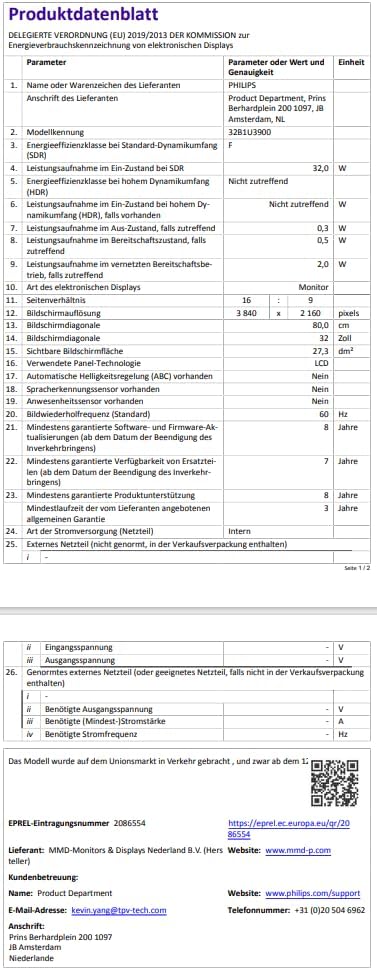
Figure 8.1: Energy label for the PHILIPS 32B1U3900 monitor, indicating its energy efficiency class and consumption.

Figure 8.2: Product Information Sheet providing comprehensive technical details and regulatory compliance for the monitor. For more details, visit the official EPREL database: https://eprel.ec.europa.eu/qr/2086554
9. Warranty and Support
This PHILIPS monitor is manufactured by Philips and was first available on February 1, 2025. For warranty information, please refer to the warranty card included with your product or visit the official Philips support website.
For technical support, troubleshooting assistance, or service inquiries, please contact Philips customer support:
- Online Support: Visit the official Philips support page for FAQs, drivers, and manuals: https://www.philips.com/support
- Philips Store: Explore other Philips products and information: Philips Store on Amazon
Ask a question about this manual
Ask about setup, troubleshooting, compatibility, parts, safety, or missing instructions. Manuals+ will review the question and use this page’s manual context to help answer it.