
1. Introduction
This manual provides detailed instructions for the installation, configuration, and operation of your SODOLA 6-Port 10G Web Managed Ethernet Switch. This high-performance switch is designed to enhance network connectivity with its 4x10G RJ45 ports and 2x10G SFP+ ports, supporting various speeds and advanced management features.

Figure 1: SODOLA 6-Port 10G Web Managed Ethernet Switch (Model: 4x10G RJ45+2x10G SFP+)
The switch is compliant with IEEE 802.3, IEEE 802.3u, IEEE 802.3ab, IEEE 802.3bz, and IEEE 802.3ae standards, ensuring broad compatibility and reliable performance for demanding network environments.
2. Package Contents
Verify that all items are present and in good condition. If any item is missing or damaged, please contact your vendor.
- 1 x SODOLA 6-Port 10G Managed Ethernet Switch
- 1 x User Manual
- 1 x Power Cord
- 4 x Footrests
- 1 x Certificate of Inspection
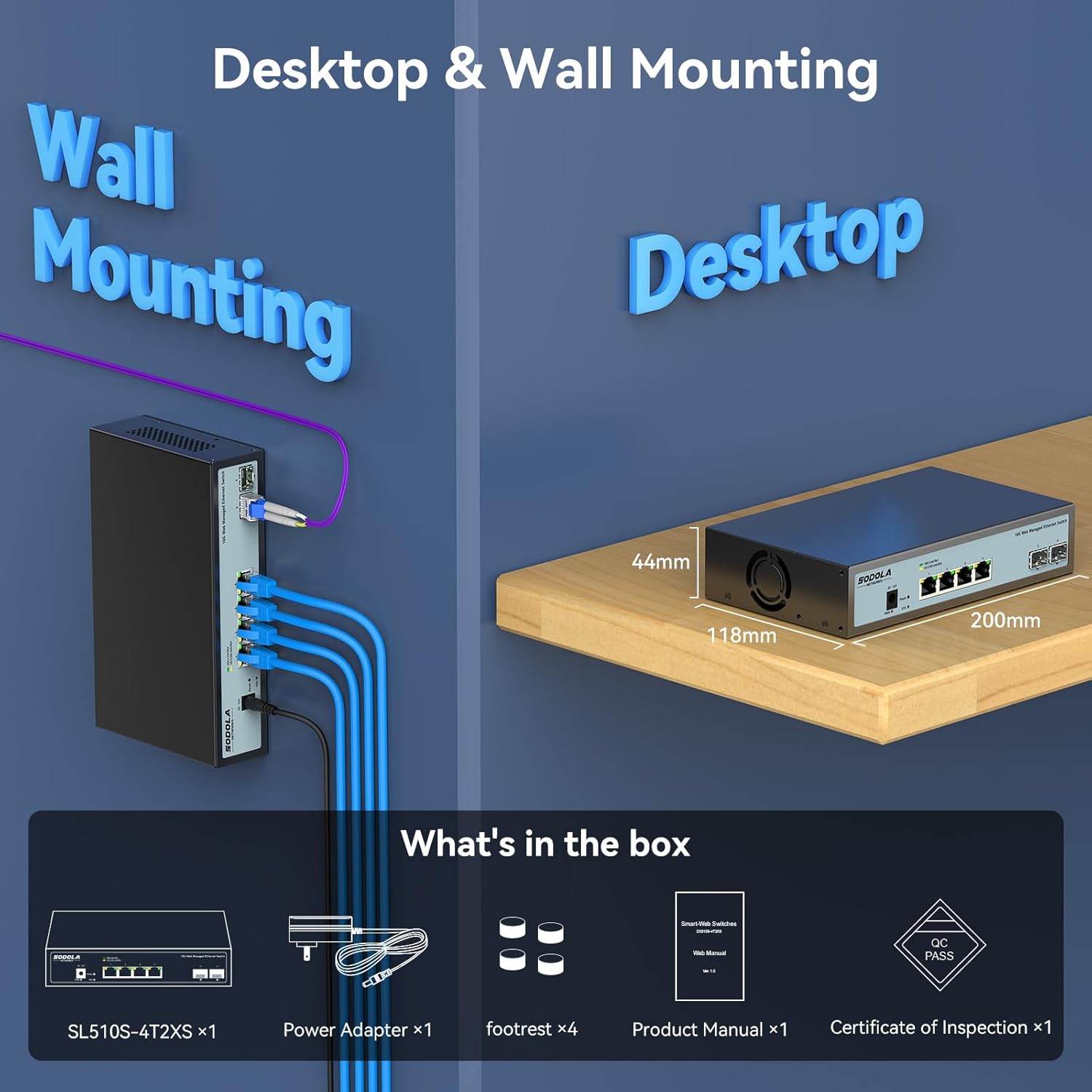
Figure 2: Included items: Switch, Power Adapter, Footrests, Product Manual, and Certificate of Inspection.
3. Hardware Overview
3.1 Front Panel
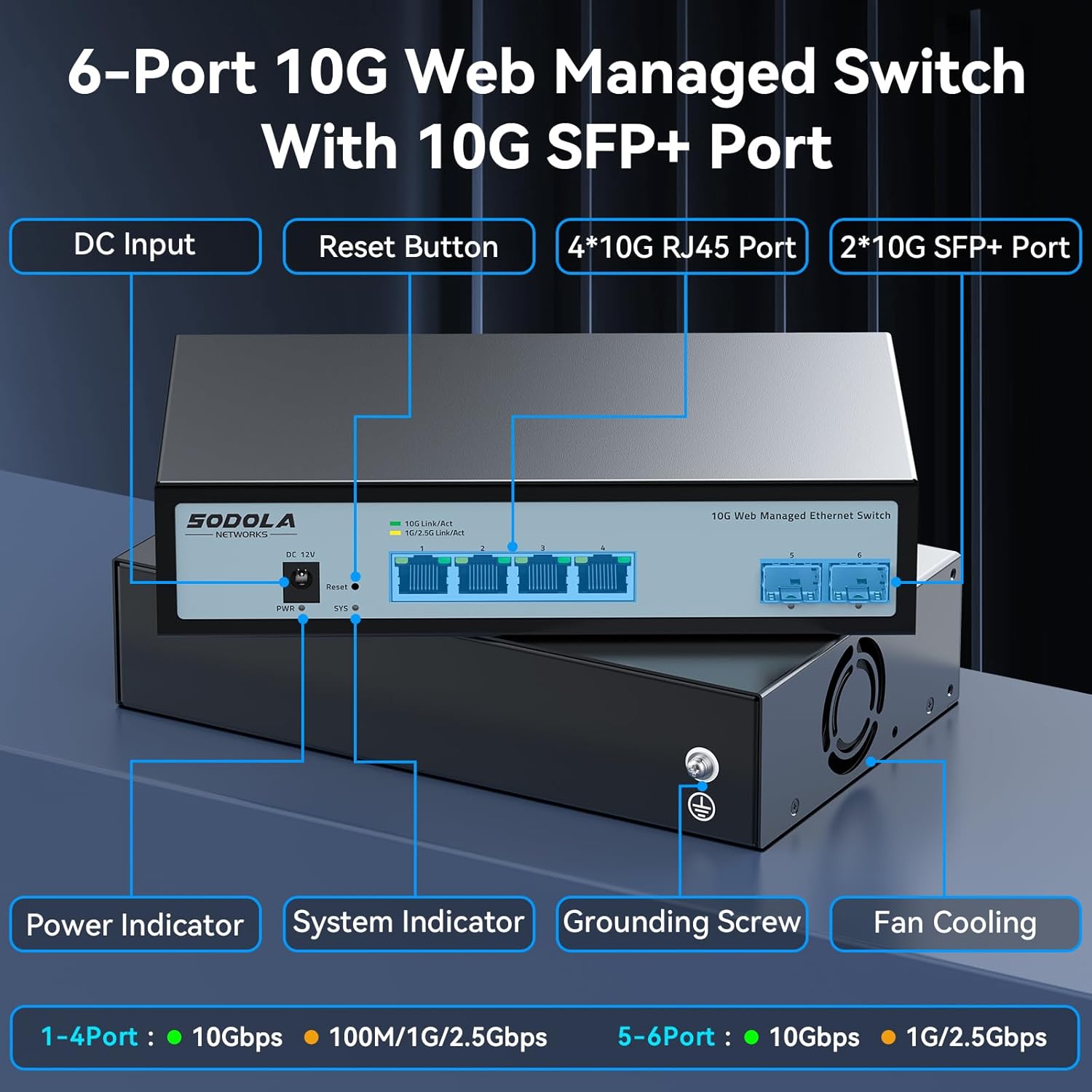
Figure 3: Front Panel Layout
The front panel features the following components:
- DC Input: Power connection port.
- Reset Button: Used to reset the device to factory defaults.
- 4 x 10G RJ45 Ports: Adaptive ports supporting 100M/1G/2.5G/5G/10G speeds.
- 2 x 10G SFP+ Ports: Support manual switching between 10G/1G/100M or 2.5G/1G/100M adaptive.
- Power Indicator: Indicates power status.
- System Indicator: Indicates system operational status.
3.2 Rear Panel
The rear panel includes a grounding screw and fan cooling vents.
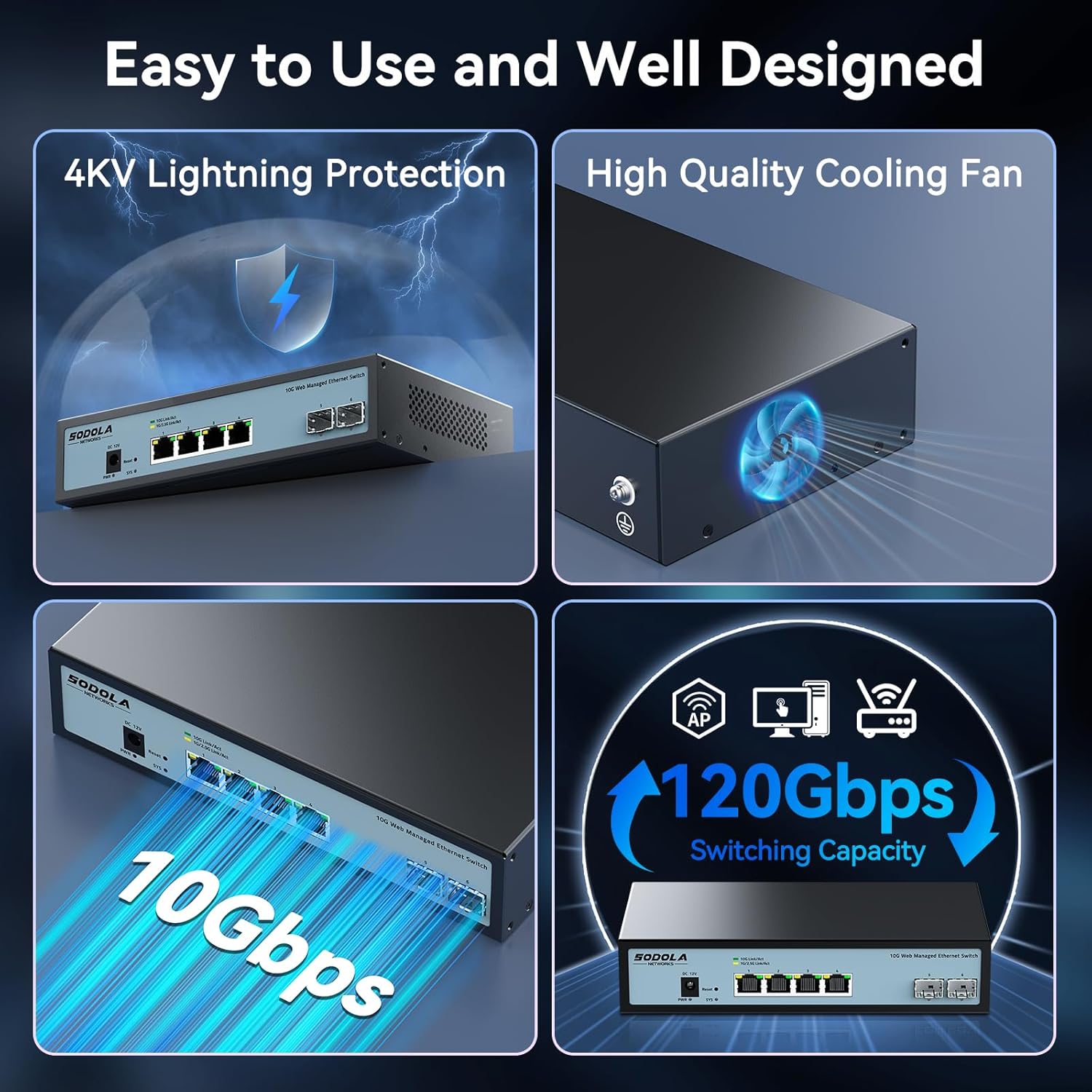
Figure 4: Rear Panel with Cooling Fan and Grounding Screw
- Grounding Screw: For proper electrical grounding.
- Fan Cooling: Internal cooling fan for heat dissipation.
4. Setup
4.1 Physical Installation
The switch supports both desktop and wall mounting. Choose a stable, well-ventilated location for installation.

Figure 5: Desktop and Wall Mounting Options
4.2 Connecting the Switch
- Connect the power adapter to the DC input port on the switch and plug it into a power outlet.
- Connect your network devices (e.g., computers, servers, NAS, routers) to the RJ45 or SFP+ ports using appropriate Ethernet cables or SFP+ transceivers.
- Ensure proper grounding by connecting a grounding wire to the grounding screw.
Video 1: This video demonstrates the basic plug-and-play setup for a 10G Ethernet switch, showing connections to various network devices. While it features an unmanaged switch, the physical connection steps are similar.
5. Operating the Web Managed Interface
This switch features a web-based management interface for advanced configuration. To access it, follow these steps:
- Initial IP Configuration: Before logging in, you must set an IP address via IPv4 on your computer to match the switch's default subnet. The default IP address for the switch is typically 192.168.2.1.
- Accessing the Interface: Open a web browser and enter the switch's default IP address (e.g., http://192.168.2.1) in the address bar.
- Login: Enter the default credentials. The default username is admin, and there is typically no default password (leave it blank).

Figure 6: Easy Web Managed Method for Initial Access
5.1 Key Management Features
The web interface provides access to various features for network control and monitoring:
- Port Settings: Configure individual port speeds (auto-negotiation is recommended for RJ45 ports), enable/disable ports, and manage flow control. For SFP+ ports, manual speed setting may be required for 2.5G or 1G devices.
- VLAN Management: Create and manage Virtual Local Area Networks for network segmentation.
- Link Aggregation (LACP): Combine multiple physical links into a single logical link for increased bandwidth and redundancy.
- Quality of Service (QoS): Prioritize network traffic for critical applications.
- Storm Control: Prevent network disruptions caused by broadcast, multicast, or unknown unicast storms.
- Port Mirroring: Monitor network traffic by sending a copy of packets from one port to another.
- DHCP Snooping: Enhance network security by filtering untrusted DHCP messages.
- SNMP: Monitor network devices from a central management station.
- RSTP (Rapid Spanning Tree Protocol): Prevent network loops.

Figure 7: Overview of Web Management Features
Video 2: This video provides a demonstration of the web management interface, including login and basic configuration steps for a similar 10G managed switch. It highlights how to navigate and apply settings.
Video 3: An overview of a 10G web managed SFP+ switch, demonstrating its features and management capabilities. This can help users understand the interface and available options.
5.2 Saving Configuration
After making any changes in the web interface, it is crucial to save the configuration to ensure your settings are retained after a reboot or power cycle. Navigate to the "Maintenance" or "System" section and select "Save Configuration" or a similar option, then apply the changes.

Figure 8: Remember to Save Configuration
6. Maintenance
6.1 Cooling Fan
The switch is equipped with an internal cooling fan to manage heat dissipation. If fan noise is a concern, the fan can be removed by opening the case. Ensure the device remains in a well-ventilated area if the fan is removed.
6.2 Firmware Updates
Periodically check the manufacturer's website for firmware updates to ensure optimal performance and access to the latest features and security enhancements. Follow the instructions provided with the firmware update package for proper installation.
7. Troubleshooting
- No Power: Ensure the power cord is securely connected to the switch and a working power outlet. Check the power indicator LED.
- No Link/Activity on Port:
- Verify the Ethernet cable is correctly connected to both the switch and the network device.
- Check the link/activity LED for the specific port.
- Ensure the connected device is powered on and functioning correctly.
- For SFP+ ports, confirm the SFP+ module is properly inserted and compatible.
- In the web interface, check the port status and ensure it is enabled and configured for the correct speed (especially for SFP+ ports).
- Cannot Access Web Interface:
- Ensure your computer's IP address is in the same subnet as the switch's default IP (e.g., 192.168.2.x).
- Clear your browser's cache.
- Try a different web browser.
- If you have changed the switch's IP address and forgotten it, you may need to perform a factory reset using the reset button.
- Slow Network Speed:
- Verify that all connected devices and cables support 10G speeds for optimal performance.
- Check port speed settings in the web interface; ensure auto-negotiation is enabled for RJ45 ports or the correct speed is manually set for SFP+ ports.
- Inspect cables for damage or improper termination.
8. Specifications
| Feature | Detail |
|---|---|
| Model | 4x10G RJ45+2x10G SFP+ (Managed) |
| Interface Type | 4 x 10G Base-T Ports + 2 x 10G SFP+ Ports |
| Data Transfer Rate | 10 Gigabits Per Second |
| Number of Ports | 6 |
| Case Material | Metal |
| Item Weight | 2.05 pounds |
| Package Dimensions | 12.09 x 7.64 x 2.44 inches |
| Color | Black |
| Compatible Devices | Desktop, Laptop, Router |
9. Warranty and Support
SODOLA offers a one-year free replacement for any non-human-induced quality issues and lifetime technical support. For assistance, please contact Sodola Networks customer service.
For more information and support, please visit the Sodola Store on Amazon.


