
1. Introduction
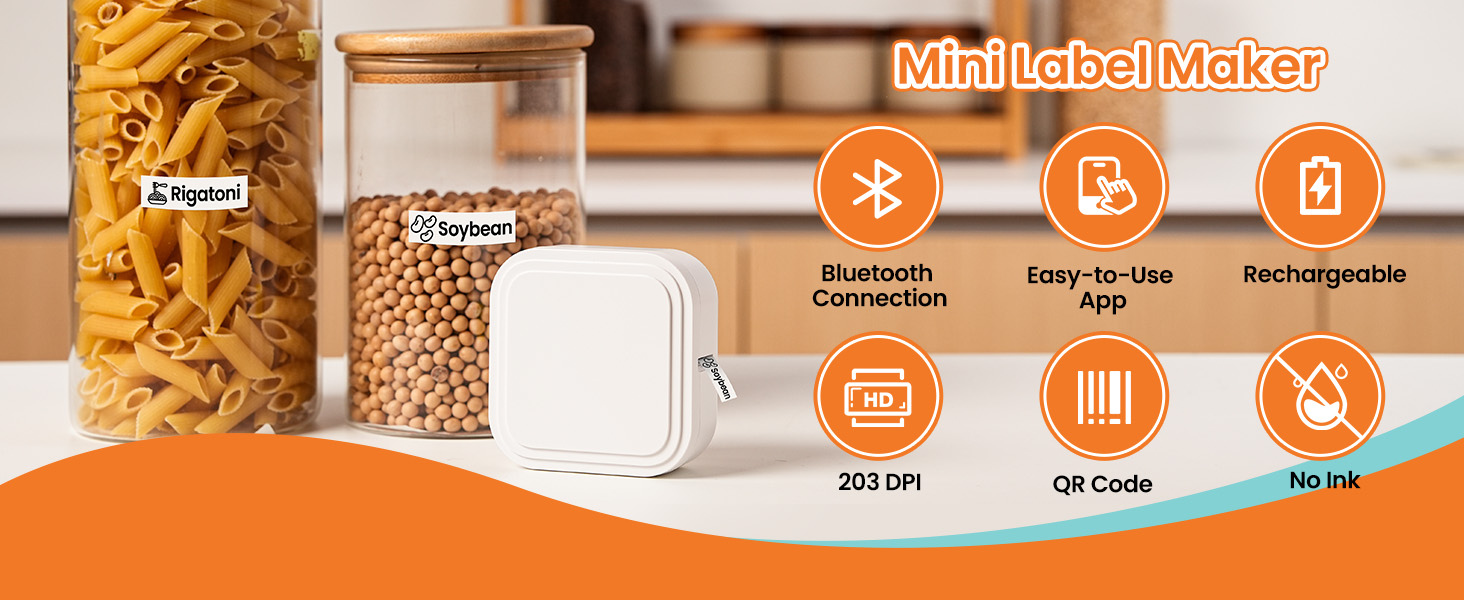
The NelkoGlobal D32 Mini Bluetooth Label Maker is a compact, portable, and rechargeable thermal label printer designed for various organizational needs. It connects via Bluetooth to your smartphone or tablet, allowing for quick and efficient label creation using the 'Print Master' application. This device utilizes thermal printing technology, eliminating the need for ink or toner, and supports a wide range of label types and customization options.

2. What's in the Box
Verify that all components are present in the packaging:
- 1x D32 Mini Label Maker
- 1x User Manual
- 1x USB Type-C Charging Cable
- 1x Roll of White Labels (12x40mm, pre-installed in the label maker)
- 1x Guide Card

3. Setup
3.1 Charging the Device
Before first use, fully charge the D32 label maker. Connect the provided USB Type-C cable to the charging port on the device and a compatible USB power adapter (not included). The charging indicator light will provide feedback on the charging status.
3.2 Installing the 'Print Master' App
The D32 label maker operates exclusively with the 'Print Master' application. Download the app from your device's app store:
- For iOS devices: Search for "Print Master" in the Apple App Store.
- For Android devices: Search for "Print Master" in the Google Play Store.
3.3 Bluetooth Connection
Follow these steps to connect your label maker to the app:
- Ensure the D32 label maker is powered on.
- Enable Bluetooth on your smartphone or tablet.
- Open the 'Print Master' app. The app will automatically search for nearby D32 devices.
- Select your D32 label maker from the list within the app to establish a connection. A successful connection will be indicated in the app.


4. Operating Instructions
4.1 Loading Label Roll
The D32 label maker comes with a label roll pre-installed. To replace or load a new roll:
- Open the cover of the label maker.
- Insert the new label roll with the printing surface facing upwards, ensuring it is properly aligned within the compartment.
- Pull a small section of the label tape out through the printer's output slot.
- Close the cover securely.
4.2 Creating and Printing Labels
The 'Print Master' app provides extensive tools for label customization:
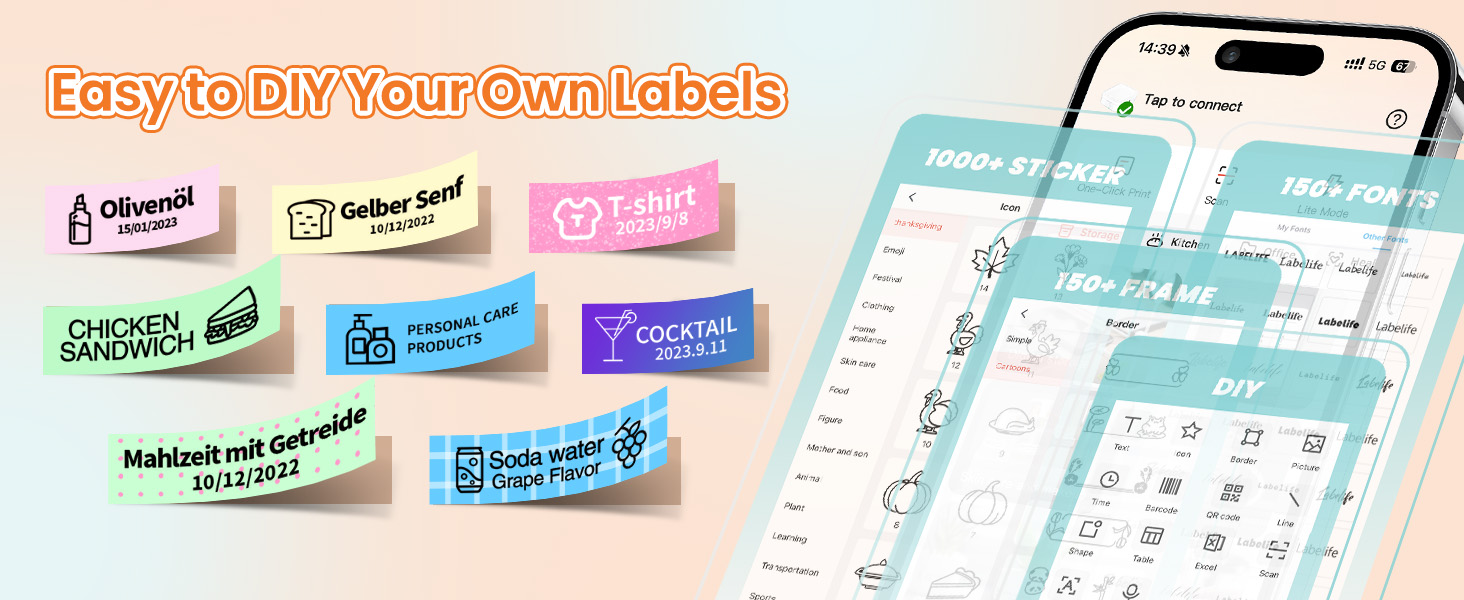
- Templates: Access over 2000 pre-designed templates for various uses (storage, kitchen, office, creative).
- Text: Add custom text using over 200 fonts. Adjust size, style, and alignment.
- Icons & Borders: Choose from over 5500 icons and various border designs to enhance your labels.
- QR Codes & Barcodes: Generate QR codes or barcodes directly within the app.
- Images: Insert simple images or pictures onto your labels.
- Excel Import: Some templates may support data import from Excel for batch printing.
After designing your label, tap the "Print" button in the app. You can adjust the number of copies before printing.
4.3 Supported Label Types and Applications
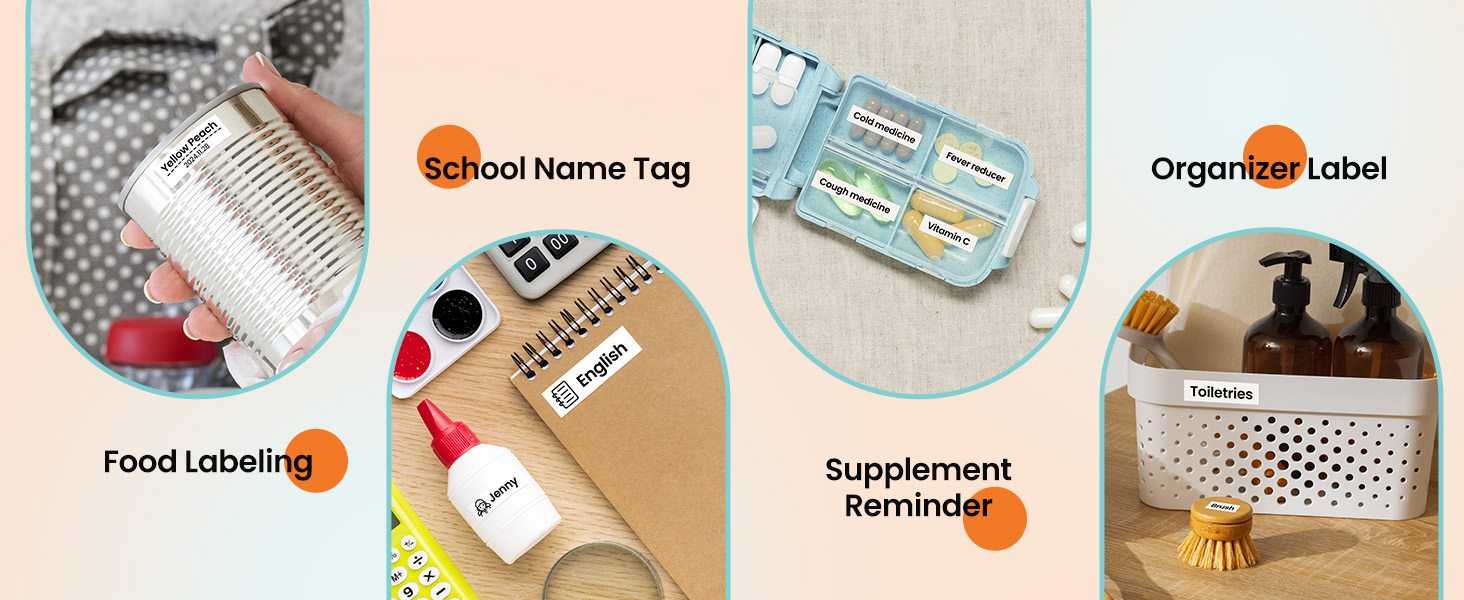
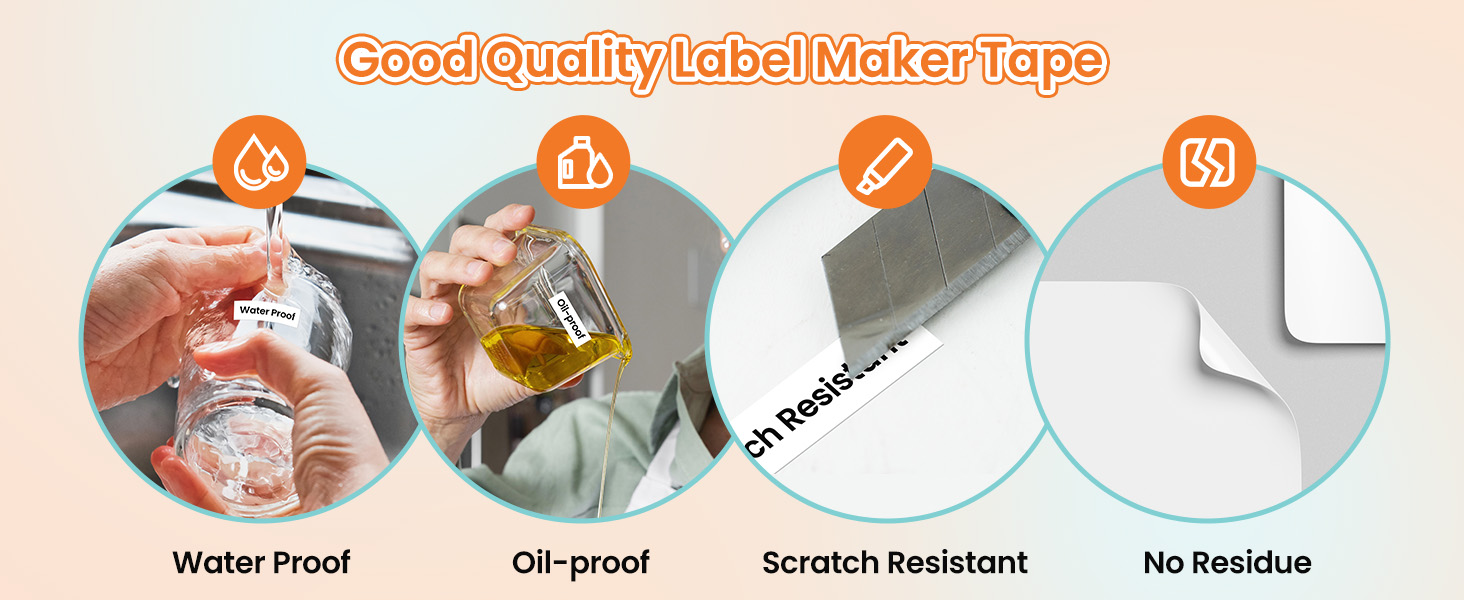
The D32 supports various label types with widths ranging from 0.24 to 0.47 inches (6mm to 12mm). These include pre-cut, continuous, transparent, rainbow, and cable labels. The versatility of the D32 makes it suitable for:
- Home Organization: Labeling storage bins, pantry items, spice jars, and personal belongings.
- Office Use: Organizing files, documents, cables, and office supplies.
- School Supplies: Labeling notebooks, pens, and other school items.
- Food Labeling: Marking food containers with contents and dates.
- Supplement Reminders: Creating labels for medication or supplement schedules.


5. Maintenance
5.1 Cleaning the Print Head
To ensure optimal print quality, periodically clean the print head. Use a soft, lint-free cloth lightly dampened with isopropyl alcohol. Gently wipe the print head surface. Allow it to dry completely before closing the cover or operating the device.
5.2 Storage
Store the label maker in a cool, dry place away from direct sunlight and extreme temperatures. When not in use for extended periods, ensure the device is fully charged to maintain battery health.

6. Troubleshooting
6.1 Device Not Powering On
- Ensure the device is fully charged. Connect it to a power source using the USB Type-C cable.
- Press and hold the power button for a few seconds.
6.2 Unable to Connect via Bluetooth
- Verify that Bluetooth is enabled on your smartphone/tablet.
- Ensure the label maker is powered on and within range (typically 10 meters).
- Restart both the label maker and your mobile device.
- Close and reopen the 'Print Master' app.
- If previously paired, try unpairing and re-pairing the device in your phone's Bluetooth settings.
6.3 Poor Print Quality or Blank Labels
- Check if the label roll is loaded correctly with the printing surface facing upwards.
- Ensure the label roll is not empty or jammed.
- Clean the print head as described in the Maintenance section.
- Verify that the label type selected in the app matches the physical label roll.
6.4 App Issues or Freezing
- Ensure your 'Print Master' app is updated to the latest version.
- Close the app completely and reopen it.
- Restart your mobile device.
7. Specifications
| Feature | Detail |
|---|---|
| Model Name | D32 |
| Brand | NelkoGlobal |
| Product Dimensions | 3.22"D x 3.22"W x 1.25"H |
| Item Weight | 3.84 ounces |
| Printing Technology | Thermal |
| Printer Output | Monochrome |
| Maximum Print Resolution | 203dpi |
| Connectivity Technology | Bluetooth |
| Control Method | App ('Print Master') |
| Maximum Media Size | 0.24" - 0.47" wide labels |
| Ink Color | Monochrome |
| Power Source | Rechargeable (Type-C Charging) |

8. Warranty and Support
The NelkoGlobal D32 label printer comes with a 36-month warranty service. For any product inquiries, technical assistance, or warranty claims, please refer to the contact information provided on the product packaging or the official NelkoGlobal website. Ensure you retain your proof of purchase for warranty validation.