
1. Introduction
Welcome to the user manual for your new MechanicalZeal A19 Pro Max 5G Cell Phone. This guide provides essential information on setting up, operating, maintaining, and troubleshooting your device. Please read this manual thoroughly to ensure optimal performance and longevity of your smartphone.
2. Product Overview
Familiarize yourself with the physical components of your A19 Pro Max smartphone.

Image: Front and back view of the MechanicalZeal A19 Pro Max 5G Cell Phone in blue, showcasing the display and triple camera system.
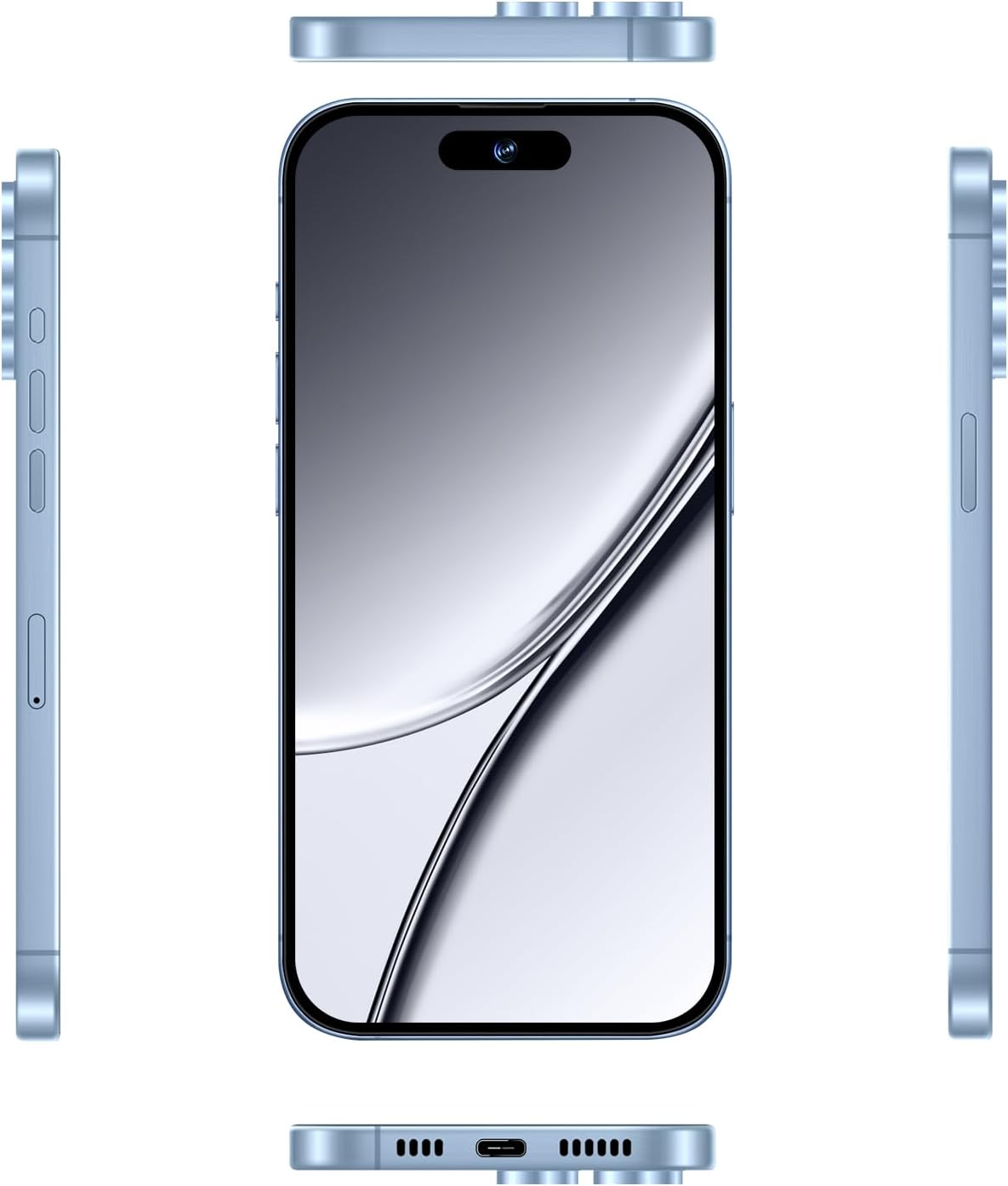
Image: Various angles of the MechanicalZeal A19 Pro Max 5G Cell Phone, highlighting the power button, volume rocker, SIM tray, USB-C port, and speaker grille.
Key Components:
- Front Camera: For selfies and video calls.
- Display: 6.8-inch HD+ touchscreen.
- Volume Buttons: Adjust media and call volume.
- Power Button: Power on/off, lock/unlock screen.
- SIM Card Tray: Insert Nano-SIM cards.
- USB-C Port: For charging and data transfer.
- Rear Cameras: High-resolution main and auxiliary cameras.
- Speaker: Audio output.
3. What's Included
Verify that all items are present in your product package:

Image: The MechanicalZeal A19 Pro Max 5G Cell Phone displayed alongside its packaging box, showing product identification labels.
- MechanicalZeal A19 Pro Max Smartphone
- Phone Case
- Screen Protector (pre-applied or separate)
- Power Adapter
- USB-C Cable
- SIM Tray Ejector
- Headset
4. Getting Started
4.1 SIM Card Installation
- Locate the SIM card tray on the side of your phone.
- Insert the SIM tray ejector tool into the small hole next to the tray and press gently until the tray pops out.
- Place your Nano-SIM card(s) into the designated slots on the tray. Ensure the gold contacts face downwards. This device supports Dual SIM functionality.
- Carefully reinsert the SIM tray into the phone until it clicks into place.
4.2 Initial Power On
- Press and hold the Power button until the MechanicalZeal logo appears on the screen.
- Follow the on-screen instructions to complete the initial setup, including language selection, Wi-Fi connection, and Google account setup.
4.3 Screen Protector Application
If your screen protector is not pre-applied, carefully follow the instructions provided with the screen protector to apply it to your phone's display. Ensure the screen is clean and dust-free before application.
5. Basic Operation
5.1 Display and Navigation

Image: The 6.8-inch FHD+ display of the MechanicalZeal A19 Pro Max 5G Cell Phone, highlighting its 1440x3120 resolution.
- The A19 Pro Max features a 6.8-inch HD+ display with a resolution of 1440 x 3120 pixels.
- Navigate the interface using touch gestures: tap, swipe, pinch-to-zoom.
- Access quick settings by swiping down from the top of the screen.
5.2 Security Features
Your device offers advanced security options to protect your privacy:
- Facial Recognition: Set up facial unlock in the Security settings.
- Screen Fingerprint Unlocking: Register your fingerprint(s) for quick and secure access.
5.3 Connectivity
The A19 Pro Max supports 5G and 4G connectivity for fast mobile data. Ensure your SIM card is active and your mobile data is enabled in settings. Connect to Wi-Fi networks for internet access and to save mobile data.
6. Camera Features
Capture high-quality photos and videos with the A19 Pro Max's versatile camera system.
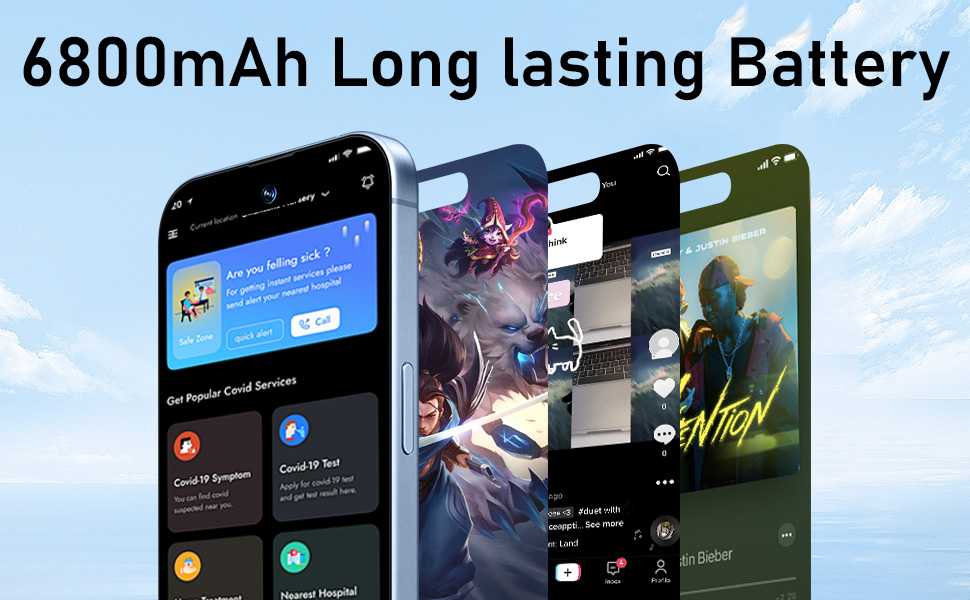
Image: Diagram illustrating the 108MP rear camera and 48MP front camera of the MechanicalZeal A19 Pro Max 5G Cell Phone.
- Rear Camera System: Features a 108MP main sensor and a 48MP auxiliary sensor with autofocus for detailed macro photos and videos.
- Front Camera: Equipped with a 48MP sensor for clear selfies and video calls.
- Photographic Styles: Utilize various photographic styles to enhance your images. These styles can be adjusted or reversed at any time.
7. Performance and Storage
Experience smooth performance and ample storage for your applications and media.
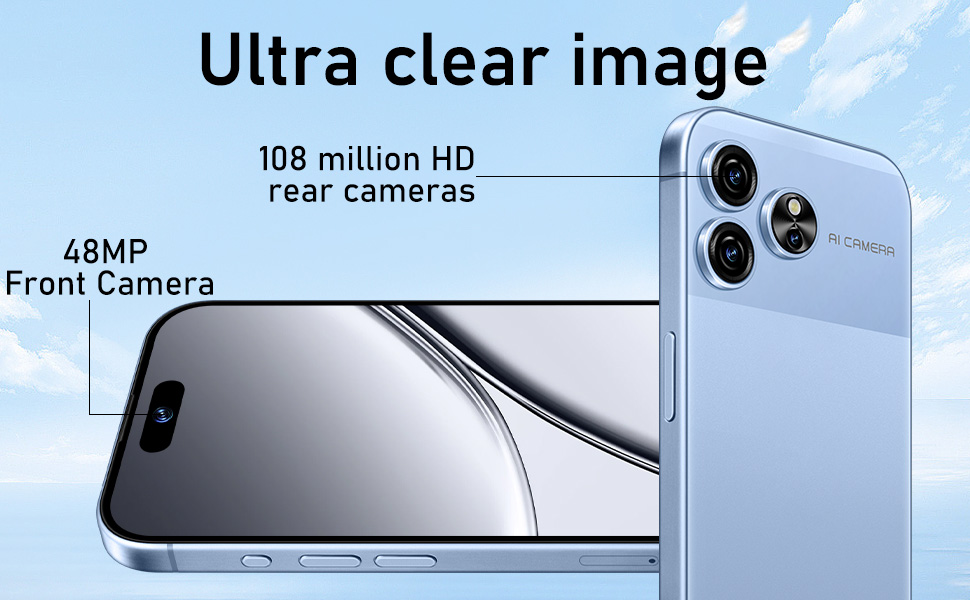
Image: Internal view of the MechanicalZeal A19 Pro Max 5G Cell Phone, highlighting the 8GB RAM and 256GB ROM components.

Image: The MechanicalZeal A19 Pro Max 5G Cell Phone displaying a game, with the Snapdragon 8 Gen 2 logo indicating its processor.
- Processor: Powered by the Snapdrangon 8 Gen 2 chip, enabling advanced features and console-level gaming.
- RAM: 8GB of RAM ensures smooth multitasking and app performance.
- Internal Storage: 256GB of ROM provides ample space for apps, photos, videos, and other files.
8. Battery Management
The A19 Pro Max is equipped with a high-capacity battery for extended use.

Image: The MechanicalZeal A19 Pro Max 5G Cell Phone displaying various app screens, emphasizing its 6800mAh long-lasting battery.
- Battery Capacity: 6800mAh battery designed for a full day of medium-to-heavy use.
- Fast Charging: Supports 20W fast charging for quick power replenishment.
- Battery Saving Technology: Utilize the built-in battery saving features in Android 13 to extend battery life.
9. Specifications
Detailed technical specifications for the MechanicalZeal A19 Pro Max 5G Cell Phone:
| Feature | Specification |
|---|---|
| Model Name | A19 Pro Max |
| Operating System | Android 13.0 |
| CPU Model | Snapdragon 8 Gen 2 |
| RAM Memory Installed Size | 8 GB |
| Memory Storage Capacity | 256 GB |
| Standing Screen Display Size | 6.8 Inches |
| Resolution | 1440 x 3120 |
| Rear Camera | 108MP + 48MP |
| Front Camera | 48MP |
| Battery Capacity | 6800 mAh |
| Connectivity Technologies | 5G, 4G |
| Special Features | Dual SIM, Facial Recognition, Fingerprint Unlock |
| Audio Jack | USB Type C |
| Item Weight | 9.9 ounces |
| Manufacturer | MechanicalZeal |
10. Maintenance
10.1 Cleaning Your Device
Use a soft, lint-free cloth to clean the screen and body of your phone. Avoid using harsh chemicals or abrasive materials. Do not expose the device to excessive moisture.
10.2 Software Updates
Regularly check for and install software updates to ensure your device has the latest features, security patches, and performance improvements. You can usually find this option in your phone's Settings menu under 'System' or 'About Phone'.
10.3 Data Backup
It is recommended to regularly back up your important data (photos, contacts, documents) to a cloud service or a computer to prevent data loss.
11. Troubleshooting
If you encounter issues with your device, refer to the following common solutions:
- Device Not Turning On: Ensure the battery is charged. Connect the phone to the charger for at least 15 minutes, then try powering it on again.
- Poor Network Connectivity: Check if your SIM card is properly inserted. Verify that mobile data is enabled and you are within network coverage. Try restarting the device.
- Apps Crashing/Slow Performance: Close background applications. Clear app caches in Settings > Apps. If the issue persists, consider a factory reset (back up your data first).
- Battery Draining Quickly: Reduce screen brightness, disable unused features like Wi-Fi, Bluetooth, GPS when not needed. Check battery usage in Settings to identify power-hungry apps.
- Screen Unresponsive: Restart the device by holding the power button. If unresponsive, force restart (refer to device-specific instructions for force restart, usually holding power and volume down).
12. Warranty and Support
For warranty information, please refer to the warranty card included in your product packaging or contact MechanicalZeal customer support. Keep your proof of purchase for warranty claims.
For further assistance or technical support, please visit the official MechanicalZeal website or contact their customer service department.